00197549-01_IM_TX150SS8_Win2008R2_en.pdf - 第22页
Installing Prim ergy TX 150 S8 with W indows S erver 20 08 R2 04/2014 Edit ion 22 Figure 3- 14 : Boot process picture #1 - Boot Manager appearing again after boot Figure 3- 15 : Boot process picture #2
Installing Primergy TX150 S8 with Windows Server 2008 R2 04/2014 Edition
21
CAUTION
Wrong default gateway
To proceed with the installation, the value 127.0.0.1 was entered for the default gateway.
Please keep in mind to remove this IP configuration setting after installation, since wrong
default gateway settings cause network routing problems! Additionally, only existing
gateways should be entered.
► Click the Next button to continue.
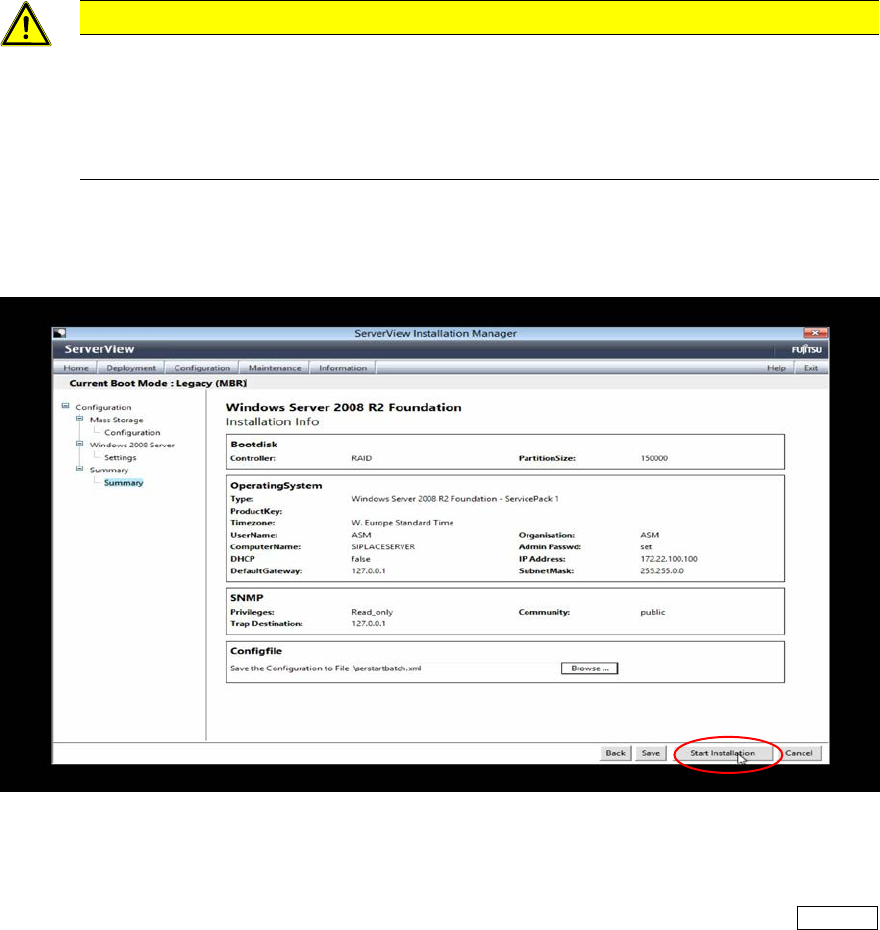
The next screen displays the summary.
Figure 3-13: Installation configuration summary
► Click on Start Installation to begin the installation.
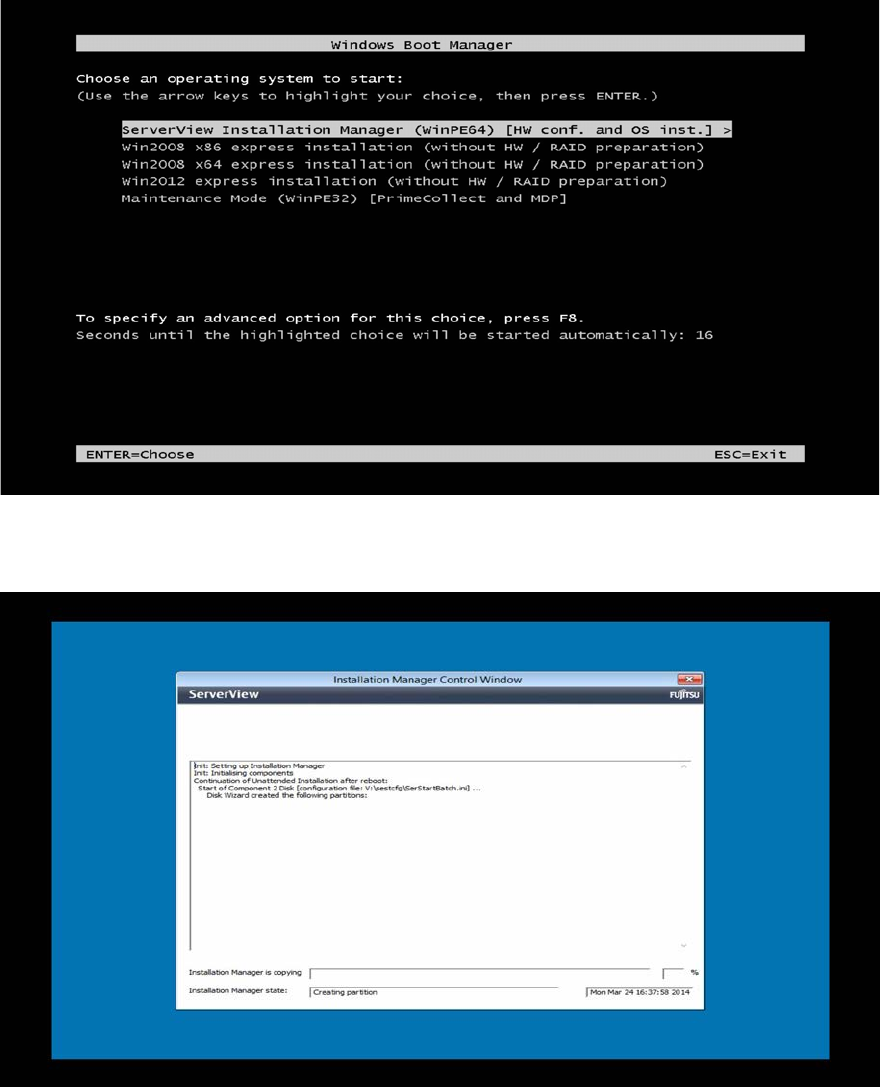
During installation, the system reboots several times. Also, the Boot Manager may appear again. In
this case, you don't have to do anything, but you may select the first entry by pressing the ENTER
button.
Installing Primergy TX150 S8 with Windows Server 2008 R2 04/2014 Edition
22
Figure 3-14: Boot process picture #1 - Boot Manager appearing again after boot
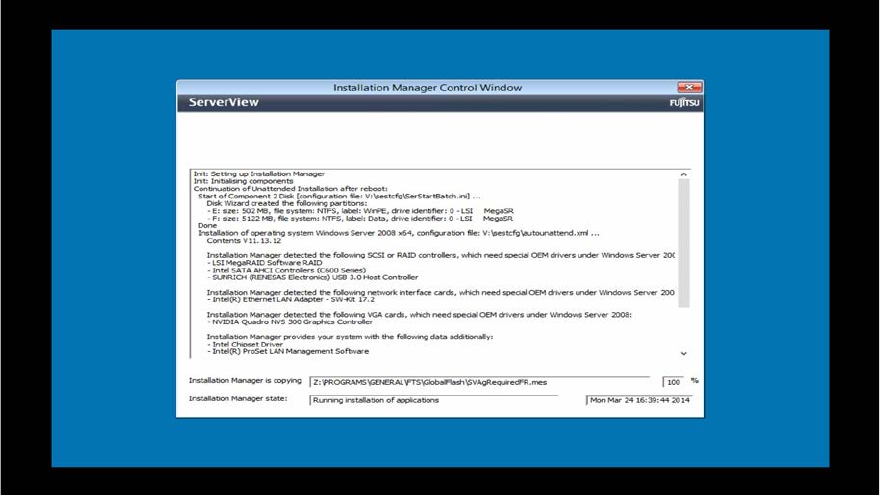
Figure 3-15: Boot process picture #2
Installing Primergy TX150 S8 with Windows Server 2008 R2 04/2014 Edition
23
Figure 3-16: Boot process picture #3