00197549-01_IM_TX150SS8_Win2008R2_en.pdf - 第25页
Installing Prim ergy TX 150 S8 with W indows S erver 20 08 R2 04/2014 Edit ion 25 The instal lation m edia sho uld look like this: Figure 3- 18 : White Operating System Inst allation Media for TX150 ( description might d…
Installing Primergy TX150 S8 with Windows Server 2008 R2 04/2014 Edition
24
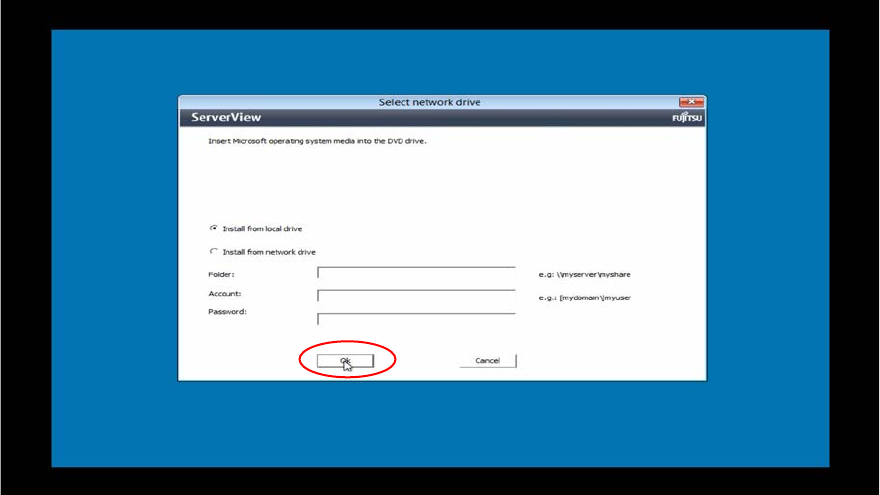
After a while, the system asks for the operating system installation media.
Figure 3-17: Installation Manager asking for operating system Installation media
► Insert the delivered Windows Server 2008 R2 installation media into the DVD drive and click
the OK button.
Installing Primergy TX150 S8 with Windows Server 2008 R2 04/2014 Edition
25
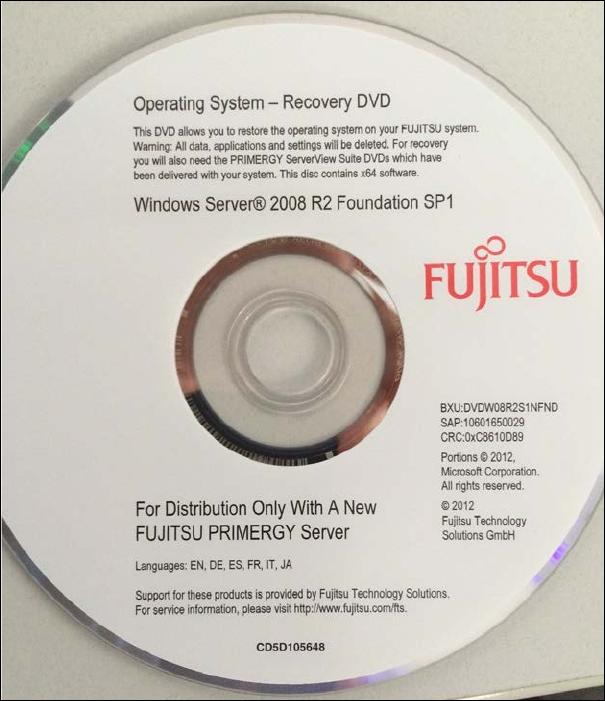
The installation media should look like this:
Figure 3-18: White Operating System Installation Media for TX150 (description might differ a bit, depending on the
Operating System version)
The Installation Manager continues preparing the installation.
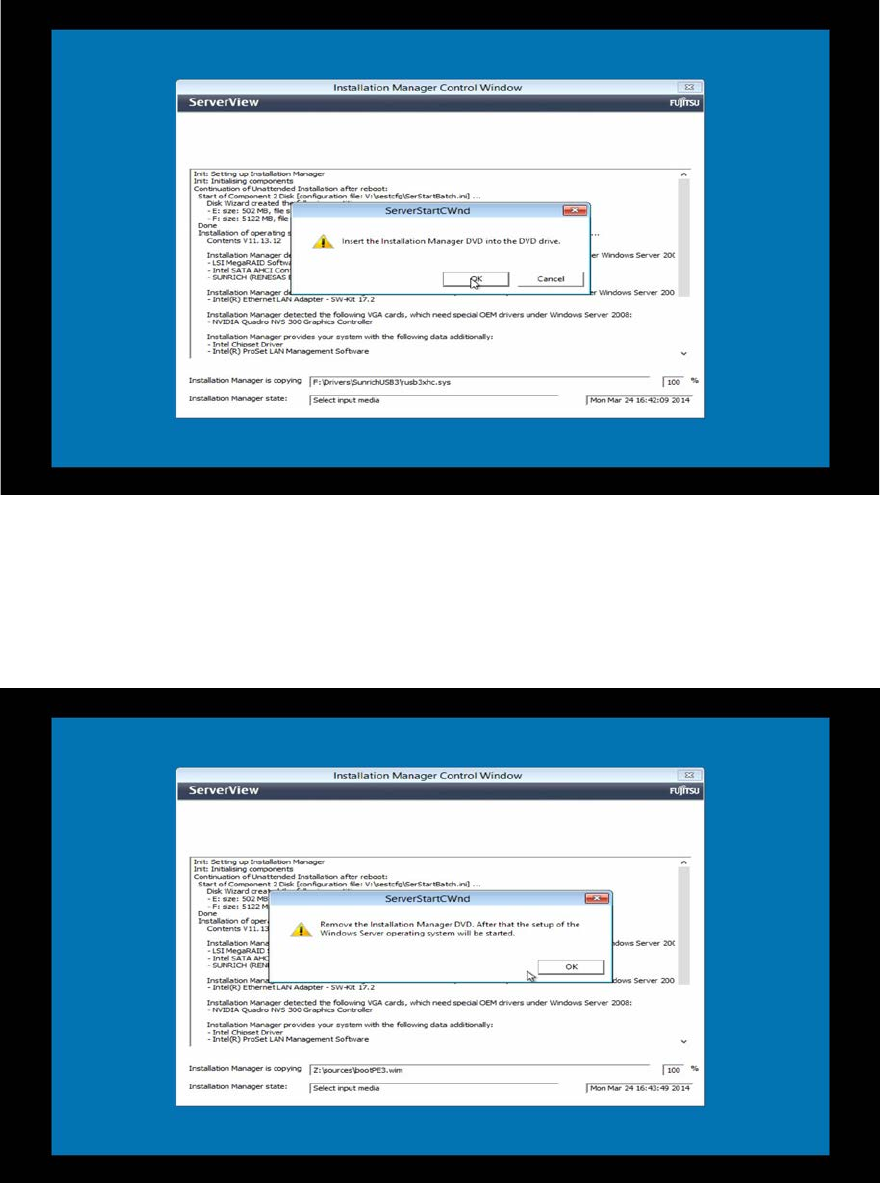
After a short time, the Installation Manager may ask for the Installation Manager DVD again as
shown in the following picture.
Installing Primergy TX150 S8 with Windows Server 2008 R2 04/2014 Edition
26
Figure 3-19: Installation Manager asking for Installation Manager DVD
► Insert the Installation Manager DVD again and click the button OK.
The Installation Manager will continue. After a short time, the Installation Manager will ask to
remove the DVD as shown in the following picture.
Figure 3-20: Installation Manager asking to remove Installation Manager DVD
► Remove the Installation Manager DVD and click the OK button.