00197549-01_IM_TX150SS8_Win2008R2_en.pdf - 第41页
Installing Prim ergy TX 150 S8 with W indows S erver 20 08 R2 04/2014 Edit ion 41 Figure 4- 17 : Network Shari ng Center – clicking change adapt er settings ► Click on Cha nge adapt er setti ngs on the left sid e. Figure…
Installing Primergy TX150 S8 with Windows Server 2008 R2 04/2014 Edition
40
4.4 Removing Default Gateway
As mentioned before, you have to remove the dummy default gateway that was entered during the
Installation Manager guided setup.
NOTICE
Exemplarily screenshots
The screenshots in this chapter are only for explanation and do not have to meet exactly
with your hardware.
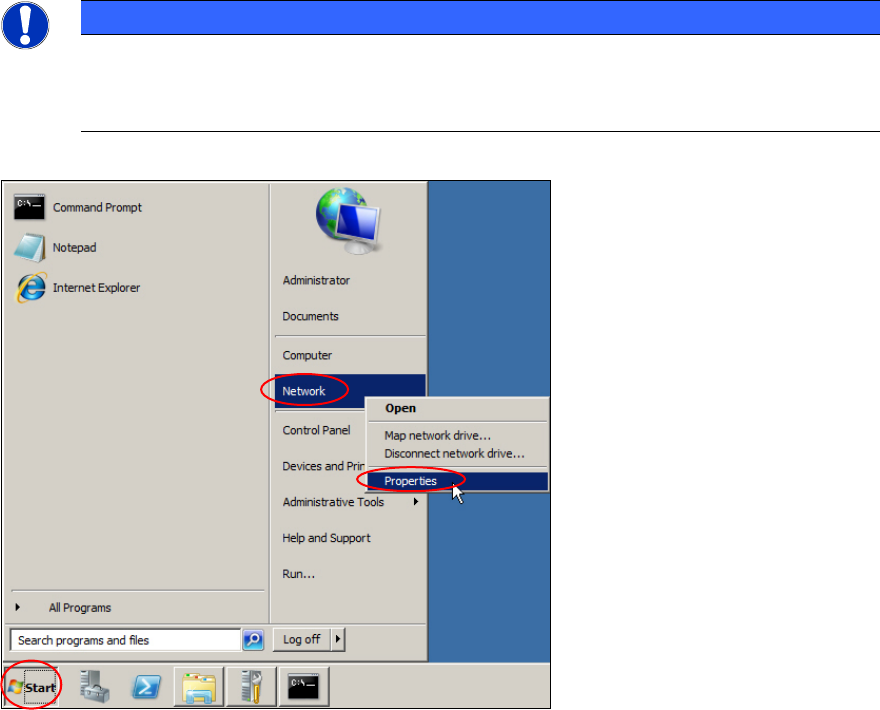
Figure 4-16: Opening Network Settings
► Click on Start.
► Right-click on Network and select Properties.
The Network and Sharing Center opens.
Installing Primergy TX150 S8 with Windows Server 2008 R2 04/2014 Edition
41
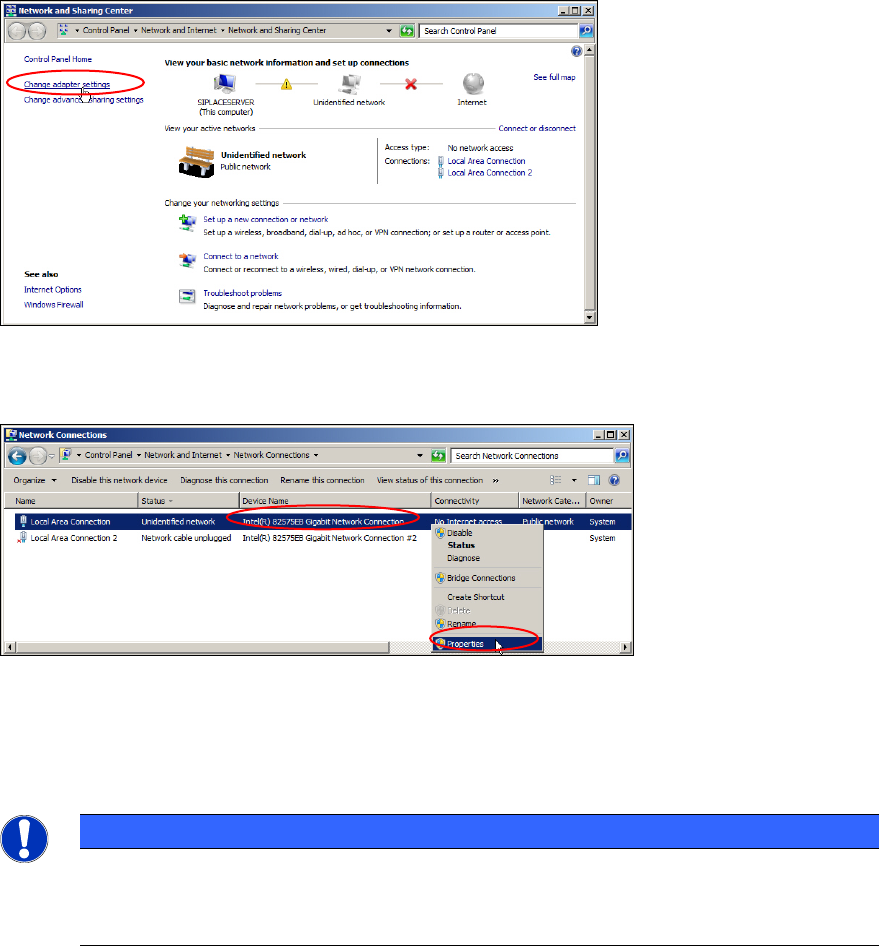
Figure 4-17: Network Sharing Center – clicking change adapter settings
► Click on Change adapter settings on the left side.
Figure 4-18: Selecting Properties of connected Network Card (exemplarily screenshot)
► Right-click on the network card that is connected (Status is not Network cable unplugged)
► Select Properties.
NOTICE
Network Card identification
This procedure only works if you have disconnected all other network cables except the
SIPLACE connection, as mentioned in the first chapter.
Installing Primergy TX150 S8 with Windows Server 2008 R2 04/2014 Edition
42
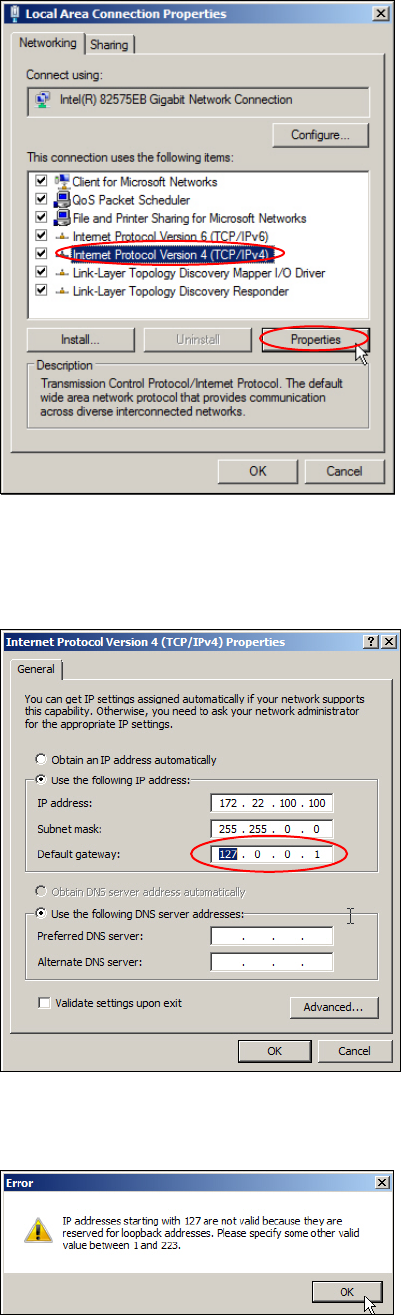
Figure 4-19: Properties of SIPLACE LAN Network Connection
► Click the Internet Protocol Version 4 (TCP/IPv4) text (not the checkbox!) and select Properties.
The TCP/IP Properties appear.
Figure 4-20: TCP/IP Properties with wrong gateway
If you would click OK, Windows checks the default gateway setting and displays an error message:
Figure 4-21: Windows detecting wrong gateway setting