00197549-01_IM_TX150SS8_Win2008R2_en.pdf - 第14页
Installing Prim ergy TX 150 S8 with W indows S erver 20 08 R2 04/2014 Edit ion 14 ► In the k eyboard l ayout fie ld, select t he langua ge of your k eyboard. In m ost cas es, this will be US - Internat ional , as displa …
Installing Primergy TX150 S8 with Windows Server 2008 R2 04/2014 Edition
13
This selection will only affect the language of the guided installation (not the language of the
Operating System to install). In this manual, English is used.
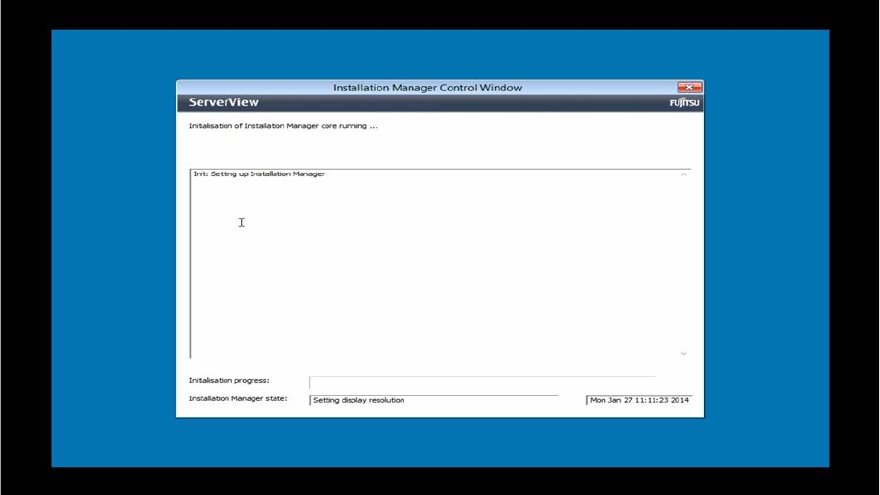
After you have selected the language, the Installation Manager will initialize. This may take about 2
minutes.
Figure 3-4: Initializing Installation Manager – part 1
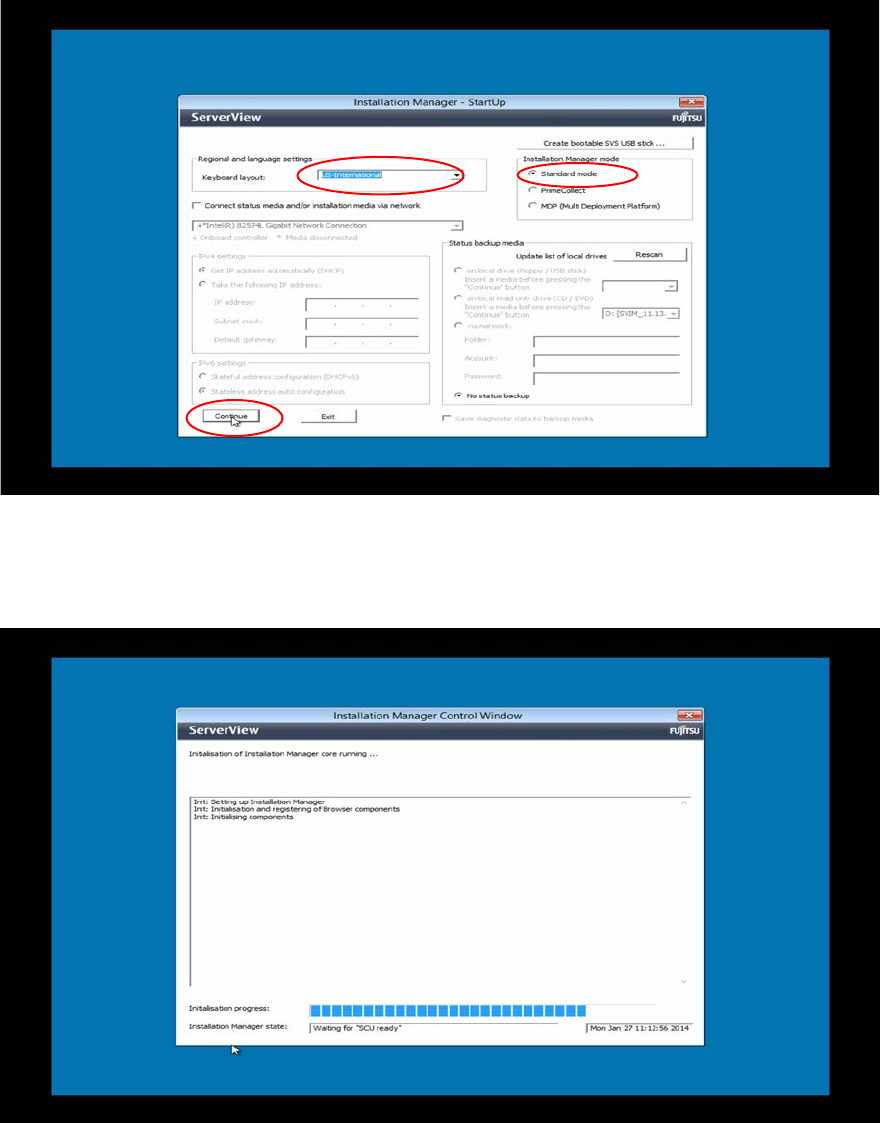
After initialization, the Regional and Language Settings screen appears.
Installing Primergy TX150 S8 with Windows Server 2008 R2 04/2014 Edition
14
► In the keyboard layout field, select the language of your keyboard. In most cases, this will be
US-International, as displayed in the following figure.
Figure 3-5: Regional and Language settings screen with US-International keyboard selected
► Leave the Standard mode option selected and click the Continue button.
► Wait while the Installation Manager continues initializing.
Figure 3-6: Initializing Installation Manager – part 2
Installing Primergy TX150 S8 with Windows Server 2008 R2 04/2014 Edition
15
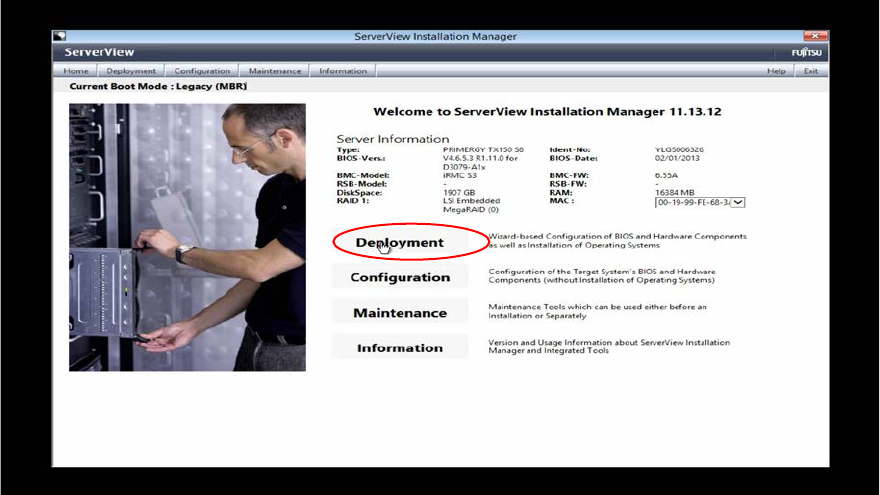
After initialization, the Installation Manager main screen will be displayed.
Figure 3-7: Installation Manager main screen
► Select the Deployment option by clicking on it.