00197549-01_IM_TX150SS8_Win2008R2_en.pdf - 第30页
Installing Prim ergy TX 150 S8 with W indows S erver 20 08 R2 04/2014 Edit ion 30 Thereaf ter the logo n screen will appear . Figure 3- 26 : Windows Logon S cr een ► Press CTRL + AL T + D EL to log on an d log in with th…
Installing Primergy TX150 S8 with Windows Server 2008 R2 04/2014 Edition
29
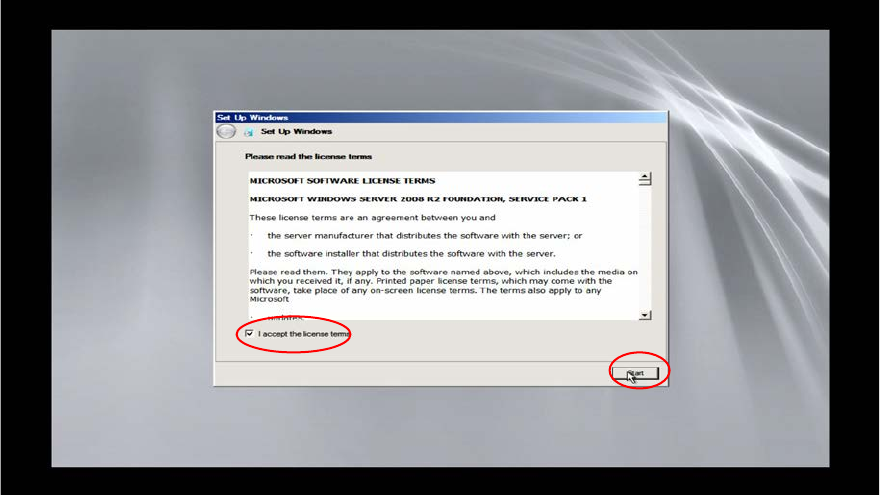
After the main part of the Windows Setup is completed, the following screen will appear.
Figure 3-25: Windows Setup waiting to agree the license terms
► Click the checkbox besides I Accept the license terms.
► Wait while Windows finalizes.
Installing Primergy TX150 S8 with Windows Server 2008 R2 04/2014 Edition
30
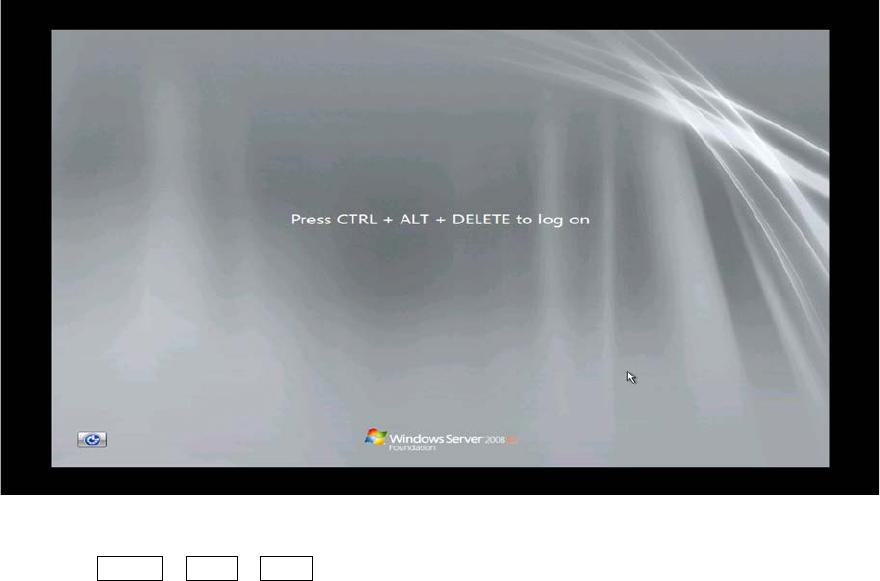
Thereafter the logon screen will appear.
Figure 3-26: Windows Logon Screen
► Press CTRL + ALT + DEL to log on and log in with the administrator account and the
password you have configured.
Installing Primergy TX150 S8 with Windows Server 2008 R2 04/2014 Edition
31
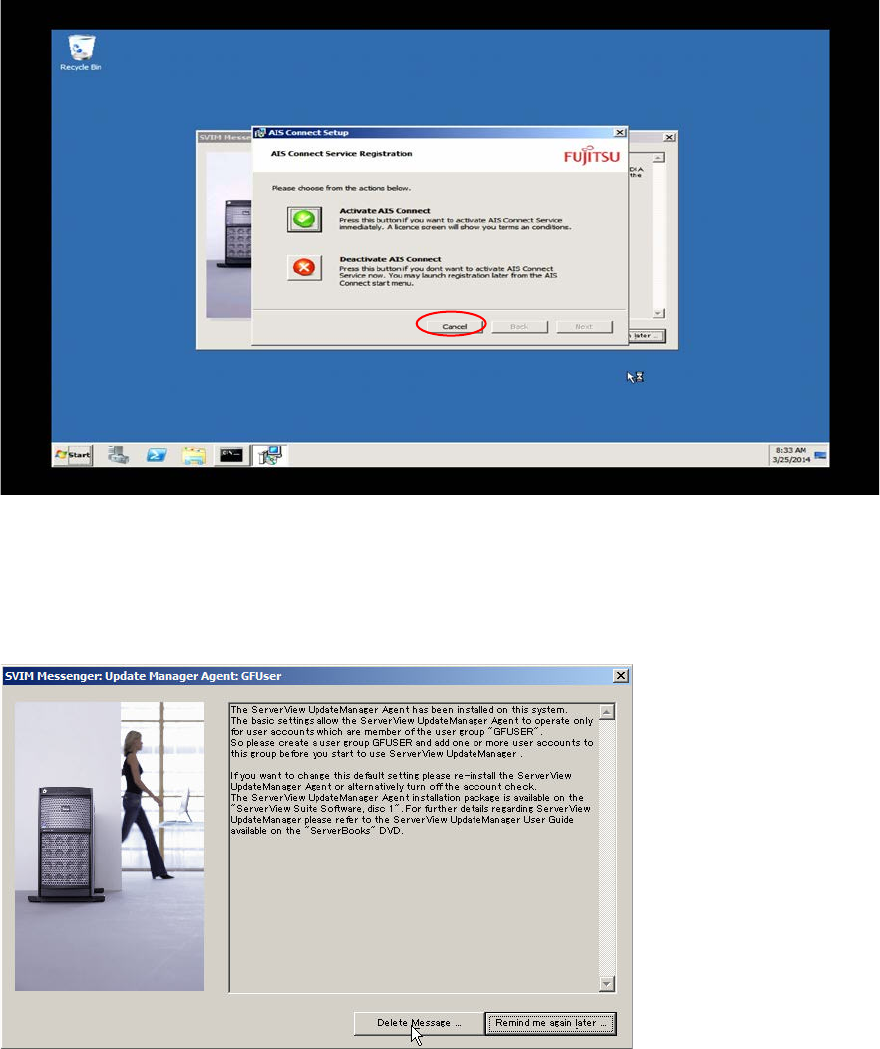
After login and some preparation, the following screens will appear (random order).
Figure 3-27: Reminder messages
► Click at the Cancel button to close the window.
The following window might appear.
Figure 3-28: SVIM Messanger message
► Click the Delete Message button.
The basic installation steps are now completed. Continue with the following chapter.