00900057-02_IM_Performance_Monitor_2.1_EN.pdf - 第21页
ASM Performance Monitor 2.1 / Installation Manual 01/2021 Edition 21 4.6 Connection to SQL Server for 'APMFact oryDB' Database In the Connect to SQL Server dialo g, you enter the information required t o connec…
ASM Performance Monitor 2.1 / Installation Manual 01/2021 Edition
20
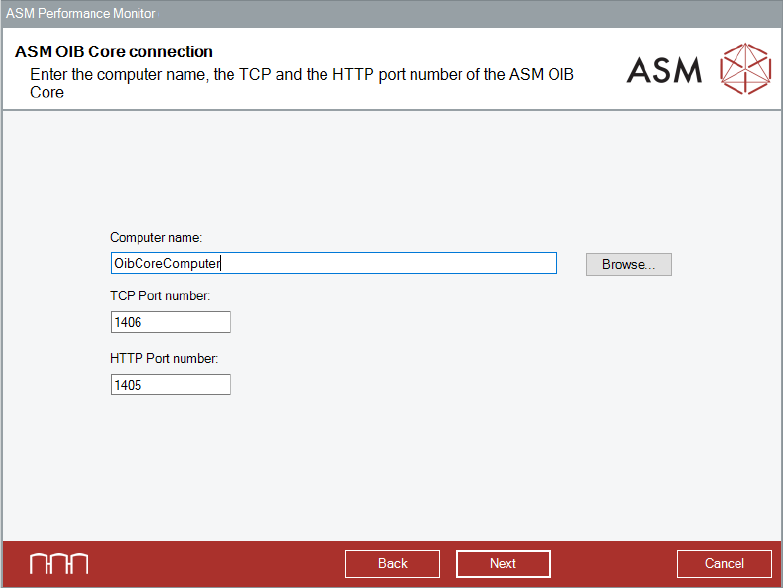
4.5 Specifying ASM OIB Core Connection
Figure 4-9: ASM OIB Core connection dialog
► Enter the computer name and port numbers of the computer on which the ASM OIB Server
component is installed.
► Click the Next button.
The Connect to SQL server dialog is displayed.
ASM Performance Monitor 2.1 / Installation Manual 01/2021 Edition
21
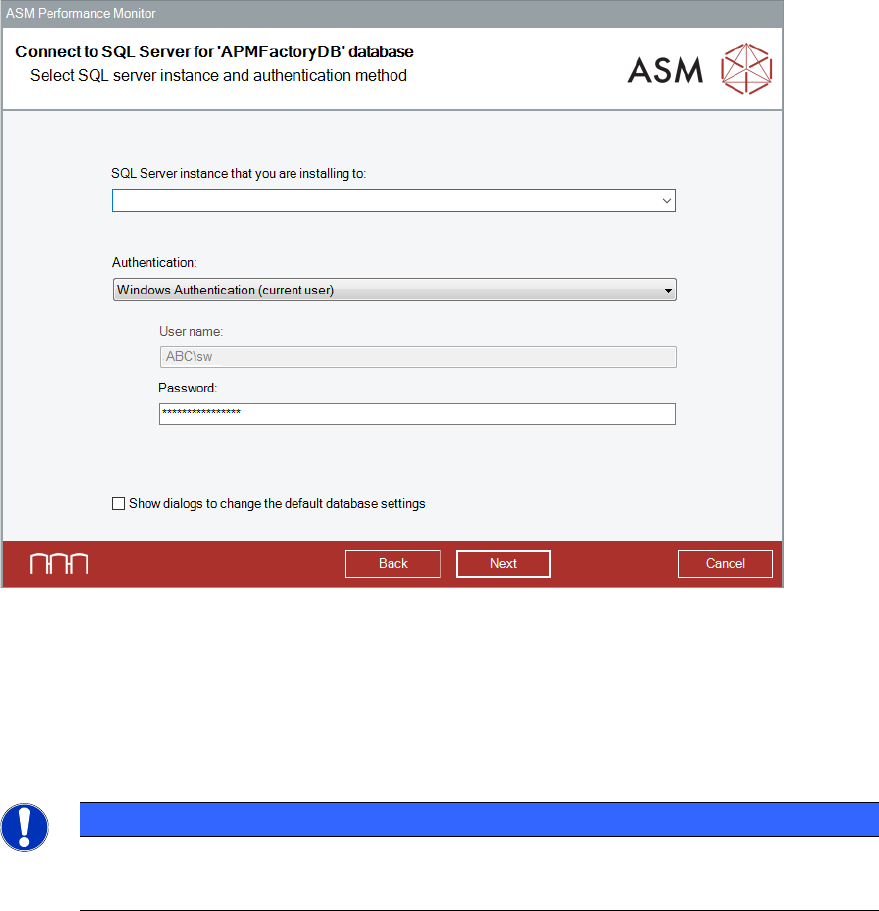
4.6 Connection to SQL Server for 'APMFactoryDB' Database
In the Connect to SQL Server dialog, you enter the information required to connect to the SQL
server and database.
If the check results in errors, error messages will be displayed and the setup cannot continue. The
setup can only continue after selecting another SQL server or after restoring the database in an
error-free state.
Figure 4-10: Connect to SQL Server for 'APMFactoryDB' database dialog
► Select the SQL Server instance that you are installing to: from the drop-down menu.
All locally installed SQL Server instances are listed.
► Select <Browse for more…> to select a remote SQL server for a remote installation.
The Browse for SQL Servers dialog is displayed.
NOTICE
Browser service enabled
Only SQL servers with browser service enabled are displayed.
Alternatively, you can edit the SQL Server instance that you are installing to: drop-down menu
and manually enter the path and the name.
► Select the desired authentication method from the Authentication drop-down list and enter the
required login parameters:
Windows Authentication (current user)
The currently logged in user name is automatically applied.
The operating system or, if present, the domain controller performs the authentication.

ASM Performance Monitor 2.1 / Installation Manual 01/2021 Edition
22
Windows Authentication
► Enter the user name and the corresponding password that you want to use for your login.
The operating system or, if present, the domain controller performs the authentication.
NOTICE
SQL Server role "sysadmin"
The given login must have the "sysadmin" SQL server role, regardless of the
Authentication in which you log in.
If you want to specify further SQL related settings that differ from the default settings, select the
Show dialogs to change the database settings option and follow the instructions in section 4.14.
► In default case, click the Next button.
The setup will validate the connection to the given database instance and only continue if it is valid.
The ASM Post Master Connection dialog is displayed.