00900057-02_IM_Performance_Monitor_2.1_EN.pdf - 第41页
ASM Performance Monitor 2.1 / Installation Manual 01/2021 Edition 41 5 Installing Database on a Remote SQL Server Optionally, the APMFactoryDB datab ase that is created in section 4.14.1 can be installed on a different c…
ASM Performance Monitor 2.1 / Installation Manual 01/2021 Edition
40
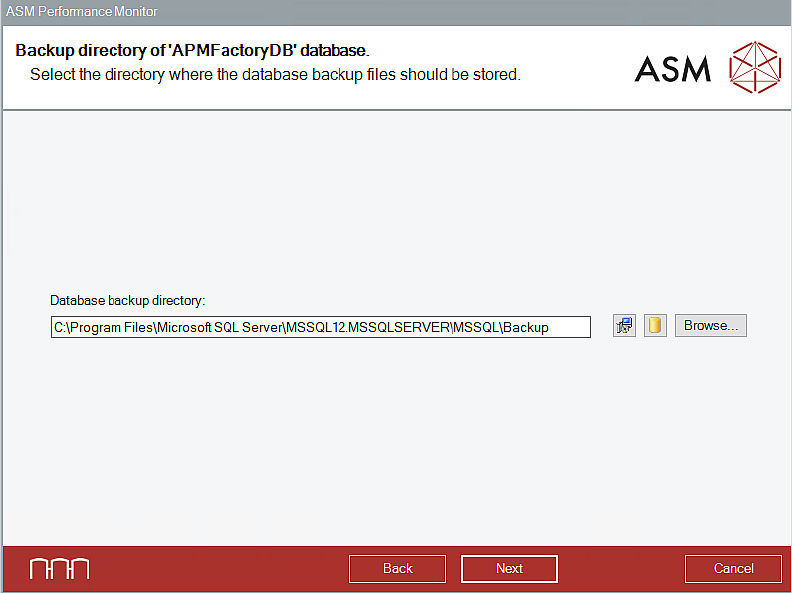
4.15 Selecting Backup Directory
This dialog is only displayed if the Show dialogs to change the database settings option was
selected in the Connect to SQL Server dialog, see section 4.14.
Figure 4-31: Selecting backup directory
► Click the Next button if the database backup files shall be stored in the currently set backup
directory.
Or
► Click the Browse button to search and set another directory in which the database backup files
shall be stored.
Or
► Switch between different suggestions for the directories of the database backups by clicking
one of the two buttons between the text field and the Browse button. The left button suggests
the default backup directory as given by the setup. The right button suggests the default
backup directory for databases as defined in your SQL installation.
► Click the Next button.
The Database Maintenance dialog is displayed in which you can change the execution time for
defined maintenance job(s) for the database, if necessary.
► Click the Next button.
The Ready to Install dialog is displayed. Please refer to section 4.13.

ASM Performance Monitor 2.1 / Installation Manual 01/2021 Edition
41
5 Installing Database on a Remote SQL Server
Optionally, the APMFactoryDB database that is created in section 4.14.1 can be installed on a
different computer than the ASM Performance Monitor server. The setup wizard will set up the
necessary account for ASM Performance Monitor. In this case the following requirements must be
met:
Requirements
– The SQL installation on the remote computer must be an SQL server edition. SQL Express
editions are not supported.
– The user account for the SQL server requires the Replace a process level token permission.
This is a Microsoft group policy. For further information, please refer to the following Microsoft
website: https://docs.microsoft.com/en-us/windows/security/threat-protection/security-policy-
settings/replace-a-process-level-token.
The SQL server does not need to run under the local system account.
– The APM_SSIS user must exist with identical passwords on both the computer where ASM
Performance Monitor is installed and the SQL server computer. On the computer where ASM
Performance Monitor is installed, the user must have local administrator rights. The APM_SSIS
user may be a domain user.
– Local administrator rights are also required for the account with which the installation is
performed on the SQL server computer.
– After the ASM Performance Monitor database has been installed, ASM Support Media must be
executed on the remote computer with the ASM Net – SQL Server Prerequisites – Apply
ASM SQL settings profile.
► Create a login for the APM_SSIS user on the remote SQL server computer by using the SQL
Server Management Studio with "sysadmin" rights.
► Create the SSISDB database as follows:
► Right-click on Integration Services Catalog.
► Select Create Catalog.
► Enter any password in the password fields.
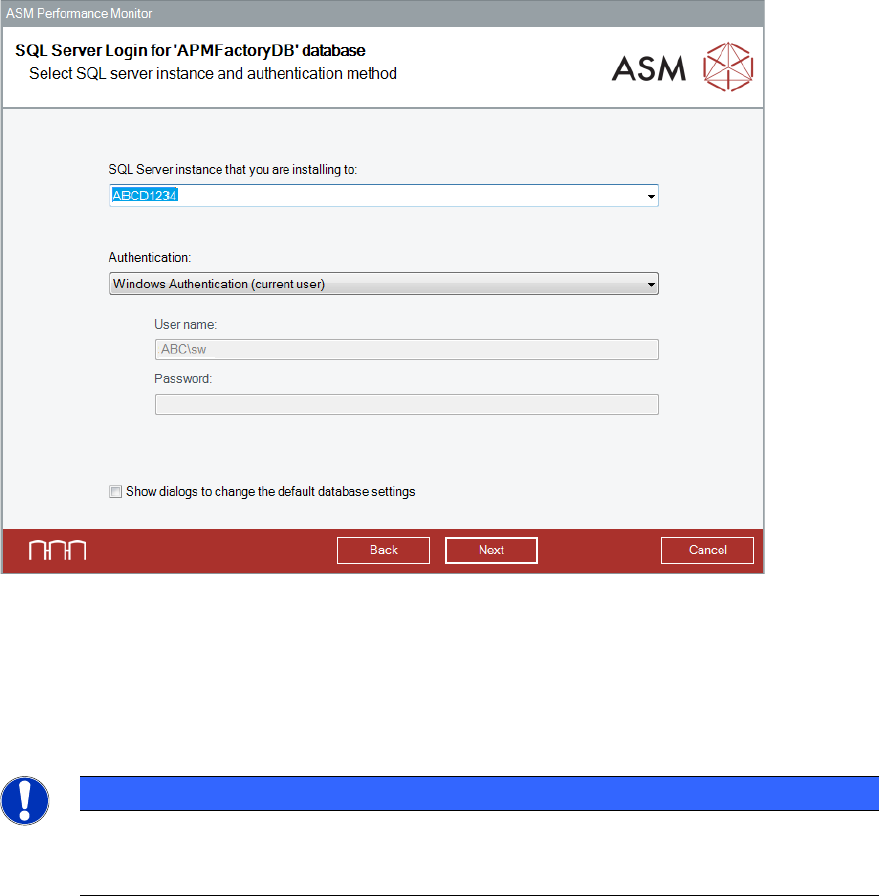
► Start the installation as described in section 4.2 and follow the instructions until the SQL Server
Login for 'APMFactoryDB’ Database dialog is displayed. The default database settings can
be changed in this dialog.
ASM Performance Monitor 2.1 / Installation Manual 01/2021 Edition
42
Figure 5-1: SQL Server Login dialog
► Select the SQL server instance and the authentication method. Please refer to section 4.6 for
detailed information.
► Click the Next button.
The installation proceeds as described in section 4.14ff.
NOTICE
When ASM Performance Monitor is installed along with a remote SQL server instance,
the installer will display warnings. These warnings serve as a reminder to check whether
the prerequisites have been fulfilled on the remote SQL system.