00900057-02_IM_Performance_Monitor_2.1_EN.pdf - 第33页
ASM Performance Monitor 2.1 / Installation Manual 01/2021 Edition 33 4.12 Specifying Administrator User Account Figure 4- 22 : ASM Performance Moni tor Administrator User Account di alog ► Enter the domain, use r name an…
ASM Performance Monitor 2.1 / Installation Manual 01/2021 Edition
32
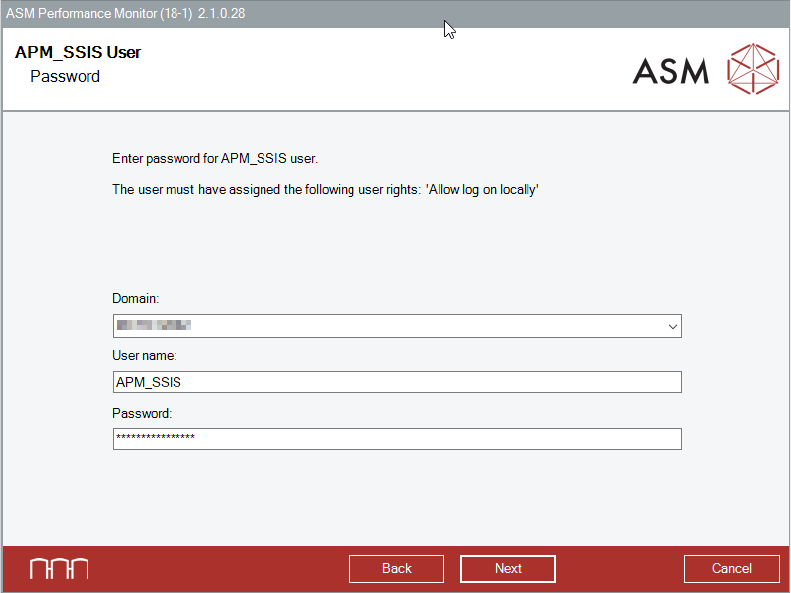
Figure 4-21: Password for APM_SSIS user
► Select the domain for the APM_SSIS User account.
► Enter the user name.
► Enter the correct password for the already existing APM_SSIS User account.
This account is used to back up the 'APMFactoryDB' database.
► Click the Next button.
The ASM Performance Monitor Administrator User Account dialog is displayed.
ASM Performance Monitor 2.1 / Installation Manual 01/2021 Edition
33
4.12 Specifying Administrator User Account
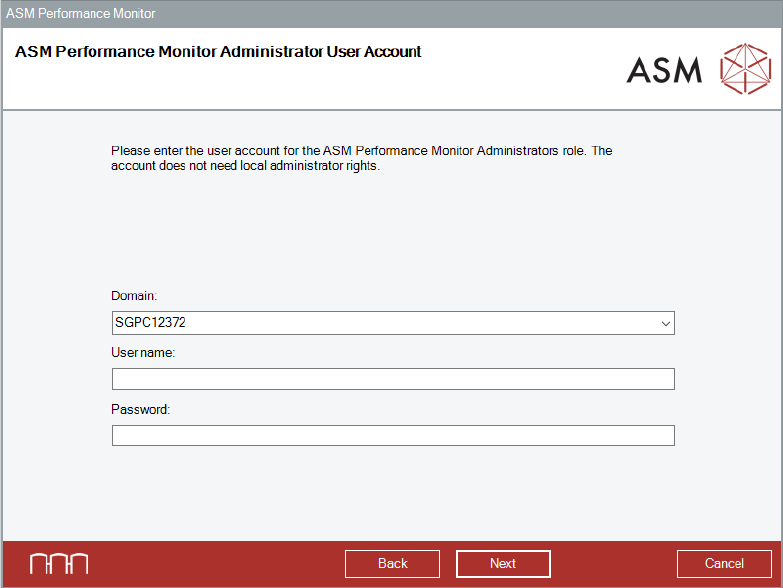
Figure 4-22: ASM Performance Monitor Administrator User Account dialog
► Enter the domain, user name and password in the respective fields to specify the user account
for the ASM Performance Monitor Administrator role in ASM OIB User Manager.
► Click the Next button.
The Ready to Install dialog is displayed.
ASM Performance Monitor 2.1 / Installation Manual 01/2021 Edition
34
4.13 Ready to Install
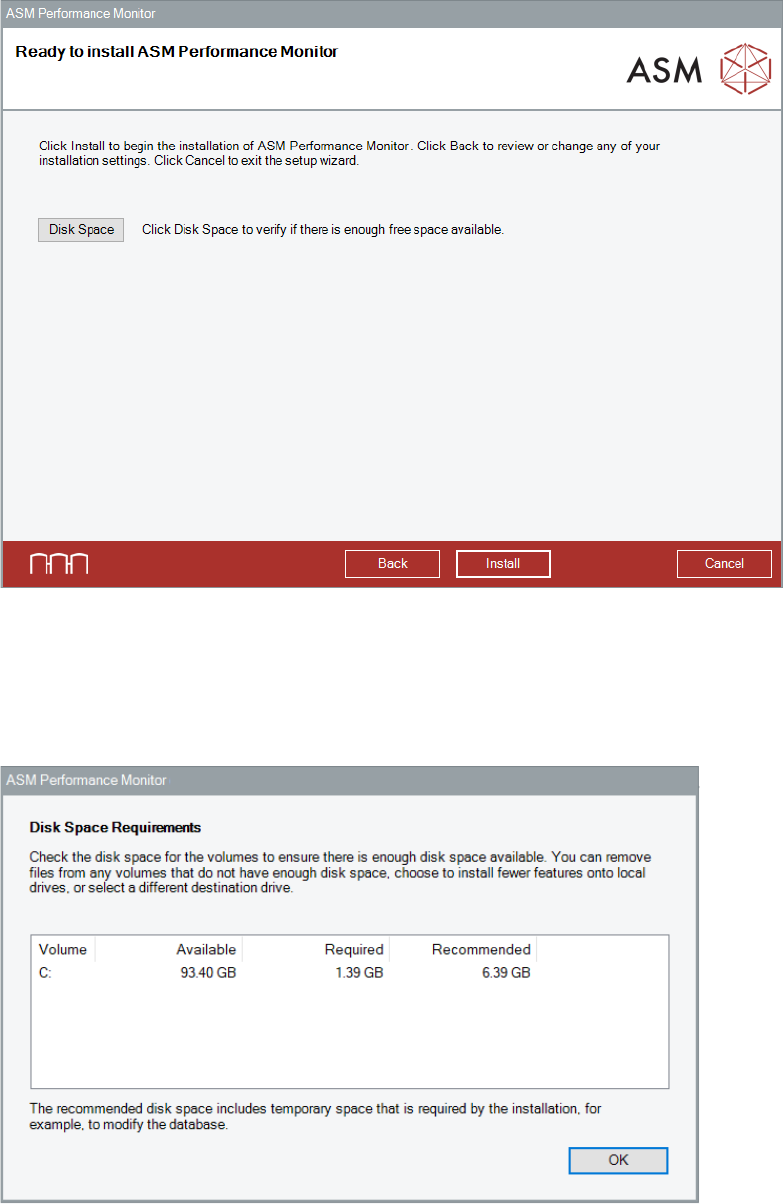
ASM Performance Monitor is now ready to be installed.
Figure 4-23: Ready to Install ASM Performance Monitor dialog
Before installing, you can check the available, required and recommended disk space (per drive) to
perform the installation.
► Click the Disk Space button.
The Disk Space Requirements dialog is displayed.
Figure 4-24: Disk Space Requirements dialog
► Click the OK button.
The Ready to install ASM Command Center dialog is displayed again.
► Click the Install button to start the installation.