00900057-02_IM_Performance_Monitor_2.1_EN.pdf - 第45页
ASM Performance Monitor 2.1 / Installation Manual 01/2021 Edition 45 6.4 Configuring AOI Machines The ASM Performance Monitor supports the integration of AOI machines in a line . This way, the ASM Performance Monitor can…
ASM Performance Monitor 2.1 / Installation Manual 01/2021 Edition
44
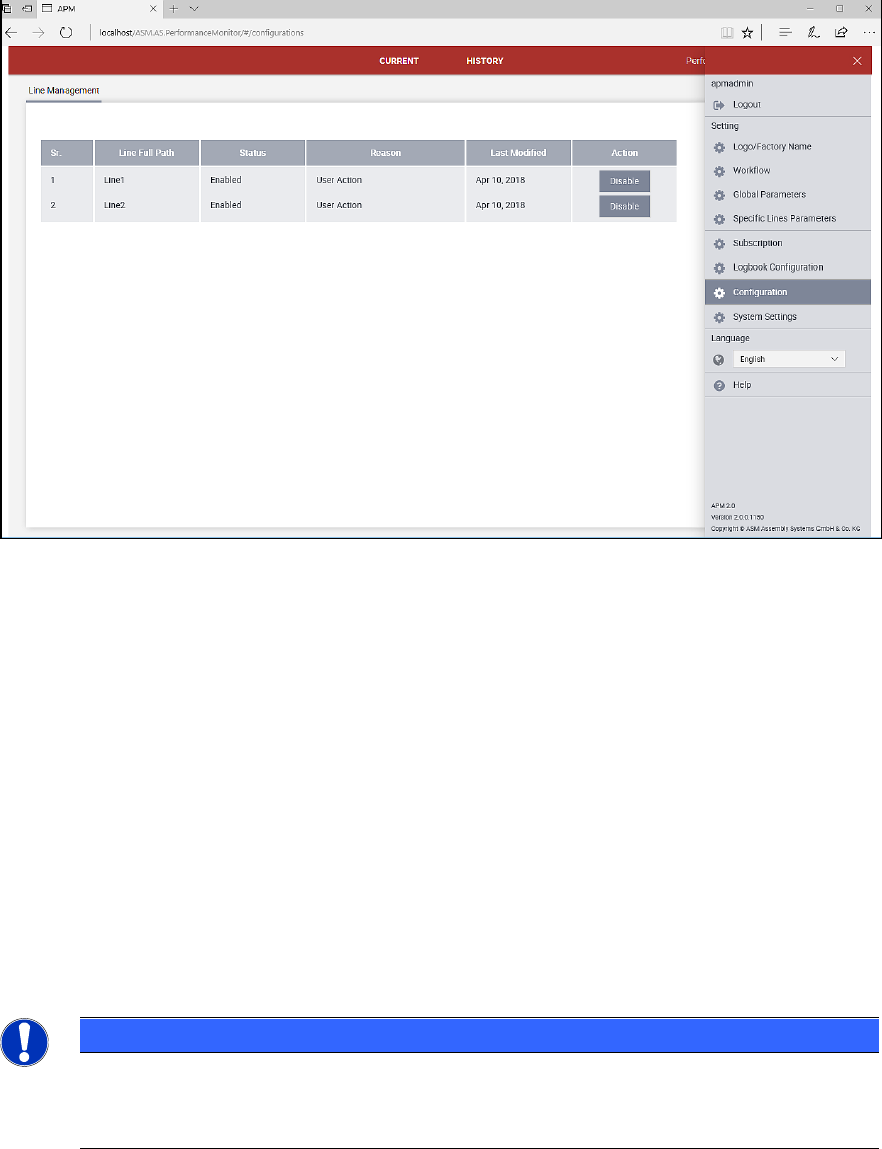
Figure 6-1: Line Management dialog
► Select Menu – Configuration.
► Under Action, set the respective line to Enabled.
For detailed information on further configuration settings, please refer to the Online Help and / or
User Guide ASM Performance Monitor, item no. [00900055-xx].
6.3 Configuring Mobile Device
► Enter the mobile URL in the following format where Web protocol can be http or https:
http://<MachineName>/
< MachineName > is the server where the mobile app is deployed.
Example:
http://172.30.31.99/
NOTICE
When the mobile app runs https, it will create a Web application in IIS which will not run
under the default Web site. In case of https, the URL will be in the following format:
https://<MachineName>/
ASM Performance Monitor 2.1 / Installation Manual 01/2021 Edition
45
6.4 Configuring AOI Machines
The ASM Performance Monitor supports the integration of AOI machines in a line. This way, the
ASM Performance Monitor can be used to analyze more data collected from the line. The
inspection depth performed by the AOI machine can be adjusted and balanced to suit stringency of
the quality requirement against the expected throughput of the machine.
The monitoring data from the AOI machines is collected via the AOI Adapter. Each line can have its
own AOI Adapter or there can be multiple lines sharing one adapter. However, it is recommended
to install one AOI Adapter for the whole factory (typically on the same computer where ASM
Performance Monitor is installed), unless this would cause performance issues.
The adapter is based on a file-based mechanism which collects the AOI data in form of XML files
produced by an AOI machine. The data flow is always one-directional: from AOI equipment to AOI
Adapter.
The XML files are expected in a folder that can be specified in the Monitoring Folder dialog of the
ASM Performance Monitor installation. For further information, see section 4.9.
The data is automatically forwarded to the ASM Performance Monitor via OIB Eventing.
Requirements
The following requirements must be met for the ASM Performance Monitor to be able to interpret
data from AOI machines:
– The AOI Adapter must be installed. For further information, please refer to section 4.3.
– There needs to be a read/write access established to the Monitoring Folder.
– The AOI machine must be configured in SIPLACE Pro.
– The AOI output file format must match the recognized AOI file format of the AOI Adapter.
Supported line configurations
ASM Performance Monitor supports up to two post reflow AOI machines with a single conveyor per
line. Offline AOI machines and classification areas are not supported. The following line
configurations are supported:
– Single lane with one AOI machine
– Dual lane synchronous mode with one AOI machine
– Dual lane asynchronous mode / iMode with two AOI machines (no more than two post-reflow
AOI machines)
Folder structure
The folder structure for the XML files processed by the AOI Adapter consists of a global folder and
different folders for each line of the factory. Additionally, two sub-folders are created:
– Processed folder
– Error folder
In the Processed folder, XML files that could be successfully interpreted by the AOI Adapter are
saved for up to six hours.
In the Error folder, XML files that could not be interpreted by the AOI Adapter are saved for up to
three days. A reason for a failed interpretation could be that the file structure of the XML file does
not comply to the file structure given in section 6.4.2.
ASM Performance Monitor 2.1 / Installation Manual 01/2021 Edition
46
6.4.1 Configuring AOI machine in SIPLACE Pro
Configure AOI machines in SIPLACE Pro as follows:
► Create an AOI Device as a Generic Line Device.
► Add the AOI Device to a line.
For SIPLACE Pro versions < 15.1, custom properties must be defined to identify the AOI machine.
For SIPLACE Pro versions ≥ 15.1, it is possible to use the corresponding object properties instead
of custom properties.
If you need to configure custom properties, proceed as follows:
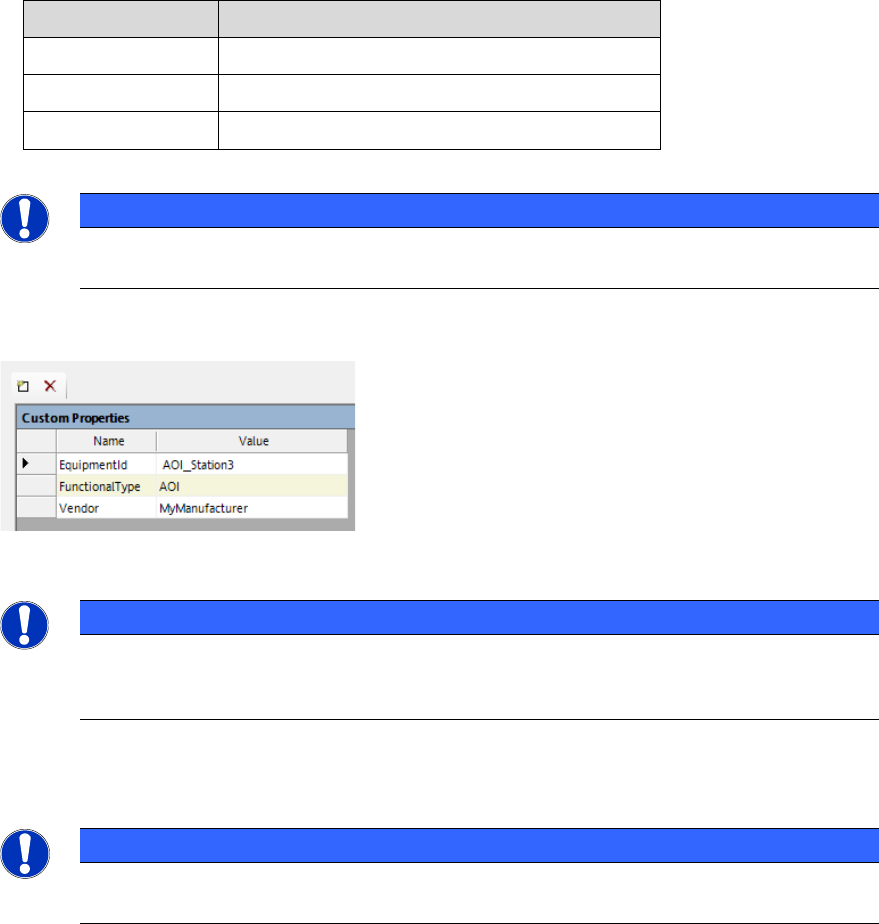
► In the Custom Properties of the AOI Device, add the following elements:
Name
Value
EquipmentID
Enter the EquipmentID of the AOI machine.
FunctionalType
Enter the functional type, e.g. AOI / AXI.
Vendor
Enter the AOI vendor.
Table 6-1: Custom Properties for AOI Device
NOTICE
The custom properties are case sensitive. Make sure to write the elements exactly as
they are given here.
Example:
Figure 6-2: Custom Properties example
NOTICE
The EquipmentID serves as a link between the SIPLACE Pro line and the AOI file.
Therefore, the EquipmentID in the Custom Properties or object properties and in the
AOI XML file need to be identical.
► Check if all line stations (including AOI machines) are listed in the OIB Factory Layout.
NOTICE
Any changes to the AOI machine in SIPLACE Pro or in the Factory Layout require a new
download as well as a restart of the AOI Adapter and APM Live Server.