00900057-02_IM_Performance_Monitor_2.1_EN.pdf - 第43页
ASM Performance Monitor 2.1 / Installation Manual 01/2021 Edition 43 6 First Booting After Installation After successful installation , ASM Performance Monitor WebSite shortc uts are available on the desktop, in the Star…
ASM Performance Monitor 2.1 / Installation Manual 01/2021 Edition
42
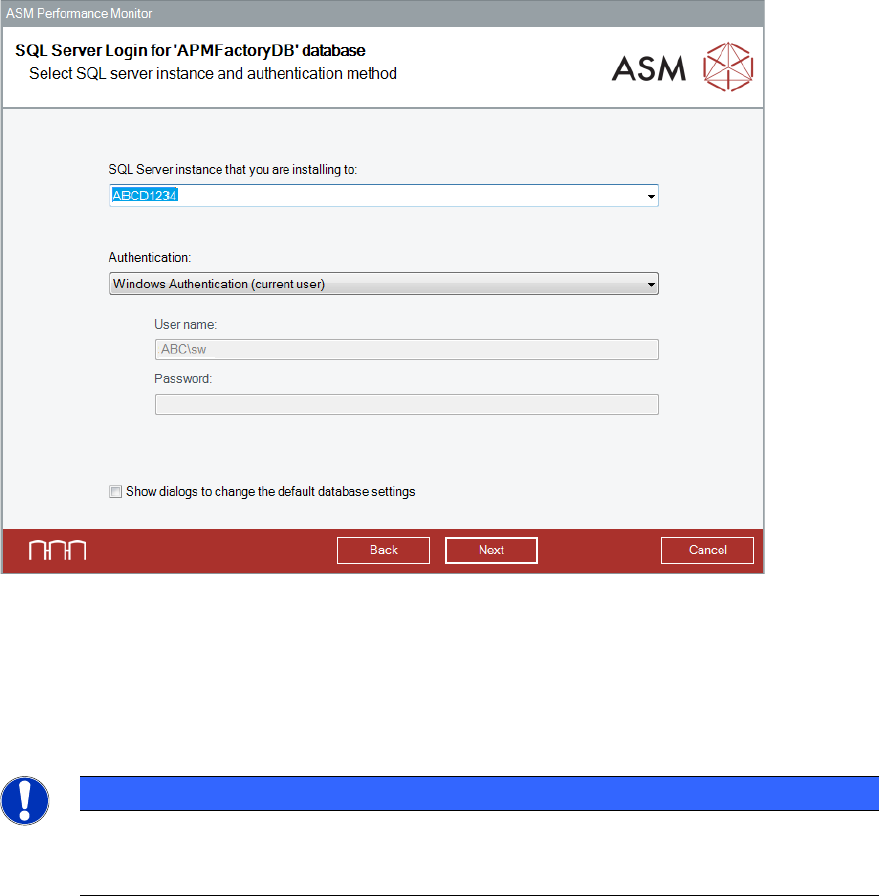
Figure 5-1: SQL Server Login dialog
► Select the SQL server instance and the authentication method. Please refer to section 4.6 for
detailed information.
► Click the Next button.
The installation proceeds as described in section 4.14ff.
NOTICE
When ASM Performance Monitor is installed along with a remote SQL server instance,
the installer will display warnings. These warnings serve as a reminder to check whether
the prerequisites have been fulfilled on the remote SQL system.

ASM Performance Monitor 2.1 / Installation Manual 01/2021 Edition
43
6 First Booting After Installation
After successful installation, ASM Performance Monitor WebSite shortcuts are available on the
desktop, in the Start menu and in the Windows taskbar. The Website URL is:
http://<webserver_hostname><port_no>/Asm.As.PerformanceMonitor
NOTICE
<webserver_hostname> is the server host on which WebApp is installed. The default
value for <port_no> is 80. If you want to use a different port number, the change has to
be done manually in the IIS and the URL.
6.1 Screen Resolutions
All ASM Performance Monitor screens are designed with 1366 x 768 pixels resolution. This is the
recommended solution. Additionally, following resolutions are supported:
– 1024 × 576 pixels
– 1152 x 648 pixels
– 1280 x 720 pixels
– 1600 x 900 pixels
– 1920 x 1080 pixels
– 2560 x 1440 pixels (3k)
– 3840 x 2160 pixels (4k)
6.2 Configuring ASM Performance Monitor
ASM Performance Monitor can be configured in the Menu of the ASM Performance Monitor
software.
To change any settings in the Menu, you must be logged in and have the needed user
authorization. The user authorization settings are configured in the OIB User Manager. For further
information, please refer to the OIB documentation, item no. [00900027-xx].
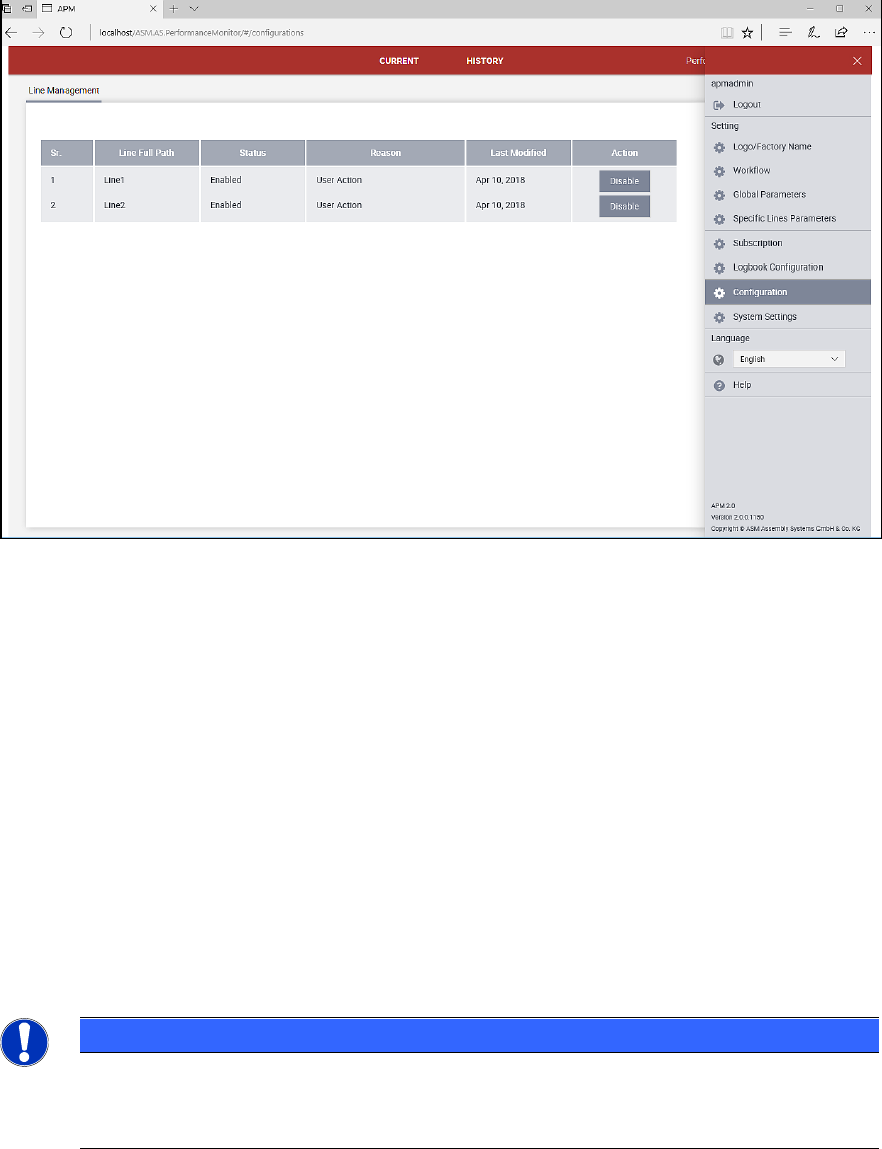
After installation, you must enable the lines to be monitored.
ASM Performance Monitor 2.1 / Installation Manual 01/2021 Edition
44
Figure 6-1: Line Management dialog
► Select Menu – Configuration.
► Under Action, set the respective line to Enabled.
For detailed information on further configuration settings, please refer to the Online Help and / or
User Guide ASM Performance Monitor, item no. [00900055-xx].
6.3 Configuring Mobile Device
► Enter the mobile URL in the following format where Web protocol can be http or https:
http://<MachineName>/
< MachineName > is the server where the mobile app is deployed.
Example:
http://172.30.31.99/
NOTICE
When the mobile app runs https, it will create a Web application in IIS which will not run
under the default Web site. In case of https, the URL will be in the following format:
https://<MachineName>/