00900057-02_IM_Performance_Monitor_2.1_EN.pdf - 第58页
ASM Performance Monitor 2.1 / Installation Manual 01/2021 Edition 58 Figure 7- 12 : Windows Features di alog ► Clic k OK . 7.10 Login on WebGUI Fails – STS Is Not Available Issue: The login on the WebGUI f ails, even if …
ASM Performance Monitor 2.1 / Installation Manual 01/2021 Edition
57
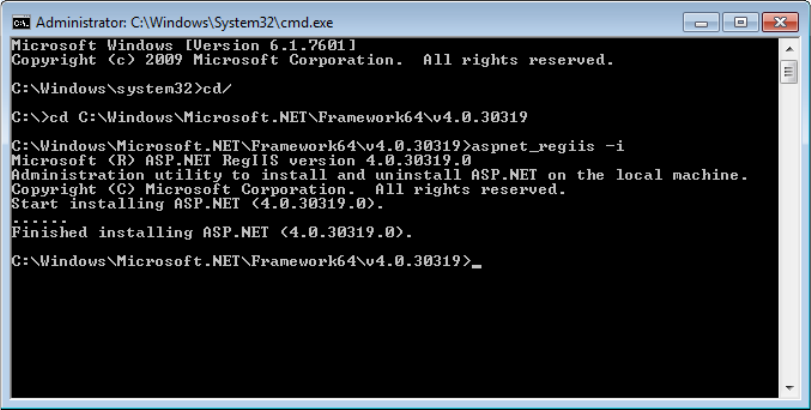
Figure 7-11: Installing ASP.NET
7.8 Connection to Report Output Folder Is Denied
The user ID under which the report service runs requires write permission to the output folder.
This must be set up either by the service (at ASM Workgroups) or by the customer IT (in the
customer domain).
7.9 Error “Not authorized” at Mobile Client login
Issue:
The Mobile Client login failed and the error message “Not authorized” is displayed.
Solution:
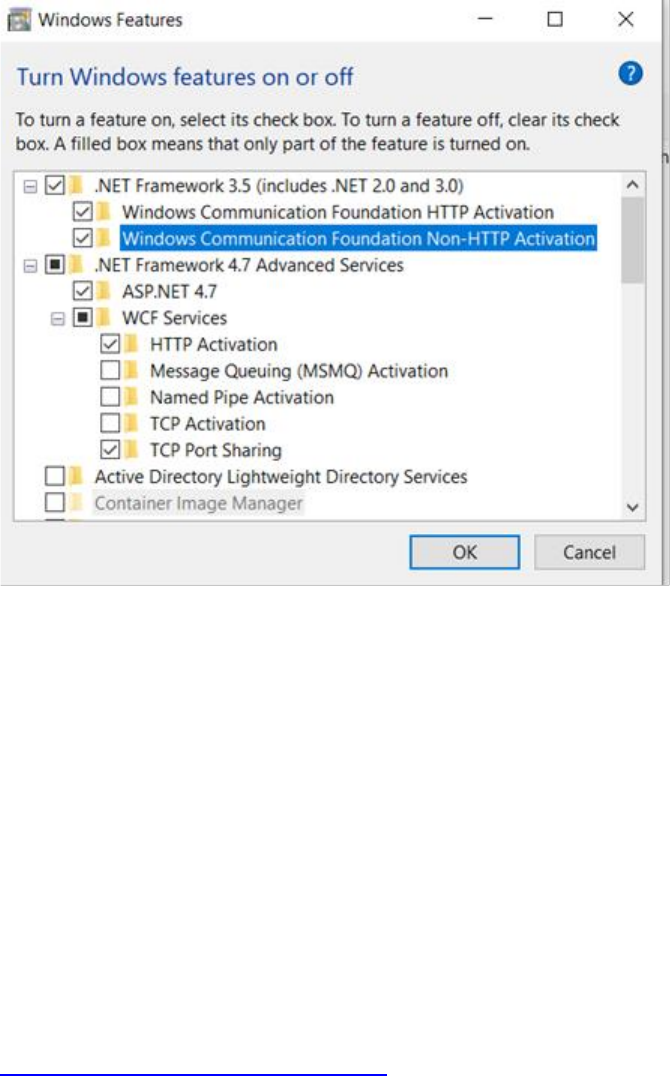
► Open the Windows Features dialog and activate the Windows Communication Foundation
Non-HTTP Activation checkbox.
ASM Performance Monitor 2.1 / Installation Manual 01/2021 Edition
58
Figure 7-12: Windows Features dialog
► Click OK.
7.10 Login on WebGUI Fails – STS Is Not Available
Issue:
The login on the WebGUI fails, even if the correct credentials are used, and the message “STS is
not available” is displayed.
Solution:
► Make sure that TLS 1.0 is allowed for both, the OIB Core and the ASM Performance Monitor
Web Server computers.
This is required due to a limitation on the currently used version of the .NET Framework. A useful
tool to ensure that this prerequisite is met can be accessed at the following website:
https://www.nartac.com/Products/IISCrypto/
ASM Performance Monitor 2.1 / Installation Manual 01/2021 Edition
59
8 Modifying, Repairing or Removing ASM
Performance Monitor
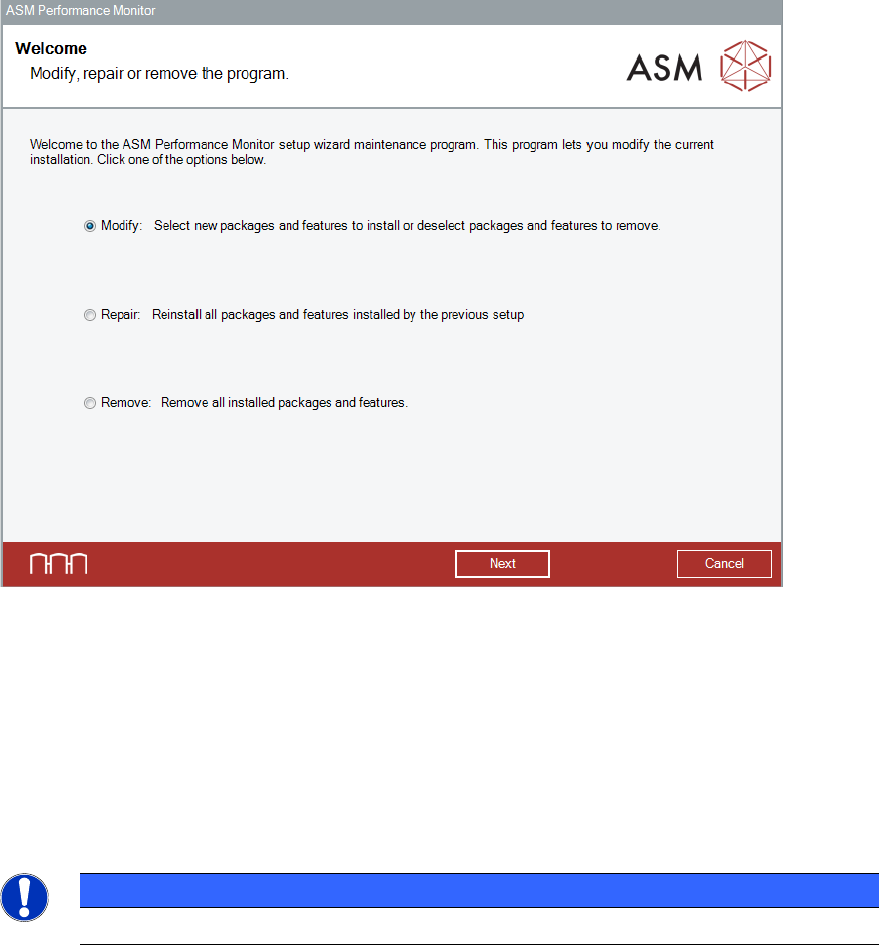
It is possible to modify, remove or repair the installation by starting the
ASMPerformanceMonitor_Installer.exe file on a computer on which ASM Performance Monitor is
installed. The Installer detects the installation automatically and offers the respective options.
Figure 8-1: Modify,repair or remove the program dialog
► Select the option that you want to perform.
The ASM Command Center setup wizard will guide you through the respective procedures.
8.1 Uninstalling ASM Performance Monitor via Control Panel
The ASM Command Center software can also be removed via the Control Panel.
NOTICE
You must be logged in as Administrator to uninstall the software .
► Open the Start menu and select Control Panel – (All) Programs – Uninstall a program.
► Click with the right mouse key on the ASM Performance Monitor entry in the list of installed
programs.
► Select Uninstall from the context menu.
A confirmation dialog is displayed.
► Click Yes to confirm uninstalling the ASM Command Center software.