00900057-02_IM_Performance_Monitor_2.1_EN.pdf - 第57页
ASM Performance Monitor 2.1 / Installation Manual 01/2021 Edition 57 Figure 7- 11 : Installing ASP .NET 7.8 Connection to Report Output Fold er Is Denied The user ID under which th e report service runs requires write pe…
ASM Performance Monitor 2.1 / Installation Manual 01/2021 Edition
56
2. Right-click Command Prompt and then click Run as administrator.
3. At the command prompt, type lodctr /r and then press Enter.
7.7 Error "HTTP Error 500.21" in IIS When Starting ASM Performance
Monitor Web Application
Issue:
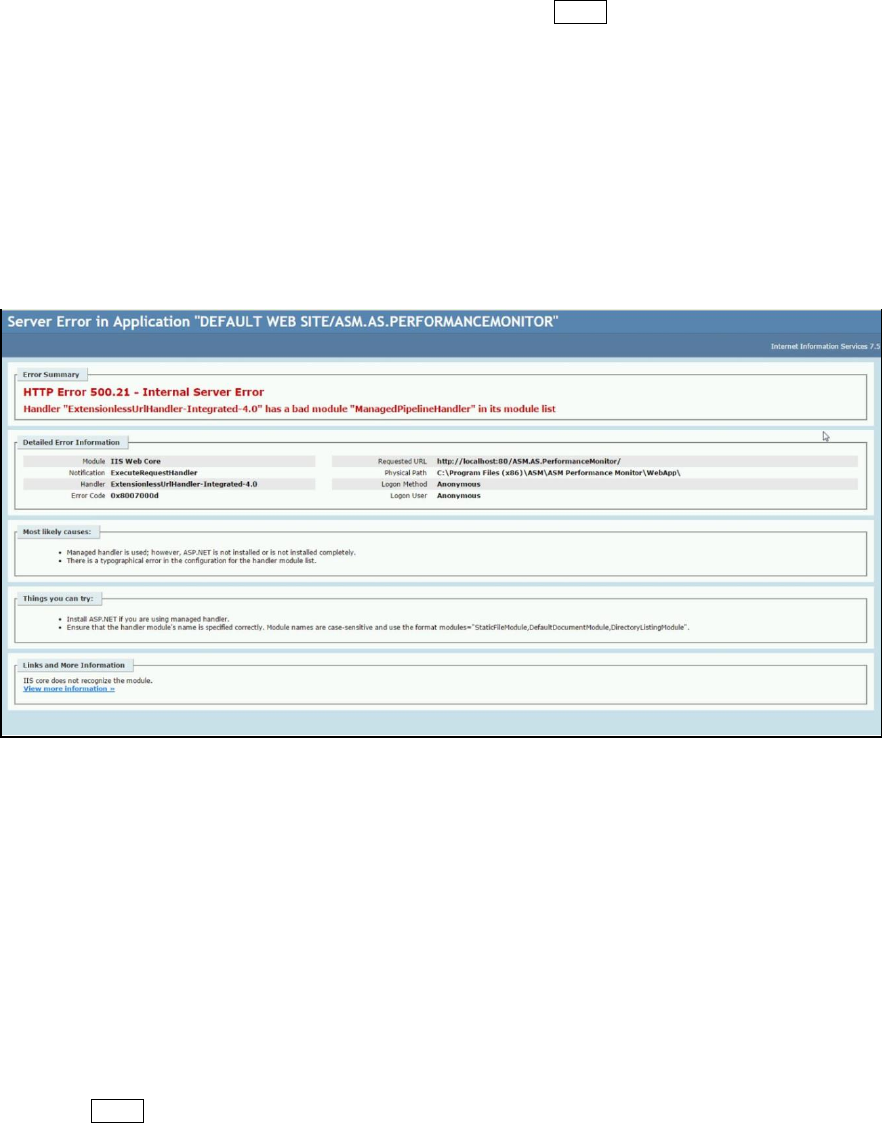
The error screen below appears when viewing the ASM Performance Monitor Web application after
installation. This happens if .Net is installed before Internet Information Services (IIS) during the
installation process.
Figure 7-10: Web application error
Solution:
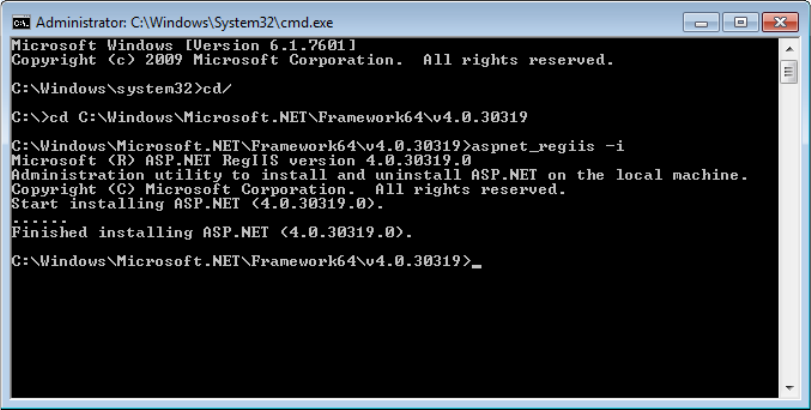
The issue can be resolved by re-registering ASP.NET with aspnet_regiis -i.
1. Click Start, expand All Programs and expand Accessories.
2. Right-click Command Prompt and then click Run as administrator.
3. Type in the following strings
For a 64-bit machine:
%windir%\Microsoft.NET\Framework64\v4.0.30319\aspnet_regiis.exe –i
For a 32-bit machine:
c:\Windows\Microsoft.NET\Framework\v4.0.30319\aspnet_regiis.exe -i
Press Enter.
4. Reload the ASM Performance Monitor web page.
ASM Performance Monitor 2.1 / Installation Manual 01/2021 Edition
57
Figure 7-11: Installing ASP.NET
7.8 Connection to Report Output Folder Is Denied
The user ID under which the report service runs requires write permission to the output folder.
This must be set up either by the service (at ASM Workgroups) or by the customer IT (in the
customer domain).
7.9 Error “Not authorized” at Mobile Client login
Issue:
The Mobile Client login failed and the error message “Not authorized” is displayed.
Solution:
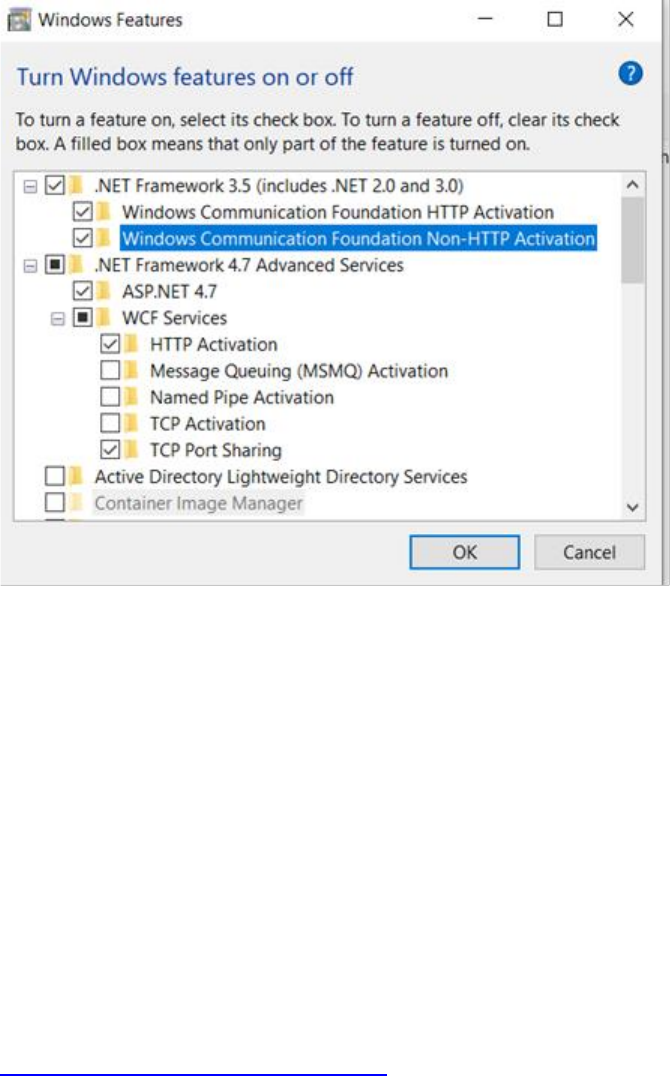
► Open the Windows Features dialog and activate the Windows Communication Foundation
Non-HTTP Activation checkbox.
ASM Performance Monitor 2.1 / Installation Manual 01/2021 Edition
58
Figure 7-12: Windows Features dialog
► Click OK.
7.10 Login on WebGUI Fails – STS Is Not Available
Issue:
The login on the WebGUI fails, even if the correct credentials are used, and the message “STS is
not available” is displayed.
Solution:
► Make sure that TLS 1.0 is allowed for both, the OIB Core and the ASM Performance Monitor
Web Server computers.
This is required due to a limitation on the currently used version of the .NET Framework. A useful
tool to ensure that this prerequisite is met can be accessed at the following website:
https://www.nartac.com/Products/IISCrypto/