KY Config_Manual_ENG_Final.pdf - 第18页
2.2. User Manage This section describes User Man age among the items displayed by clicking the USER LIMI T button on the main scre en. 2.2.1. U SER C HANGE W INDOW This section describes how to use the User Change window…

- Operator
- Maintenance
- Supervisor
• PWG
- Operator
- Maintenance
- Supervisor
• Job Link
- Operator
- Maintenance
- Supervisor
• Configurable Stop Error Message
- Operator
- Maintenance
- Supervisor
• Input Manual Barcode
- Operator
- Maintenance
- Supervisor
2.2. User Manage
This section describes User Manage among the items displayed by clicking the USER LIMIT button on the main screen.
2.2.1. USER CHANGE WINDOW
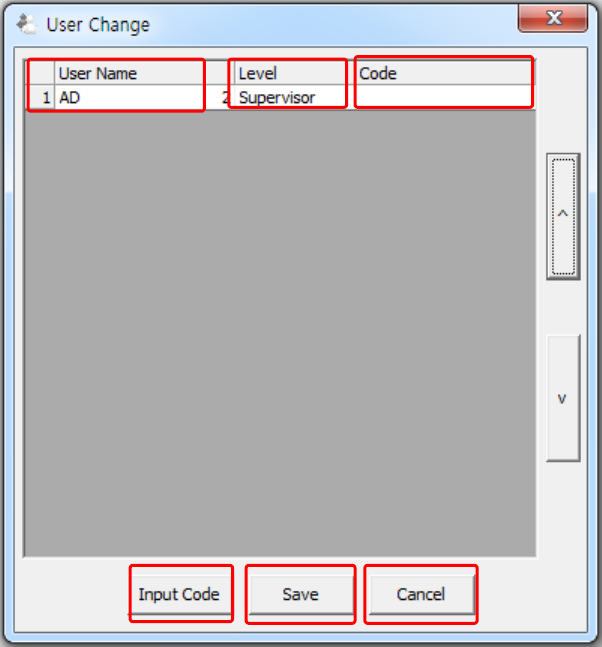
This section describes how to use the User Change window.
The above figure is a pop-up window for managing the user accounts.
1
2
4
3
6
5
The table below shows the items shown in the upper side of the figure above.
Field Name
Field Description
1. User Name
User ID
2. Level
User password
3. Code
Code assigned to the user
The table below shows the items on the lower side of the figure above.
Field Name
Field Description
4. Input Code
Click this to enter the code corresponding to the user.
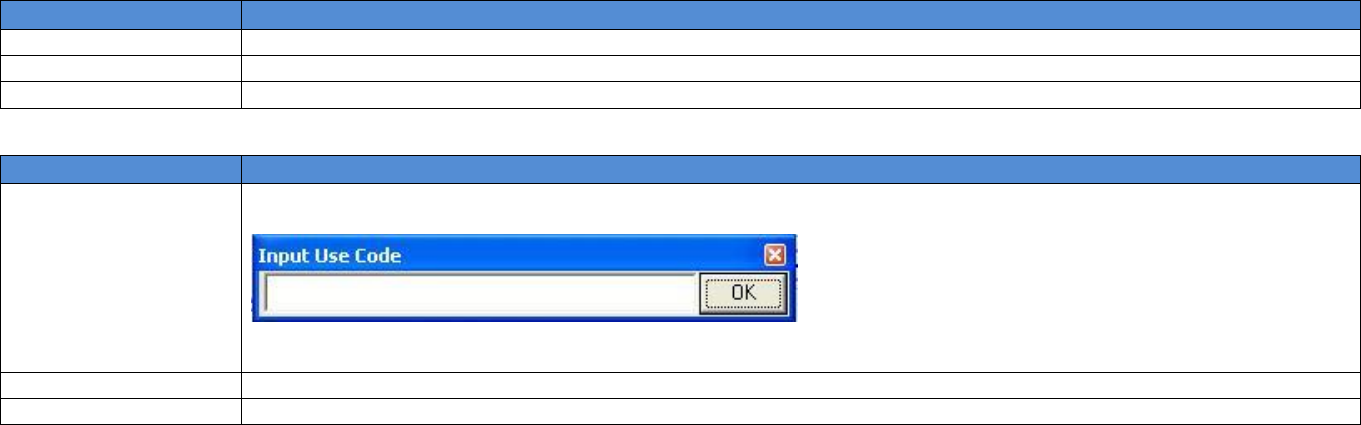
Click the button; a pop-up window below appears.
This pop-up window is an input box for entering a code. Enter the code provided when you purchased the
machine in the blank and click OK.
5. Save
Click this to save the current data.
6. Cancel
Click this to cancel the current job and go back to the previous screen.