KY Config_Manual_ENG_Final.pdf - 第24页
- CR: Select this when Enter is pl aced at the end of the barcode . - CR+LF: Select this when Enter and a new line state are placed at the end of the bar code. - ENQ: Select this when an end character is placed at the en…
4.2. Inline Tab
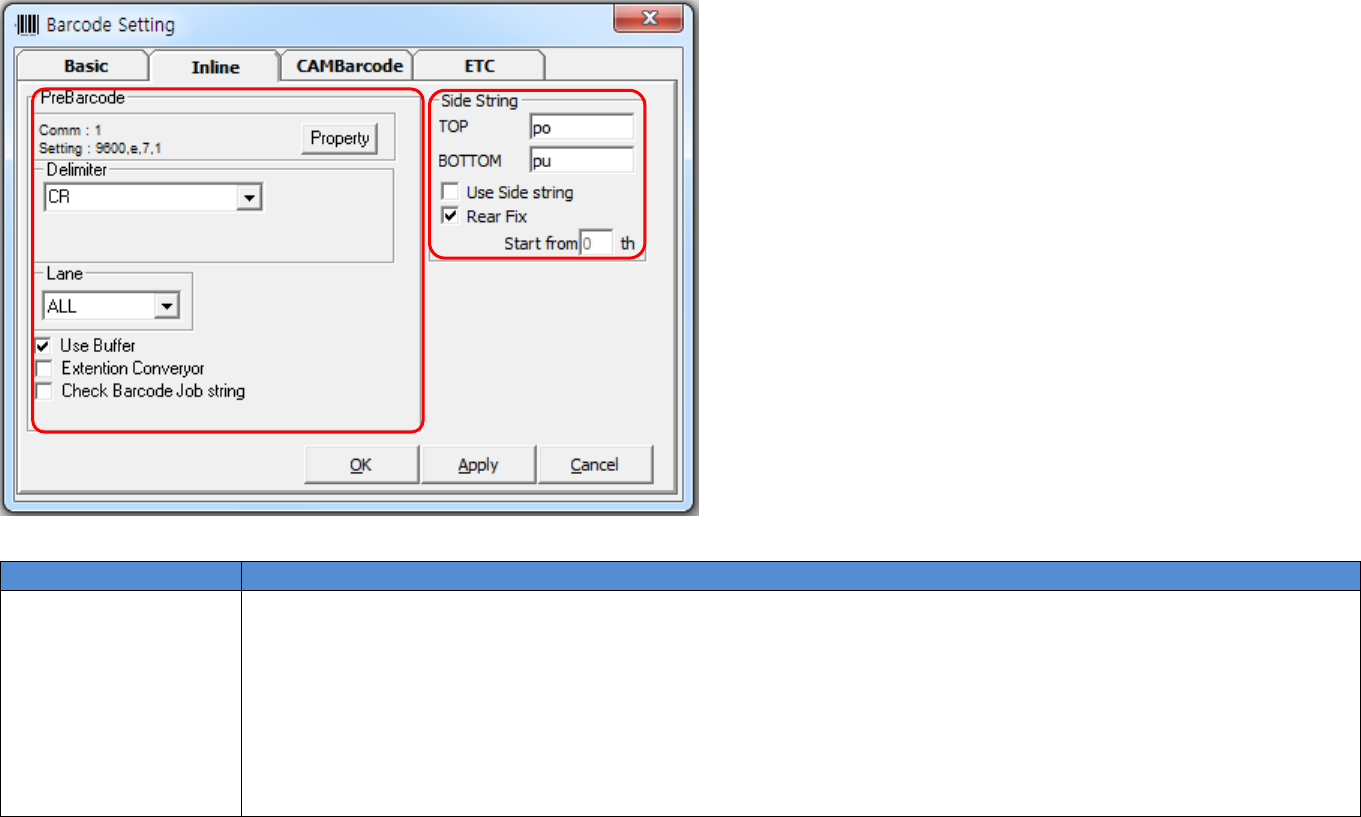
This section describes the items displayed by clicking the Inline tab in the pop-up window displayed by clicking Barcode Setting button on the main screen.
The following table shows the items in the Inline tab.
Field Name
Field Description
1.Pre Barcode
Select the options related to the serial communication required to use the Inline Barcode Reader.
• Comm: Enter the port number.
• Setting: Enter the communication type.
• Property: Click this button; Comm Port Property window appears. For more information, refer to 4.2.1 in this
manual.
• Delimiter: Select the delimiter type.
1
2

- CR: Select this when Enter is placed at the end of the barcode.
- CR+LF: Select this when Enter and a new line state are placed at the end of the barcode.
- ENQ: Select this when an end character is placed at the end of the barcode.
- Custom: Select this when user-defined characters are placed at the end of the barcode.
• Lane: Select the number lanes which are being used currently. When 2 Lane is selected, it is available to check
whether the barcode is transmitted from only 1 Lane or the entire two lanes.
- All:
- 1Lane
- 2Lane
• Use Buffer: Select this to temporarily save the barcode of a PCB coming into the machine while inspection of
other PCB is in progress in the buffer memory and use it after the current inspection is completed.
• Extension Conveyor: Select this when your machine has an extension conveyor.
• Check Barcode Job string: Select this when you use the function that checks the barcode string for checking
whether the PCB is Top or Bottom.
2.Side String
Sets the settings related to a barcode which allows to recognizing whether the PCB in inspection is properly
positioned or its upside is down.
When this is selected, it is available to adjust the barcode used to recognize the PCB position.
• TOP: A string to be included in the barcode of which PCB is corresponding to the top of the PCB.
• BOTTOM: A string to be included in the barcode of which PCB is corresponding to the bottom of the PCB.
• Use Side string: When this is selected, the ‘Side string’ function can be used. ‘Side string’ function recognizes
whether the PCB in inspection is properly positioned or its upside is down using its barcode.
• Rear Fix: When this is selected, the string set in TOP and BOTTOM is added to the rear of barcode. When this
is not selected, it is added to the front of the barcode.
4.2.1. COMM PORT PROPERTY WINDOW
Field Name
Field Description
Lane 1 T
Sets the serial port of the barcode attached to the Lane 1 Top side.
Lane 1 B
Sets the serial port of the barcode attached to the Lane 1 Bottom side.
Lane 2 T
Sets the serial port of the barcode attached to the Lane 2 Top side.
Lane 2 B
Sets the serial port of the barcode attached to the Lane 2 Bottom side.
Check Side
Select this to distinguish the top/bottom of a PCB using the string.
Speed
Sets the speed of the serial communication. Select the corresponding speed.
Data
Sets the data bit of the serial communication. Select the corresponding data bit.
Parity
Sets the parity bit of the serial communication. Select the corresponding parity bit.
Stop
Sets the STOP bit of the serial communication. Select the corresponding STOP bit.
Flow[F]
Sets the flow bit of the serial communication. Select the corresponding flow bit.