KY Config_Manual_ENG_Final.pdf - 第32页
5.3. 3D View Ground Limit This section describes 3D V iew Ground Limit in the pop-up window displayed by clicking ET C Setup button on the main screen. Field Name Field Description 3D View Ground Limit Set this item to d…
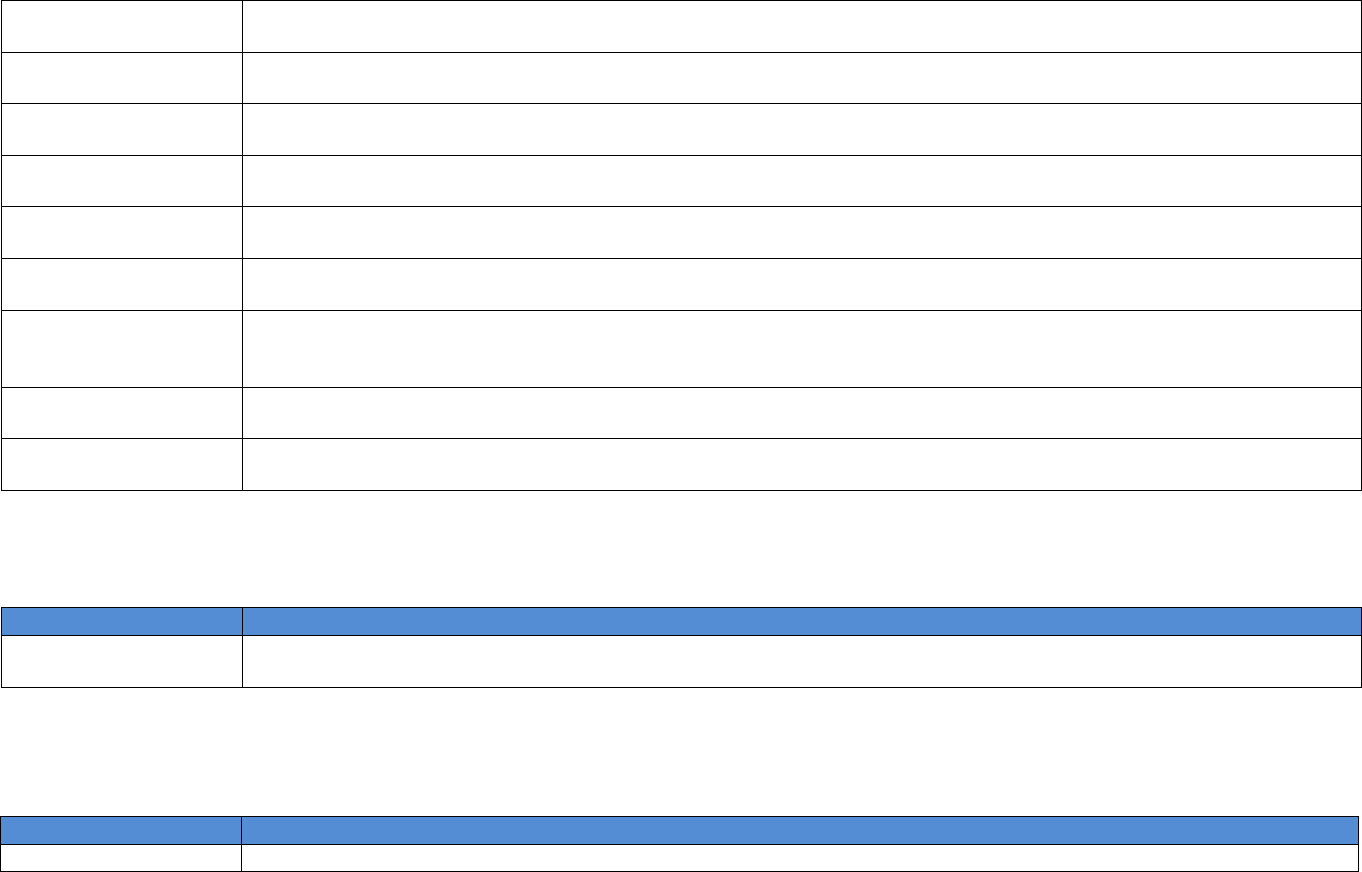
Use Multi Printer
This item is used only on Multi Printer. Even Job file of Lane no.1 and no. 2 is same on Dual Lane, this changes
Squeegee direction after every inspection completed.
Use Always Login
This item is selected to use machine when logs in. (Login window is displayed when 3D Inspection System is
operated at the first time.)
Use Conveyor
Message Box
This item is selected to use adjusting Conveyor width message.
Show All Good Mode
Warning Message
When this is selected in All Good Mode, it displays Warning Message big to recognize easy.
Use LAN Connection
Message Popup
This item is selected to check LAN Connection on Inspection system. (When LAN is not connected, the Message
pops-up.)
Do Not Fix Offset
Histogram
When this item is selected, it displays the Offset Histogram changeable by Vision origin of coordination setting.
Do Not Be Pressed
Next Button
Consecutive
This item is selected to prevent clicking Next button consecutively on 3D Inspection System Defect View.
Use Workout in
BBTW
This item is selected to operate and work out BBT apiece when a couple of PCBs of BBT is operated.
Use always check
conveyor adjust
Sets the Conveyor width to be adjusted when each PCB is loaded.
5.1. Use Auto Export Other Folder
This section describes Use Auto Export Other Folder in the pop-up window displayed by clicking ETC Setup button on the main screen.
Field Name
Field Description
Use Auto Export
Other Folder
This item is selected to save other output files excepting Auto Export.
5.2. Auto Export [LSIS]
This section describes Use Auto Export [LSIS] in the pop-up window displayed by clicking ETC Setup button on the main screen.
Field Name
Field Description
Use LSIS Option
This item is Auto Export option used for LSIS.
5.3. 3D View Ground Limit
This section describes 3D View Ground Limit in the pop-up window displayed by clicking ETC Setup button on the main screen.
Field Name
Field Description
3D View Ground Limit
Set this item to display 3D view from the setting Ground location.(default unit: um)
5.4. DVQueue Delete Option
This section describes DVQueue Delete option in the pop-up window displayed by clicking ETC Setup button on the main screen.
Field Name
Field Description
DVQueue Delete with
GUI Start
This item is selected to delete DVQueue folder when 3D Inspection System is started.
5.5. Check DVQueue Folder Count
This section describes Check DVQueue Folder Count item in the pop-up window displayed by clicking ETC Setup button on the main screen.
Field Name
Field Description
Check DVQueue
Folder Count
This item is selected for sending out PCB after checking Folder Count on DVQueue. (When there is only one
PCB left on searched Folder, the PCB is sent out.)
• With Message: This item is selected for displaying Message when DVQueue Folder is searched during sending
out.
• Msg Timer: This option is selected to set Timer when “Check DVQueue Folder Count” is used. If the PCB is not
sent out after checking Folder Count during set time, the Error Message pop-up.
5.6. Use MES System
This section describes Use MES System item in the pop-up window displayed by clicking ETC Setup button on the main screen.
Field Name
Field Description
Use MES System
Select this item for using MES.
• Select SITE: Select the customer site. Each function activates based on each customer. (This is customer
optimization option.)
- MES Job Link Option
- Use Auto Run

- Use Auto Pause
- Use ITAC
- Mando-Hella
- Huf Mexico
Use Printer Closed
Loop Feedback
(Console Type)
Select this item for using Closed Loop with Speedline MPM Printer.
• Use Barcode Option: Select for using barcode option.
• Use Dual Lane: Select for using Dual Lane.
• Use Disconnect Mode: This option is selected for processing PCB, which user manually put on the system, not
transferred from Printer on Closed Loop mode. On Use Disconnect Mode, corresponding data will not transfer to
Printer.
• COMPUTER NAME: Sets computer name of Printer.
• SERVER PORT: Sets server port.
• CLIENT PORT: Sets Client port.
Continental Icheon
This item is selected for linking with MES at Continental Icheon.
Closed Loop (XML
Type)
This option is the most generally utilized Closed Loop.
• Use Barcode: Select this item for using barcode.
• Use Export Array Type: Select this item for exporting files as one array for one PCB.
• Select Vendor: This item is selected for setting Printer vendor place advance to SPI inspection system.
• Lane 1 SPI Export Folder: Sets Export folder on Closed Loop Single Lane SPI inspection System.
• Lane 1 Printer Export Folder: Sets Export folder on Closed Loop Printer place advance to Single Lane SPI
inspection System.
• Lane 2 SPI Export Folder: Sets Export folder on Closed Loop Dual Lane SPI inspection System.
• Lane 2 Printer Export Folder: Sets Export folder on Closed Loop Printer place advance to Dual Lane SPI
inspection System.