KY Config_Manual_ENG_Final.pdf - 第26页
4.3. CAMBarcode Tab This section describes the it ems displayed by clicking the Trigger t ab in the pop-up windo w displayed by clicking Barcod e Set up button on the main screen. The following t able shows the items in …

4.2.1. COMM PORT PROPERTY WINDOW
Field Name
Field Description
Lane 1 T
Sets the serial port of the barcode attached to the Lane 1 Top side.
Lane 1 B
Sets the serial port of the barcode attached to the Lane 1 Bottom side.
Lane 2 T
Sets the serial port of the barcode attached to the Lane 2 Top side.
Lane 2 B
Sets the serial port of the barcode attached to the Lane 2 Bottom side.
Check Side
Select this to distinguish the top/bottom of a PCB using the string.
Speed
Sets the speed of the serial communication. Select the corresponding speed.
Data
Sets the data bit of the serial communication. Select the corresponding data bit.
Parity
Sets the parity bit of the serial communication. Select the corresponding parity bit.
Stop
Sets the STOP bit of the serial communication. Select the corresponding STOP bit.
Flow[F]
Sets the flow bit of the serial communication. Select the corresponding flow bit.
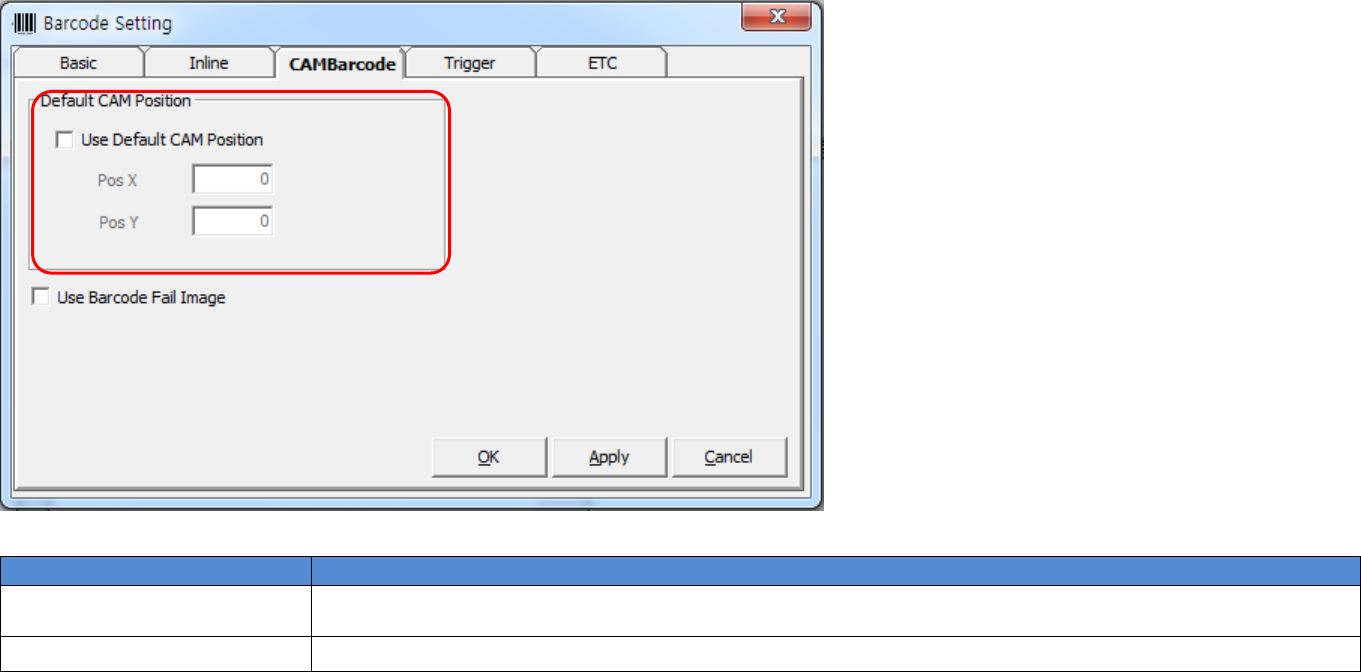
4.3. CAMBarcode Tab
This section describes the items displayed by clicking the Trigger tab in the pop-up window displayed by clicking Barcode Setup button on the main screen.
The following table shows the items in theCAMBarcode tab.
Field Name
Field Description
1.Default CAM Position
Sets CAM position when CAMBarcode is used firstly.
(Sets Pos X, Pos Y value based on PCB coordinate system.)
2.Use Barcode Fail Image
Displays 2D Image when reading CAM Barcode is failed.
1
2
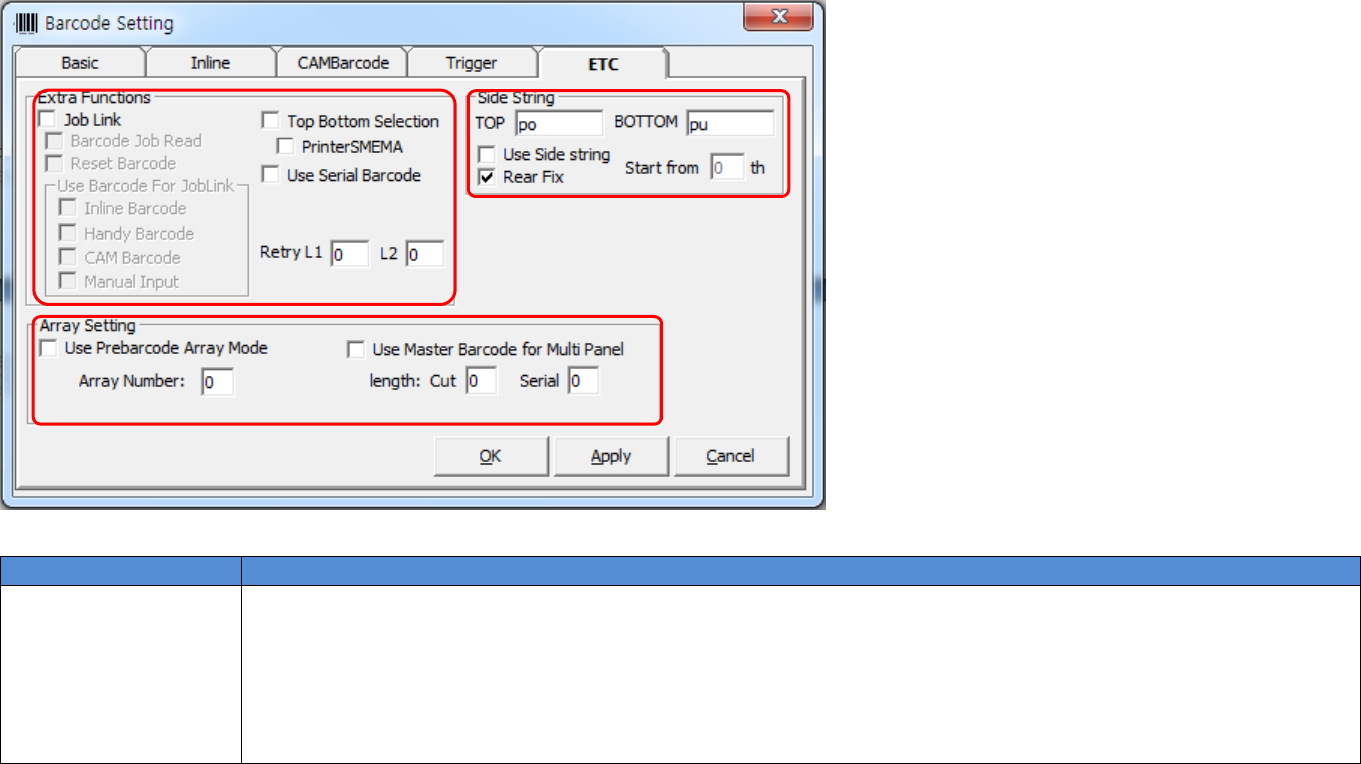
4.4. ETC Tab
This section describes the items displayed by clicking the ETC tab in the pop-up window displayed by clicking Barcode Setting button on the main screen.
The following table shows the items in the ETC tab.
Field Name
Field Description
1.Extra Functions
This item lets you set the extra functions not set in the Basic and Inline tabs.
• Job Link: Sets the ‘Job Link’-related functions. ‘Job Link’ function automatically loads the JOB File of the PCB
when the barcode of the PCB is entered. When this is selected, it is available to load the JOB File of the PCB
using the barcode of the PCB.
- Barcode Job Read: When this is selected, the ‘Job Link’ function is available.
- Reset Barcode: When this is selected, the barcode can be initialized by clicking Reset button.
- CAM Job link: When this is selected, it is available to use the ‘Job Link’ function using the CAM barcode.
1
2
3