KY Config_Manual_ENG_Final.pdf - 第29页
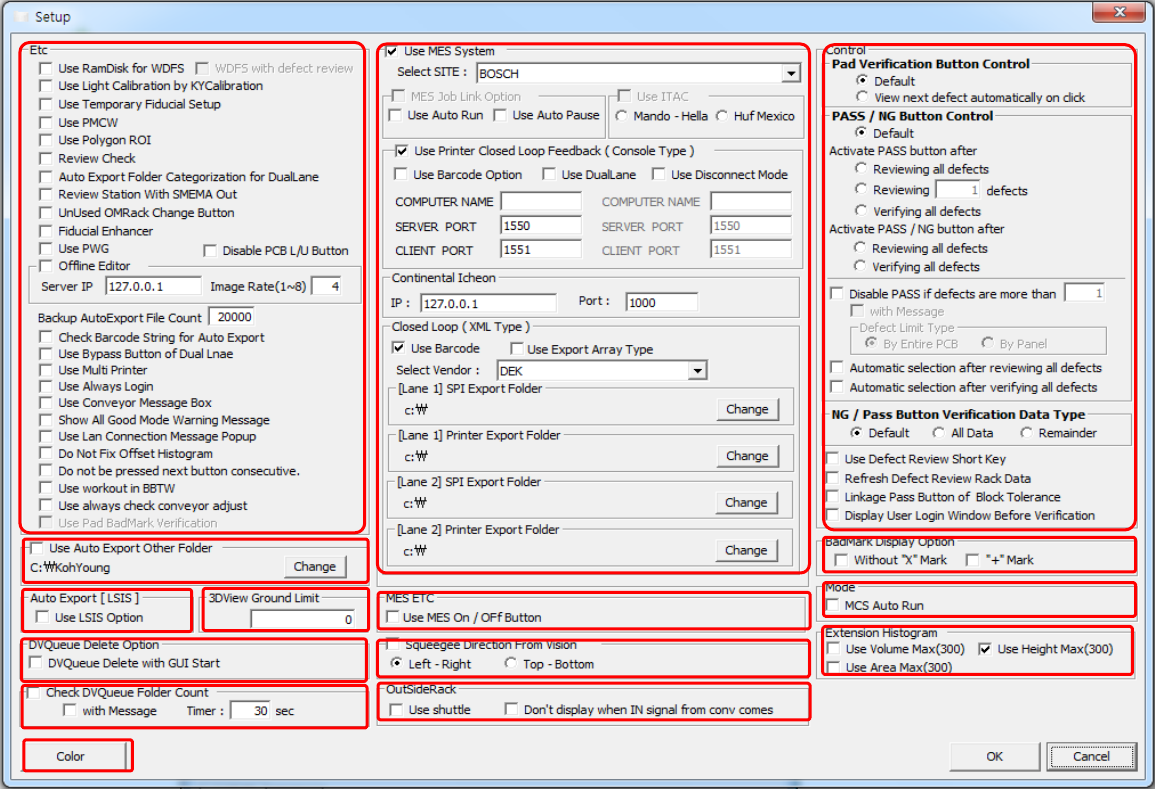
5. ETC S ETUP This section describes the pop -up win dow items displayed by click ing ETC Setup button on the main screen. 1 2 3 5 6 7 8 9 10 14 4 12 13 11

- Retry L1 L2: This item is selected to retry reading barcode with L1, L2 value if barcode cannot read correctly
on CAM Barcode mode.
Caution: To use this function, the width of the PCB and the position of the fiducial must be identical
(regardless of the PCB type.)
• Top Bottom Selection: Changes the virtual lane according to the order of barcode reading when two types of
barcode readers are used; which barcode reader has read the barcode.
Caution: This is used when the virtual dual line (2-Lane) is used.
- Printer SMEMA: When this is selected, the barcode can be processed based in the SMEMA signal sent from
the conveyor in the front of the machine.
Caution: This is used when the virtual dual line (2-Lane) is used.
• Use Serial Barcode: This is used when MES Barcode is used.
• Use Barcode For JobLink
- Inline Barcode: Select this item to use Job Link function by using Inline Barcode.
- Handy Barcode: Select this item to use Job Link function by using Handy Barcode.
- CAM Barcode: Select this item to use Job Link function by using CAM Barcode.
Caution: This is used when the PCB width and fiducial location is same. (There is no issue when using
different type of PCB).
- Manual Input: Select this item to manually input Barcode.
2.Array Setting
• Use Prebarcode Array Mode: This mode is used when several barcodes should be read from the conveyor on
the front of the machine.
- Array Number: Set the maximum number of barcodes applied to one PCB when “Prebarcode Array” mode is
used.
• Use Master Barcode for Multi Panel: When this is selected, after enter a barcode, it is available to add several
related barcodes based on the corresponding barcode.
- Length: Cut: Set the length of barcode string in digit when ‘Master Barcode for Multi Panel’ function is used.
- Serial: Set the length of numbers in digit to be added to the next of barcode string, cut by the ‘Length cut’
function when ‘Master Barcode for Multi Panel’ function is used.
3.Side String
When this is selected, it is available to adjust the barcode used to recognize the PCB position.
• TOP: A string to be included in the barcode of which PCB is corresponding to the top of the PCB.
• BOTTOM: A string to be included in the barcode of which PCB is corresponding to the bottom of the PCB.
• Use Side string: When this is selected, the ‘Side string’ function can be used. ‘Side string’ function recognizes
whether the PCB in inspection is properly positioned or its upside is down using its barcode.
• Rear Fix: When this is selected, the string set in TOP and BOTTOM is added to the rear of barcode. When
this is not selected, it is added to the front of the barcode.
• Start from XX: Sets the Barcode reading start from input number when the Side String function is used.
5. ETC SETUP
This section describes the pop-up window items displayed by clicking ETC Setup button on the main screen.
1
2
3
5
6
7
8
9
10
14
4
12
13
11
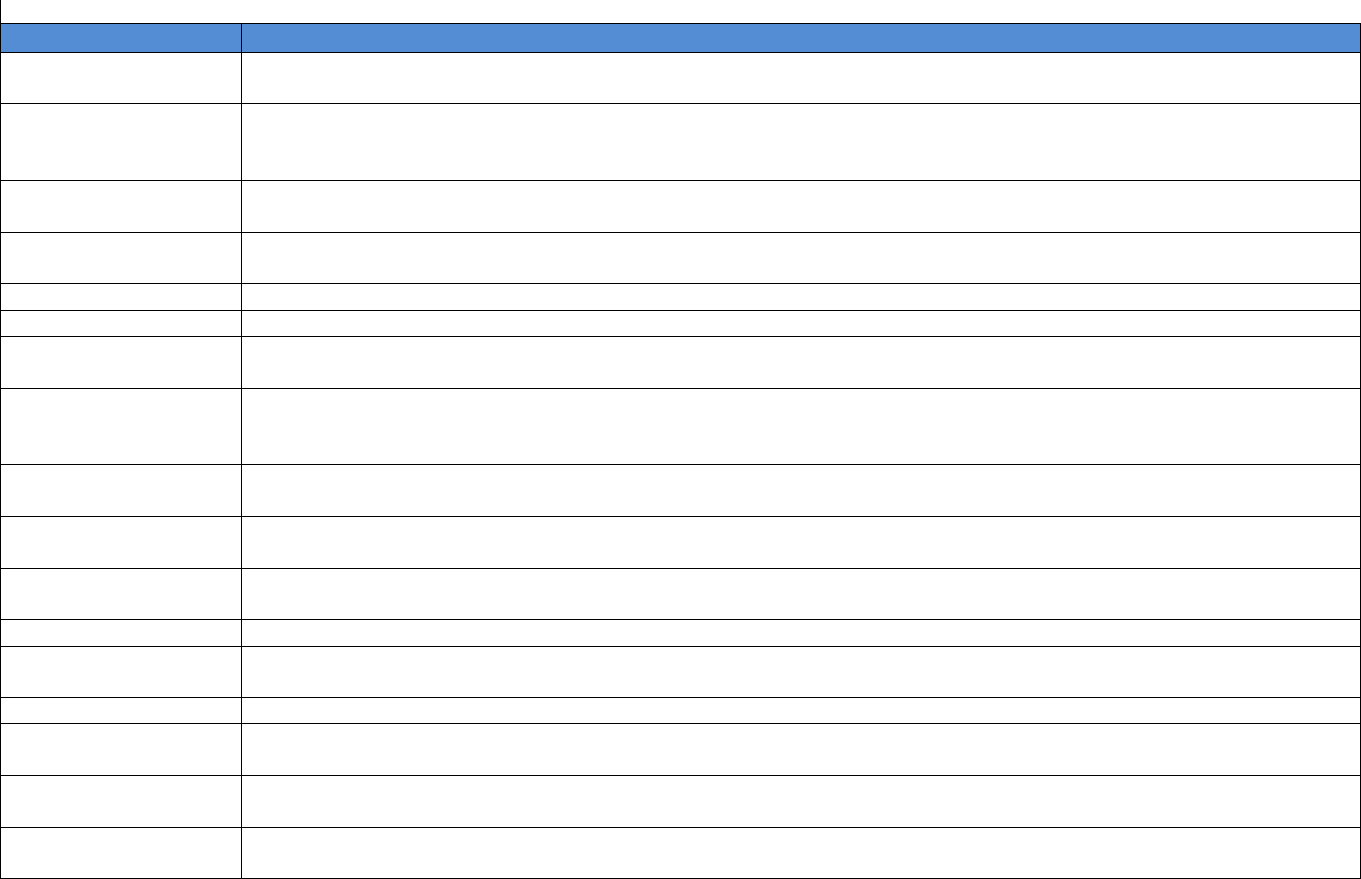
Following table describes the items of ETC Setup.
Field Name
Field Description
Use RamDisk for
WDFS
This item is selected to save Worst Defect Failure on Ram Disk. It displays serious or containing plenty of faulty
in order.
WDFS with Defect
Review
This item is selected to bring Worst Defect Failure data for using at Defect Review.
This menu is activated when “Use Ram Disk for WDFS” option is used. Select this item for using “Use Ram Disk
for WDFS” On Defect Review.
Use Light Calibration
by KYCalibration
This item is selected to apply Light Calibration setting value on KY Calibration.
Use Temporary
Fiducial Setup
This item is selected to apply setting data which user temporarily sets as fiducial wizard when the fiducial
inspection is failed.
Use PMCW
This item is selected to use optimized setting light value for each board.
Use Polygon ROI
This item is selected to use Polygon Pad.
Review Check
This item is option applied to Hyndai Mobis. (Selects for changing JobFile. When this is selected, the number of
left PCB on rack will be noticed.)
Auto Export Folder
Categorization for
Dual Lane
When Auto Exporting on Dual Lane, this item is selected to categorize folder under Lane 1, Lane 2 and save
data on Auto Export Folder.
Review Station with
SMEMA Out
Select this item for renewal Review Station Rack Data when get OUT signal of SMEMA Signal.
Unused OMRack
Change Button
Select this item for not using ‘Change Button’ on Outside Rack.
Fiducial Enhancer
This item is selected to enhance fiducial analyze. Shoot the fiducial with the Fiducial Light from two–way and
inspect the fiducial by composing the results
Use PWG
This item is selected to make Job file with PCB only, not using Gabber file.
Disable PCB L/U
Button
This item is selected to disable PCB Load / Unload button.
Offline Editor
Select for operating Offline Editor.
Backup Auto Export
File Count
Select this item for setting Auto Export output file amount based on input value. When the number of Auto Export
output files is more than setting value, this moves its data to Backup Folder.
Check Barcode String
for Auto Export
This item is selected to compare Barcode length.
Use BYPASS Button
of Dual Lane
This item is selected to use BYPASS button on Dual Lane.