KY Config_Manual_ENG_Final.pdf - 第22页
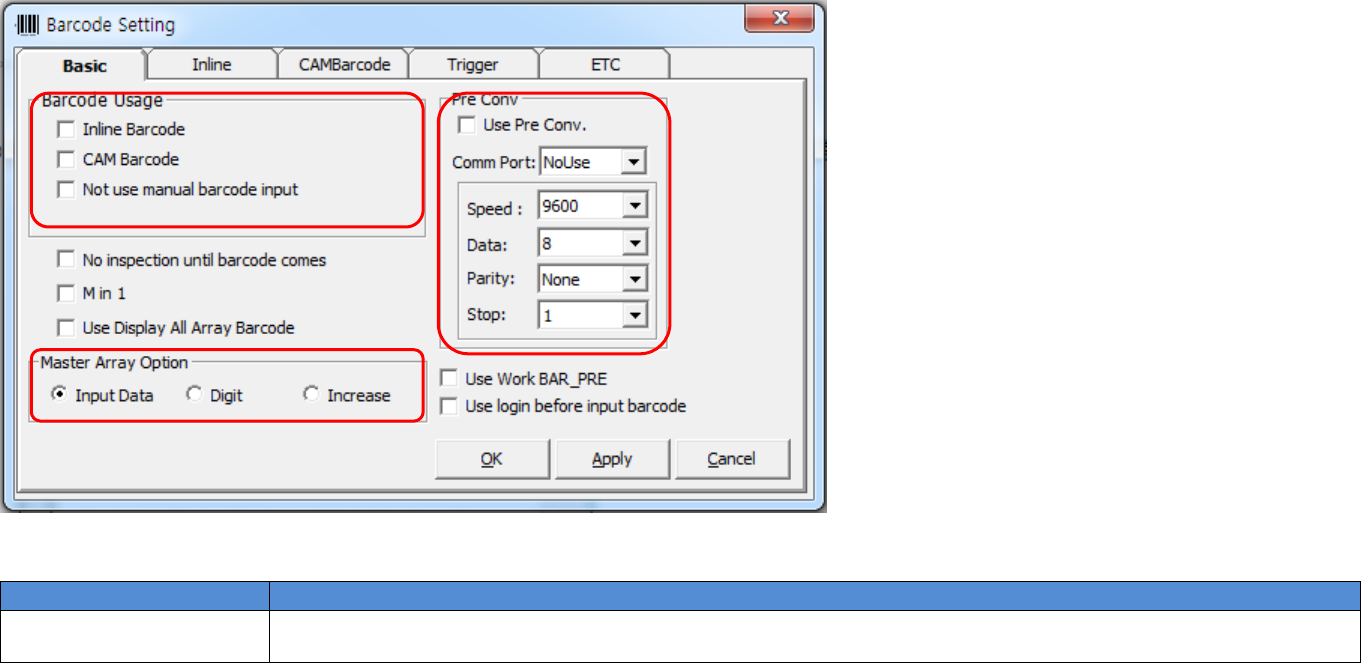
• CAM Barcode: Select this to use the Cam Barc ode Reader . • Not Use Manual Barcode Input: Select this not to pop -up manual Barc ode Input windo w when barcode recognition is failed. 2. No inspection until barcode come…
4. BARCODE SETTING WINDOW
This chapter describes the items displayed by clicking the Barcode Setting button on the main screen.
4.1. Basic Tab
This section describes the items displayed by clicking the Basic tab in the pop-up window displayed by clicking Barcode Setting button on the main screen.
The following table shows the items in the Basic tab.
Field Name
Field Description
1.Barcode Usage
Enables the barcode reader to be used. Select the type of barcode reader.
• Inline Barcode: Select this to use the Inline Barcode Reader.
1
5
2
3
4
6
7
8

• CAM Barcode: Select this to use the Cam Barcode Reader.
• Not Use Manual Barcode Input: Select this not to pop-up manual Barcode Input window when barcode
recognition is failed.
2.No inspection until
barcode comes
When this is selected, inspection is not proceeded until the barcode is read.
3.M in 1
When this is selected, the JOB File corresponding to the read barcode is automatically selected and used for
inspection while several JOB Files are loaded.
4.Use Display All Array
Barcode
When this is selected, it displays all Array Barcodes.
5.Master Array Option
This item is selected to use Master Barcode for Multi Panel. “Use Master Barcode for Multi Panel” is the
option use when multiple corresponding Barcode is added based on the master Barcode inputted.
• Input Data: Sets Panel or Array number by input Cut and Serial item when ‘Use Master Barcode for Multi
Panel’ option is used.
• Digit: Sets Panel or Array number by input Digit item when ‘Use Master Barcode for Multi Panel’ option is
used.
• Increase: This item is selected to increase barcode amount one by one when ‘Use Master Barcode for Multi
Panel’ option is used.
6.Pre Conv
• Use Pre Conv: This item is selected to set communication of Conveyor which located advance to SPI
system.
• Comm Port: Sets Pre Conv Serial Port.
• Speed: Sets Serial Communication speed.
• Data: Sets Serial Communication Date Bit value.
• Parity: Sets Serial Communication Parity Bit value.
• Stop: Sets Serial Communication STOP Bit value.
7.Use Work BAR_PRE
Select this option if barcode is attached on Work Conveyor Center.
8.Use Login Before Input
Barcode
Login first and input Barcode when Barcode is inputted manually.
4.2. Inline Tab
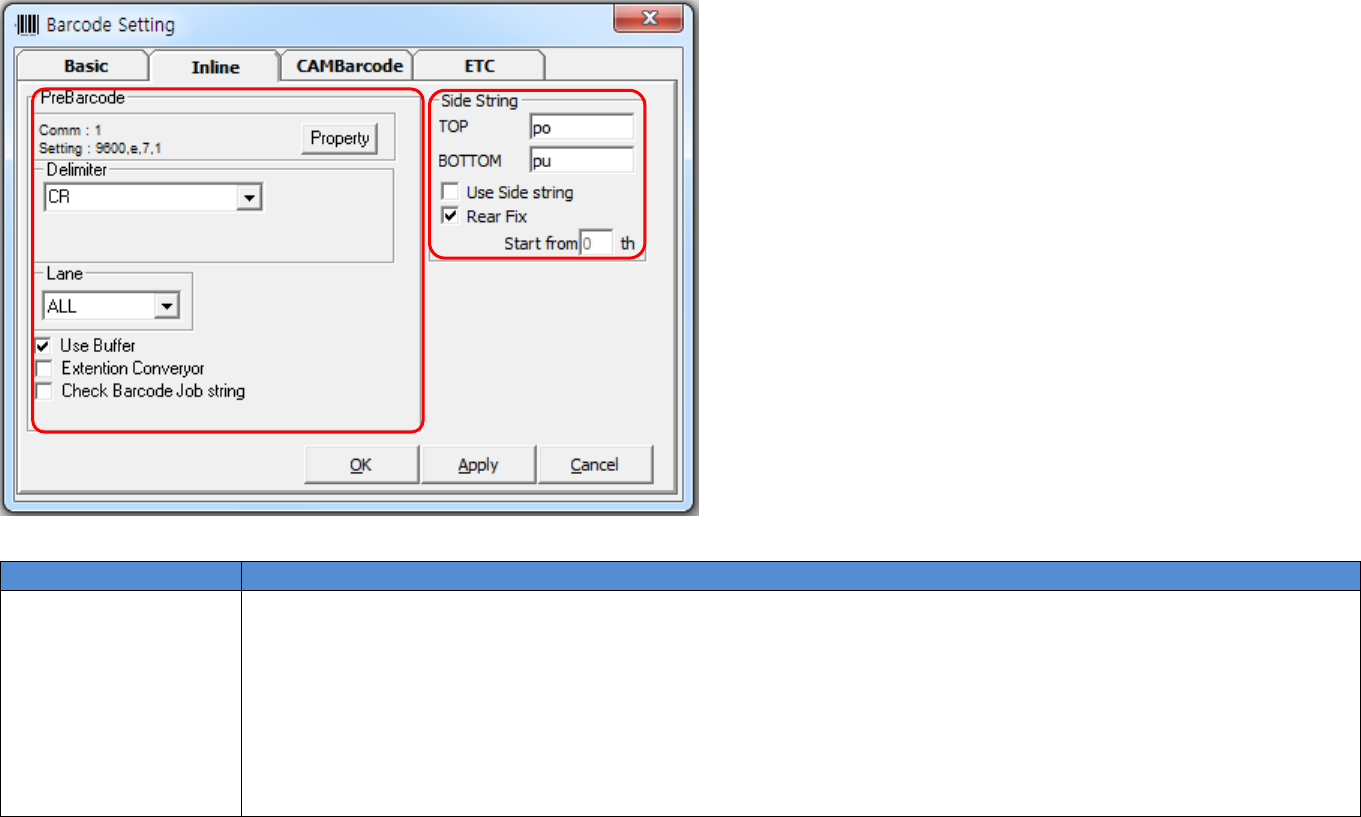
This section describes the items displayed by clicking the Inline tab in the pop-up window displayed by clicking Barcode Setting button on the main screen.
The following table shows the items in the Inline tab.
Field Name
Field Description
1.Pre Barcode
Select the options related to the serial communication required to use the Inline Barcode Reader.
• Comm: Enter the port number.
• Setting: Enter the communication type.
• Property: Click this button; Comm Port Property window appears. For more information, refer to 4.2.1 in this
manual.
• Delimiter: Select the delimiter type.
1
2