KY Config_Manual_ENG_Final.pdf - 第37页
5.13. Outside Rack This section describes Out side Rack item in the pop-up win dow displayed by clicking ETC Se tup button on the main scre en. Field Name Field Description Use Shuttle When Dual Lane Inspection System an…
• Automatic selection after verifying all defects
- Select this item for automatically selecting NG / PASS button of Defect PCB after verifying Defect Pad when
clicking GOOD / BAD button on Defect Pad on Defect View, Defect Review, Easy Use.
NG / PASS Button
Verification Data Type
Select this option when MES System is used. (“Use MES System” should be checked and Defect Queue option
should be unchecked.) The data (PAD ID, information of Good / Bad Pad, PCB verification) is saved on Ram
Disk vData folder.
Use Defect Review
Short Key
Select this for using SPC Plus Defect Review short key. (When button is disabled, short key is unusable.)
• Enter Key (Defect Review NG button)
• Space Key (Defect Review PASS button)
• ← control Key (Defect Review Previous button)
• → control Key (Defect Review Next button)
• F1 (Defect Review Bad button)
• F2 (Defect Review Good button)
• = or + (2D Image Zoom In button)
• _ or – (2D Image Zoom Out button)
Refresh Defect
Review Rack Data
This option is selected to refresh Defect Review when DVQ is emptied after clicking NG / PASS button.
Linkage Pass Button
of Block Tolerance
This option is selected to disable PASS button limited to operator when defect number is more than set tolerance
value.
Display User Login
Window Before
Verification
This option is selected to log into Defect View on 3D Inspection System.
5.8. Bad Mark Display Option
This section describes Bad Mark Display Option in the pop-up window displayed by clicking ETC Setup button on the main screen.
Field Name
Field Description
Without “X” Mark
This option is selected for not marking X when Bad is marked.
“+” Mark
This option is selected to mark Bad Mark as +.
5.9. Mode
This section describes Mode item in the pop-up window displayed by clicking ETC Setup button on the main screen.
Field Name
Field Description
MCS Auto Run
This item is selected for operating MCS automatically while operating 3D Inspection System.
5.10. Extension Histogram
This section describes Extension Histogram item in the pop-up window displayed by clicking ETC Setup button on the main screen.
Field Name
Field Description
Use Volume Max (300)
This item is selected for setting Volume Max value 300um.
When this option is not used, the default Volume Max value is 200um.
Use Height Max (300)
This item is selected for setting Height Max value 300um.
When this option is not used, the default Height Max value is 200um.
Use Area Max (300)
This item is selected for setting Area Max value 300um.
When this option is not used, the default Area Max value is 200um.
5.11. MES ETC
This section describes MES ETC item in the pop-up window displayed by clicking ETC Setup button on the main screen.
5.12. Squeegee Direction From Vision
This section describes Squeegee Direction From Vision item in the pop-up window displayed by clicking ETC Setup button on the main screen.
Field Name
Field Description
Squeegee Direction
From Vision
This item is selected for setting the Squeegee direction from Printer.
Field Name
Field Description
Use MES On / Off
Button
This item is selected to activate MES several functions by clicking ‘Use MES On / Off Button’.
5.13. Outside Rack
This section describes Outside Rack item in the pop-up window displayed by clicking ETC Setup button on the main screen.
Field Name
Field Description
Use Shuttle
When Dual Lane Inspection System and Single Buffer is used, select this item for using Shuttle.
Don’t Display When
IN Signal From Conv
Comes
Sets not to display Defect Review window even Defect Review of SPC Plus gets IN Signal from Buffer.
5.14. Color Setting
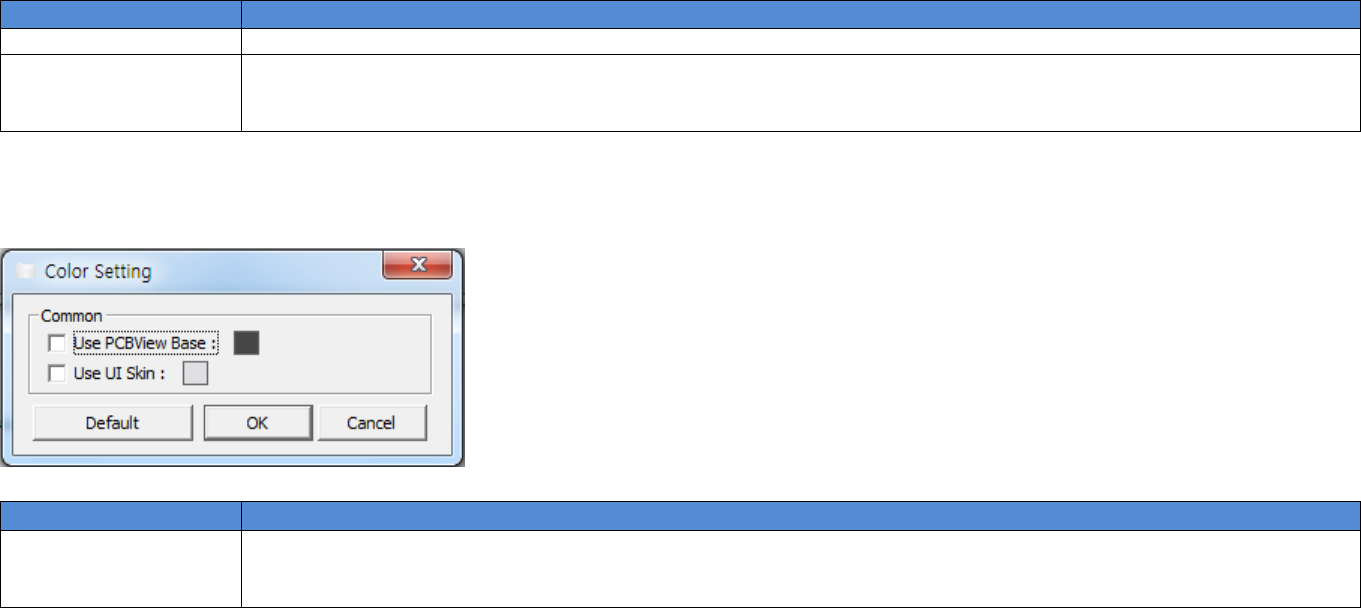
This section describes Color button located in bottom of the pop-up window displayed by clicking ETC Setup button on the main screen.
Field Name
Field Description
Color Setting
• Use PCB View Base: Changes the base color of PCB View.
• Use UI Skin: Changes the SW UI color.
• Default: Changes PCBView and UI skin Default color.