KY Config_Manual_ENG_Final.pdf - 第30页
Following table describe s the items of ETC Setup. Field Name Field Description Use RamDisk for WDFS This ite m is selected to save Worst Defect Failure on Ram Disk. It displays serio us or containing plenty of faulty in…
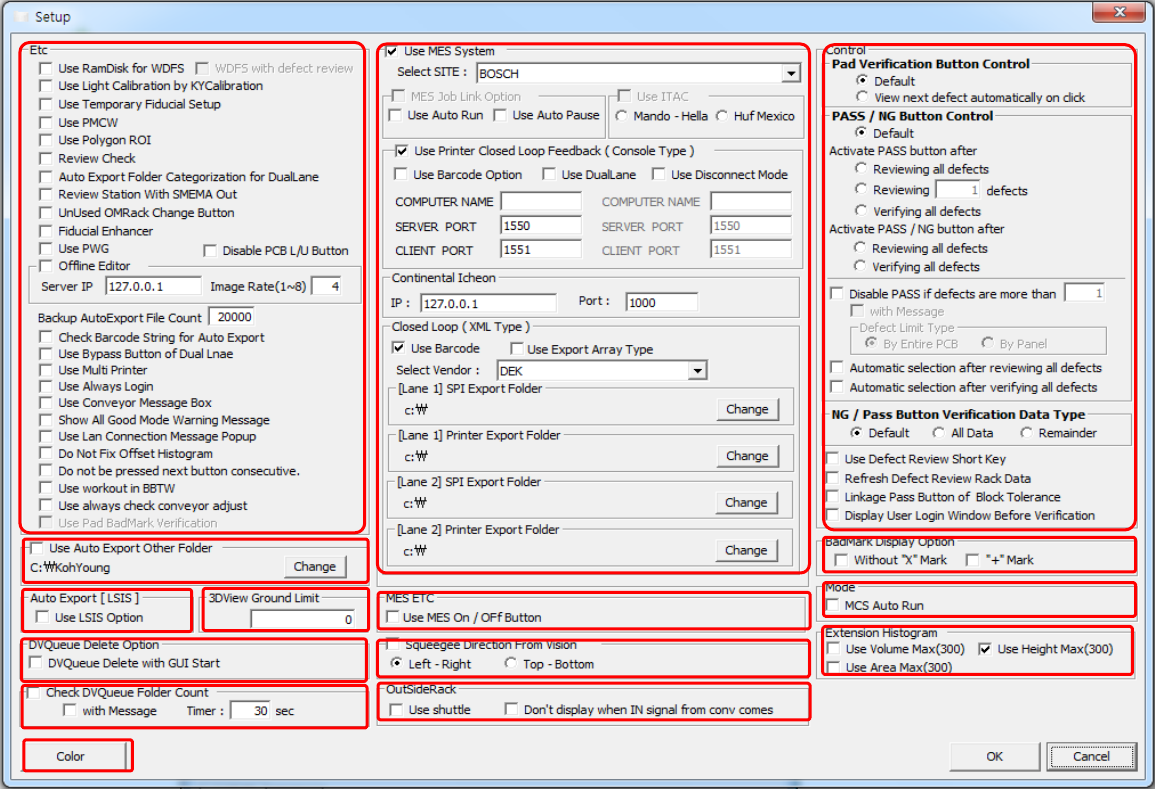
5. ETC SETUP
This section describes the pop-up window items displayed by clicking ETC Setup button on the main screen.
1
2
3
5
6
7
8
9
10
14
4
12
13
11
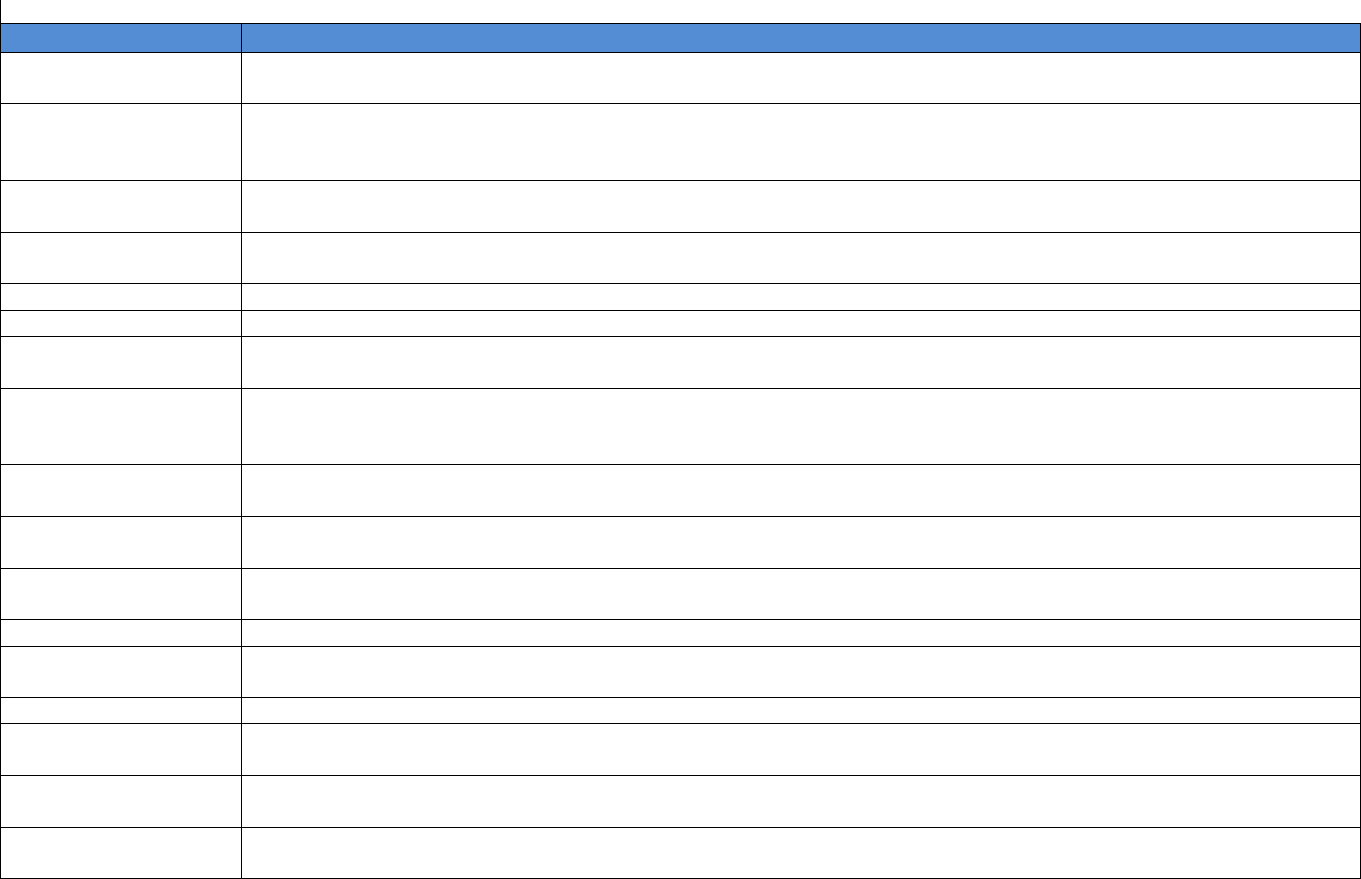
Following table describes the items of ETC Setup.
Field Name
Field Description
Use RamDisk for
WDFS
This item is selected to save Worst Defect Failure on Ram Disk. It displays serious or containing plenty of faulty
in order.
WDFS with Defect
Review
This item is selected to bring Worst Defect Failure data for using at Defect Review.
This menu is activated when “Use Ram Disk for WDFS” option is used. Select this item for using “Use Ram Disk
for WDFS” On Defect Review.
Use Light Calibration
by KYCalibration
This item is selected to apply Light Calibration setting value on KY Calibration.
Use Temporary
Fiducial Setup
This item is selected to apply setting data which user temporarily sets as fiducial wizard when the fiducial
inspection is failed.
Use PMCW
This item is selected to use optimized setting light value for each board.
Use Polygon ROI
This item is selected to use Polygon Pad.
Review Check
This item is option applied to Hyndai Mobis. (Selects for changing JobFile. When this is selected, the number of
left PCB on rack will be noticed.)
Auto Export Folder
Categorization for
Dual Lane
When Auto Exporting on Dual Lane, this item is selected to categorize folder under Lane 1, Lane 2 and save
data on Auto Export Folder.
Review Station with
SMEMA Out
Select this item for renewal Review Station Rack Data when get OUT signal of SMEMA Signal.
Unused OMRack
Change Button
Select this item for not using ‘Change Button’ on Outside Rack.
Fiducial Enhancer
This item is selected to enhance fiducial analyze. Shoot the fiducial with the Fiducial Light from two–way and
inspect the fiducial by composing the results
Use PWG
This item is selected to make Job file with PCB only, not using Gabber file.
Disable PCB L/U
Button
This item is selected to disable PCB Load / Unload button.
Offline Editor
Select for operating Offline Editor.
Backup Auto Export
File Count
Select this item for setting Auto Export output file amount based on input value. When the number of Auto Export
output files is more than setting value, this moves its data to Backup Folder.
Check Barcode String
for Auto Export
This item is selected to compare Barcode length.
Use BYPASS Button
of Dual Lane
This item is selected to use BYPASS button on Dual Lane.
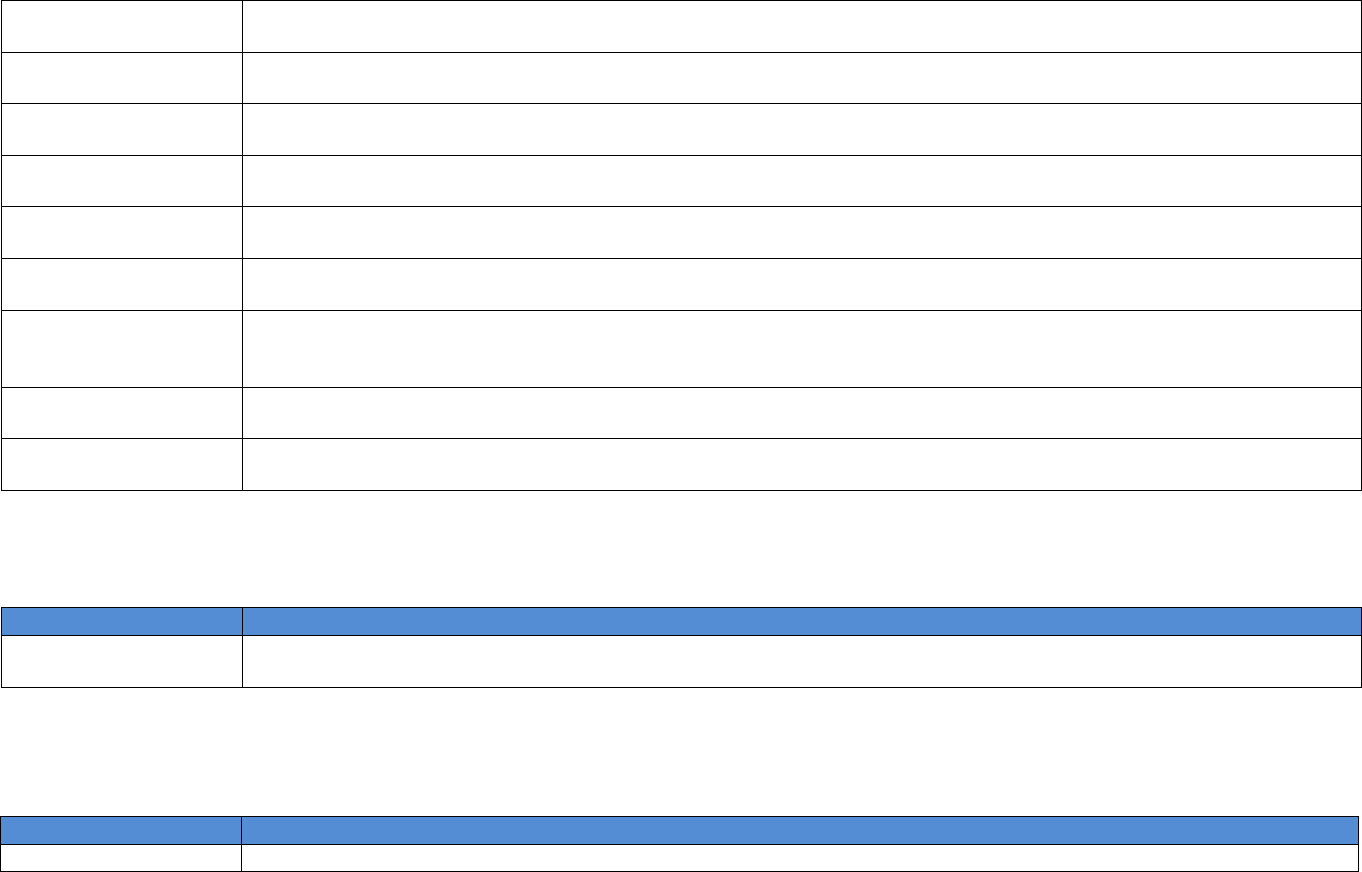
Use Multi Printer
This item is used only on Multi Printer. Even Job file of Lane no.1 and no. 2 is same on Dual Lane, this changes
Squeegee direction after every inspection completed.
Use Always Login
This item is selected to use machine when logs in. (Login window is displayed when 3D Inspection System is
operated at the first time.)
Use Conveyor
Message Box
This item is selected to use adjusting Conveyor width message.
Show All Good Mode
Warning Message
When this is selected in All Good Mode, it displays Warning Message big to recognize easy.
Use LAN Connection
Message Popup
This item is selected to check LAN Connection on Inspection system. (When LAN is not connected, the Message
pops-up.)
Do Not Fix Offset
Histogram
When this item is selected, it displays the Offset Histogram changeable by Vision origin of coordination setting.
Do Not Be Pressed
Next Button
Consecutive
This item is selected to prevent clicking Next button consecutively on 3D Inspection System Defect View.
Use Workout in
BBTW
This item is selected to operate and work out BBT apiece when a couple of PCBs of BBT is operated.
Use always check
conveyor adjust
Sets the Conveyor width to be adjusted when each PCB is loaded.
5.1. Use Auto Export Other Folder
This section describes Use Auto Export Other Folder in the pop-up window displayed by clicking ETC Setup button on the main screen.
Field Name
Field Description
Use Auto Export
Other Folder
This item is selected to save other output files excepting Auto Export.
5.2. Auto Export [LSIS]
This section describes Use Auto Export [LSIS] in the pop-up window displayed by clicking ETC Setup button on the main screen.
Field Name
Field Description
Use LSIS Option
This item is Auto Export option used for LSIS.