00198005-02_VD_SIPLACE_Pro_13.1_DE_EN.pdf - 第13页
SIPLACE Pro V13.1 / Softw are Version Descriptio n 05/2016 Edition 13 4 Features of SIPLACE Pro 1 3.1 If not different ly described, the f eatures of the previous SIPLACE Pro versions a re contained in SIPLACE Pro 1 3.1 …
SIPLACE Pro V13.1 / Software Version Description 05/2016 Edition
12
3.2 Supported Feeder Types
The following feeders are supported by SIPLACE Pro:
– 4 mm – 104 mm X-feeder
– 2x8 mm X-feeder
– 16 mm XN-feeder
– Surftape AX (8 mm, 12 mm, 16 mm)
– LED feeder TE
LED feeder HS
– SIPLACE Glue Feeder
– TrayStak Feeder AX (X4i S on location 2 and 3 only)
– SIPLACE JTF-S (X-series S and SX1/SX2 V2 only)
– SIPLACE JTF-M (X-series S, X4i S micron and SX1/SX2 V2 only)
– SIPLACE JTF-ML 14X and JTF-ML 18X (TX-series only)
– Arbitrary Carrier X
– Conveyor Carrier X
– Carrier X (XTH) (X2, X3, X4 on location 2 and 4 only)
– Carrier SX (SX1/SX2 with Twin Head and CPP head only)
– FFI feeders:
Data IO RoadRunners
– IPTE Multi Stick Feeder:
IPTE MSF 60 AX
IPTE MSF XL80 AX
– Stick feeder with X-adapter
– Label feeder with X-adapter
– Reject conveyor with X-adapter
– Dip module for X-tables (LDU_X)
– MTC2 (X2, X3, X4 on location 2 and 4, X2 S, X3 S, X4 S on location 2)
– WPC5 / WPC6 (SX1/SX2, X-series S on location 2)
– SIPLACE Wafer Systems (CA-series only)
– Splice sensor X-feeder
SIPLACE Pro V13.1 / Software Version Description 05/2016 Edition
13
4 Features of SIPLACE Pro 13.1
If not differently described, the features of the previous SIPLACE Pro versions are contained in
SIPLACE Pro 13.1. The main features of SIPLACE Pro 13.1 are listed below.
NOTICE
Detailed information on the individual functions can be found in the Online Help for
SIPLACE Pro.
4.1 Pin1 Detection Option
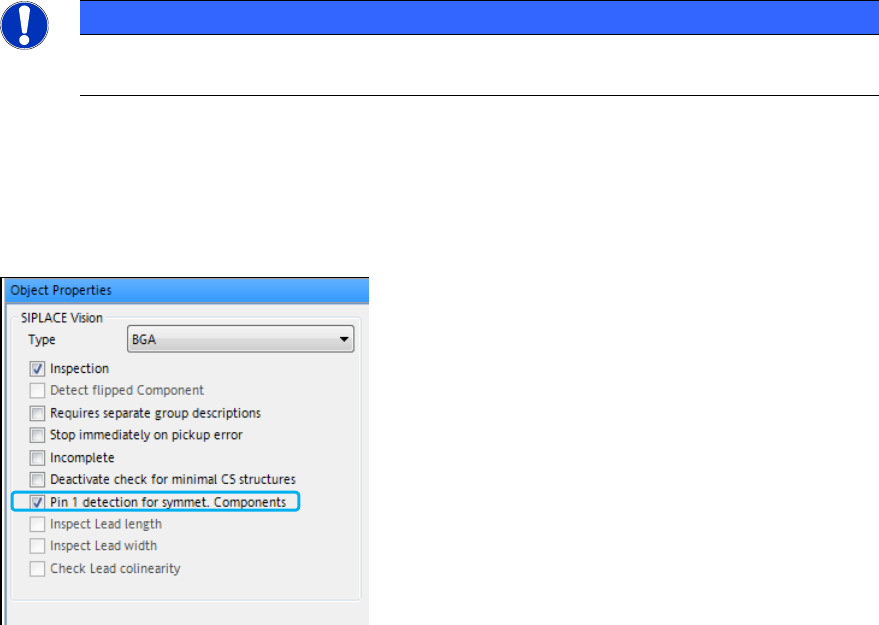
The Vision Inspection tab in the Component Shape Editor has been extended by the Pin1
Detection for symmet. Components option:
Figure 4-1: Pin1 Detection
If this option is set in a downloaded job, the operator is forced to teach the Pin1 marker in the
SIPLACE Vision teach GUI on the station or in the SIPLACE Vision Teach Station.
The SIPLACE Pro behavior differs depending on the line configuration:
– In pure 709 lines, the new marker is downloaded to the station(s) and the components can be
placed by all stations in the line.
– In mixed lines (< 709 and >= 709 in one line), components with active Pin1 Detection marker
are bound to the stations with station software >= 709. All components assigned to a
component shape having Pin1 Detection activated are set up on the station(s) running station
software 709. If not all marked components fit on the 709 station(s) an error message is
displayed. For stations with station software < 709, the marker is switched off.
– In lines with stations with station software < 709, the optimizer issues a warning that there are
components existing which are selected for Pin1 Detection but no station in the line supports
this feature. The Pin1 Detection demand for the station is ignored.
SIPLACE Pro V13.1 / Software Version Description 05/2016 Edition
14
4.2 Improved Inkspot Handling
The usability for programming panel inkspots in SIPLACE Pro has been improved in this SIPLACE
Pro version.
Inkspots can be defined as a group or as individuals in order to move, delete or add them together
or separately in SIPLACE Pro. Three types of inkspots can be defined within the Board Editor:
– Panel Inkspot – used to control placement of the associated individual panel
– Board Inkspot – used to control placement of the entire board
– PCB Detection Inkspot – used to identify combined boards via a special kind of fiducial type.
In a cluster panel with more than one row and / or column, the Panel Inkspots are considered to
be a group of duplicates. In these panels, all component placement positions and fiducials are
duplicates, defined in a single placement list or fiducial list. Their positions are defined relatively to
the offset of the panel's coordinate system. All duplicate / sibling placements or fiducials move
together when their offsets, i.e. the panel positions or spacing are adjusted.
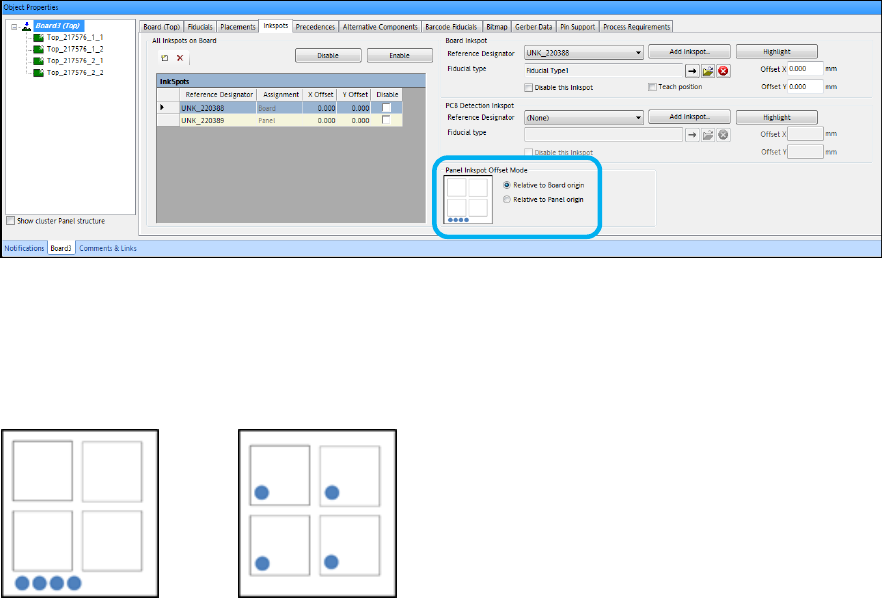
To provide a more intuitive support for programming panel inkspots, the Board Editor has been
changed as follows:
Figure 4-2: Inkspots for Boards tab
The respective buttons are available in the Inkspots for Board tab with new option names –
Relative to Board origin and Relative to Panel origin. For better understanding, a graphic
displays the selected panel inkspot offset mode.
Relative to Board origin: Relative to Panel origin:
Figure 4-3: Panel Inkspot Offset Modes
4.3 MES Callbacks in the Line Control Server
A MES callback mechanism has been implemented in the Line Control Server with which program
downloads to SIPLACE lines and product activation on DEK printers respectively can be
intercepted and verified before performance. If the verification fails, the program download to all
SIPLACE stations or product activation on DEK printers will be refused by the MES service.
For this, the Asm.As.LineControl.Interceptor.Service has to be registered in SIPLACE OIB. This
service has to be implemented by a customer MES application service to receive the respective
MES callbacks sent by the Line Control Server and contains the following verification methods.