00198005-02_VD_SIPLACE_Pro_13.1_DE_EN.pdf - 第15页
SIPLACE Pro V13.1 / Softw are Version Descriptio n 05/2016 Edition 15 Verification method Description For program downloads: Ping Used for the ping t est. Verify RecipeD ownloa d Used for all download s of recipes contai…
SIPLACE Pro V13.1 / Software Version Description 05/2016 Edition
14
4.2 Improved Inkspot Handling
The usability for programming panel inkspots in SIPLACE Pro has been improved in this SIPLACE
Pro version.
Inkspots can be defined as a group or as individuals in order to move, delete or add them together
or separately in SIPLACE Pro. Three types of inkspots can be defined within the Board Editor:
– Panel Inkspot – used to control placement of the associated individual panel
– Board Inkspot – used to control placement of the entire board
– PCB Detection Inkspot – used to identify combined boards via a special kind of fiducial type.
In a cluster panel with more than one row and / or column, the Panel Inkspots are considered to
be a group of duplicates. In these panels, all component placement positions and fiducials are
duplicates, defined in a single placement list or fiducial list. Their positions are defined relatively to
the offset of the panel's coordinate system. All duplicate / sibling placements or fiducials move
together when their offsets, i.e. the panel positions or spacing are adjusted.
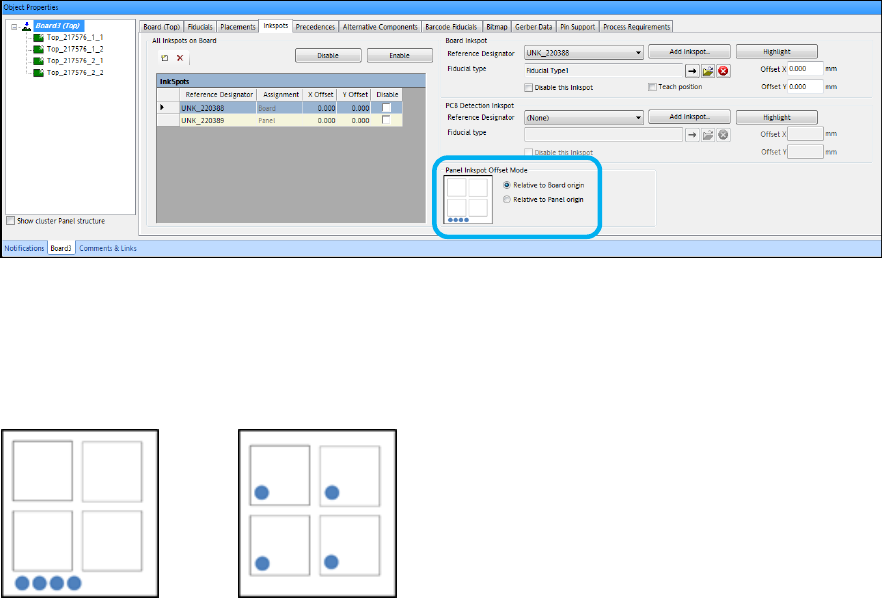
To provide a more intuitive support for programming panel inkspots, the Board Editor has been
changed as follows:
Figure 4-2: Inkspots for Boards tab
The respective buttons are available in the Inkspots for Board tab with new option names –
Relative to Board origin and Relative to Panel origin. For better understanding, a graphic
displays the selected panel inkspot offset mode.
Relative to Board origin: Relative to Panel origin:
Figure 4-3: Panel Inkspot Offset Modes
4.3 MES Callbacks in the Line Control Server
A MES callback mechanism has been implemented in the Line Control Server with which program
downloads to SIPLACE lines and product activation on DEK printers respectively can be
intercepted and verified before performance. If the verification fails, the program download to all
SIPLACE stations or product activation on DEK printers will be refused by the MES service.
For this, the Asm.As.LineControl.Interceptor.Service has to be registered in SIPLACE OIB. This
service has to be implemented by a customer MES application service to receive the respective
MES callbacks sent by the Line Control Server and contains the following verification methods.

SIPLACE Pro V13.1 / Software Version Description 05/2016 Edition
15
Verification method Description
For program downloads:
Ping Used for the ping test.
VerifyRecipeDownload Used for all downloads of recipes contained in a
production schedule.
The Line Control Server calls this method just after the
recipe data for all stations of the line has been created
successfully, but before this data is released for
production.
If two recipes are downloaded simultaneously (one for
the right and the other for the left lane), this method is
called once for both recipes and the MES service can
only accept or refuse both recipe downloads together.
VerifyStartAutoProgramDownload Used to verify a recipe of a job for starting the auto
program download mode (= barcode-controlled
production).
The Line Control Server calls this method just after the
recipe data for all stations of the line has been created
successfully, but before this data is released for
production.
VerifyRecipeForAutoProgramDownload Used to verify an additional recipe of a job or to re-verify
a modified recipe, when auto program download mode
has already been started.
The Line Control Server calls this method just after the
recipe data for all stations of the line has been created
successfully, but before this data is released for
production.
VerifyPcbForAutoProgramDownload When a board is moved into a station in auto program
download mode and the Line Control Server has
assigned a recipe to the uploaded board barcode, the
MES service can accept or refuse that the board with the
given board barcode is produced with this recipe.
For product activation on DEK
Printers:
Ping Used for the ping test.
VerifyRecipeActivationOnDekPrinter This callback is initiated by a DEK printer via the
VerifyRecipe callback.
Table 4-1: Verification methods
The Line Control Server calls the respective verification method of all registered MES services in
the order in which they are configured in SIPLACE OIB. This sequence is continued as long as the
current MES service confirms the program download. If the current MES service refuses the
program download, the sequence is aborted.
If only one MES service Asm.As.LineControl.Interceptor.Service is registered in OIB, Line Control
will call this MES service for any SIPLACE Pro line. If more than one MES services are registered
in OIB, Line Control will call these MES services only if the user has assigned them to SIPLACE
Pro lines via SIPLACE OIB Factory Explorer.
SIPLACE Pro V13.1 / Software Version Description 05/2016 Edition
16
4.3.1 Activating MES Callbacks
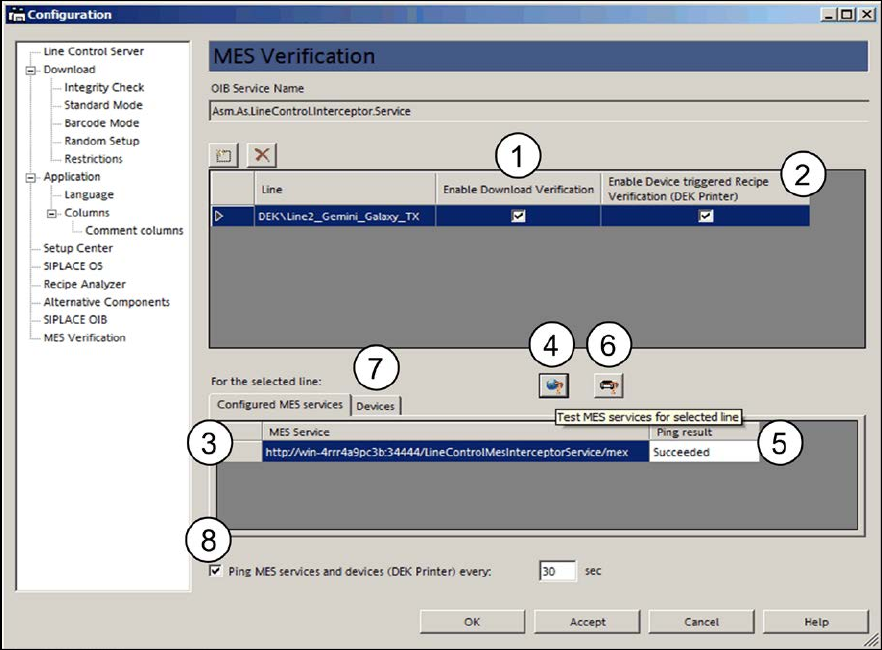
The MES callbacks for program download and product activation on DEK printers can be activated
in the Line Control GUI under Configuration – MES Verification.
Figure 4-4: Activating MES callbacks
The MES callbacks for program download can be activated in the Enable Download Verification
checkbox (1) for a line that contains at least one device (= placement station) that supports the
program download by the Line Control Server.
The Line Control Server triggers the MES callback once per program download to a line. The MES
callback is sent to all MES services named Asm.As.LineControl.Interceptor.Service that have been
registered in SIPLACE OIB.
The MES callbacks for product activation on DEK printers can be activated in the Enable Device
triggered Recipe Verifications (DEK Printer) checkbox (2) for a line that contains DEK printers
only or DEK printers and placement stations.
The DEK printer triggers a lot of different callbacks to different MES services, amongst others the
VerifyRecipeActivationOnDekPrinter. The DEK printer sends a callback to the Line Control Server
that forwards this callback to all MES services named Asm.As.LineControl.Interceptor.Service.
The configured MES services for the selected line are displayed in table (3).
The connection to the MES services can be tested with the Test MES Services for selected line
button (4). The result is displayed under Ping result (5).
Additionally, the connection between the Line Control Server and the DEK printers can be tested
with the Test device connections for selected line button (6) in the Devices tab (7).