00198005-02_VD_SIPLACE_Pro_13.1_DE_EN.pdf - 第20页
SIPLACE Pro V13.1 / Softw are Version Descriptio n 05/2016 Edition 20 4.7 2D Barcodes in Setup Reports The setup report alr eady contain s 1D barcode s to re fill the setup w ith help of barcode reade rs. Meanwhile , 2D …
SIPLACE Pro V13.1 / Software Version Description 05/2016 Edition
19
If selected for a Production Schedule element, the recipe marker will be sent to the station
together with the recipe program data.The recipe marker will not be stored in SIPLACE Pro. This
means that a displayed Production Schedule is not automatically pre-selected.
If the recipe is downloaded again in the Line Control GUI without specifying this marker, this recipe
is removed from the station store.
This recipe marker is a processing option that can also be specified when the recipe is downloaded
via SIPLACE OIB interface.
4.5 Defining Force Value in Dipping Process
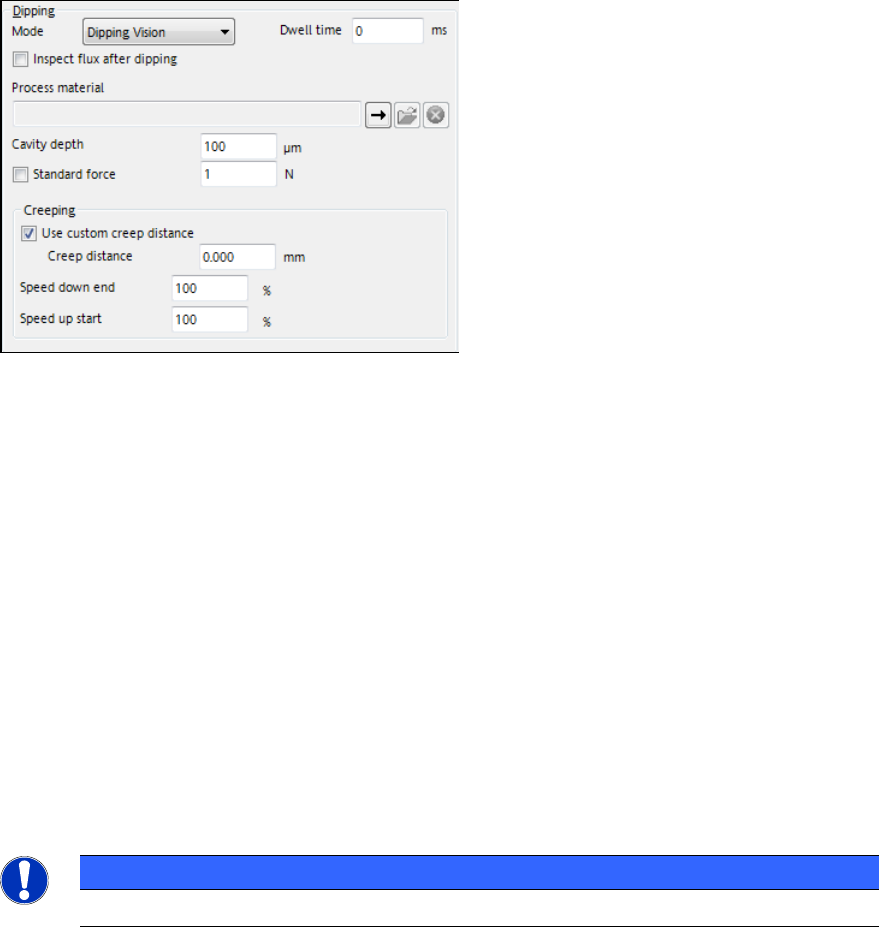
The force value range has been changed for the dipping process. The force value can be defined
in the dipping process settings in the Component Shape Editor.
Figure 4-9: Defining force value in dipping process
If the Standard force option is activated, 2 N is assumed.
Min. value: 1 N
Max. value: 10 N
4.6 Nozzle Magazine with 20 Garages for CPP Placement Head
SIPLACE Pro supports a new nozzle magazine with 20 garages (nozzle type 20xx) for CPP
placement heads from station software version 709.
The magazine will be configurable in the following existing nozzle changer types:
NC CPP 20xx28xx 2x3, NC CPP 20xx28xx 2x2 and NC CPP 20xx28xx 4 as well as in the NC CPP
20xx 2x3, NC CPP 20xx 2x2, NC CPP 20xx 4 types.
The 12*20xx, 20*20xx and 9*28xx magazine types may be mixed in one nozzle changer.
Custom nozzles with a length > 16 mm can only be placed in the garages 3, 4 and 5. For standard
nozzles there are no restrictions.
NOTICE
SIPLACE Pro does not check if the station software supports the new magazine.
SIPLACE Pro V13.1 / Software Version Description 05/2016 Edition
20
4.7 2D Barcodes in Setup Reports
The setup report already contains 1D barcodes to refill the setup with help of barcode readers.
Meanwhile, 2D barcodes are often used in the industrial environment as they may encode more
information and character types. Hence, 2D barcodes have been added to the setup reports in this
SIPLACE Pro version. 1D and 2D barcodes contain the same information.
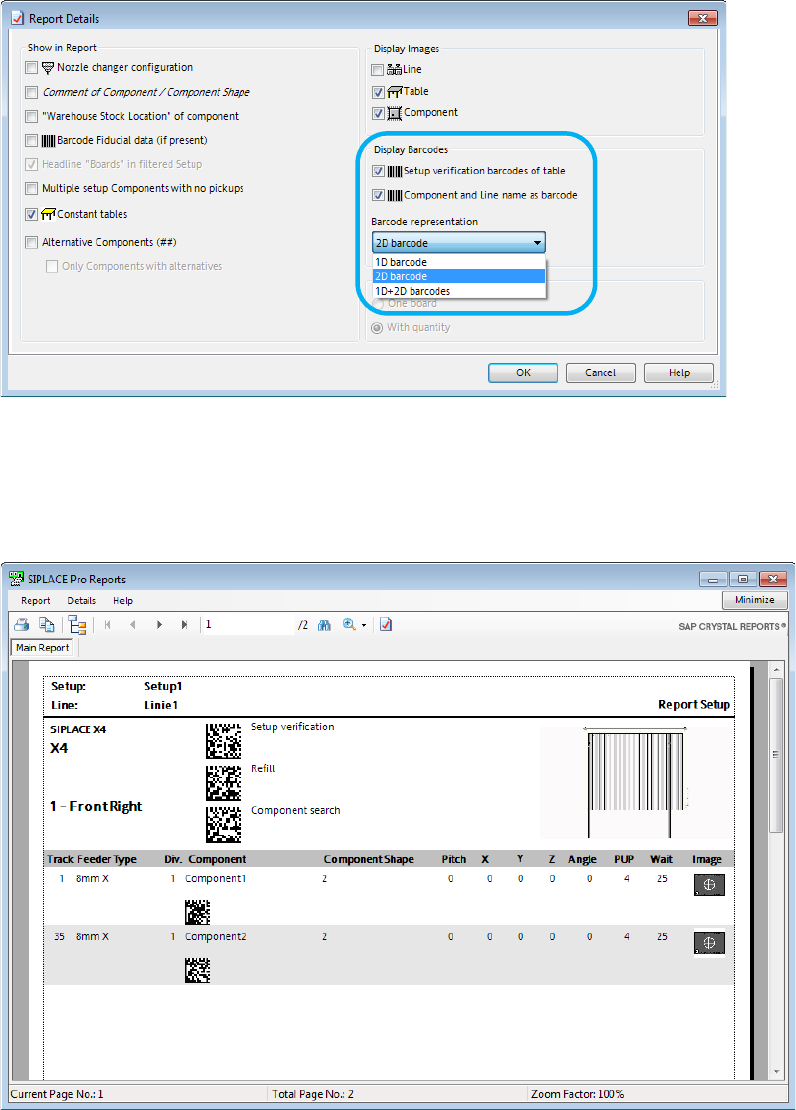
In the Report Details dialog, the user can select if a 1D barcode, a 2D barcode or both barcode
types shall be displayed in the setup reports:
Figure 4-10: Report Details – Display Barcodes
The line name, component name and the table refill barcodes can be displayed as 1D, 2D or
1D+2D barcodes in the setup report. The 2D barcode type is the Data Matrix code (industrial
standard).
The settings of the Report Details are stored.
Figure 4-11: Setup Report with 2D barcodes
SIPLACE Pro V13.1 / Software Version Description 05/2016 Edition
21
4.8 Displaying Conveyor Width in Production Schedule
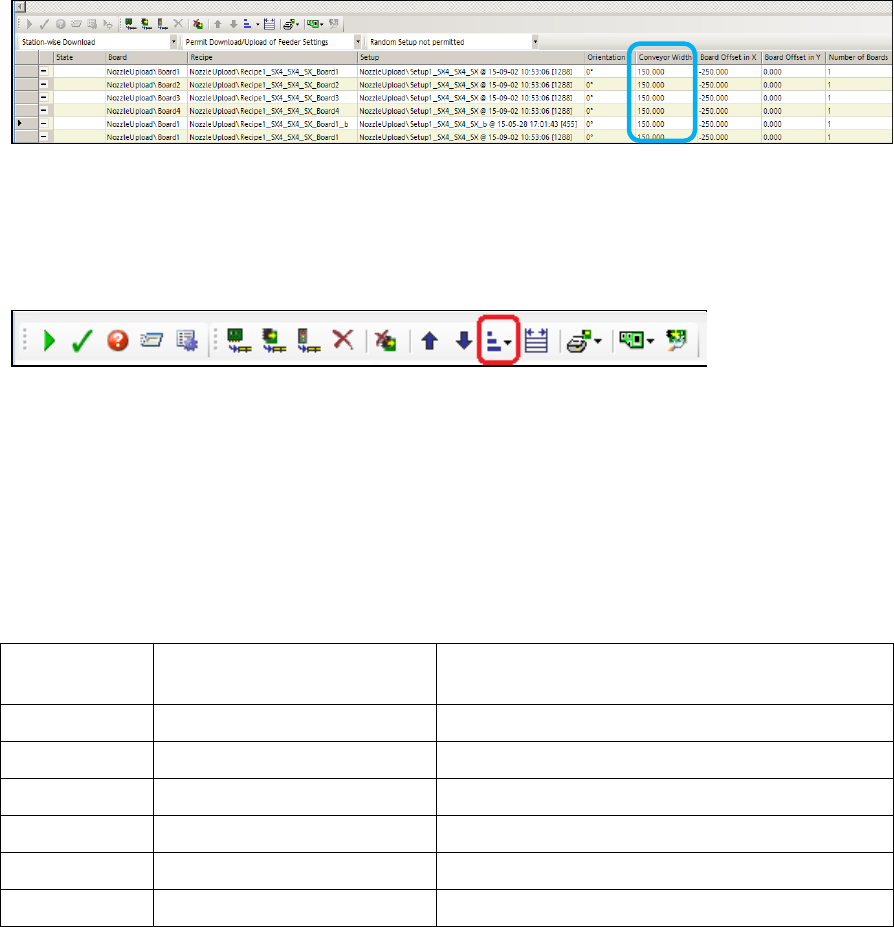
Boards of the same width should preferably be produced successively so that the frequency of
conveyor width adjustments can be reduced. For this, the Conveyor Width column can be added
to the recipe list in the Production Schedule.
Figure 4-12: Production Schedule – Conveyor Width column
This column is not displayed by default. To be visible, it has to be set on the Line Control GUI
under Application- Columns.
The recipes can be sorted according to the conveyor width within a group of recipes in the same
setup. For this, a new Sort columns button has been added to the command list for the recipes:
With this button, the Conveyor Width can be sorted in Descending or Ascending order.
The order of recipes in different setups will not be changed. The board orientation will be
considered when the conveyor width is calculated.
For recipes with multiple boards the sorting only considers the widest board. The sorting also
considers the conveyor lane of the recipes. The recipe on the right conveyor lane is considered
before the recipe on the left conveyor lane. Recipes produced on both conveyor lanes will be
sorted identically to recipes produced on the right conveyor lane.
Example of recipes sorted in ascending order
Recipe name Widest board of the recipe Conveyor lane on which the recipe is
produced
Recipe1 50 Right
Recipe2 50 Both
Recipe3 100 Right
Recipe4 100 Both
Recipe5 50 Left
Recipe6 100 Left
Table 4-2: Recipes sorted in ascending order
If sorted by descending conveyor width the order would be reversed.
The context menu of the Production Schedule grid will also be extended by a Sort columns
menu with the same submenus.