00198005-02_VD_SIPLACE_Pro_13.1_DE_EN.pdf - 第22页
SIPLACE Pro V13.1 / Softw are Version Descriptio n 05/2016 Edition 22 4.9 BOM Merger GUI – Improvements The BOM Merger GUI has been improve d to better suit custom er needs. In the following the improvement s are present…
SIPLACE Pro V13.1 / Software Version Description 05/2016 Edition
21
4.8 Displaying Conveyor Width in Production Schedule
Boards of the same width should preferably be produced successively so that the frequency of
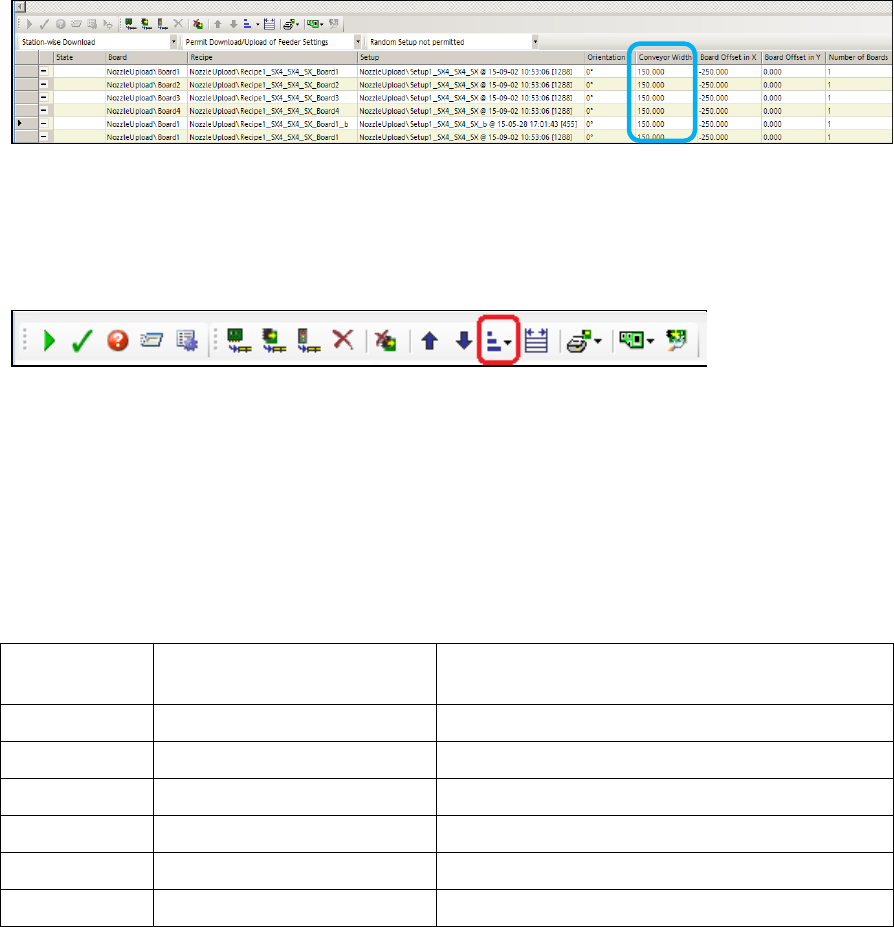
conveyor width adjustments can be reduced. For this, the Conveyor Width column can be added
to the recipe list in the Production Schedule.
Figure 4-12: Production Schedule – Conveyor Width column
This column is not displayed by default. To be visible, it has to be set on the Line Control GUI
under Application- Columns.
The recipes can be sorted according to the conveyor width within a group of recipes in the same
setup. For this, a new Sort columns button has been added to the command list for the recipes:
With this button, the Conveyor Width can be sorted in Descending or Ascending order.
The order of recipes in different setups will not be changed. The board orientation will be
considered when the conveyor width is calculated.
For recipes with multiple boards the sorting only considers the widest board. The sorting also
considers the conveyor lane of the recipes. The recipe on the right conveyor lane is considered
before the recipe on the left conveyor lane. Recipes produced on both conveyor lanes will be
sorted identically to recipes produced on the right conveyor lane.
Example of recipes sorted in ascending order
Recipe name Widest board of the recipe Conveyor lane on which the recipe is
produced
Recipe1 50 Right
Recipe2 50 Both
Recipe3 100 Right
Recipe4 100 Both
Recipe5 50 Left
Recipe6 100 Left
Table 4-2: Recipes sorted in ascending order
If sorted by descending conveyor width the order would be reversed.
The context menu of the Production Schedule grid will also be extended by a Sort columns
menu with the same submenus.
SIPLACE Pro V13.1 / Software Version Description 05/2016 Edition
22
4.9 BOM Merger GUI – Improvements
The BOM Merger GUI has been improved to better suit customer needs. In the following the
improvements are presented.
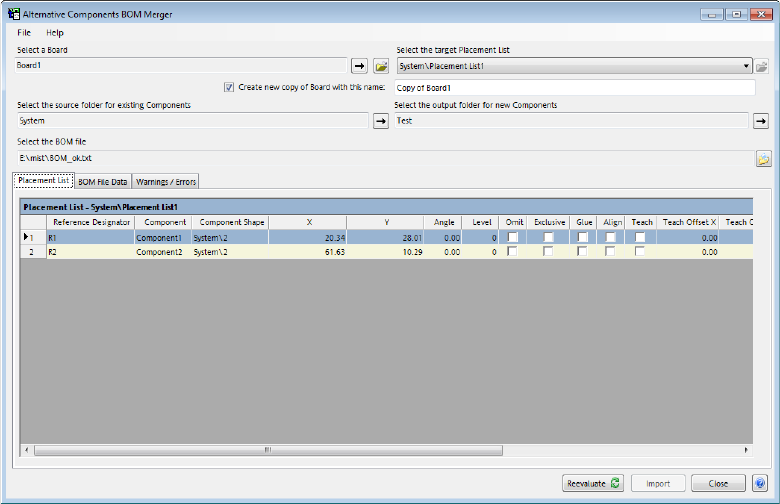
Figure 4-13: BOM Merger
– At first, a board has to be selected. A list of placement lists referenced by that board will be
presented in a drop-down list. The user must select the desired placement list.
– With the new Create new copy of Board with this name option, a copy of the original board
will be created. This checkbox is enabled by default. The name field will be prepopulated with
an automatically generated name in the form Copy of <OriginalName>[<UniqueNumber>].
The user may rename the copy. The new copy of the board will be created in the same folder
as the original board. Copies will be made of all placement lists used by the board. These
copies will retain their names, but will be placed in a new folder in the same folder as the
selected placement list.
SIPLACE Pro V13.1 / Software Version Description 05/2016 Edition
23
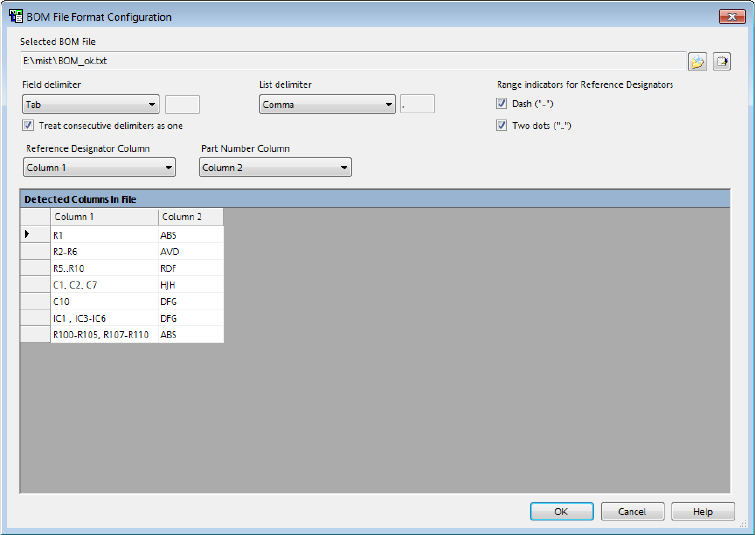
New controls for configuring the file format options have been added to the BOM File Format
Configuration dialog.
Figure 4-14: BOM File Format Configuration dialog
– Field and list delimiters can be defined for the BOM file. In some customer data the columns
are aligned in the text files so that they are human readable. For this reason, the BOM Merger
offers the Treat consecutive delimiters as one option. This option is available for all field
delimiters. For the SPACE and TAB-STOP field delimiters, the option will be automatically
detected and activated.
– The BOM Merger interprets a dash (-) and two consecutive dots (..) as names and not as range
delimiter symbols. These characters are disabled by default on the GUI. The user can enable
one of them or both as range delimiter characters.
– Additionally to lines beginning with the hash character (#), also lines beginning with two
consecutive slashes (//) will be interpreted as comment lines and ignored during import.
– The Reference Designator Column contains a list of names, separated by the selected list
delimiter character and cannot be configured.
– The BOM Merger will automatically save the selected delimiters and range indicators when the
application closes. At each start up, the last used preferences will be loaded.