00198005-02_VD_SIPLACE_Pro_13.1_DE_EN.pdf - 第28页
SIPLACE Pro V13.1 / Softw are Version Descriptio n 05/2016 Edition 28 4.14.3 Modifying C omment T ext i n Data Maintenance Tool For each available obje ct in the Data Mainten ance Tool a function has been added with w hi…
SIPLACE Pro V13.1 / Software Version Description 05/2016 Edition
27
4.14 Miscellaneous SIPLACE Pro Improvements
4.14.1 Opening Component Shape via Context Menu in Component Tree View
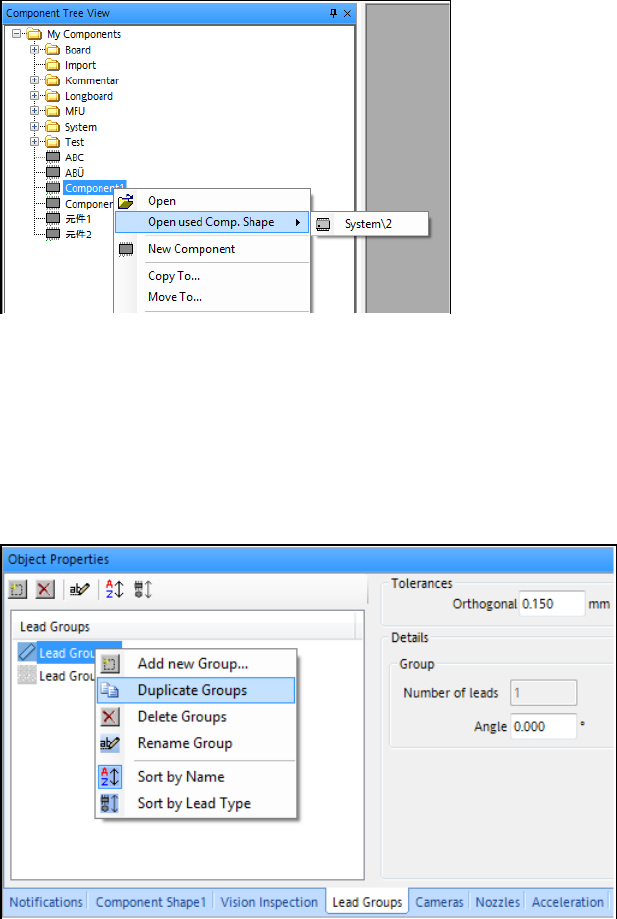
To enable a faster work with SIPLACE Pro Desk the component shape of a selected component
can be opened by clicking the context menu in the Component Tree View and selecting the Open
used Comp. Shape menu item. If assigned, the component shape is displayed in a submenu. If
not, None is displayed.
Figure 4-20: Opening used component shape
4.14.2 Duplicating Lead Groups in Component Shape Editor
To enable faster programming in the Component Shape Editor, an existing lead group can be
selected and duplicated from the context menu of the Lead Groups list in the component shape
Lead Group tab. By selecting the Duplicate Groups menu item, the selected group will be
duplicated with a new name into the collection of lead groups.
Figure 4-21: Duplicating lead groups
SIPLACE Pro V13.1 / Software Version Description 05/2016 Edition
28
4.14.3 Modifying Comment Text in Data Maintenance Tool
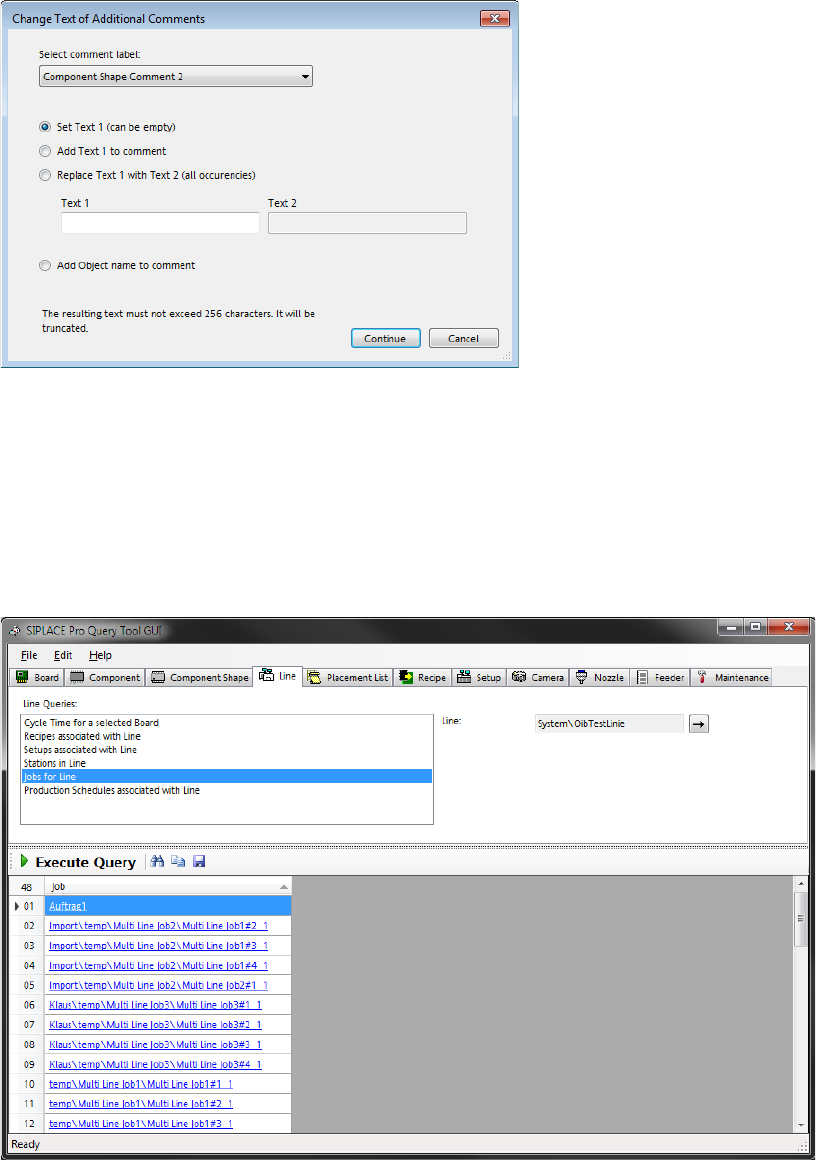
For each available object in the Data Maintenance Tool a function has been added with which the
comment text of the defined comment items can be modified. In the Change Text of Additional
Comments dialog, the desired comment item can be selected from a list box.
Figure 4-22: Modifying comment text
For the selected comment item, the comment text can be modified with the Set Text, Add Text or
Replace Text options. Optionally, the object name can be added to the comment.
4.14.4 Extended SIPLACE Pro Query Tool
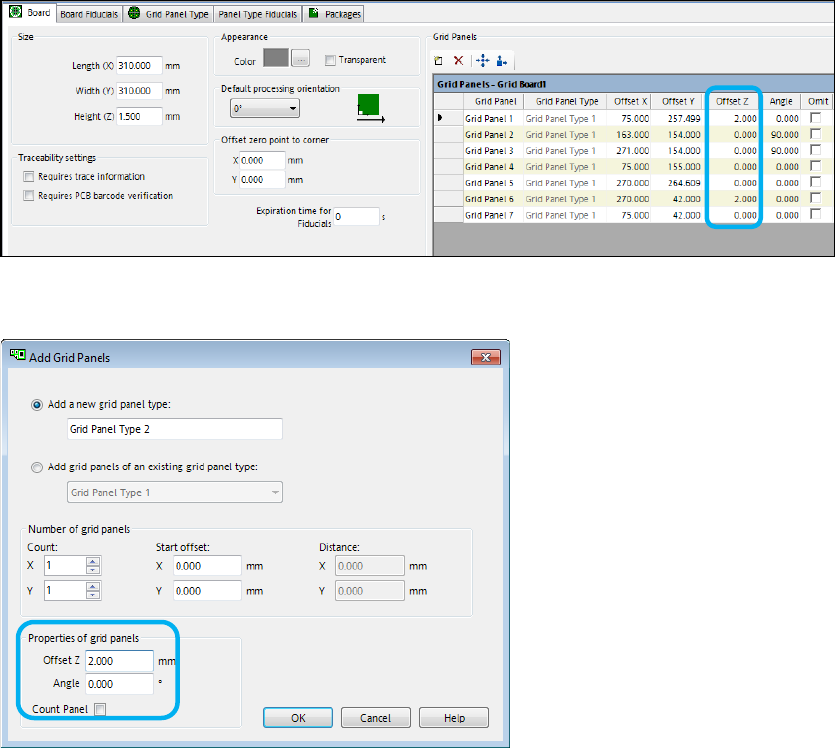
A new query is available in the Line tab of the SIPLACE Pro Query Tool. With the Jobs for Line
query, all jobs related to a given line path will be displayed.
Figure 4-23: SIPLACE Pro Query Tool – Jobs for Line
SIPLACE Pro V13.1 / Software Version Description 05/2016 Edition
29
4.14.5 Z Height for Grid Panels in Grid Board Editor
An offset for the Z direction can now be added to each individual panel on a grid board to describe
the additional height of a panel.
If the Z offset = 0, the panel on a grid board has no additional height, i.e. grid board height = grid
panel height.
If the Z offset is ≠ 0, the total panel height = grid board height + Z offset.
The Offset Z column has been added to the Grid Panels list in the grid board.
Figure 4-24: Grid Panels list
The Z height can be set when adding a grid panel in the Add Grid Panels dialog.
Figure 4-25: Adding grid panels
This value can also be set or added for several selected existing grid panels in the Change Grid
Panels dialog.