00198005-02_VD_SIPLACE_Pro_13.1_DE_EN.pdf - 第17页
SIPLACE Pro V13.1 / Softw are Version Descriptio n 05/2016 Edition 17 Figure 4-5: Testing device c onnections This test als o includes the callbac k channel from the DEK printer to the Line C ontrol Server. The result is…
SIPLACE Pro V13.1 / Software Version Description 05/2016 Edition
16
4.3.1 Activating MES Callbacks
The MES callbacks for program download and product activation on DEK printers can be activated
in the Line Control GUI under Configuration – MES Verification.
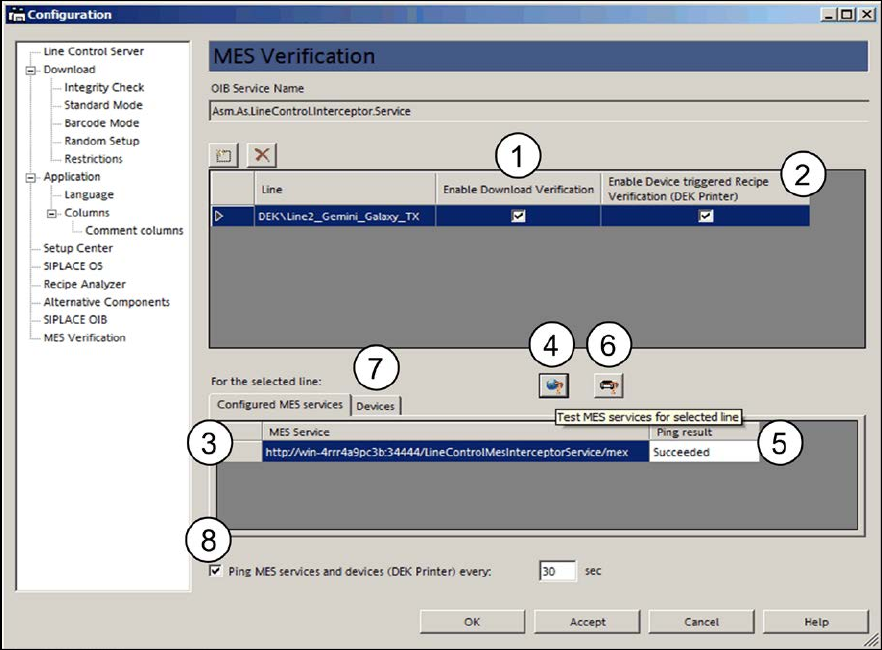
Figure 4-4: Activating MES callbacks
The MES callbacks for program download can be activated in the Enable Download Verification
checkbox (1) for a line that contains at least one device (= placement station) that supports the
program download by the Line Control Server.
The Line Control Server triggers the MES callback once per program download to a line. The MES
callback is sent to all MES services named Asm.As.LineControl.Interceptor.Service that have been
registered in SIPLACE OIB.
The MES callbacks for product activation on DEK printers can be activated in the Enable Device
triggered Recipe Verifications (DEK Printer) checkbox (2) for a line that contains DEK printers
only or DEK printers and placement stations.
The DEK printer triggers a lot of different callbacks to different MES services, amongst others the
VerifyRecipeActivationOnDekPrinter. The DEK printer sends a callback to the Line Control Server
that forwards this callback to all MES services named Asm.As.LineControl.Interceptor.Service.
The configured MES services for the selected line are displayed in table (3).
The connection to the MES services can be tested with the Test MES Services for selected line
button (4). The result is displayed under Ping result (5).
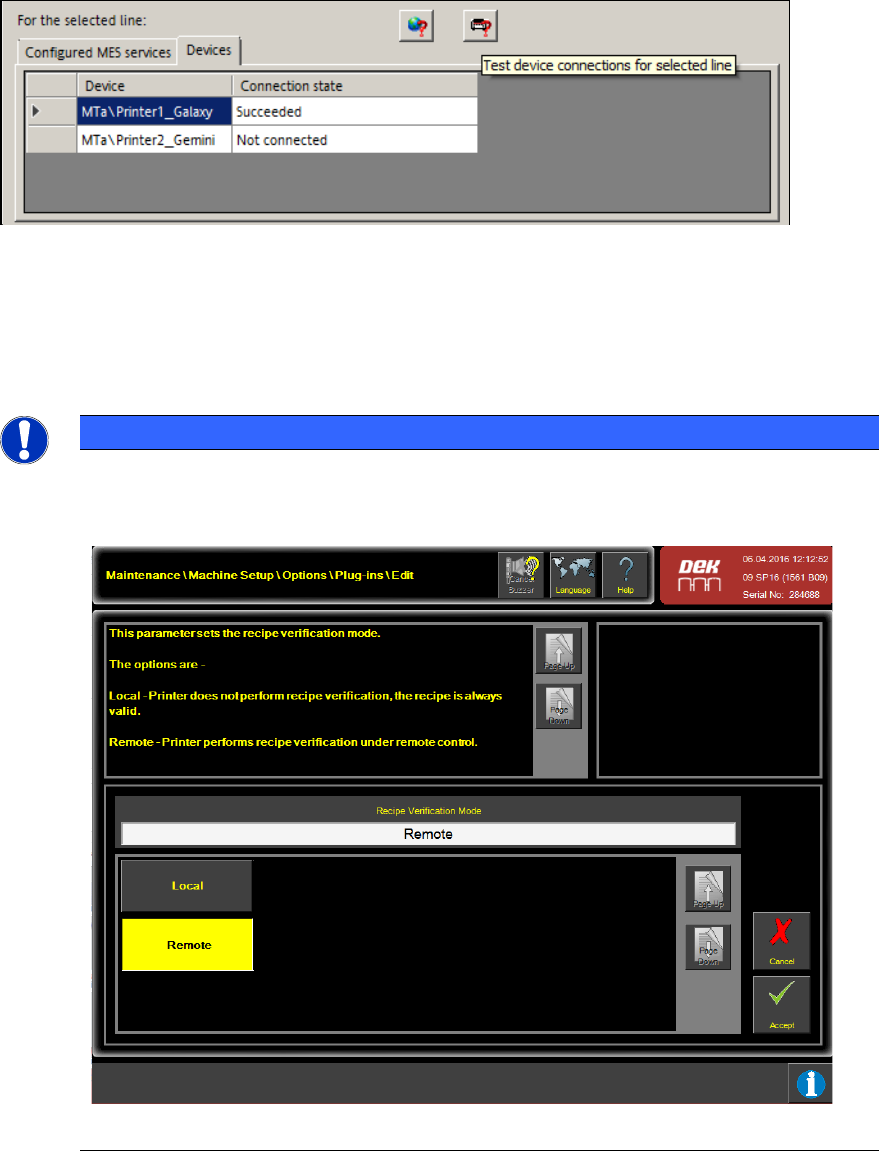
Additionally, the connection between the Line Control Server and the DEK printers can be tested
with the Test device connections for selected line button (6) in the Devices tab (7).
SIPLACE Pro V13.1 / Software Version Description 05/2016 Edition
17
Figure 4-5: Testing device connections
This test also includes the callback channel from the DEK printer to the Line Control Server. The
result is displayed under Connection state.
With the Ping MES services and devices (DEK printer) every nn sec option (8), it can be
configured that the connection tests to MES Services and DEK printers are performed periodically.
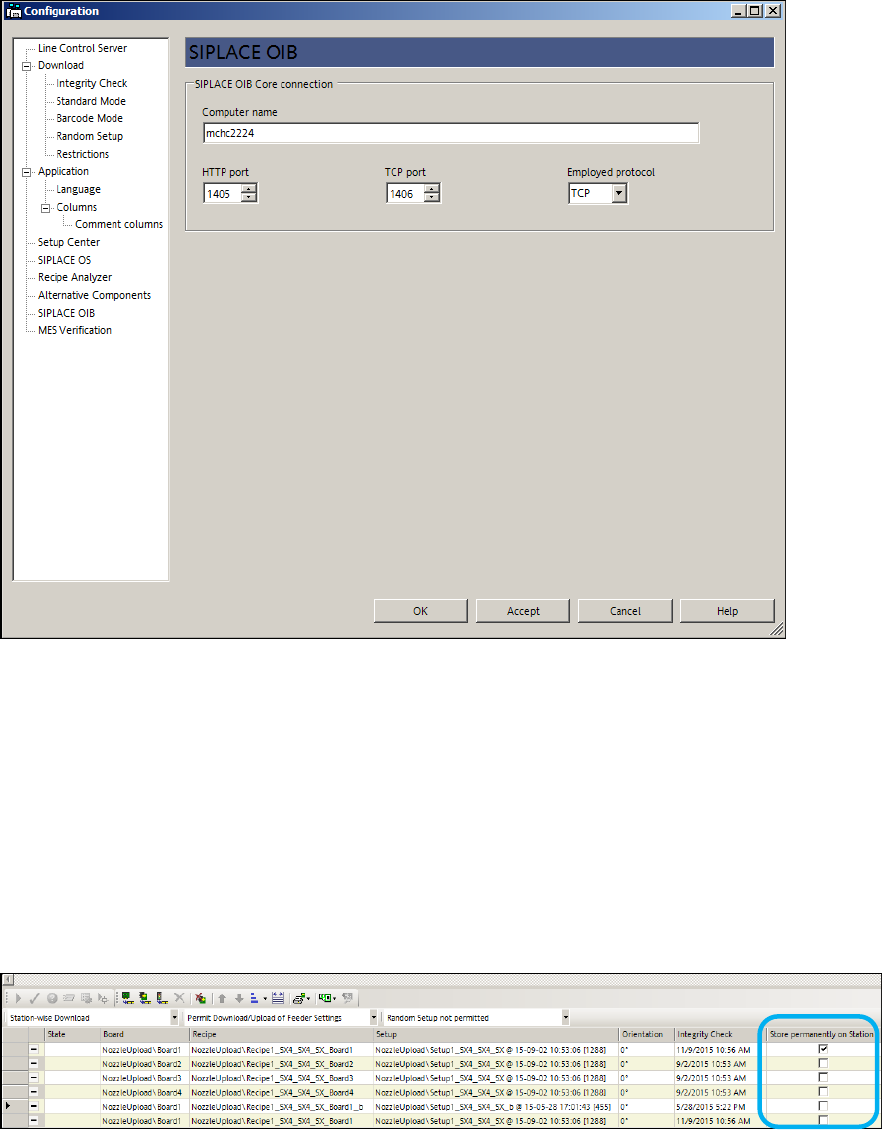
NOTICE
If the Enable Device triggered Recipe Verification (DEK Printer) mode is activated in
the Line Control GUI settings, it is also required to set the Recipe Verification Mode on
each DEK printer to value Remote for the DEK printers to be in remote control mode:
Figure 4-6: DEK printer in remote control
SIPLACE Pro V13.1 / Software Version Description 05/2016 Edition
18
4.3.2 Configuring SIPLACE OIB Core Connection
The connection to SIPLACE OIB Core has to be configured in the Line Control GUI under
Configuration – SIPLACE OIB.
Figure 4-7: Configuring SIPLACE OIB Core connection
The default setting inserts the computer name of the Line Control Server computer. Thus by default
it is assumed that SIPLACE OIB Core is installed on the line computer on which the Line Control
Server is installed.
4.4 Keeping Programs Stored on the Station
Downloaded programs can be stored permanently on the station.
These recipes have to be manually marked in the new Store permanently on Station column in
the Production Schedule when the download is started in the Line Control GUI.
Figure 4-8: Storing program permanently on station
This column is not displayed by default. To be visible, it has to be set on the Line Control GUI
under Application – Columns.