00191021-02.pdf - 第14页
0 Introduction to the User Interface of the Test Program User’s M anual Test Program SITEST 0.2 Components of the User Interface Software Version 403.xx Edition 12/97 0 - 10 0.2. 1.4 "Settings " Menu This m enu…

User’s Manual Test Program SITEST 0 Introduction to the User Interface of the Test Program
Software Version 403.xx Edition 12/97 0.2 Components of the User Interface
0 - 9
–
Cycle mode... Alt+t
This causes the settings box for switchover to the cycle mode to open.
●
Details on how to proceed are contained in chapt. 1, section 1.4.
NOTE
The following 4 menu commands will vary depending on the machine type.
Machine type SIPLACE 80S-20
–
PCB camera P2 ALT+3
To switch the screen display to the PCB camera on gantry 2.
–
RV camera P2 ALT+4
To switch the screen display to the camera on revolver head 2.
–
PCB camera P1 ALT+5
To switch the screen display to the PCB camera on gantry 1.
–
RV camera P1 ALT+6
To switch the screen display to the camera on revolver head 1.
Machine type SIPLACE 80F
4
–
PCB camera ALT+5
To switch the screen display to the PCB camera on the gantry.
–
RV camera ALT+6
To switch the screen display to the camera on the revolver head.
–
IC camera ALT+7
To switch the screen display to the IC camera.
–
Flip-chip camera ALT+8
To switch the screen display to the flip-chip camera.
NOTE
Press the
ESC
key to switch the screen display back to the normal test program mode.

0 Introduction to the User Interface of the Test Program User’s Manual Test Program SITEST
0.2 Components of the User Interface Software Version 403.xx Edition 12/97
0 - 10
0.2.1.4 "Settings" Menu
This menu is only displayed in the main view screen and contains menu commands for setting the access level
and the language, for saving and copying MA data, and for editing the machine configuration.
–
Access level
This menu command allows you to set the access level so as to permit access to given functions of the
test program only to specially trained personnel.
The access levels "Service (customer)" and "Service (Siemens)" can be selected.
Details on how to proceed are contained in chapt. 1, section 1.2.
–
Save machine data
This menu item can only be selected if MA data were newly determined or modified.
●
Details on how to proceed are contained in chapt. 1, section 1.7.1.
–
Save WPC machine data
This menu item can only be selected if the MA data for the wafflepack changer were newly determined or
modified.
●
Details on how to proceed are contained in chapt. 1, section 1.8.
–
Copy machine data
This command allows you copy MA data from the hard disk to diskette, or from diskette to the hard disk.
●
Details on how to proceed are contained in chapt. 1, section 1.7.2.
–
Machine configuration...
This command allows you to display and change, if required, the current machine configuration.
●
Details on how to proceed are contained in chapt. 1, section 1.3.
–
Language
This menu command allows you to select the language in which the texts of the user interface are to be dis-
played. The languages you can select from are German, English, French and Italian.
●
Details on how to proceed are contained in chapt. 1, section 1.1.
User’s Manual Test Program SITEST 0 Introduction to the User Interface of the Test Program
Software Version 403.xx Edition 12/97 0.2 Components of the User Interface
0 - 11
0.2.1.5 "Help" Menu
This menu contains all menu commands required to call up the help system of the SITEST test program and
information about the version of the test program and the versions of the MC modules.
NOTE
These instructions do not contain any details relating to the execution of the menu commands "Content",
"Help" and "Use help" of the "Help" menu, as these have already been described in the SIPLACE 80S-20/F
4
User’s Manual, chap. 4 "Online Help".
The help system has not been integrated yet into the present version of the test program.
–
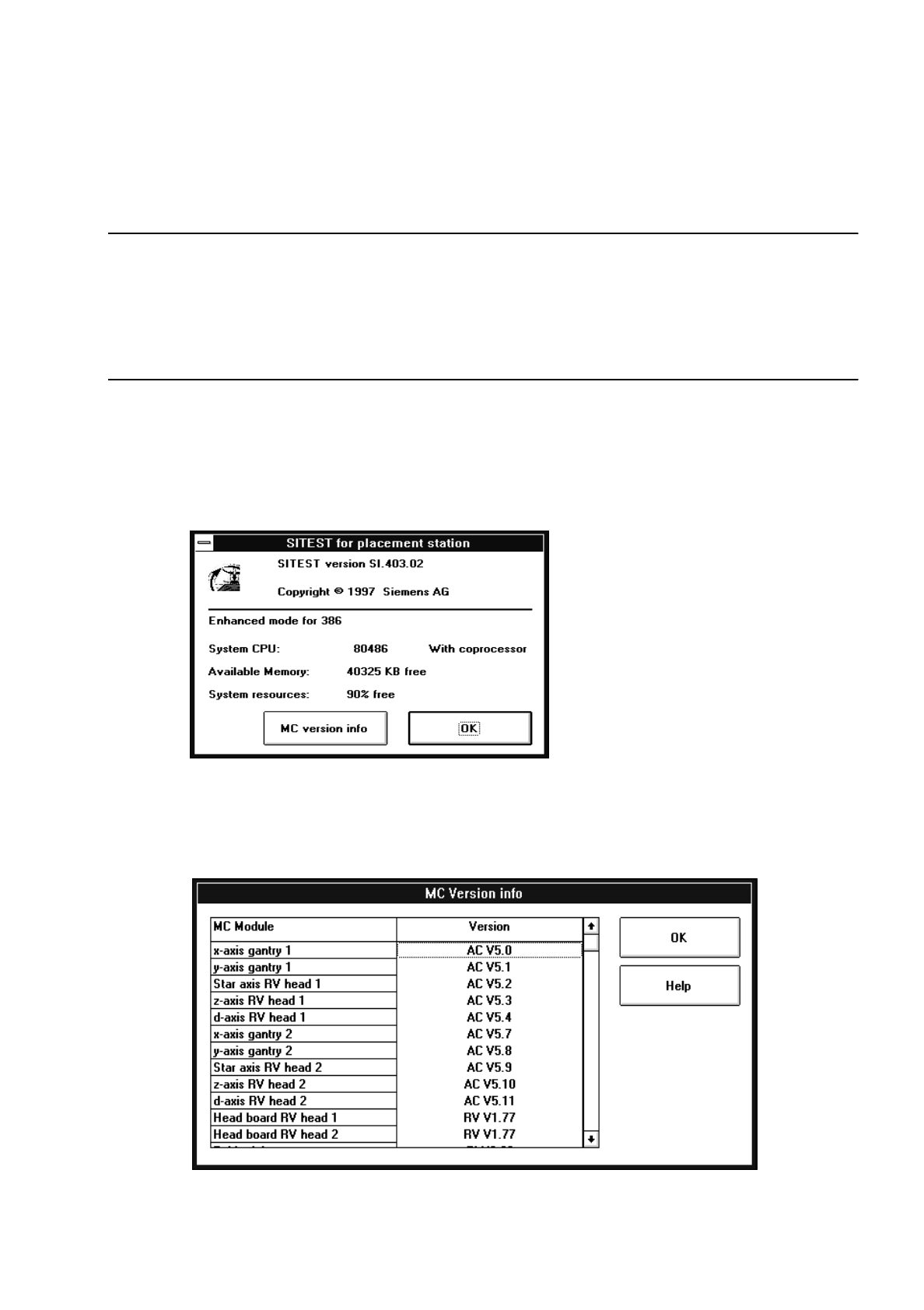
Info
This command allows you to open the Info box containing information about the SITEST program and
the active computer.
●
Click on Help --> Info.
The following dialog box opens.
●
After you have read the information and find that you need additional information about the com-
ponents of the MC module, click on the MC version info button in the dialog box.
A new box is displayed listing the version designations of each of the components of the MC
module.