00191021-02.pdf - 第19页
User’s Manual Test Program S ITEST 0 Introduction to t he User Interface of the Test Program Software Version 403.xx Edition 12/97 0.2 Components of the User Interface 0 - 15 0.2. 3.4 Entry Box Two ty pes of entry b oxes…
0 Introduction to the User Interface of the Test Program User’s Manual Test Program SITEST
0.2 Components of the User Interface Software Version 403.xx Edition 12/97
0 - 14
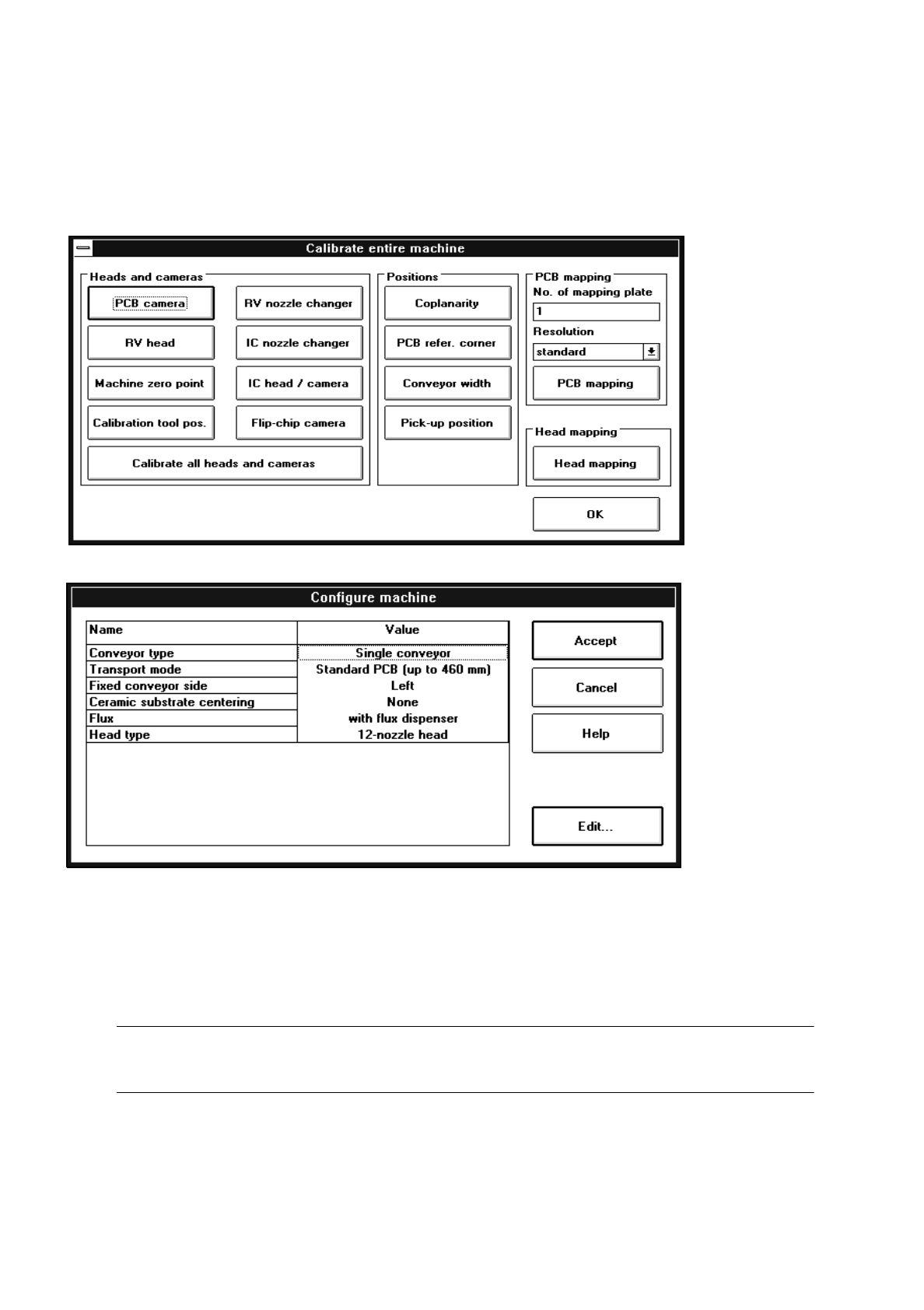
0.2.3.3 Settings Box
A settings box may contain, for instance, options for the setting or configuration of the machine (see examples
below). They can be activated with the aid of buttons.
●
Click on the button associated with the desired option.
Or else,
●
select the entry of the option you wish to change by clicking on it and then click on the
Edit...
button.
A text entry box opens. (Details on how to make entries in this box are contained in section 0.2.3.4).
NOTE
To open the text entry box, the entry can also be selected by directly double-clicking on it.
●
Close the settings box by clicking on the appropriate button (e.g. Accept, OK, Close, Cancel, etc.).
User’s Manual Test Program SITEST 0 Introduction to the User Interface of the Test Program
Software Version 403.xx Edition 12/97 0.2 Components of the User Interface
0 - 15
0.2.3.4 Entry Box
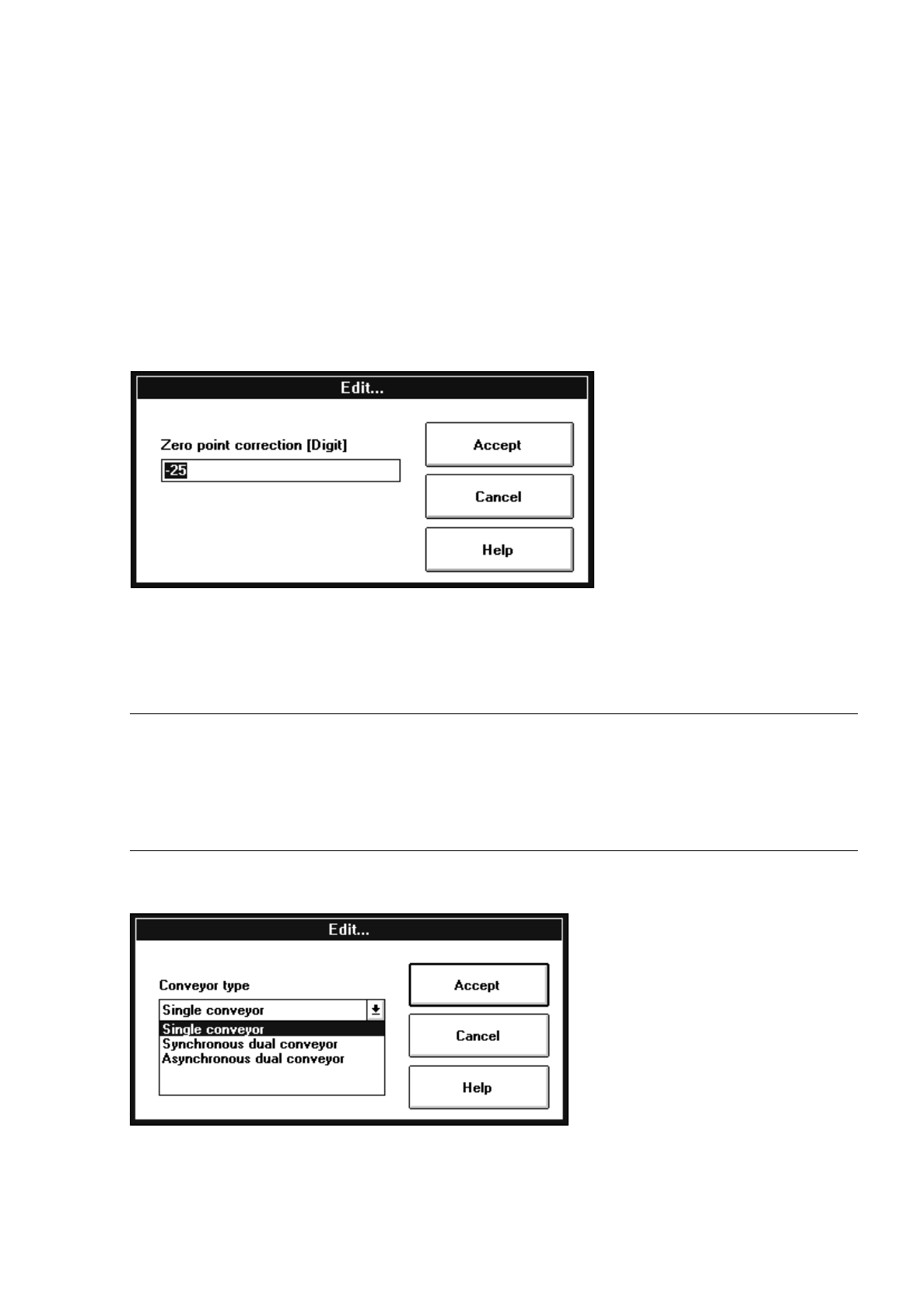
Two types of entry boxes exist. You can either make an entry, or edit an existing entry, on the input line of the
entry box by using the keyboard, or you can select the entry of the desired option from the list available in the
box.
To open the entry box:
●
From the settings box (see section 0.2.3.3) select the entry you wish to change by clicking on it once,
and then click on the
Edit...
button, or select the entry directly by double-clicking on it. The entry box is
displayed.
Editing:
●
Click on the entry field. A flashing cursor (
I
) will appear at the data insertion point.
●
Enter the desired data.
NOTE
If there is already text present and highlighted when you first open the entry box, you can immediately
type over the current text.
If several editing fields are contained in an entry box, it is not necessary to click on every editing field to
position the cursor. The cursor can also be moved to the next editing field by pressing the TAB key.
0 Introduction to the User Interface of the Test Program User’s Manual Test Program SITEST
0.2 Components of the User Interface Software Version 403.xx Edition 12/97
0 - 16
Selection:
●
Click on the arrow button or the entry displayed.
A list containing the available options opens.
●
Click on the entry of the desired option.
●
Click on the
Accept
button if you wish to accept the entry or the selection,
or click on the
Cancel
button if you don’t want to accept it.
0.2.4 Scroll Bars
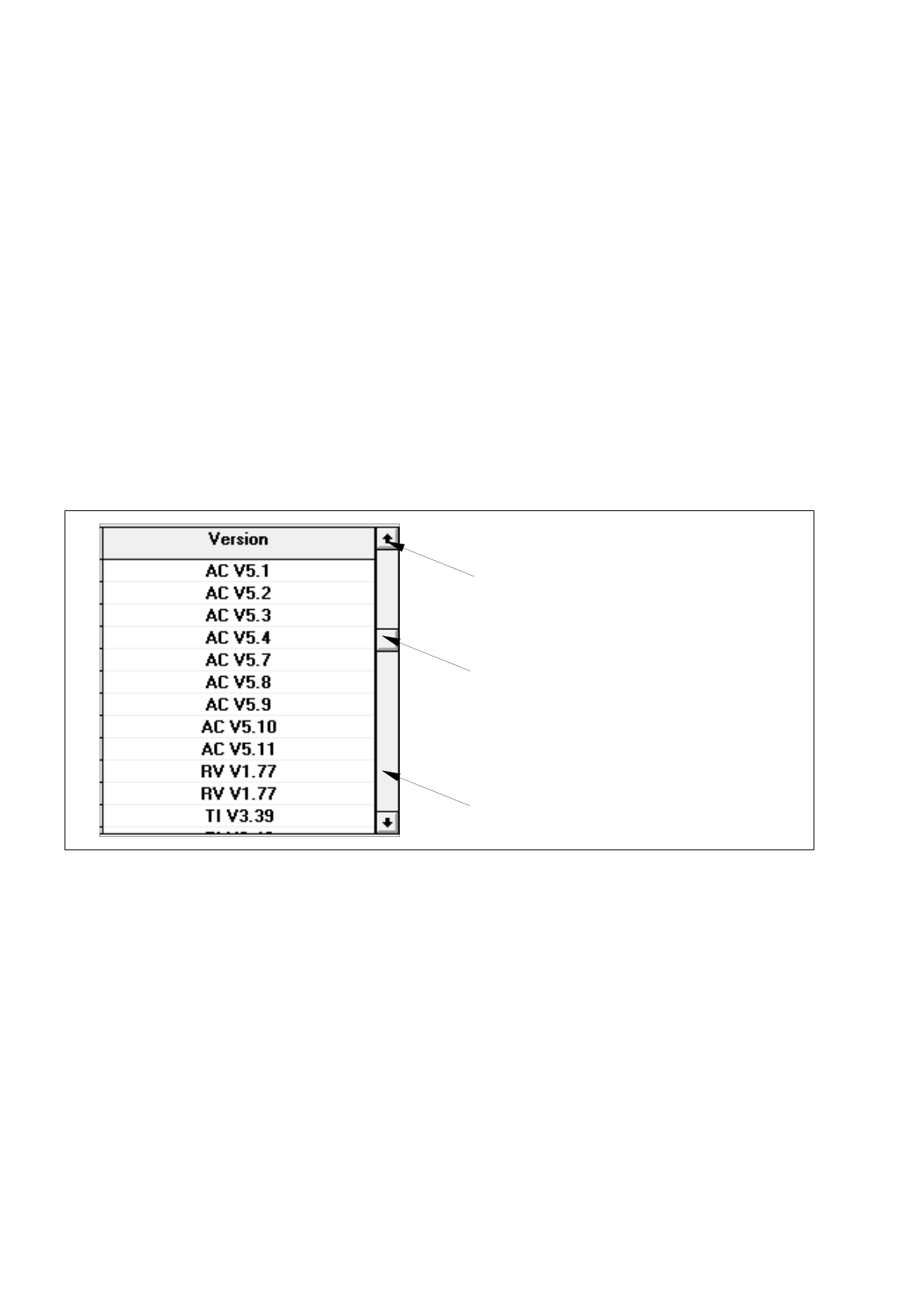
Vertical and horizontal scroll bars automatically appear along the respective window (or box) when a text cannot
be displayed in its entirety due to its number of lines or the line width, or if a graphic is too long or too wide.
Hidden window contents can be moved into view by means of the items of the scroll bar.
Scroll bars have scroll arrows at either end and a rectangular scroll box, located between the arrows, which
moves within the scroll bar. The position of the scroll box within the scroll bar reflects the relative position of the
currently visible portion of the window’s contents within the document.
Scrolling a window’s contents a line at a time in one direction
●
In the scroll bar click on the arrow for the desired direction with the left mouse button. With each
mouse click, the window’s contents move up or down a line at a time. The scroll box moves in the
direction of the selected arrow depicting your relative position within the document.
Scroll bar
Scroll box
Scroll arrow