JO-072-006_w.pdf - 第57页
3-4 AKBEG-ID (4) When the entered password matches the previously stored password, the "Password" window appears, enabling you to change the password. Note: When a wrong password is entered, nothing appears. Fi…
3-3
AKBEG-ID
1.2 Password Change
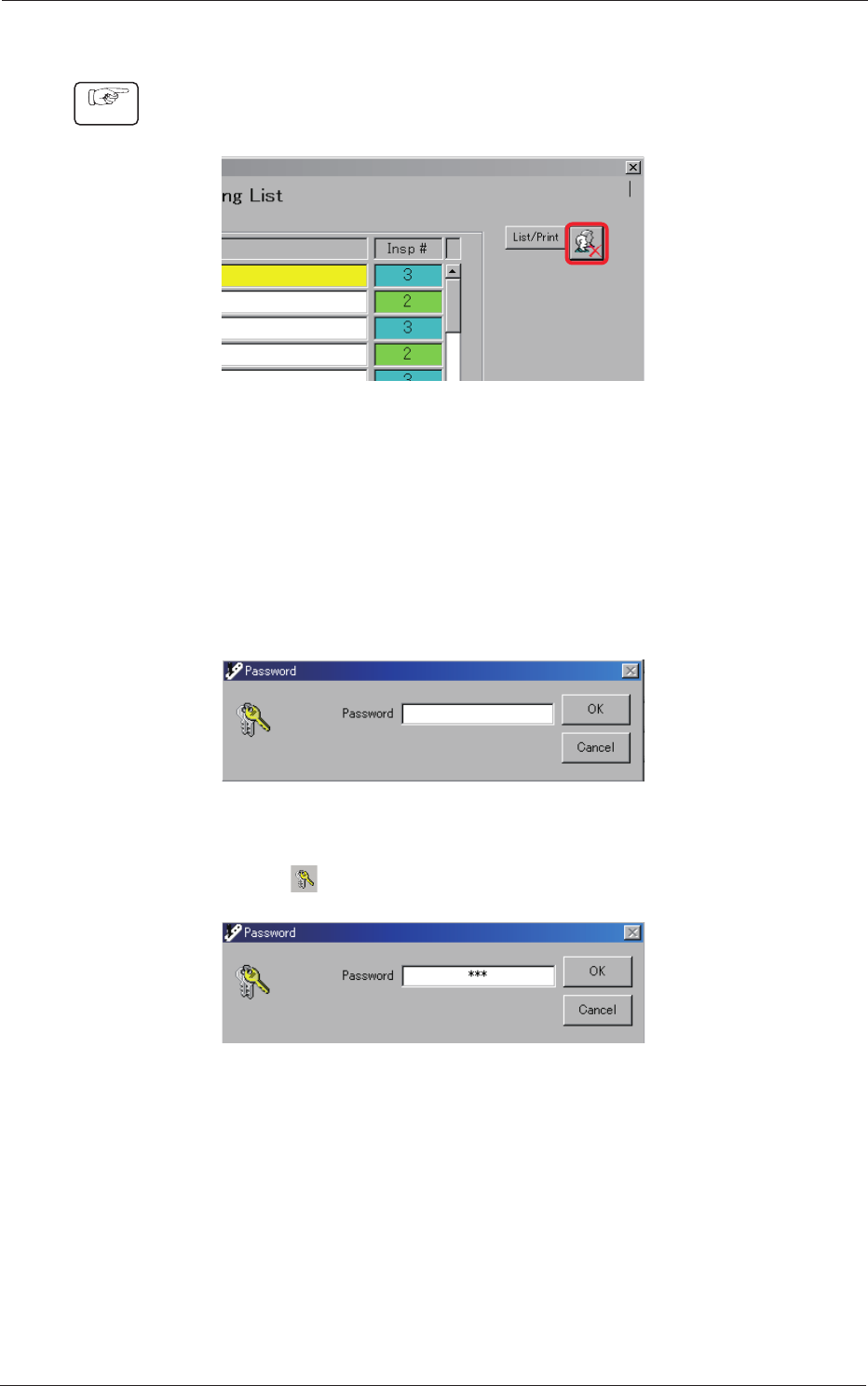
(1) Press the [Authority Setting] button located on the upper right corner of
the "Type Listup" window.
Fig. C3
(2) The "Password" window appears. Enter the password (for
"Administrator") through keyboard navigation.
After the entry is completed, press the [OK] button.
Factory-Specied Passwords
Administrator :
bbb
Power User :
aaa
Fig. C4
(3) Press "
". Be sure not to select the [OK] button.
Fig. C5
1.2 Password Change
0508-001
Procedure
3-4
AKBEG-ID
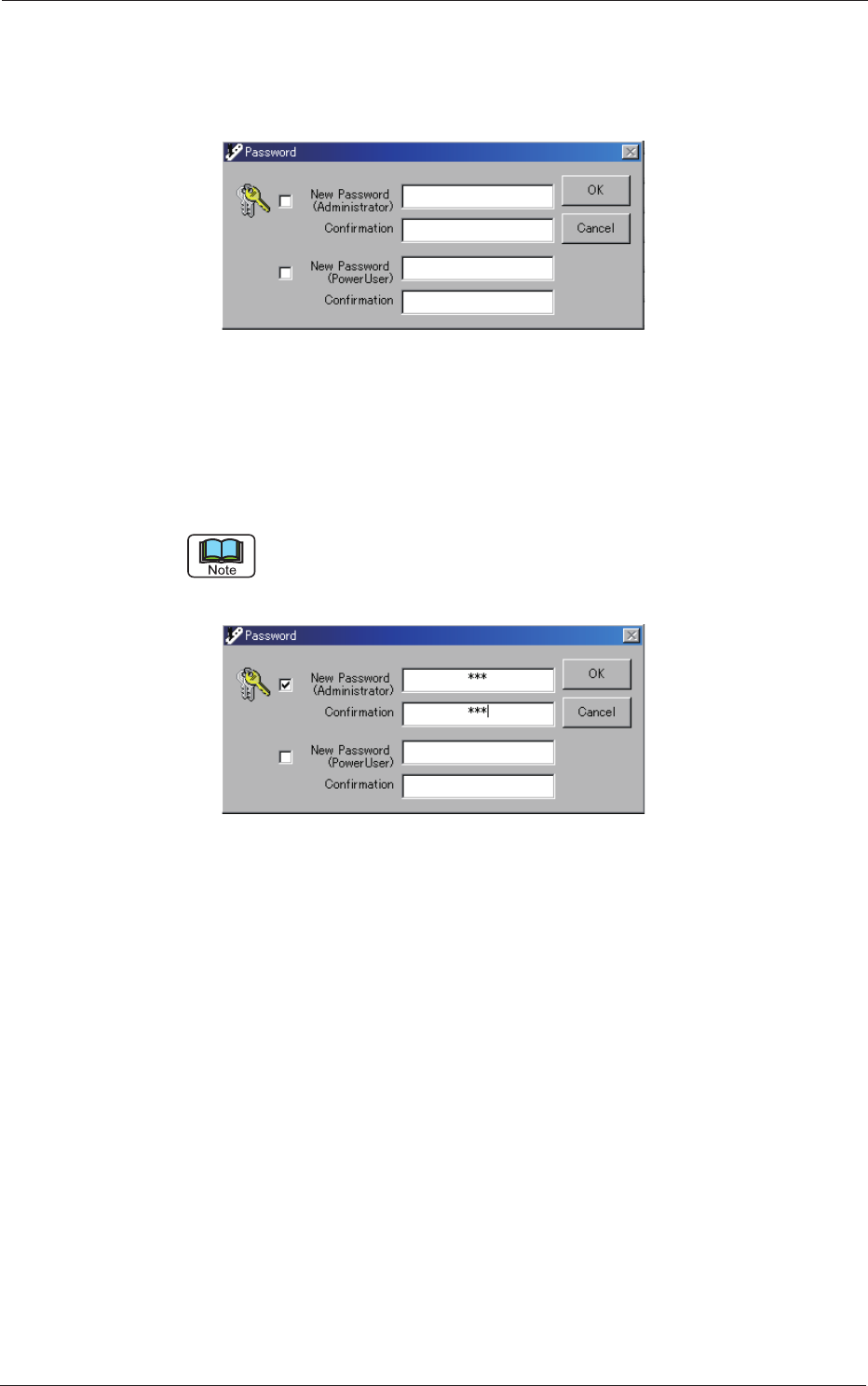
(4) When the entered password matches the previously stored password,
the "Password" window appears, enabling you to change the password.
Note:
When a wrong password is entered, nothing appears.
Fig. C6
(5) Tick the "New Password (Administrator)" check box and enter a new
password.
Enter the same password in the "Conrmation" text box for the
conrmation and press the [OK] button.
Follow the same procedure for "Power User".
Both passwords (for "Administrator" and "Power User") can also be changed at
the same time.
Fig. C7
1.2 Password Change
0508-001

3-5
AKBEG-ID
(6) When a new password matches one entered in the "Conrmation" text
box, the "Password Change" dialog box opens. Press the [OK] button to
change the password(s).
Fig. C8
Notice
•
When a check box is not ticked, the password entered in the
corresponding text box becomes invalid.
•
When the text box is left blank (no characters entered), it is also
regarded as a password.
•
When the same password is used for both "Administrator" and "Power
User", it is regarded as one for "Administrator".
•
Enter only alphanumeric characters.
Note that passwords are always case sensitive (sensitive to uppercase
and lowercase letters).
•
Up to 16 alphanumeric characters can be entered.
1.2 Password Change
0508-001