JO-072-006_w.pdf - 第59页
3-6 AKBEG-ID 2. Set Data Change "Administrative Authority" is required to change the set values, except for type selection and master setting. Reference Refer to "1. Administrative Authority Change" i…

3-5
AKBEG-ID
(6) When a new password matches one entered in the "Conrmation" text
box, the "Password Change" dialog box opens. Press the [OK] button to
change the password(s).
Fig. C8
Notice
•
When a check box is not ticked, the password entered in the
corresponding text box becomes invalid.
•
When the text box is left blank (no characters entered), it is also
regarded as a password.
•
When the same password is used for both "Administrator" and "Power
User", it is regarded as one for "Administrator".
•
Enter only alphanumeric characters.
Note that passwords are always case sensitive (sensitive to uppercase
and lowercase letters).
•
Up to 16 alphanumeric characters can be entered.
1.2 Password Change
0508-001
3-6
AKBEG-ID
2. Set Data Change
"Administrative Authority" is required to change the set values, except for
type selection and master setting.
Reference
Refer to "1. Administrative
Authority Change" in "Section 3" for details.
A different window for data entry appears according to the data type of the
set value.
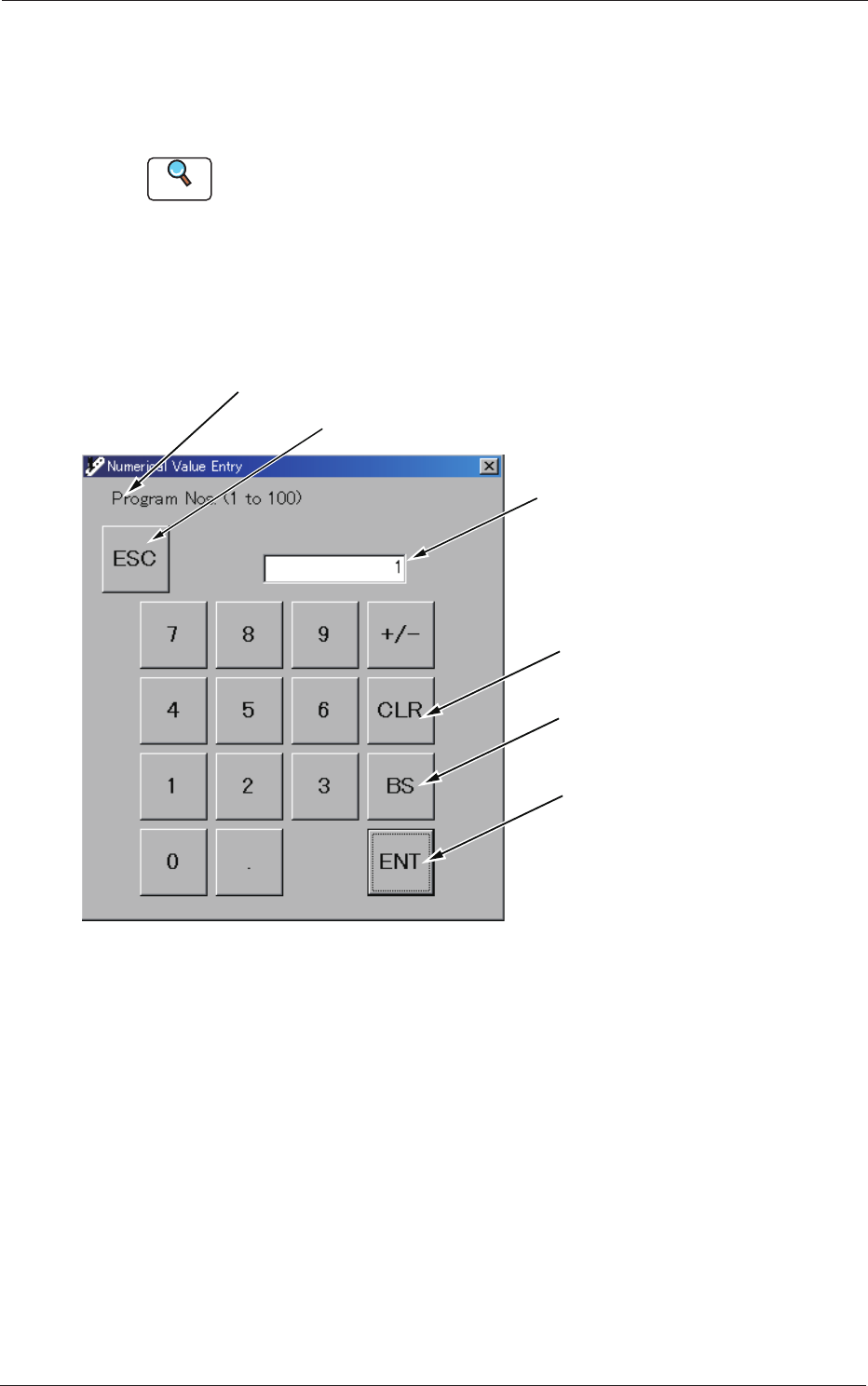
"Numerical Value Entry" Window
When a set value is numerical, this window appears.
Interrupts the change process.
Name of Program for Set Value Change
Entered Value
Deletes the entered value.
Deletes a character to the
left of the cursor.
Applies the entered value.
Fig. C6 "Numerical Value Entry" Window
2. Set Data Change
0508-001
3-7
AKBEG-ID
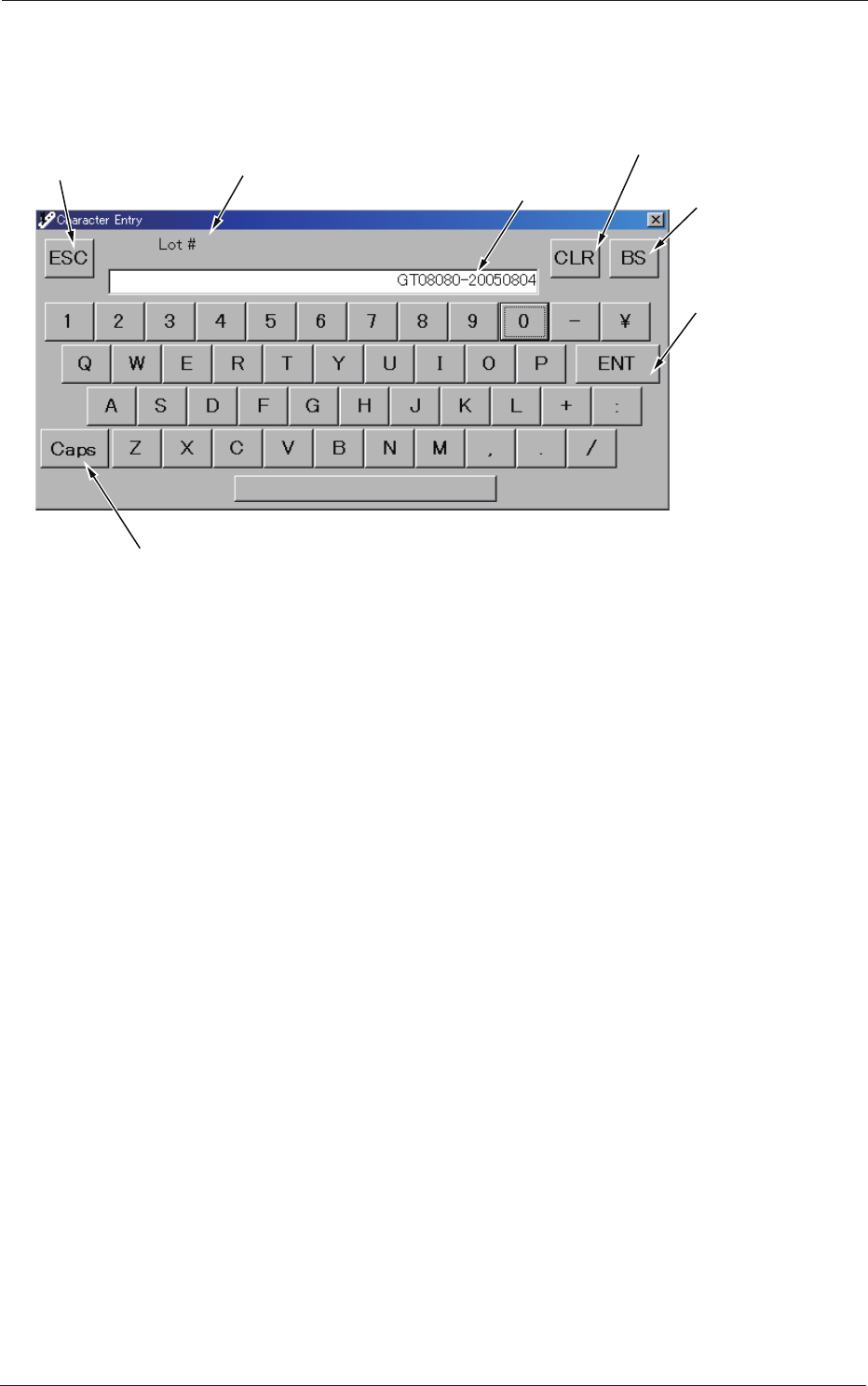
"Character Entry" Window
When a set value is alphanumerical, this window appears.
Selection of Uppercase or Lowercase Letters
Interrupts the
change process.
Lot # for Set
Value Change
Entered Value
Deletes the
entered value.
Deletes a character to the
left of the cursor.
Applies the
entered value.
Fig. C10 "Character Entry" Window
2. Set Data Change
0508-001