00198051-01_IM_SetupCenter_8.0_EN.pdf - 第65页
Barcode-Scanner Installation 6.2.4 Datalogic Scanner Configuration Datalogic Scanner Installation Manual SIPLACE Setup Center 8.0 65 ► Select " fi rmware upgrad e " from the menu " Tools ". ► Select &…
Barcode-Scanner Installation
Datalogic Scanner 6.2.4 Datalogic Scanner Configuration
64 Installation Manual SIPLACE Setup Center 8.0
Firmware upgrade
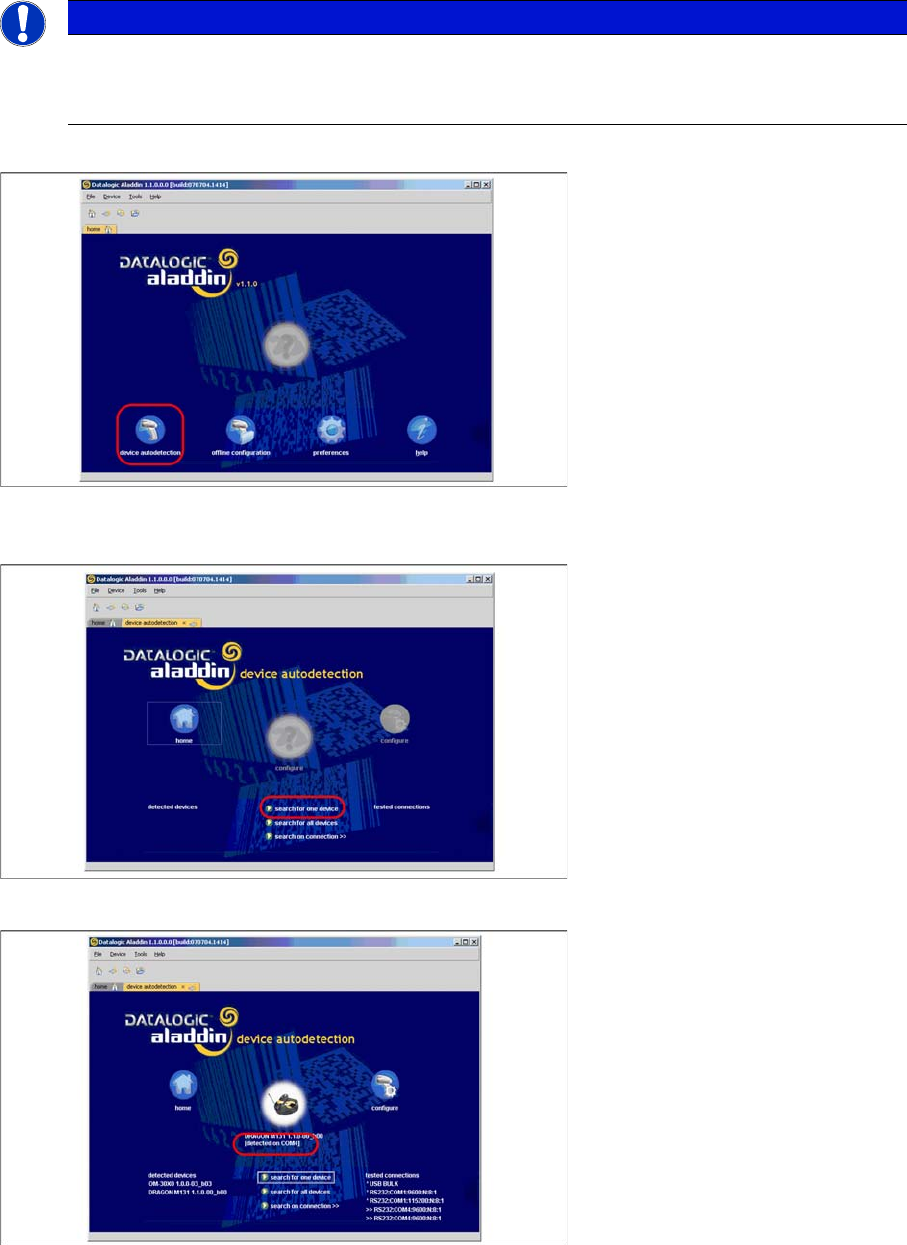
After "Datalogic Aladdin" was started, the following overview will be displayed.
► Select "device autodetection" to find out at which COM port the Datalogic OM30X0 cradle is con
-
nected.
► Select "Search for one device" to start the search.
► The cradle is now detected.
NOTICE
Please make sure that no applications such as SIPLACE Setup Center are accessing the serial
communication.
► Exit these applications before you continue.
Barcode-Scanner Installation
6.2.4 Datalogic Scanner Configuration Datalogic Scanner
Installation Manual SIPLACE Setup Center 8.0 65
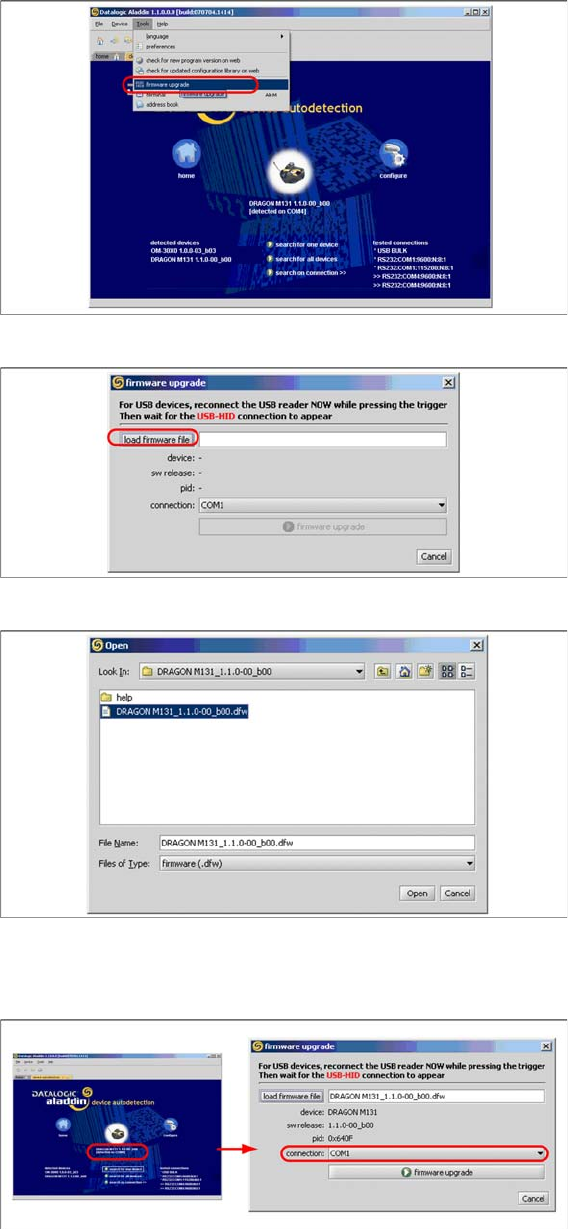
► Select "firmware upgrade" from the menu "Tools".
► Select "load firmware file" in the dialog box.
► Open the folder where the firmware version 1.1.0-00_ b00 for the Datalogic Dragon M131 is stored
(standard path "C:\Program Files\Datalogic\Aladdin\resource\ConfigRepository\DRAGON
M131_1.1.0 00_ b00").
► Choose the right COM port at which the cradle is connected. This was already found out automati
-
cally at the beginning.
Barcode-Scanner Installation
Datalogic Scanner 6.2.4 Datalogic Scanner Configuration
66 Installation Manual SIPLACE Setup Center 8.0
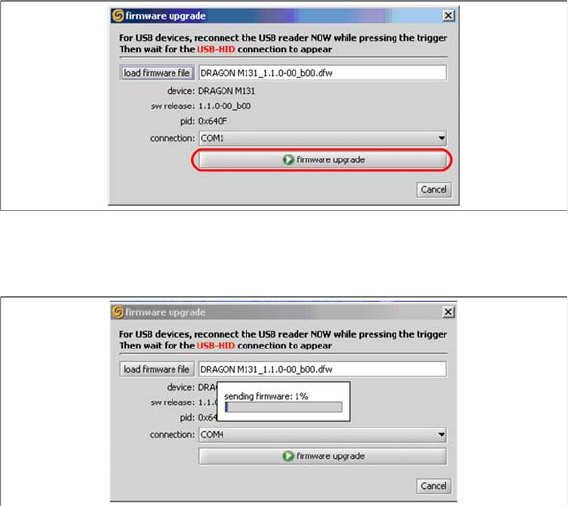
► Activate the scanner by pushing the laser trigger.
► Then select "firmware upgrade" to start the transfer of the new firmware version to the scanner.
► Exit the "Datalogic Aladdin", if the transfer is completed.