00198051-01_IM_SetupCenter_8.0_EN.pdf - 第95页
Docking Station Installation 7.4.2 Installing the CIN-Box driver Data Connection with CIN-Box Installation Manual SIPLACE Setup Center 8.0 95 7.4.2 7 . 4 . 2 I n s t a llin g t h e C I N - B o x d r iv e r Installing the…
Docking Station Installation
Data Connection with CIN-Box 7.4.1 Overview CIN-Box
94 Installation Manual SIPLACE Setup Center 8.0
7.4
7.4 Data Connection with CIN-Box
Data Connection with CIN-Box
To obtain more details about using the docking station for E-, X- or SX tables, please refer to the current
version of the operating manual.
7.4.1
7.4.1 Overview CIN-Box
Overview CIN-Box
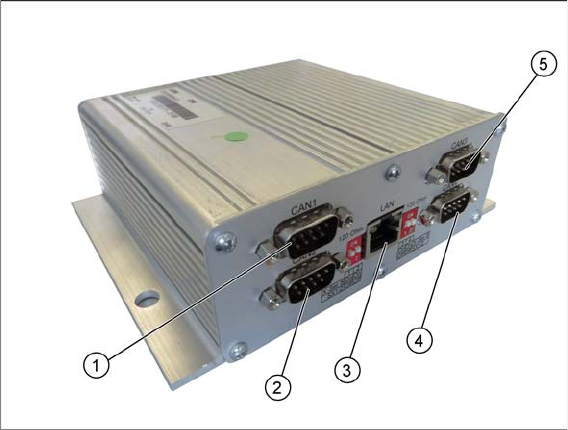
You can use a CIN-Box for the connection of docking stations. You can connect up to 16 docking stations
to one CIN-Box. The CIN-Box can be used alternatively to the Power PC-CAN Card.
1. CAN1
2. CAN2
3. LAN
4. CAN4
5. CAN3
► The drivers for the CIN-Box are contained on the Setup Center software installation CD. These need
to be installed separately.
Docking Station Installation
7.4.2 Installing the CIN-Box driver Data Connection with CIN-Box
Installation Manual SIPLACE Setup Center 8.0 95
7.4.2
7.4.2 Installing the CIN-Box driver
Installing the CIN-Box driver
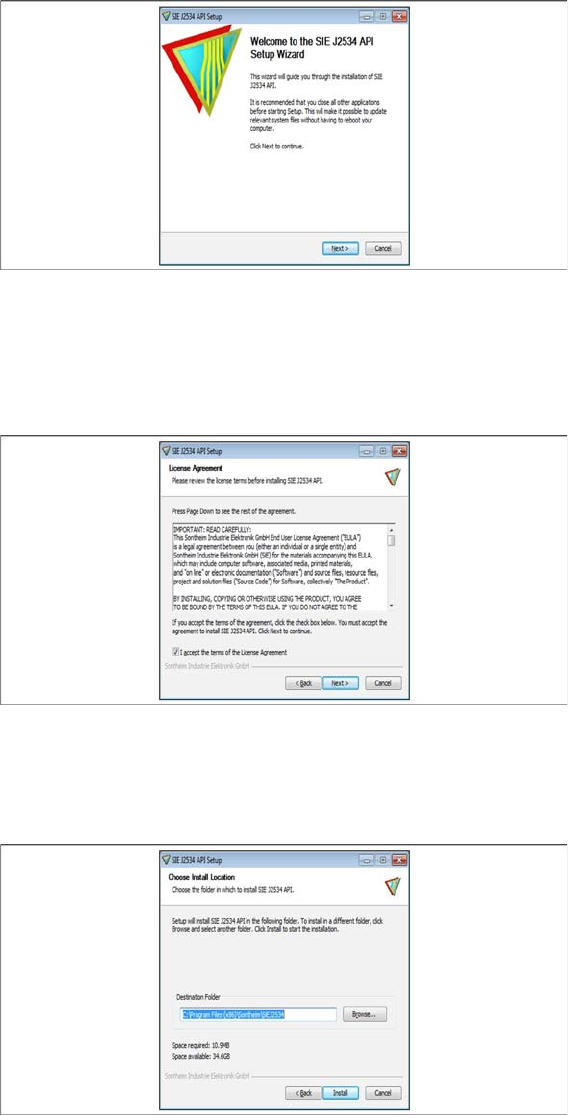
► Open the folder \3rdparty installer\Sontheim\CIN\2.8.4.48 and select the application Setup.exe on
the Setup Center installation CD.
Step 1
► Click Next.
Step 2
► Read the license agreement relating to use of this software and select I accept the terms in the Li
-
cense Agreement to accept the license agreement.
► Click Next.
Step 3
► Choose the install location.
► Click Install.
Docking Station Installation
Data Connection with CIN-Box 7.4.3 Establishing a Data Connection
96 Installation Manual SIPLACE Setup Center 8.0
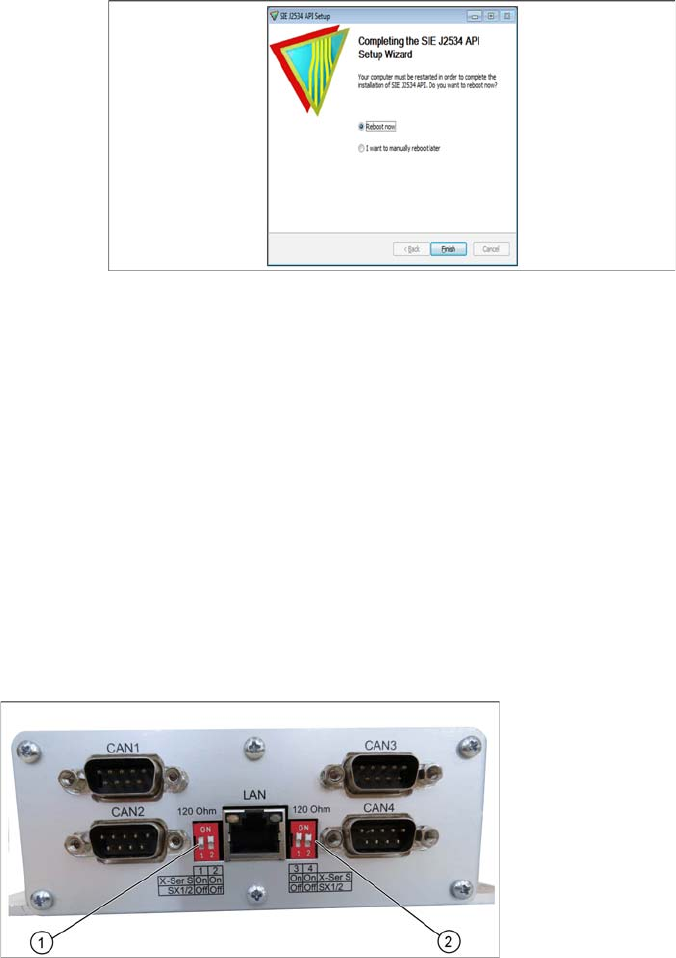
Step 4
► A restart of the PC is required.
► Select Reboot now and click Finish.
7.4.3
7.4.3 Establishing a Data Connection
Establishing a Data Connection
Establish a data connection between the docking station, the CIN-Box and the Setup Center PC. Tow
LAN connections must be available on the Setup Center PC.
The data connection between the CIN-Box and the docking stations is realized via CAN Bus.
Connect the LAN Cable to the PC. Connect the CIN-Box with the CAN cable to the docking station. The
CAN cable has 5 connections, one of which you can use for the CIN-Box connection. This leaves 4 other
connections, allowing you to connect up to 4 docking stations with this cable on one CAN Bus connection
of the CIN-Box. So, you can connect up to 16 docking stations on one CIN-Box.
► Connect the LAN cable from the Setup Center PC to the CIN-Box LAN connection.
► Connect the CAN cable to the CAN connection at your docking station. This can be found on the
back of the docking station.
► Connect the CAN cable to the CIN-Box (CAN Bus 1, 2, 3 or 4).
► See the connection scenarios below for CAN Bus cable connection.
CIN-Box
1. CAN Bus Address Switch (CAN1/2)
2. CAN Bus Address Switch (CAN3/4)