00198218-01_IM_TX1320M2_en.pdf - 第15页
Installing Primergy T X1320 M2 - Win dows Server 2012 R2 05/2016 Edition 15 After initialization , the Installation Manager main screen will be di splayed. Figure 3-7: Installation Manager main sc reen ► Select the Deplo…
Installing Primergy TX1320 M2 - Windows Server 2012 R2 05/2016 Edition
14
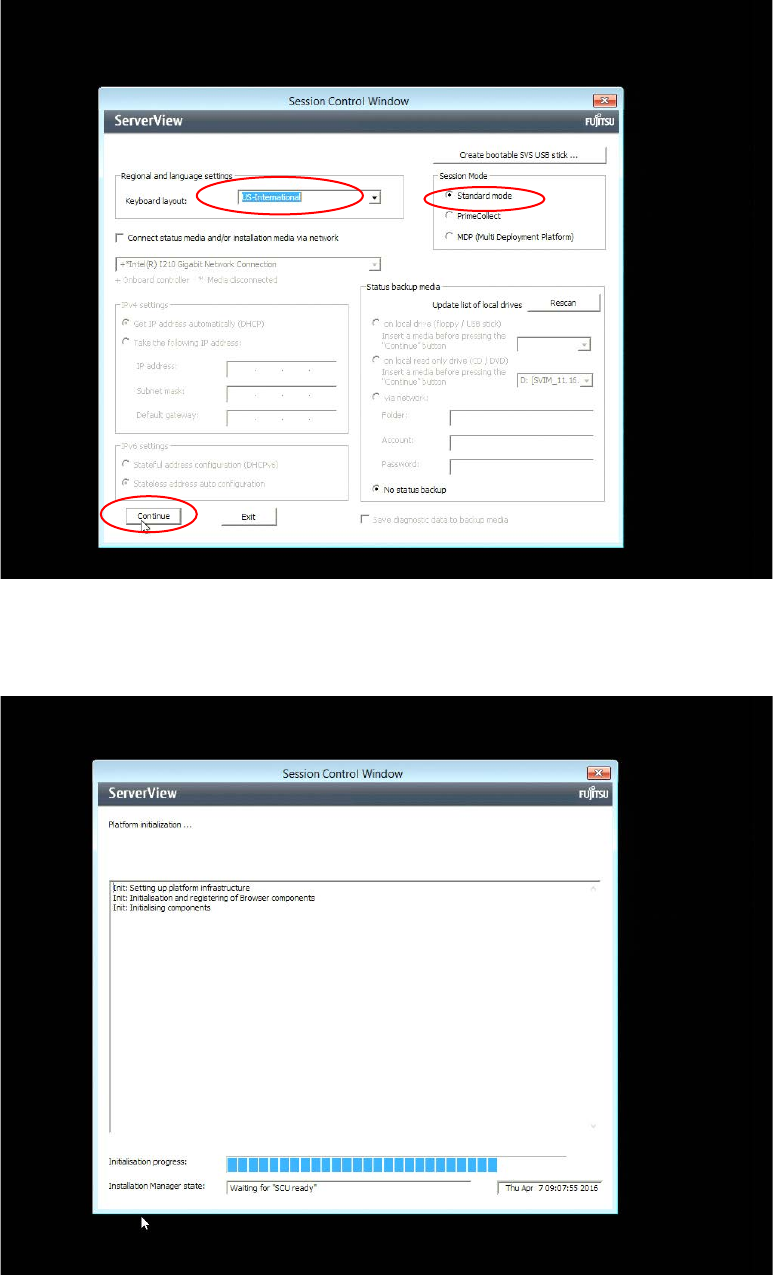
► In the keyboard layout field, select the language of your keyboard. In most cases, this will be
US-International, as displayed in the following figure.
Figure 3-5: Regional and Language settings screen with US-International keyboard selected
► Leave the Standard mode option selected and click the Continue button.
► Wait while the Installation Manager continues initializing.
Figure 3-6: Initializing Installation Manager – part 2
Installing Primergy TX1320 M2 - Windows Server 2012 R2 05/2016 Edition
15
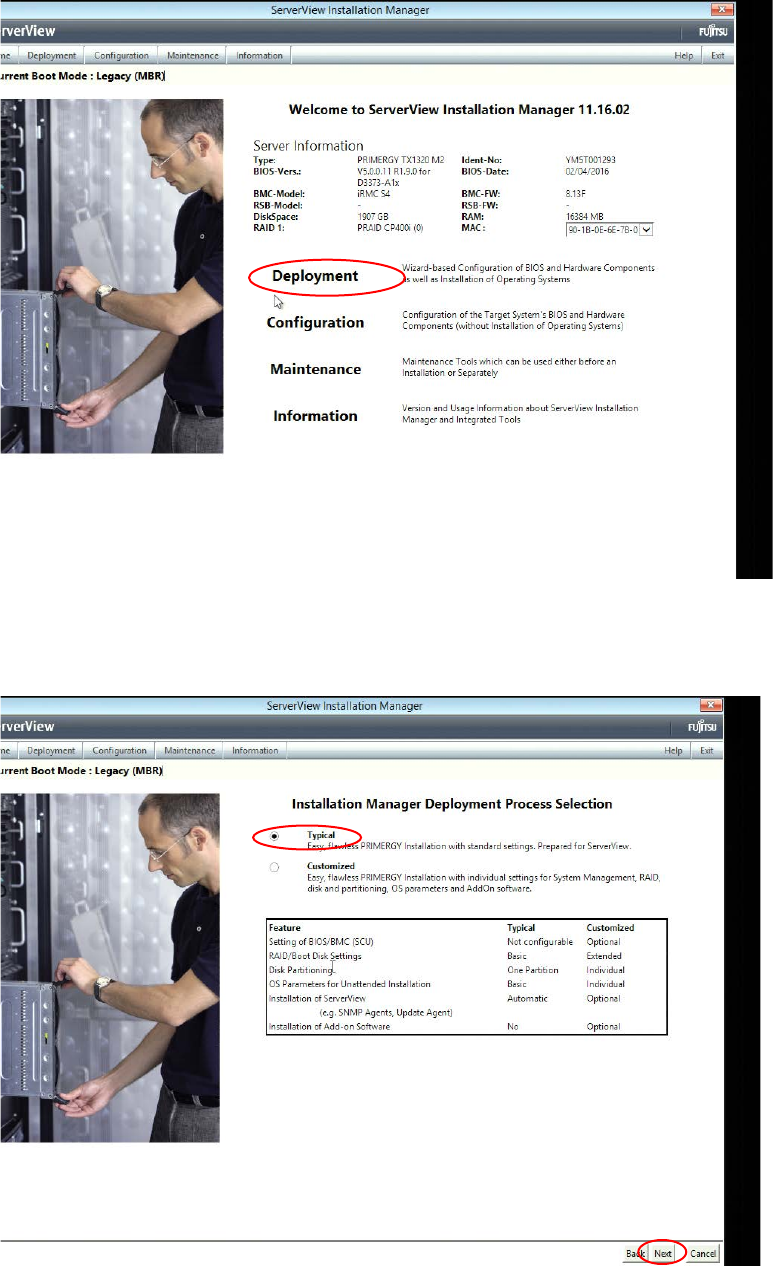
After initialization, the Installation Manager main screen will be displayed.
Figure 3-7: Installation Manager main screen
► Select the Deployment option by clicking on it.
The Deployment Process Selection screen appears.
Figure 3-8: Deployment Process Selection screen
► Ensure that the radio button besides Typical is selected and click the Next button at the bottom
of the screen.
Installing Primergy TX1320 M2 - Windows Server 2012 R2 05/2016 Edition
16
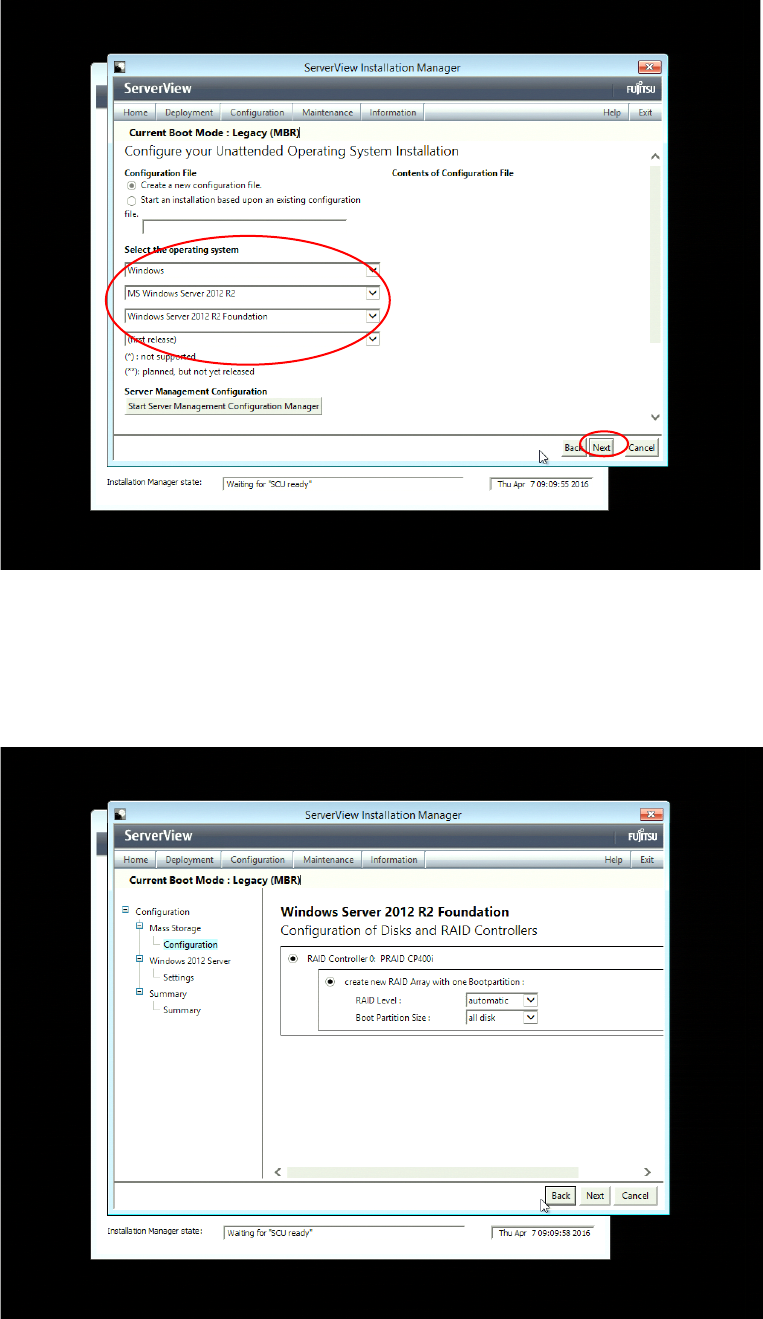
The Configure your Unattended Operating System Installation screen appears.
Figure 3-9: Unattended Operating System Installation Configuration screen with Windows Server 2012 Foundation selected
► In the dropdown boxes, select Windows, MS Windows Server 2012 R2, Windows Server 2012
R2 Foundation as displayed in the figure above.
► Click the Next button at the bottom of the screen.
The Configuration of Disks and RAID Controllers screen appears.
Figure 3-10: Configuration of Disks and RAID Controllers screen with default options (depending on previous configuration,
this screen might differ a bit)