00198218-01_IM_TX1320M2_en.pdf - 第38页
Installing Primergy T X1320 M2 - Win dows Server 2012 R2 05/2016 Edition 38 NOTICE Network Card identification This procedure only works if you have disc onnected all ot her network cables ex cept the SIPLACE connectio n…
Installing Primergy TX1320 M2 - Windows Server 2012 R2 05/2016 Edition
37
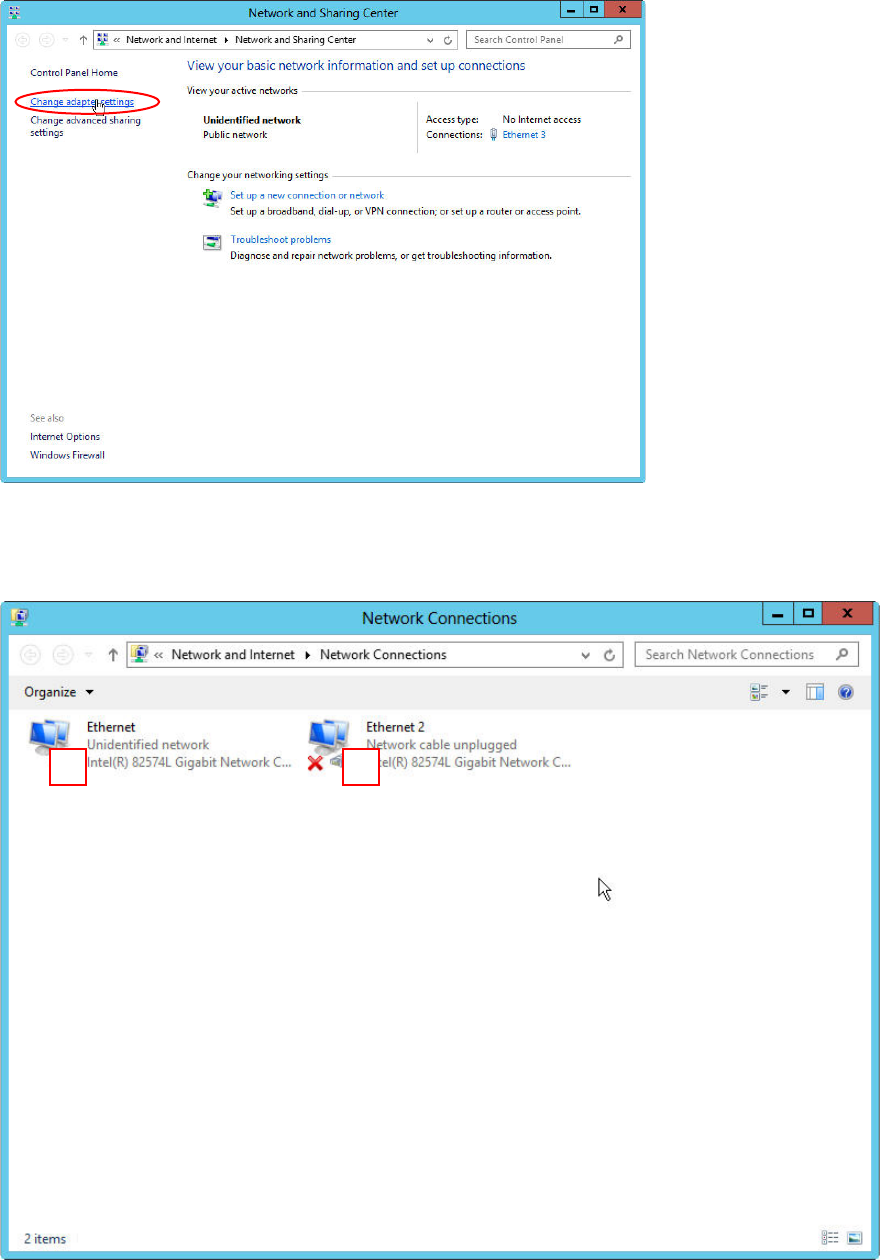
Figure 4-21: Network Sharing Center – clicking change adapter settings
► Click on Change adapter settings on the left side.
Figure 4-22: Network Adapters – SIPLACE LAN adapter connected
You see two network adapters displayed. If you followed this documentation, only the adapter with
the connection to the SIPLACE LAN should be connected (in this picture #1).
The other adapter is disconnected – it has a red “X” in the symbol (in this picture #2).
1
2
Installing Primergy TX1320 M2 - Windows Server 2012 R2 05/2016 Edition
38
NOTICE
Network Card identification
This procedure only works if you have disconnected all other network cables except the
SIPLACE connection, as mentioned in the first chapter.
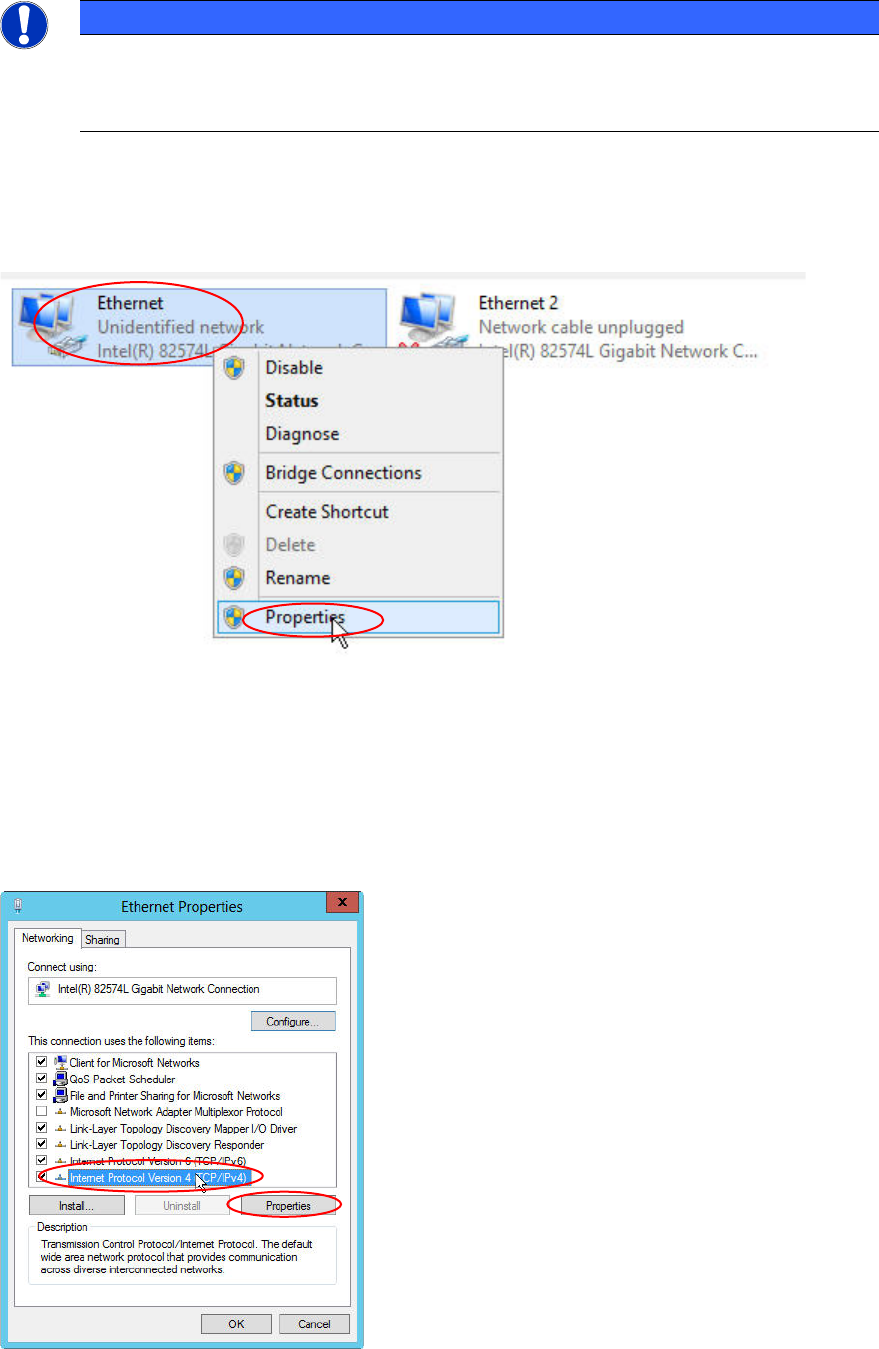
Now, we need to remove the default gateway from the configuration of the SIPLACE LAN network
adapter.
Figure 4-23: Selecting Properties of the connected SIPLACE LAN adapter
► Right-click on the connected SIPLACE LAN network adapter (the other adapter has the state
“Network cable unplugged”)
► Select Properties.
Figure 4-24: Ethernet Properties
► Click the Internet Protocol Version 4 (TCP/IPv4) text (not the checkbox!) and select Properties.
Installing Primergy TX1320 M2 - Windows Server 2012 R2 05/2016 Edition
39
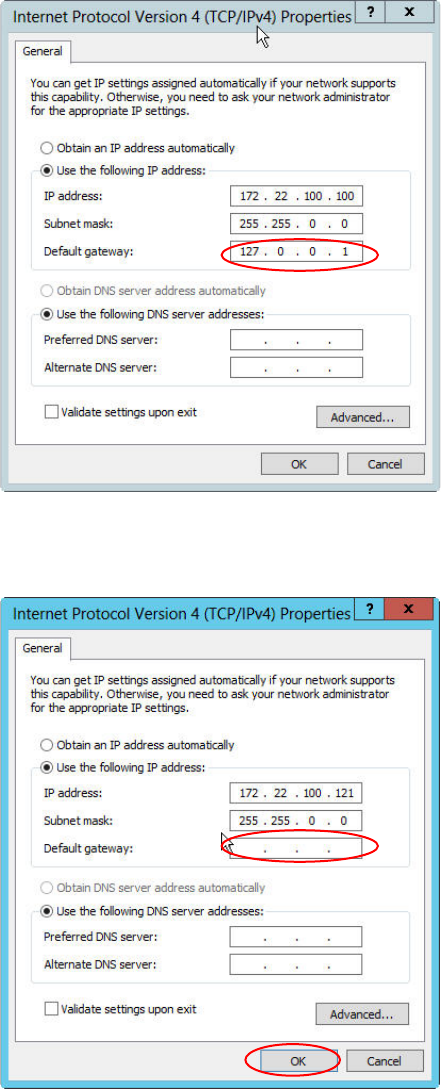
Figure 4-25: IP Configuration of the SIPLACE LAN adapter before removing the default gateway
► Remove the default gateway entry from the IP configuration, as shown in the following picture.
Figure 4-26: IP Configuration of the SIPLACE LAN adapter after removing the default gateway
► Click the OK to close the window and apply the setting.