00198218-01_IM_TX1320M2_en.pdf - 第5页
Installing Primergy T X1320 M2 - Win dows Server 2012 R2 05/2016 Edition 5 1 Purpose This document des cribes the install ation of the Primer gy TX 1320 M2 wit h Windows S erver 2012 R2 using the install ation media deli…
Installing Primergy TX1320 M2 - Windows Server 2012 R2 05/2016 Edition
5
1 Purpose
This document describes the installation of the Primergy TX1320 M2 with Windows Server 2012
R2 using the installation media delivered from Fujitsu.
Installing Primergy TX1320 M2 - Windows Server 2012 R2 05/2016 Edition
6
2 Preparation
Before installing the server, some preparation tasks have to be performed.
2.1 Interfaces Overview
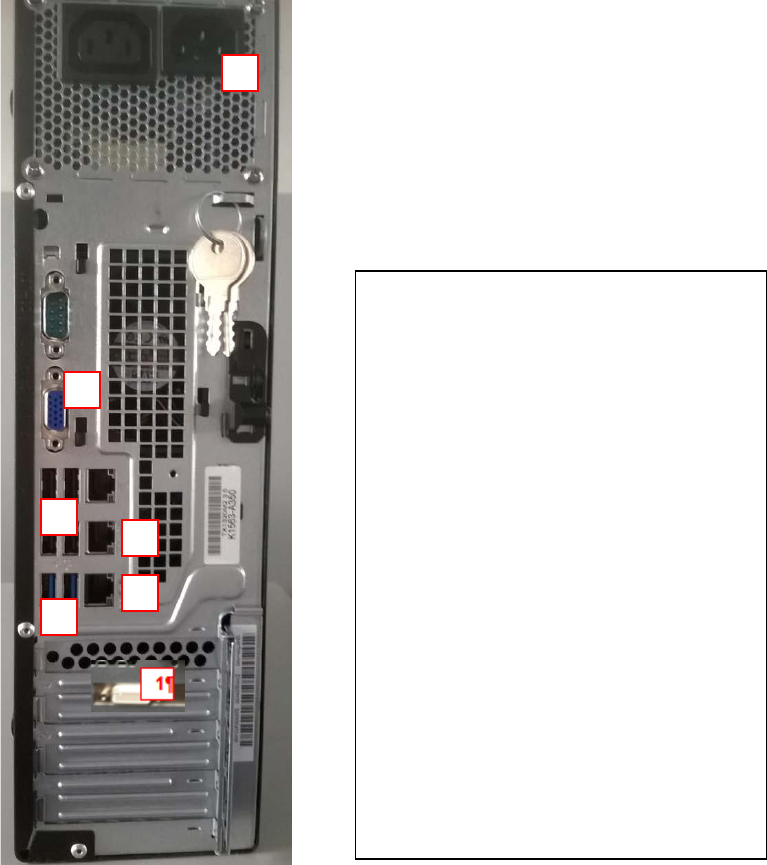
The following picture shows an overview of the interfaces of your computer hardware (backside).
Figure 2-1: Back of TX150 S8 computer
2.2 Used Network Connections
► Before you begin, please ensure that you have connected the SIPLACE LAN network cable
(usually IP range 172.22.x.x) to the (onboard) network adapter and removed all other network
cable connections.
2
3
4
5
6
7
Legend:
1) Connector to graphics card (use
the delivered 2* DVI splitter cable)
2) Onboard VGA connector
3) SIPLACE LAN Network
connection
4) Additional onboard LAN
connection (not used)
5) USB 2.0 connectors
6) USB 3.0 connector (use this
connector for your USB 3.0
devices for enhanced
performance)
7) Power connector