00198218-01_IM_TX1320M2_en.pdf - 第30页
Installing Primergy T X1320 M2 - Win dows Server 2012 R2 05/2016 Edition 30 Figure 4-4: Uninstalli ng AIS – selecting Uninstall option ► Ensure the option Uni nstall is selected. ► Click the Next > butt on to continue…
Installing Primergy TX1320 M2 - Windows Server 2012 R2 05/2016 Edition
29
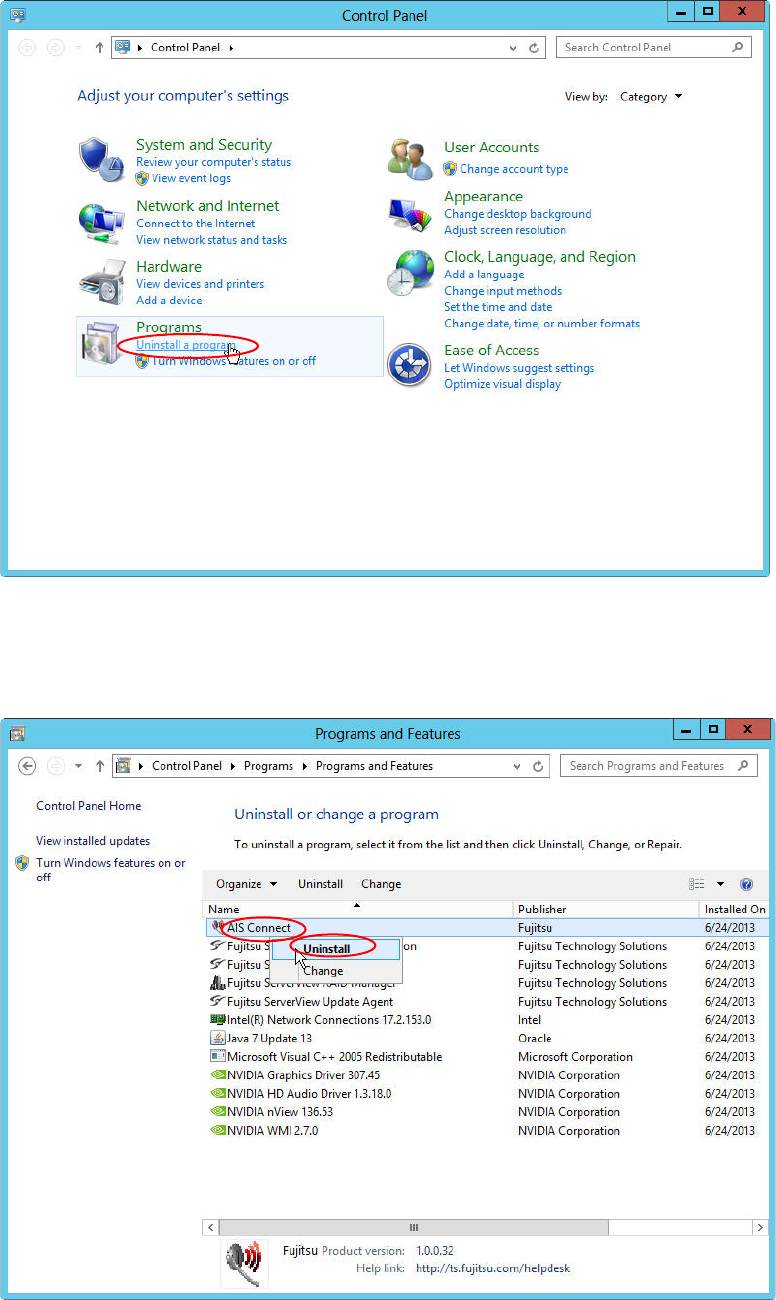
Figure 4-2: Control Panel – clicking on “Uninstall a program”
► Click on Uninstall a program.
The Programs and Feature window opens.
Figure 4-3: Uninstalling AIS – picture #1
► Right-click on the AIS Connect entry and select Uninstall.
The following window appears.
Installing Primergy TX1320 M2 - Windows Server 2012 R2 05/2016 Edition
30
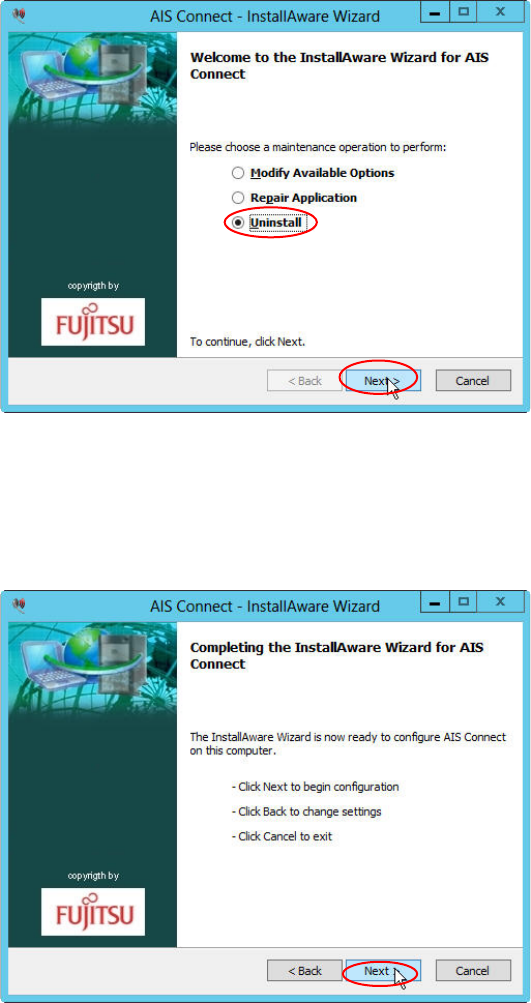
Figure 4-4: Uninstalling AIS – selecting Uninstall option
► Ensure the option Uninstall is selected.
► Click the Next > button to continue.
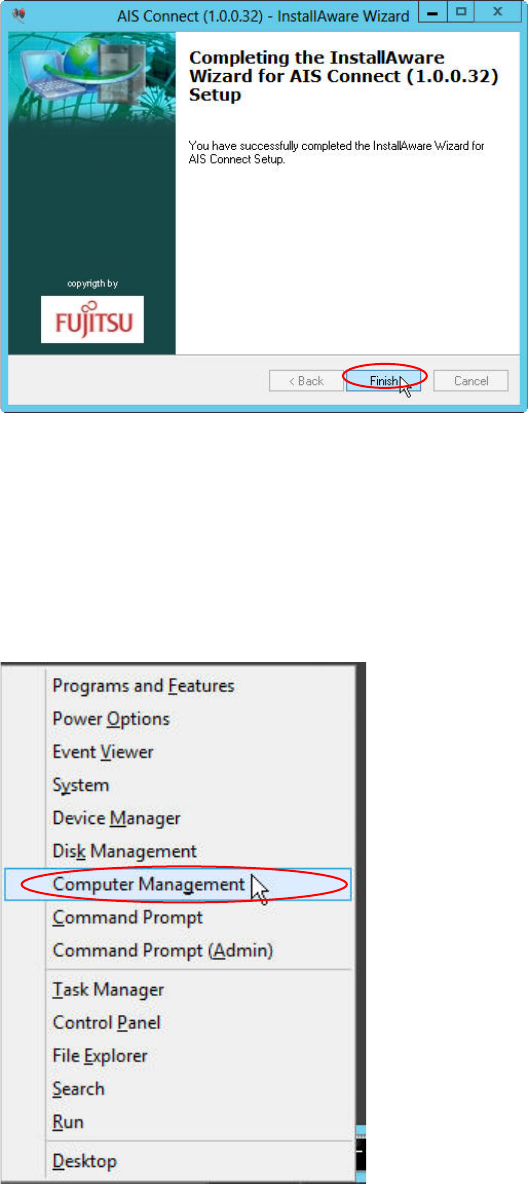
The following window appears.
Figure 4-5: Uninstalling AIS – ready to configure window
► Click the Next > button to continue.
After some seconds, the following window appears.
Installing Primergy TX1320 M2 - Windows Server 2012 R2 05/2016 Edition
31
Figure 4-6:Uninstalling AIS – Setup completed
► Click the Finish button to complete the setup.
4.2 Changing DVD Drive Letter
To be ready for additional partitions and other new drives, it is recommended to change the letter of
the DVD drive.
Figure 4-7: Starting Computer Management
► Press the Windows key on your keyboard and the “x” key. Click on Computer Management.
The Computer Management opens.