00198218-01_IM_TX1320M2_en.pdf - 第21页
Installing Primergy T X1320 M2 - Win dows Server 2012 R2 05/2016 Edition 21 Figure 3-16: Boot process pi cture #3 After a while, the system asks for t he operating syst em installation media. Figure 3-17: Installation Ma…
Installing Primergy TX1320 M2 - Windows Server 2012 R2 05/2016 Edition
20
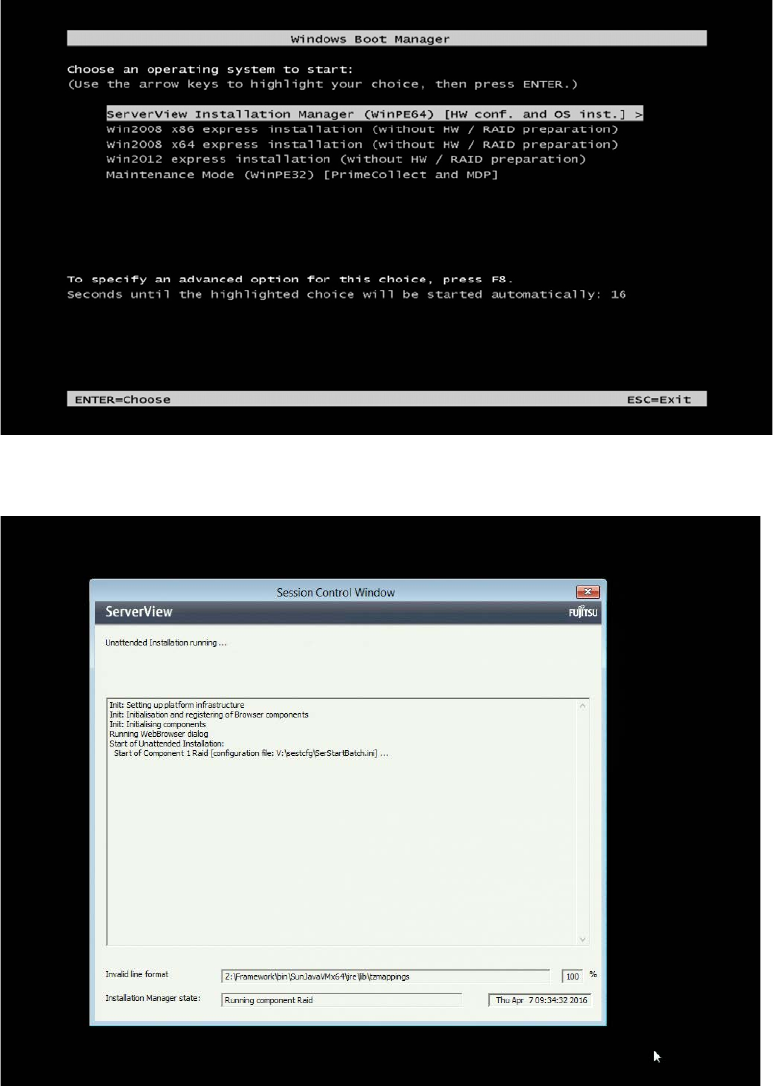
Figure 3-14: Boot process picture #1 - Boot Manager appearing again after boot
Figure 3-15: Boot process picture #2
Installing Primergy TX1320 M2 - Windows Server 2012 R2 05/2016 Edition
21
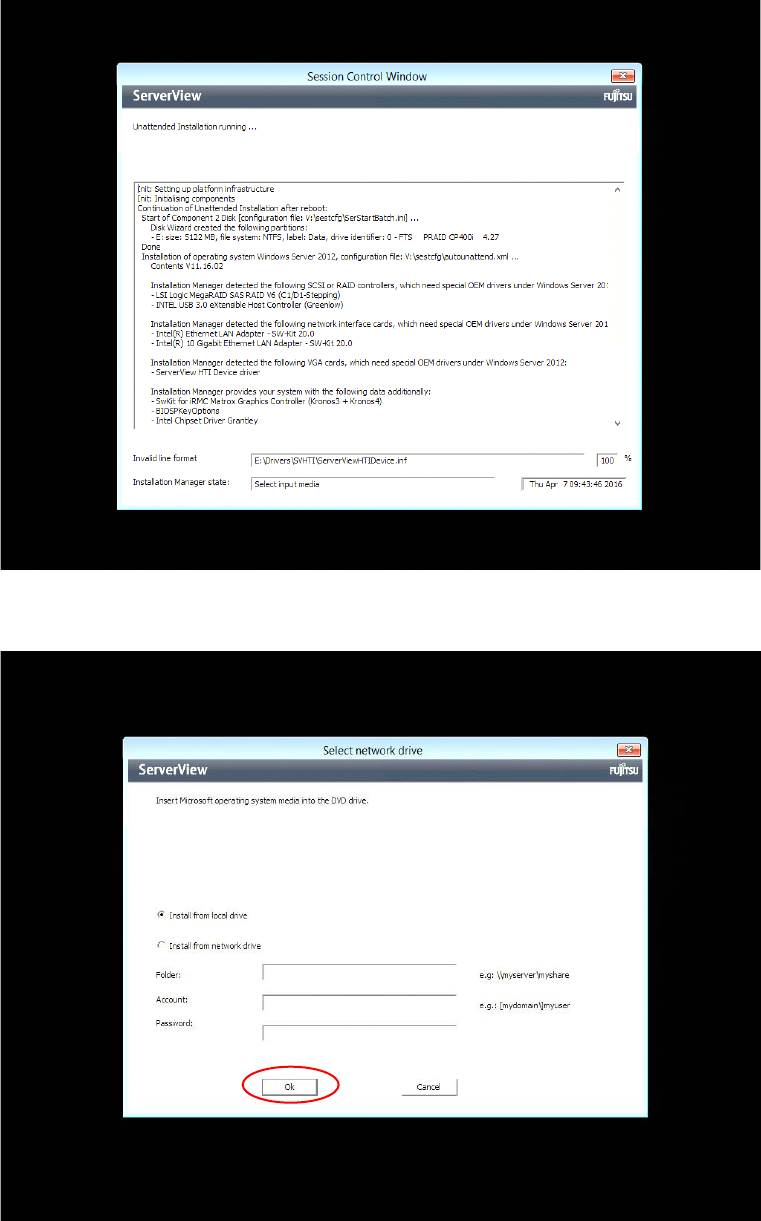
Figure 3-16: Boot process picture #3
After a while, the system asks for the operating system installation media.
Figure 3-17: Installation Manager asking for operating system Installation media
► Insert the delivered Windows Server 2012 R2 installation media into the DVD drive and click
the OK button.
Installing Primergy TX1320 M2 - Windows Server 2012 R2 05/2016 Edition
22
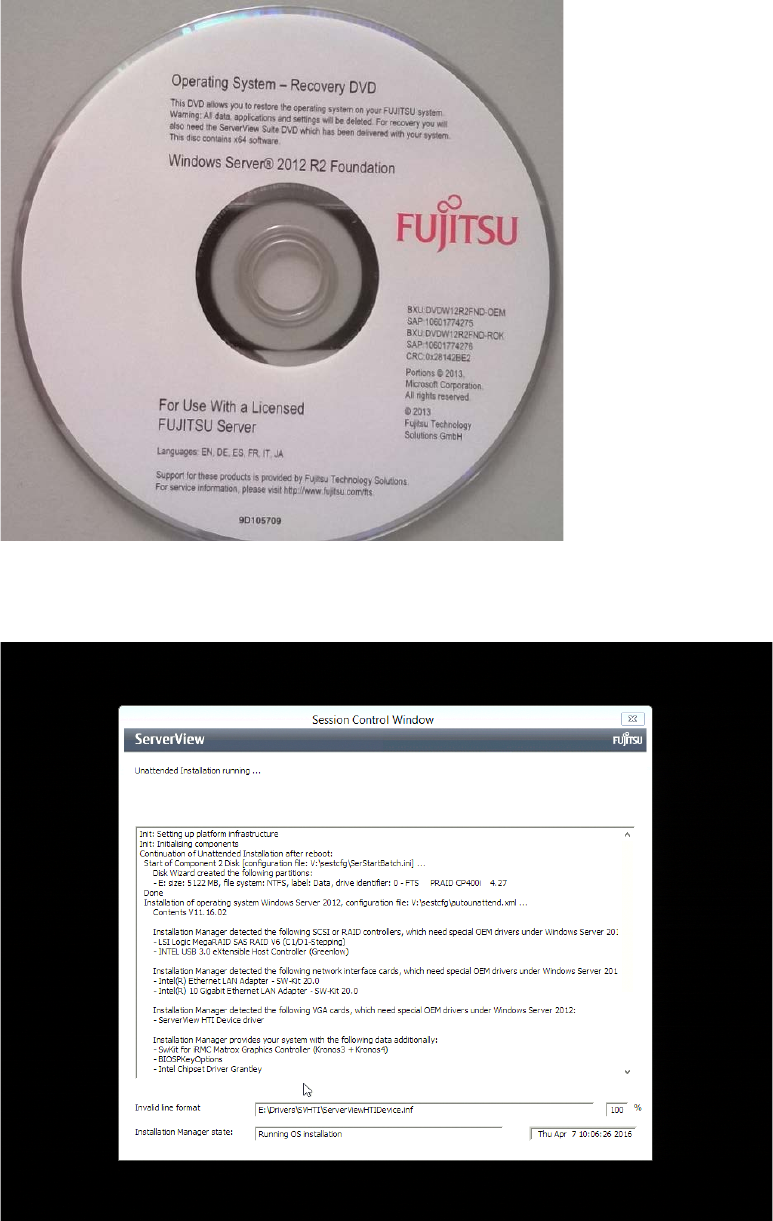
The installation media should look like this:
Figure 3-18: White Operating System Installation Media for TX150 (description might differ a bit, depending on the
Operating System version)
The Installation Manager continues preparing the installation.
Figure 3-19: Installation Manager preparing the installation with hardware specific drivers