00198218-01_IM_TX1320M2_en.pdf - 第9页
Installing Primergy T X1320 M2 - Win dows Server 2012 R2 05/2016 Edition 9 ► Back in the previous screen, ensure the boot option IBA GE Slot 0 3 00 v 1 532 is highlighted. This is the second netw ork boot option that we …
Installing Primergy TX1320 M2 - Windows Server 2012 R2 05/2016 Edition
8
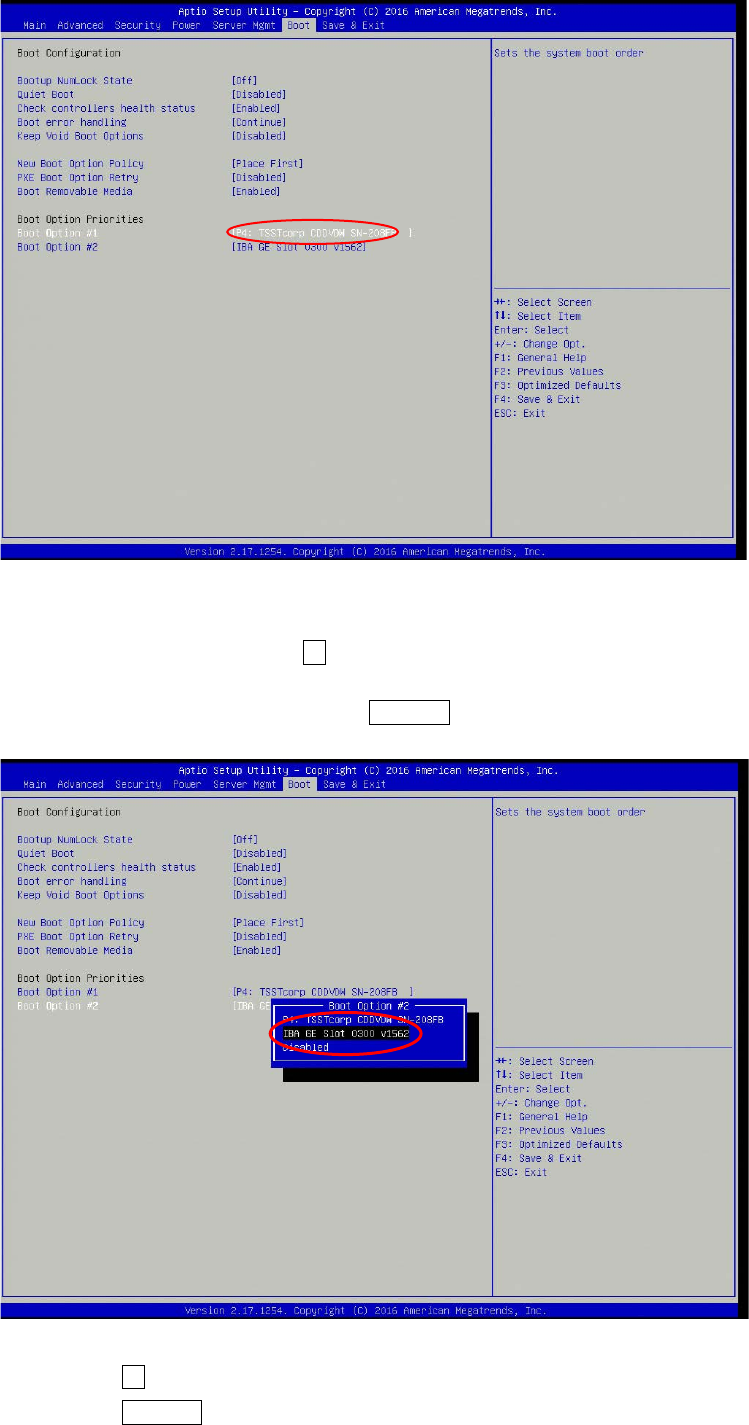
Figure 2-3: Boot screen
► On the Boot screen, press the ↓ key (down arrow) multiple times until the boot option IBA GE
Slot 0700 v1381 is highlighted.
► With the device highlighted, press the ENTER key.
Figure 2-4: Disabling the boot option for the first network adapter
► Press the ↓ (down arrow) key until Disabled is highlighted.
► Press the ENTER key to remove the drive from the boot order.
Installing Primergy TX1320 M2 - Windows Server 2012 R2 05/2016 Edition
9
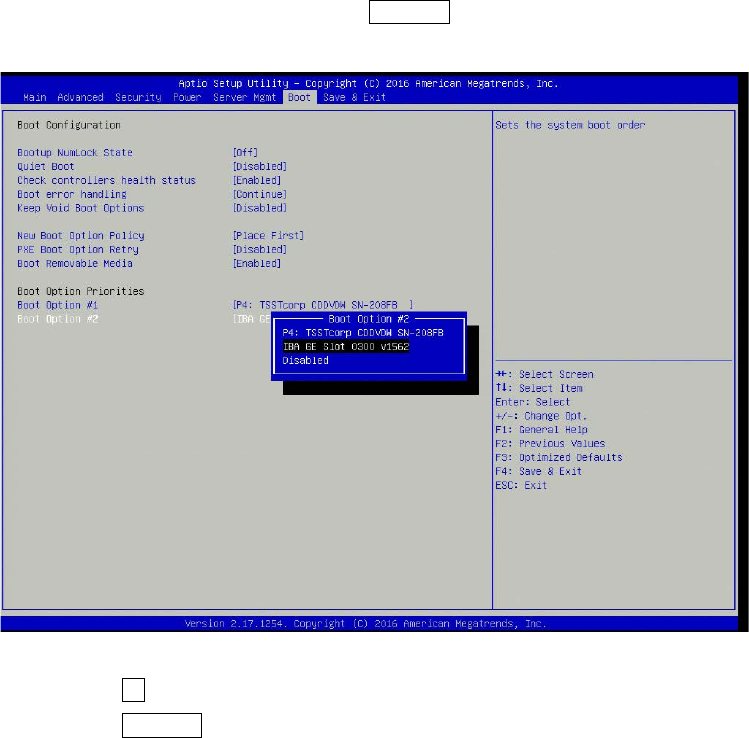
► Back in the previous screen, ensure the boot option IBA GE Slot 0300 v1532 is highlighted.
This is the second network boot option that we also want to disable to save boot time.
► With the device highlighted, press the ENTER key.
Figure 2-5: Disabling the boot option for the second network adapter
► Press the ↓ (down arrow) key until Disabled is highlighted.
► Press the ENTER key to remove the drive from the boot order.
Installing Primergy TX1320 M2 - Windows Server 2012 R2 05/2016 Edition
10
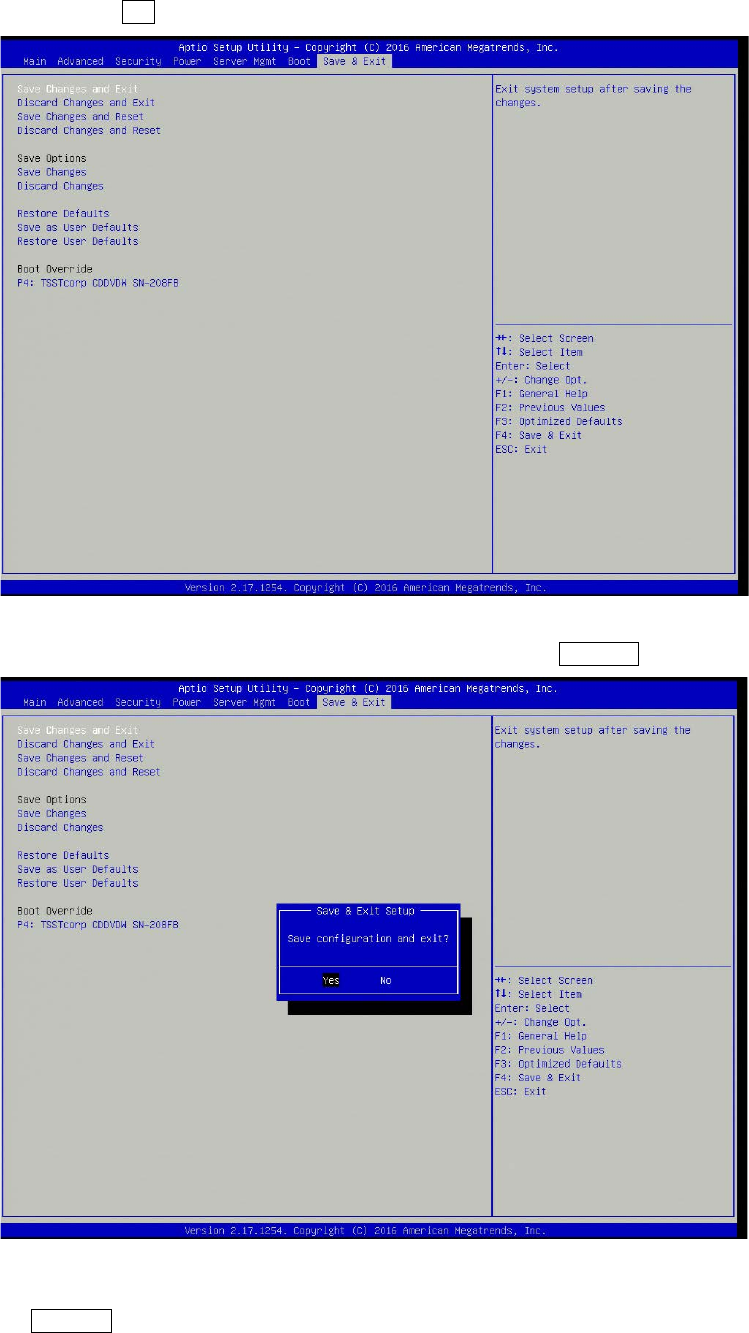
The BIOS settings modifications are now done and you will need to save the changes.
► Press the → (right arrow) key, until the "Save & Exit" menu is displayed.
Figure 2-6: Save & Exit menu with “Save Changes and Exit” selected
► With the option Save Changes and Exit selected, press the ENTER key.
Figure 2-7: “Save configuration and exit?” question
► When asked for Save configuration and exit?, leave the option Yes selected and press the
ENTER key.