00198218-01_IM_TX1320M2_en.pdf - 第16页
Installing Primergy T X1320 M2 - Win dows Server 2012 R2 05/2016 Edition 16 The Configure your Unattended Oper ating System I nstallation screen app ears. Figure 3-9: Unattended Operating Sy stem Installation Configurati…
Installing Primergy TX1320 M2 - Windows Server 2012 R2 05/2016 Edition
15
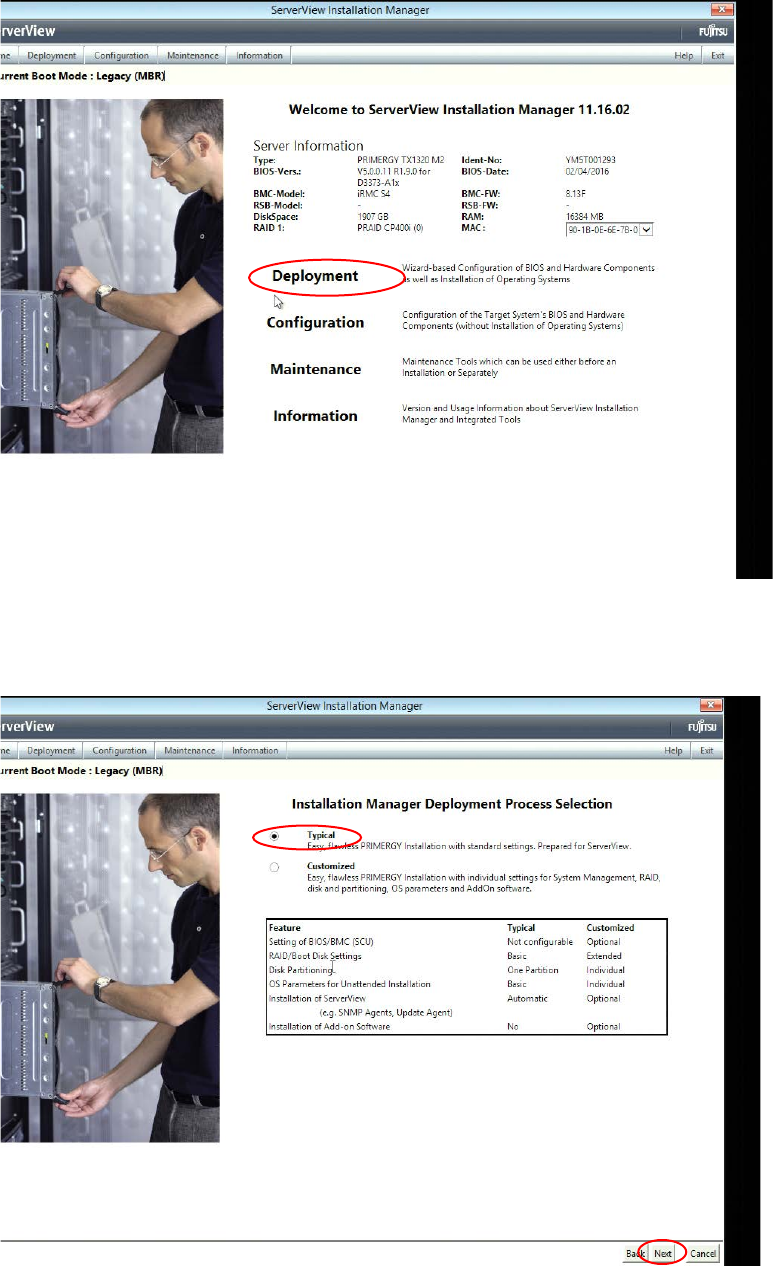
After initialization, the Installation Manager main screen will be displayed.
Figure 3-7: Installation Manager main screen
► Select the Deployment option by clicking on it.
The Deployment Process Selection screen appears.
Figure 3-8: Deployment Process Selection screen
► Ensure that the radio button besides Typical is selected and click the Next button at the bottom
of the screen.
Installing Primergy TX1320 M2 - Windows Server 2012 R2 05/2016 Edition
16
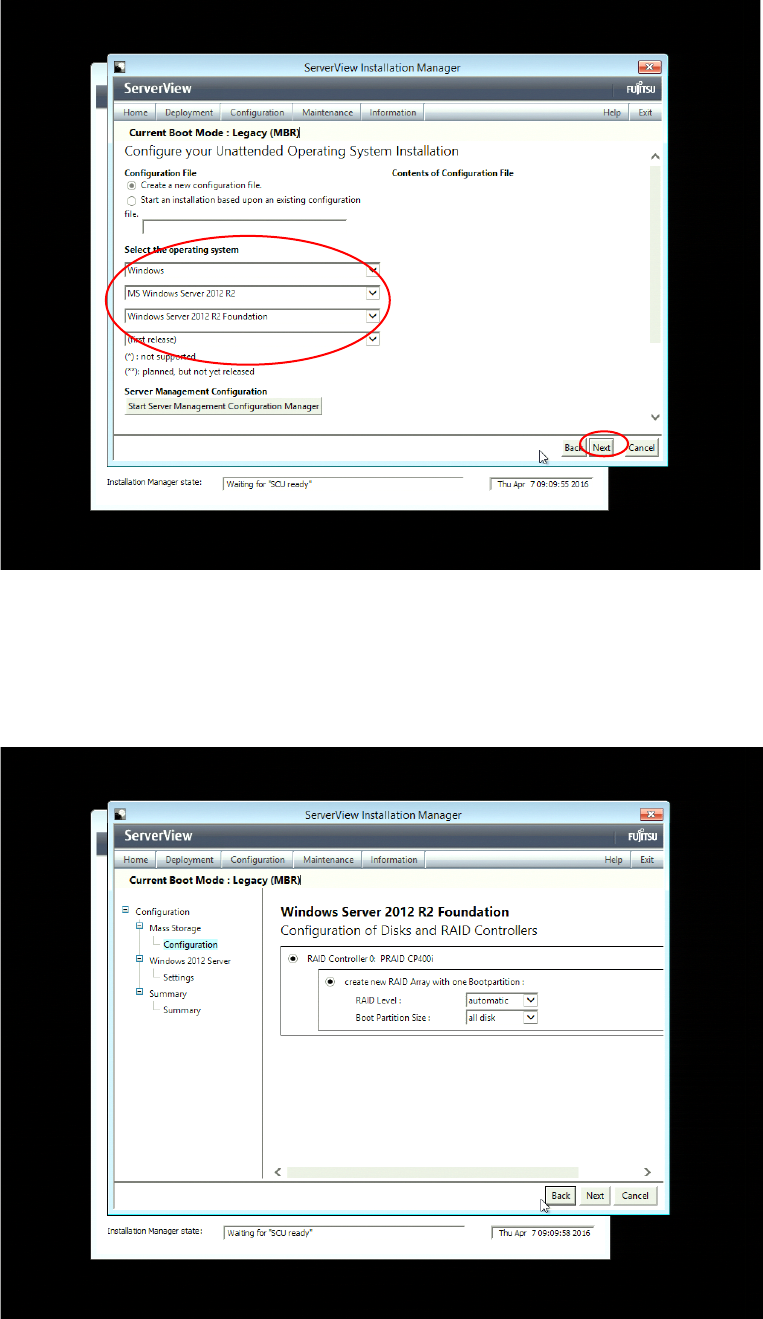
The Configure your Unattended Operating System Installation screen appears.
Figure 3-9: Unattended Operating System Installation Configuration screen with Windows Server 2012 Foundation selected
► In the dropdown boxes, select Windows, MS Windows Server 2012 R2, Windows Server 2012
R2 Foundation as displayed in the figure above.
► Click the Next button at the bottom of the screen.
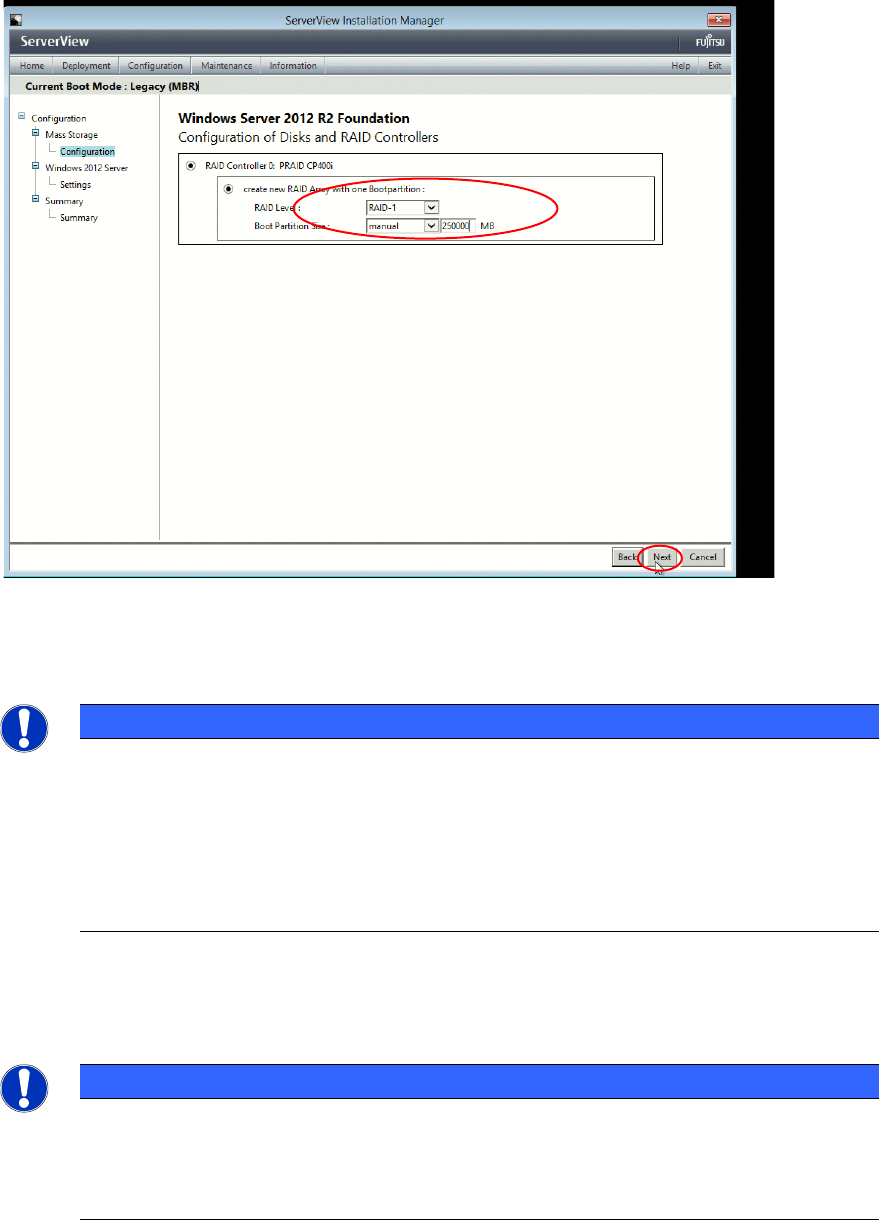
The Configuration of Disks and RAID Controllers screen appears.
Figure 3-10: Configuration of Disks and RAID Controllers screen with default options (depending on previous configuration,
this screen might differ a bit)
Installing Primergy TX1320 M2 - Windows Server 2012 R2 05/2016 Edition
17
► Modify the default settings as displayed in the following figure.
Figure 3-11: Configuration of Disks and RAID Controllers screen with custom options (depending on previous configuration,
this screen might differ a bit)
► For RAID level 1, select RAID-1. This configures a Mirror RAID.
NOTICE
Select/change RAID options carefully
In this manual, RAID level 1 is used for data security. RAID 1 requires two hard disks at
least. In most cases, changing the RAID level afterwards causes existing data on the
involved disks to get lost. So, you should ensure to select the proper RAID level first
before setting up the computer with important data. For more information on RAID levels,
please consult the manual for your RAID controller or search in internet for RAID
documentation.
► For Boot Partition Size, select manual and enter the value 250.000 MB to reserve about 250
GB for the boot partition (the Windows "C:" drive).
NOTICE
Whole disk with single partition
If you leave the default settings for boot partition size, a single partition containing the
whole disk will be created. After that, you will have to use a partition manager tool if you
want to split the system into more partitions.
► Click the Next button at the bottom of the screen to continue.