00198218-01_IM_TX1320M2_en.pdf - 第36页
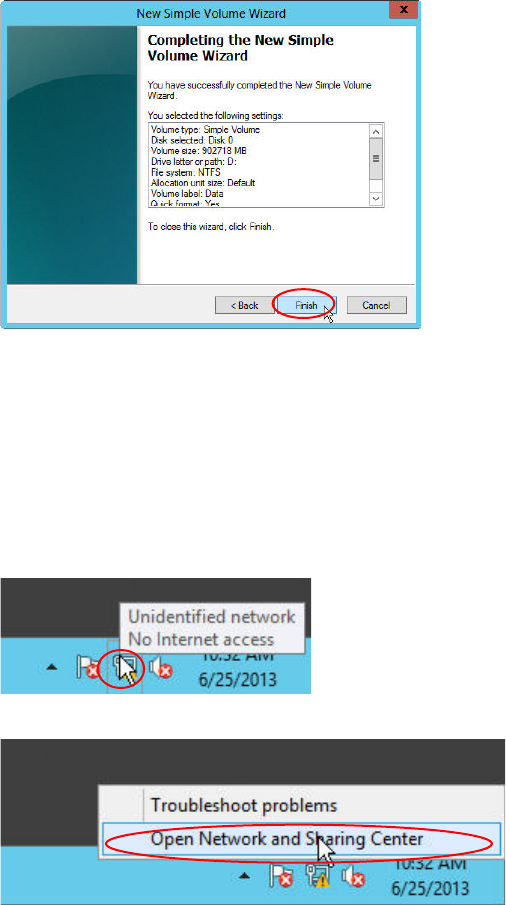
Installing Primergy T X1320 M2 - Win dows Server 2012 R2 05/2016 Edition 36 Figure 4-18: New Simple Vol ume Wizard – Completed ► Click the Fin ish button to complete the task. Form atting may take a cou ple of seconds. 4…
Installing Primergy TX1320 M2 - Windows Server 2012 R2 05/2016 Edition
35
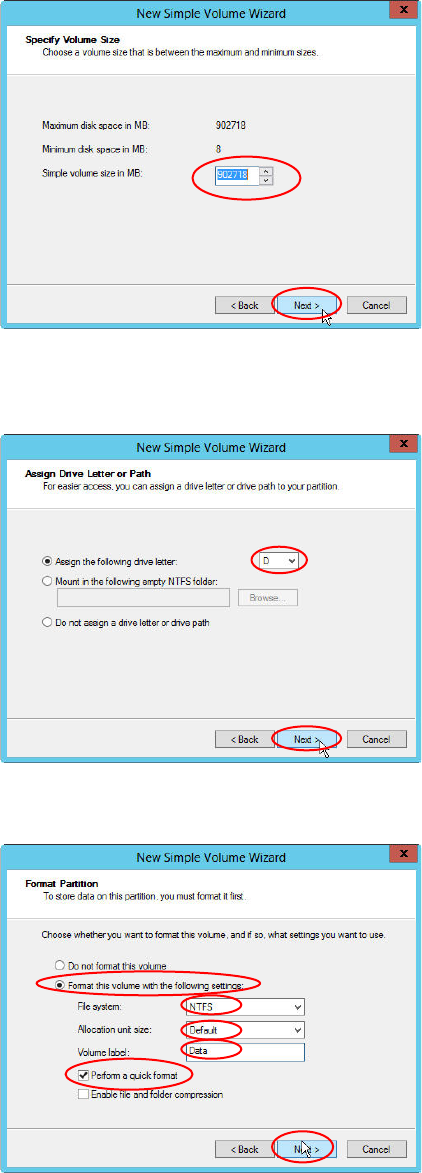
Figure 4-15: New Simple Volume Wizard – Specify Volume Size
► Leave the value for the simple volume size (using all remaining space) and click the Next >
button.
Figure 4-16: New Simple Volume Wizard – Assign Drive Letter or Path
► Ensure that drive D is selected in the dropdown menu and click the Next > button.
Figure 4-17: New Simple Volume Wizard – Format Partition
► Select the radio button besides Format this volume with the following settings.
► Select NTFS besides File system.
► Leave the default allocation unit size and enter a name for the new volume, e.g. “Data”.
► Select the Perform a quick format checkbox and click the Next > button.
Installing Primergy TX1320 M2 - Windows Server 2012 R2 05/2016 Edition
36
Figure 4-18: New Simple Volume Wizard – Completed
► Click the Finish button to complete the task. Formatting may take a couple of seconds.
4.4 Removing Default Gateway
As mentioned before, you have to remove the dummy default gateway that was entered during the
Installation Manager guided setup.
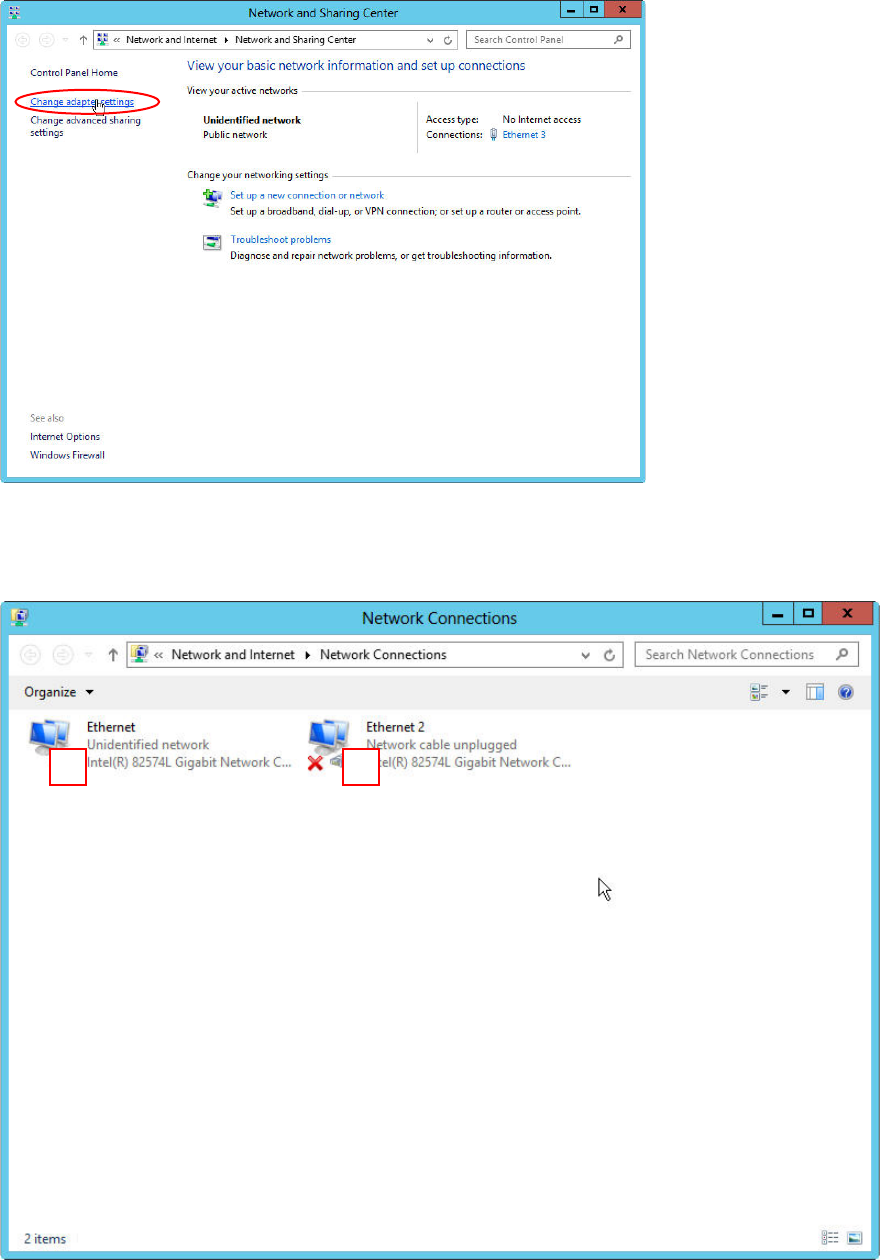
Figure 4-19: Network Icon
Figure 4-20: Opening Network Settings
► Right-click on the Network Icon in the lower right corner and select Open Network and Sharing
Center.
The Network and Sharing Center opens.
Installing Primergy TX1320 M2 - Windows Server 2012 R2 05/2016 Edition
37
Figure 4-21: Network Sharing Center – clicking change adapter settings
► Click on Change adapter settings on the left side.
Figure 4-22: Network Adapters – SIPLACE LAN adapter connected
You see two network adapters displayed. If you followed this documentation, only the adapter with
the connection to the SIPLACE LAN should be connected (in this picture #1).
The other adapter is disconnected – it has a red “X” in the symbol (in this picture #2).
1
2