00198218-01_IM_TX1320M2_en.pdf - 第34页
Installing Primergy T X1320 M2 - Win dows Server 2012 R2 05/2016 Edition 34 The Computer Mana gement opens . Figure 4-13: Server Manager – A dding a second partition ► On the left side, select Storage – Disk Manag ement …
Installing Primergy TX1320 M2 - Windows Server 2012 R2 05/2016 Edition
33
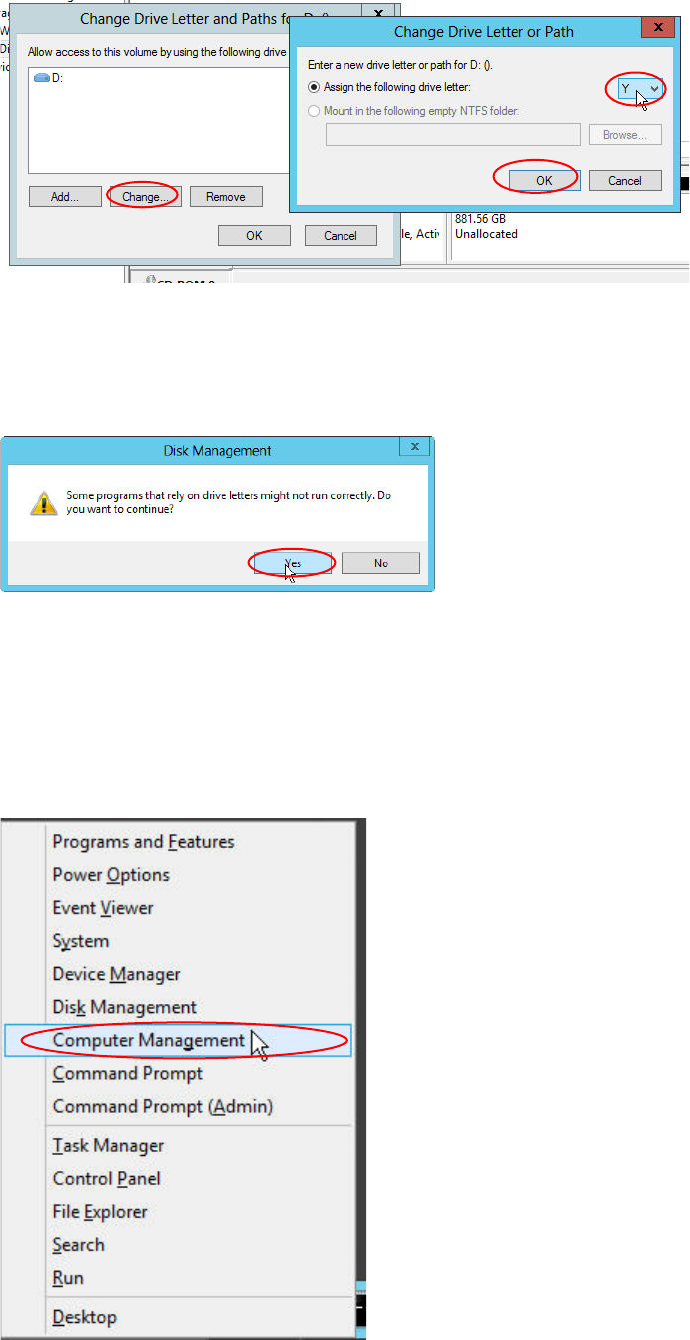
Figure 4-10: Changing DVD drive letter to Y
► In the appearing window, click the Change… button.
► Select the drive letter Y from the dropdown menu and click the OK button.
A warning message will appear.
Figure 4-11: Disk Management warning
► Accept the warning message by clicking the Yes button.
4.3 Adding a Second Partition
In most cases, a second partition is appropriate.
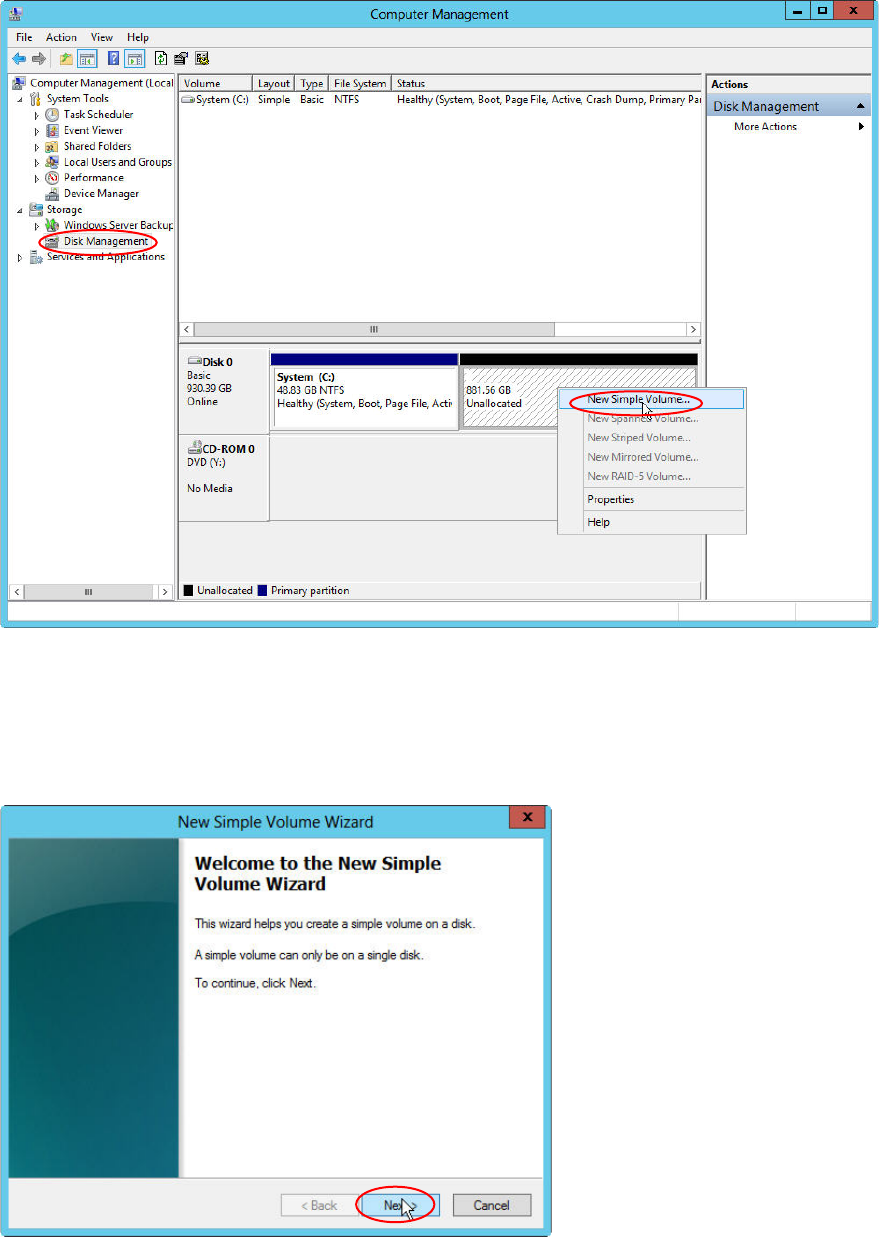
Figure 4-12: Starting Computer Management
► Press the Windows key on your keyboard and the “x” key. Click on Computer Management.
Installing Primergy TX1320 M2 - Windows Server 2012 R2 05/2016 Edition
34
The Computer Management opens.
Figure 4-13: Server Manager – Adding a second partition
► On the left side, select Storage – Disk Management.
► In the middle area besides Disk 0, right-click in the unassigned, empty disk space (the shaded
area) and select New Simple Volume.
The New Simple Volume Wizard opens.
Figure 4-14: New Simple Volume Wizard – Welcome
► Click the Next > button.
Installing Primergy TX1320 M2 - Windows Server 2012 R2 05/2016 Edition
35
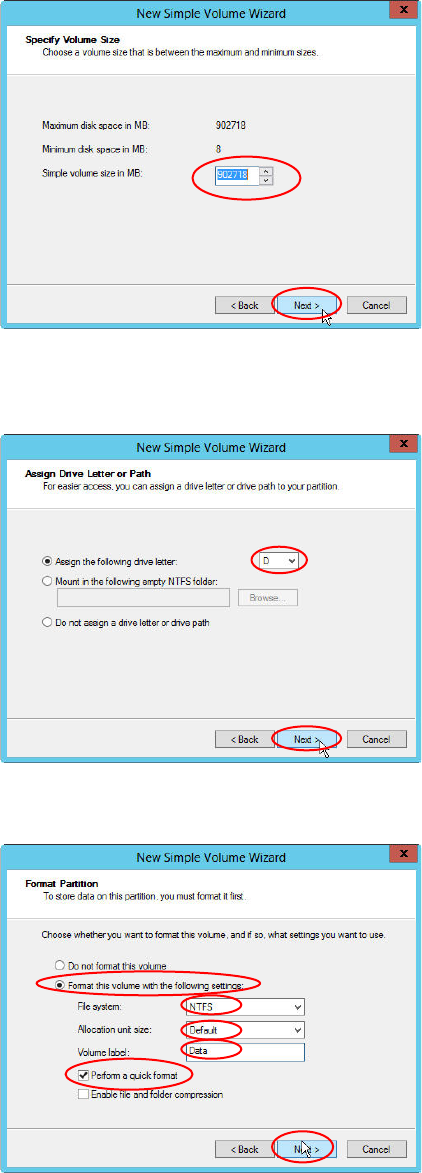
Figure 4-15: New Simple Volume Wizard – Specify Volume Size
► Leave the value for the simple volume size (using all remaining space) and click the Next >
button.
Figure 4-16: New Simple Volume Wizard – Assign Drive Letter or Path
► Ensure that drive D is selected in the dropdown menu and click the Next > button.
Figure 4-17: New Simple Volume Wizard – Format Partition
► Select the radio button besides Format this volume with the following settings.
► Select NTFS besides File system.
► Leave the default allocation unit size and enter a name for the new volume, e.g. “Data”.
► Select the Perform a quick format checkbox and click the Next > button.