00198218-01_IM_TX1320M2_en.pdf - 第26页
Installing Primergy T X1320 M2 - Win dows Server 2012 R2 05/2016 Edition 26 Thereafter the logon screen will appear. Figure 3-24: Windows Logon Scr een ► Press CTRL + ALT + DEL to log on and log in with the administ rato…
Installing Primergy TX1320 M2 - Windows Server 2012 R2 05/2016 Edition
25
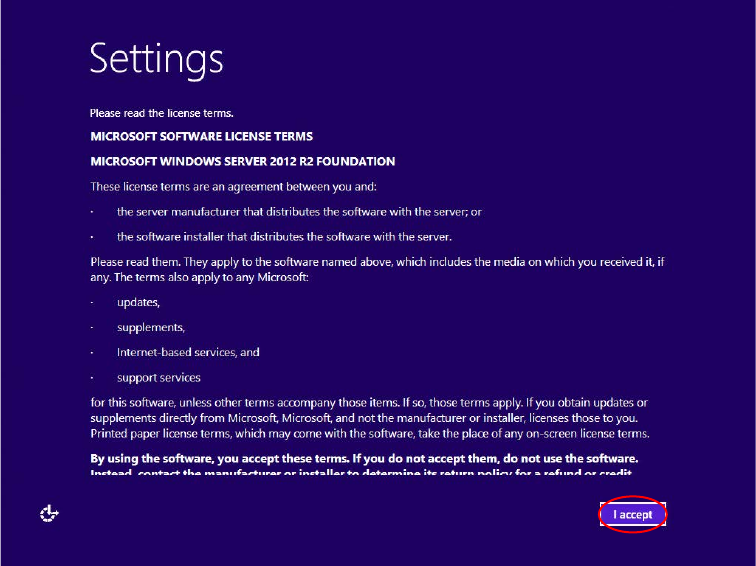
After the main part of the Windows Setup is completed, the following screen will appear.
Figure 3-23: Windows Setup waiting to agree the license terms
► Click the I Accept button.
► Wait while Windows finalizes.
During preparation, Installation Manager may reboot the system.
After preparation, the Installation Manager prompts you to remove the DVD.
► Remove the DVD from the drive and click the OK button.
The setup will reboot the computer and continue.
Installing Primergy TX1320 M2 - Windows Server 2012 R2 05/2016 Edition
26
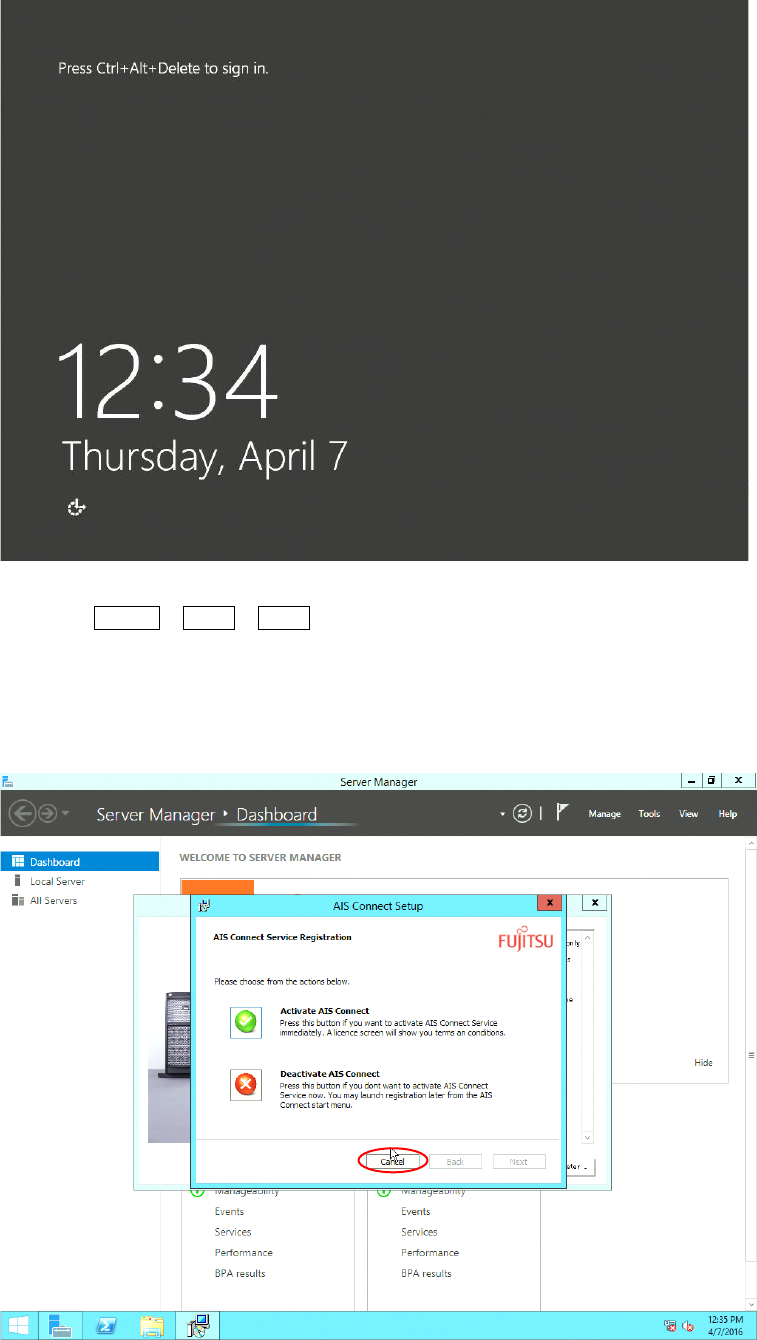
Thereafter the logon screen will appear.
Figure 3-24: Windows Logon Screen
► Press CTRL + ALT + DEL to log on and log in with the administrator account and the
password you have configured.
After login and some preparation, the following screens will appear (random order).
After the main part of the Windows Setup is completed, the following screen will appear.
Figure 3-25: Reminder messages
► Click at the Cancel button to close the window.
Installing Primergy TX1320 M2 - Windows Server 2012 R2 05/2016 Edition
27
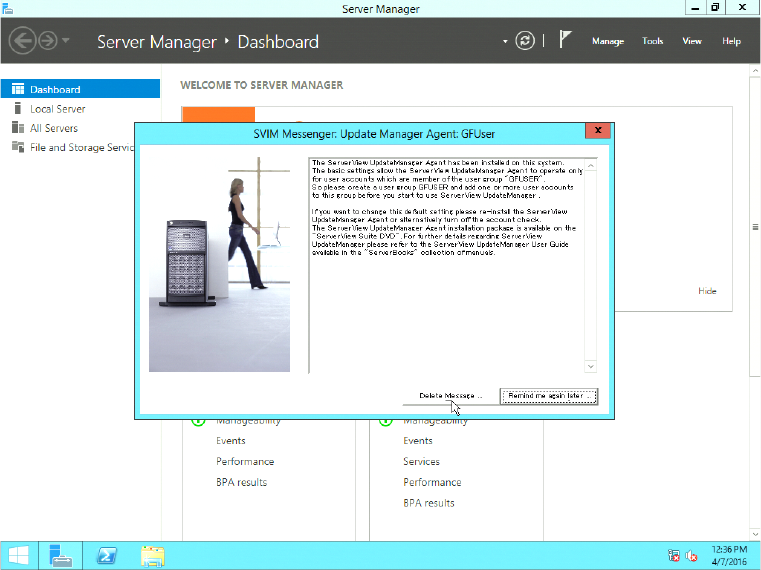
The following window might appear.
Figure 3-26: SVIM Messanger message
► Click the Delete Message button.
The basic installation steps are now completed. Continue with the following chapter.