00198218-01_IM_TX1320M2_en.pdf - 第24页
Installing Primergy T X1320 M2 - Win dows Server 2012 R2 05/2016 Edition 24 After preparati on, the Installat ion Manager prompt s you to remove the DV D. Figure 3-22: Installation Manager is prompting to remove the Serv…
Installing Primergy TX1320 M2 - Windows Server 2012 R2 05/2016 Edition
23
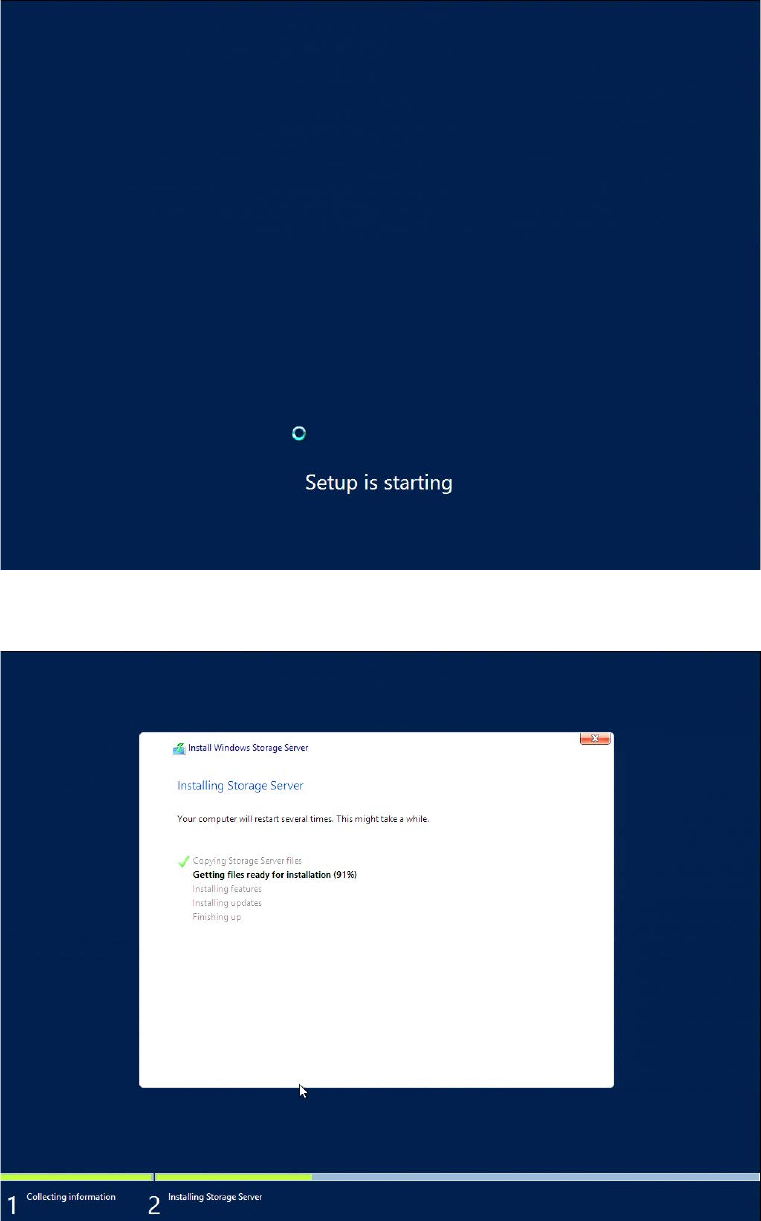
The whole preparation process, including Windows Setup, will take some time.
Figure 3-20: Starting Windows Setup
Figure 3-21: Running Windows Setup
Installing Primergy TX1320 M2 - Windows Server 2012 R2 05/2016 Edition
24
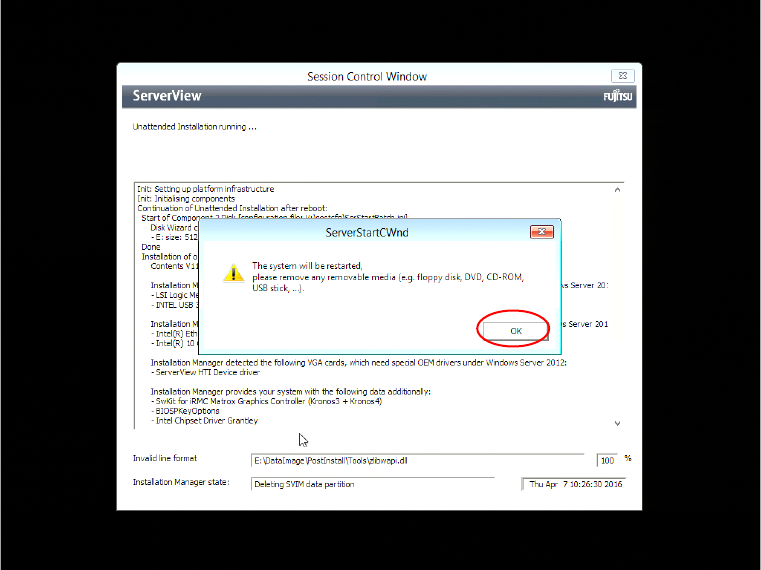
After preparation, the Installation Manager prompts you to remove the DVD.
Figure 3-22: Installation Manager is prompting to remove the ServerView DVD
► Remove the DVD from the drive and click the OK button.
The setup will reboot the computer and continue.
► Wait until the setup is completed. This may take 45 minutes or more.
Installing Primergy TX1320 M2 - Windows Server 2012 R2 05/2016 Edition
25
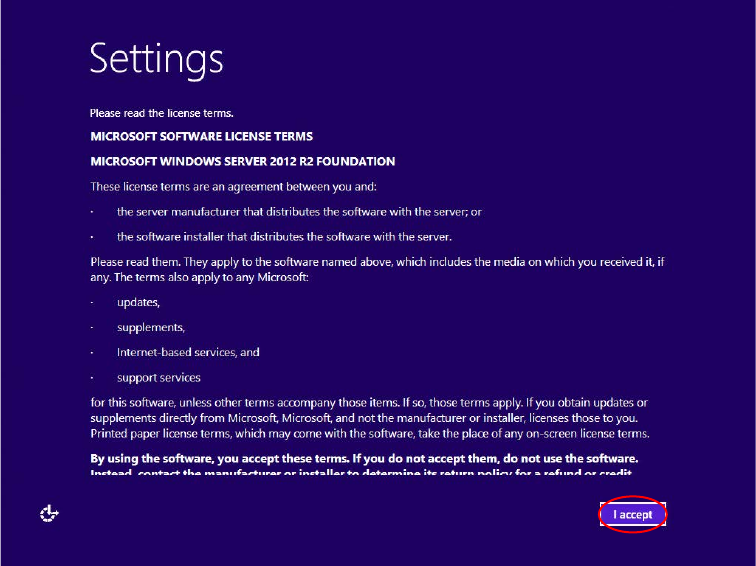
After the main part of the Windows Setup is completed, the following screen will appear.
Figure 3-23: Windows Setup waiting to agree the license terms
► Click the I Accept button.
► Wait while Windows finalizes.
During preparation, Installation Manager may reboot the system.
After preparation, the Installation Manager prompts you to remove the DVD.
► Remove the DVD from the drive and click the OK button.
The setup will reboot the computer and continue.