Nordson_EFD_OptiSure_Operating_Manual.pdf - 第11页
OptiSure Automated Optical Inspection 11 www.nordsonefd.com info@nordsonefd.com +1-401-431-7000 Sales and service of Nordson EFD dispensing systems are available worldwide. Using the Center Button for LaserC Setup On sy…
OptiSure Automated Optical Inspection
10 www.nordsonefd.com info@nordsonefd.com +1-401-431-7000 Sales and service of Nordson EFD dispensing systems are available worldwide.
Setting Up the Confocal Laser
If you installed the confocal laser (Laser C), follow this procedure to ensure that the laser is properly selected and
set up in the system.
NOTE: The confocal laser can be installed only on PROPlus / PRO systems.
PREREQUISITES
If purchased, the optional confocal laser is installed in accordance with the installation instructions.
The DispenseMotion software is open.
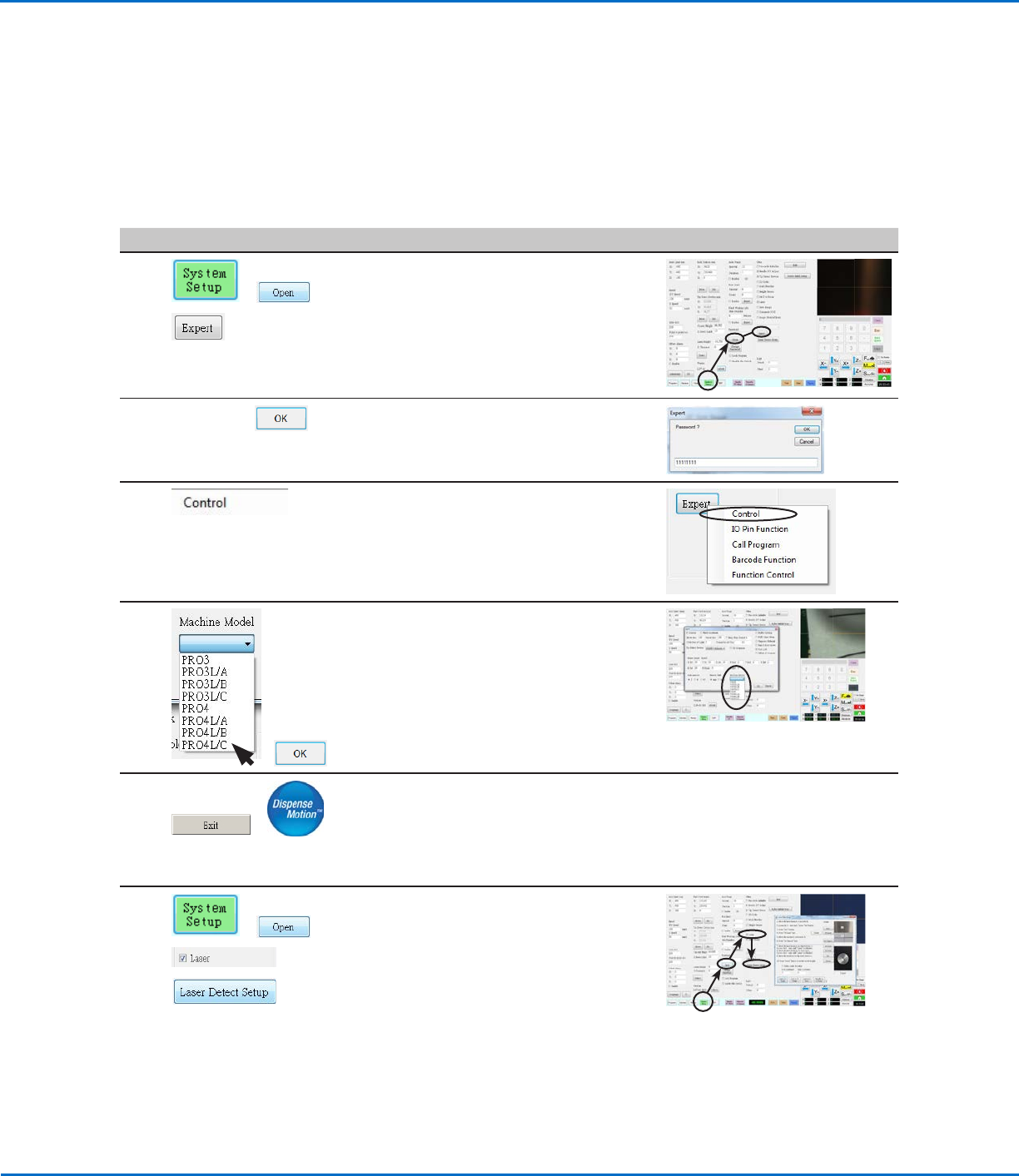
# Click Step Reference Image
1
> >
• Click SYSTEM SETUP > OPEN >
EXPERT.
2
11111111 >
• Enter 11111111, then click OK.
3 • Click CONTROL.
4
>
• Select the applicable Laser C model from
the Machine Model drop-down menu.
• Click OK to save.
5
>
• Click EXIT to close the software.
• Switch off the robot.
• Re-open the DispenseMotion software
and switch on the robot for the change to
take effect.
6
> >
>
• Click SYSTEM SETUP > OPEN.
• Under Other, ensure that LASER is
checked.
• Click LASER DETECT SETUP and follow
the steps in the Laser Detect Setup
window.
NOTE: If you want to use the centering feature for the most precise laser
calibration, complete steps 1-3 of the wizard and then skip to “Using the
Center Button for LaserC Setup” below to complete laser setup.
• Close the window after you have completed all the steps.
OptiSure Automated Optical Inspection
11www.nordsonefd.com info@nordsonefd.com +1-401-431-7000 Sales and service of Nordson EFD dispensing systems are available worldwide.
Using the Center Button for LaserC Setup
On systems with Laser C, the Laser Detect Setup window has a Center button that can be used for more precise
laser calibration. Using the Center button is optional, but is recommended to obtain the most accurate calibration.
Follow these steps to use the Center button during Laser C setup.
PREREQUISITES
You have completed “Setting Up the Confocal Laser” on page10.
You have completed steps 1–3 of the Laser Detect Setup wizard.
#
Click Step Reference Image
1
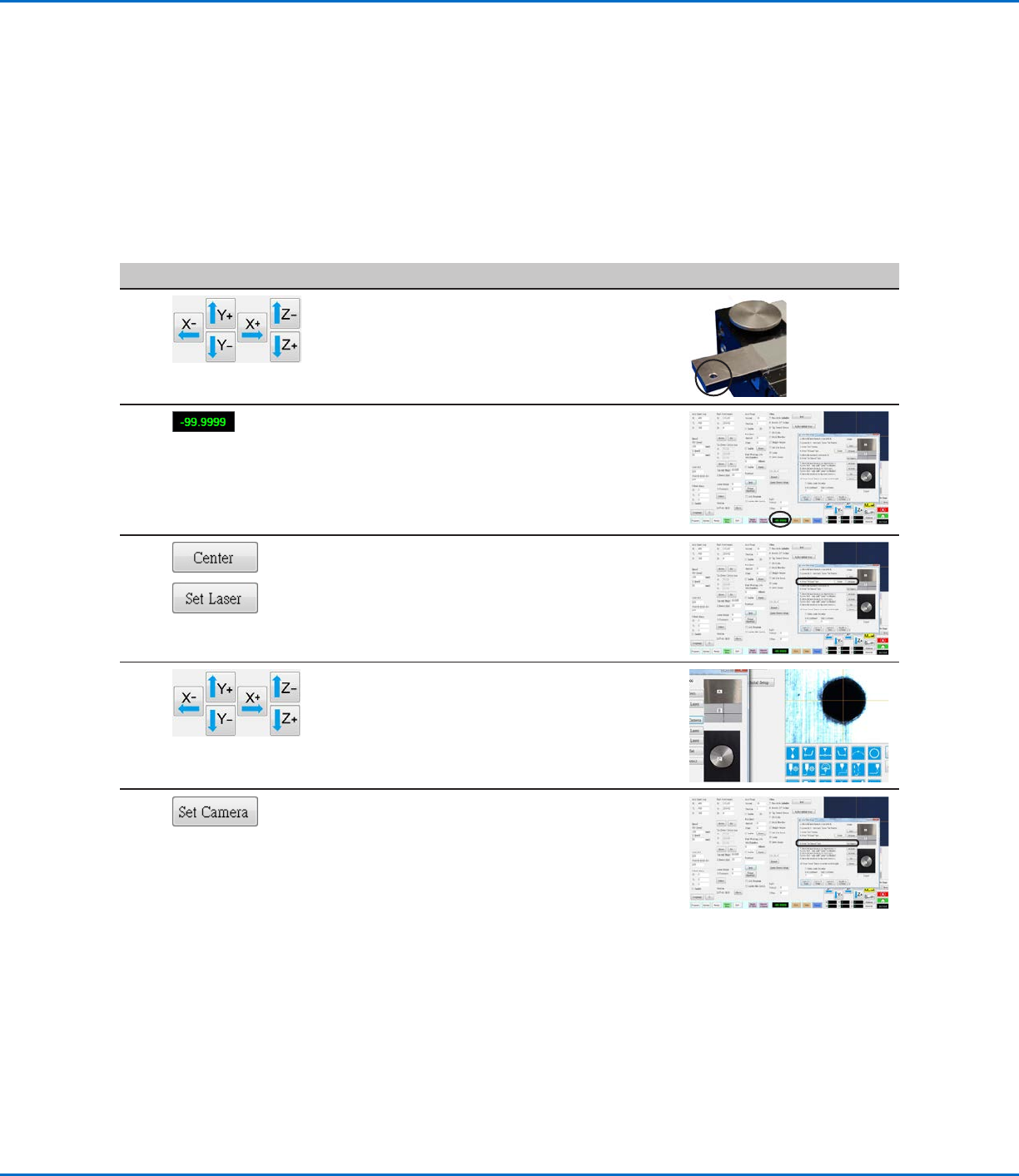
• Move the laser to the centering hole located on
the tip detector.
2 • Observe the laser readout value. If the laser
readout shows -99.999, the laser is successfully
passing through the hole. If not, the laser is not
precisely centered.
3
>
• Click CENTER next to Set Laser.
The laser moves in two directions (left to right,
then north to south) to calibrate itself and then
moves to the center of the hole.
• Click SET LASER.
4 • Jog the camera to center the crosshairs over
the centering hole located on the tip detector.
• Click SET CAMERA.
The laser-to-camera offset is now precisely
calibrated.
• Complete the remaining steps of the Laser
Detect Setup wizard and close the window after
you have completed all the steps.
Setting Up the Confocal Laser (continued)
OptiSure Automated Optical Inspection
12 www.nordsonefd.com info@nordsonefd.com +1-401-431-7000 Sales and service of Nordson EFD dispensing systems are available worldwide.
Overview of the OptiSureAOI Functions
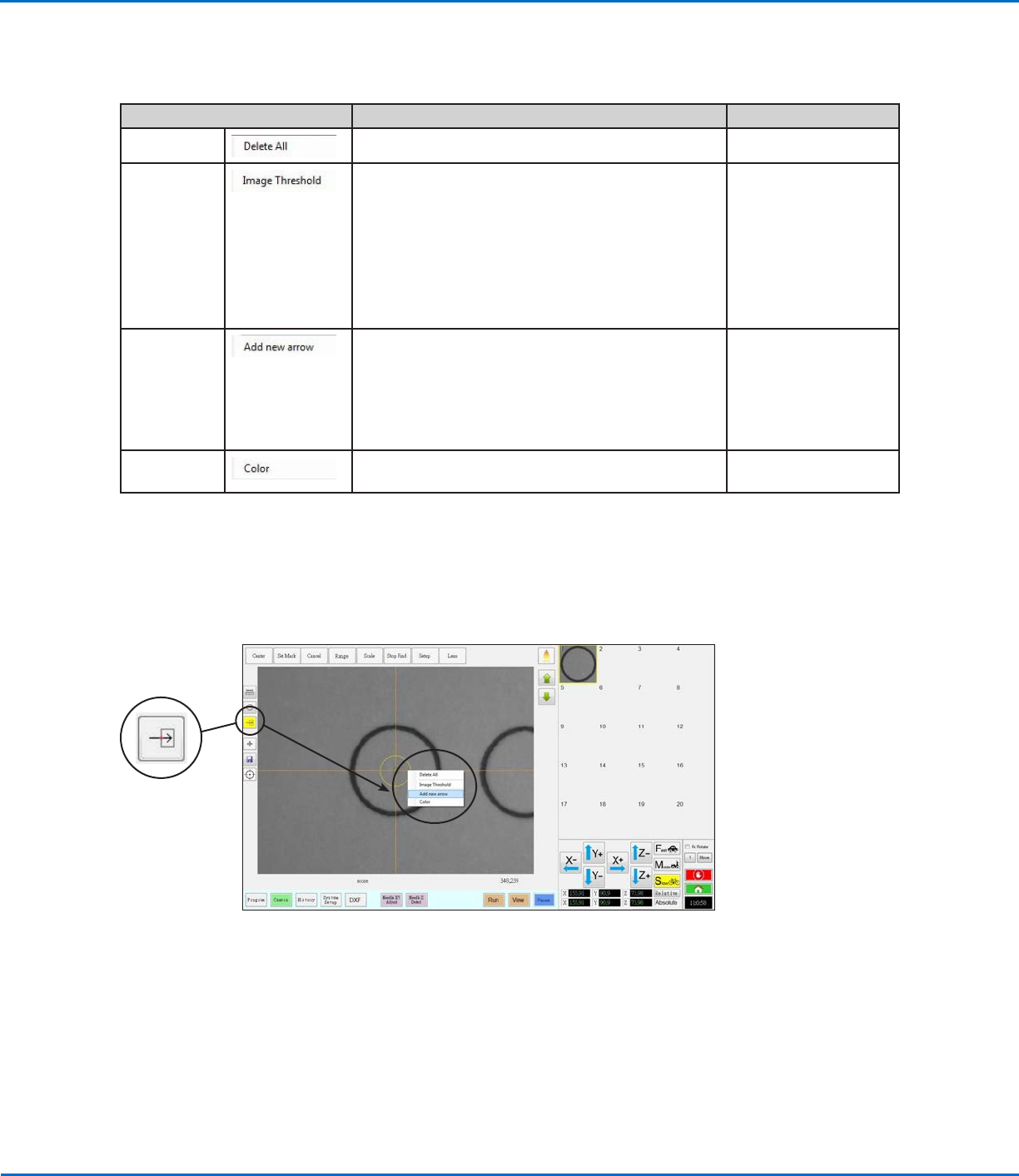
Click the Arrow icon, then right-click in the Primary View screen to view the Arrow menu.
Arrow Menu Item Description Refer to...
Delete All
Deletes all arrows associated with a mark image. n/a
Image
Threshold
Allows you to isolate a specific portion of an image
for future adjustment; the isolated portion remains
visible on the screen when you are adjusting the
parameters in an Arrow dialog box:
• Recommended for use in tandem with any Arrow
Type
• Provides more accurate results than Template /
Area
“Using Image
Threshold” on
page13
Add New
Arrow
Adds an arrow to a mark image; added arrows can be
manipulated individually or collectively to improve the
system’s ability to find a mark image, or to optically
check a dispense.
Select the arrow type to use based on the
characteristics of the mark image.
“Using the Arrow
Types” on page14
Color
Changes the color of the on-screen arrows, circles,
and other visual aids of the Arrow functions.
n/a
Location of the Arrow icon on the Camera tab (turns yellow when selected) and the resulting menu when you right-click in the
Primary View screen