Nordson_EFD_OptiSure_Operating_Manual.pdf - 第55页
OptiSure Automated Optical Inspection 55 www.nordsonefd.com info@nordsonefd.com +1-401-431-7000 Sales and service of Nordson EFD dispensing systems are available worldwide. Using the Arr ow T ypes (continued) Mea. Width …
OptiSure Automated Optical Inspection
54 www.nordsonefd.com info@nordsonefd.com +1-401-431-7000 Sales and service of Nordson EFD dispensing systems are available worldwide.
Mea. Width Example for Dispense Width Adjustment (continued)
To Create a Mark Image for the Desired Line Width (continued)
Using the Arrow Types (continued)
# Click Step Reference Image
5
4.
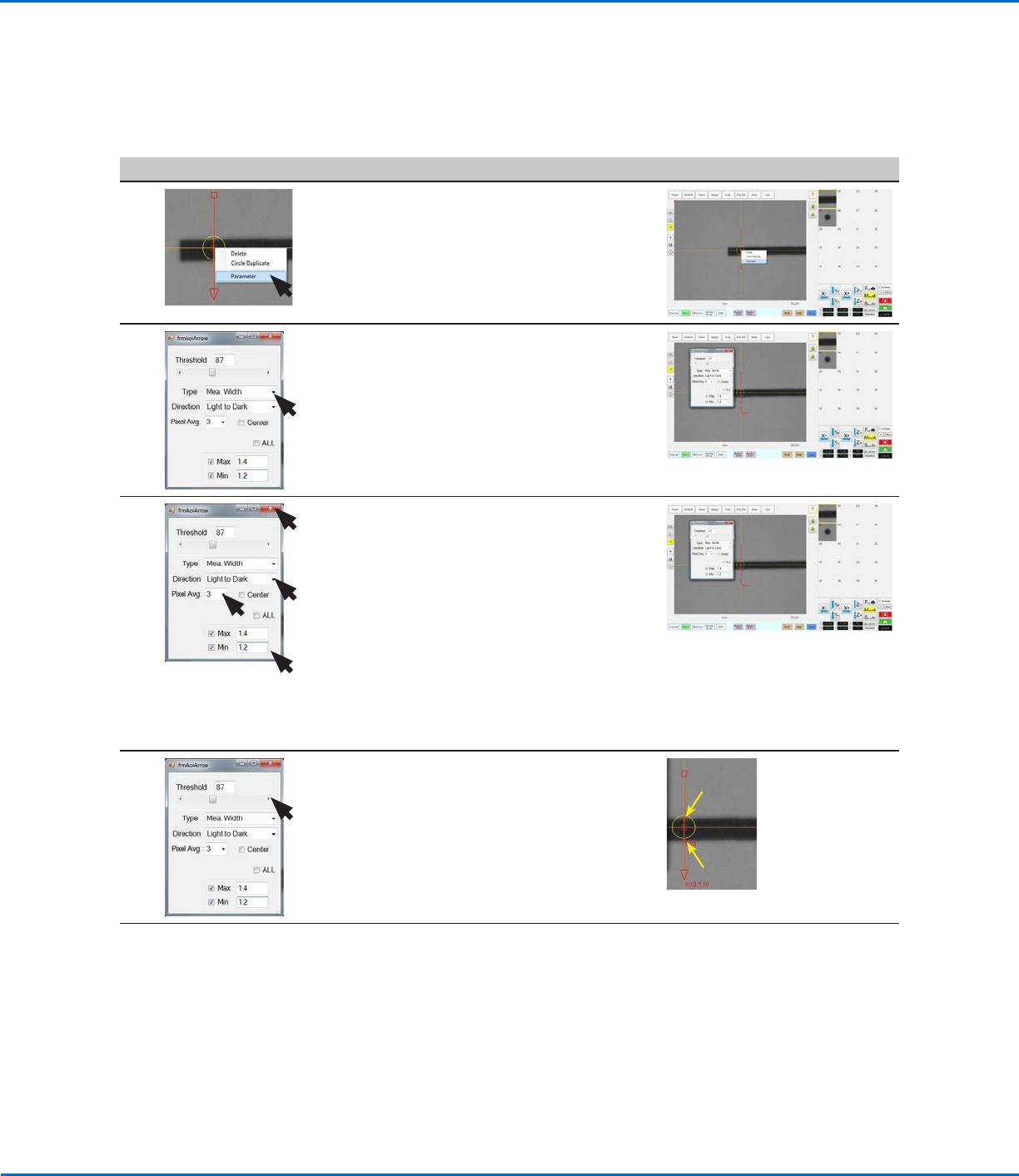
• Right-click the middle box (item4)
of the arrow and then select
PARAMETER.
The AOI Arrow window opens.
6 • For Type, select MEA. WIDTH.
7 • Select LIGHT TO DARK.
• Adjust PIXEL AVG to make the mark
image easier for the system to find.
• Check CENTER if you want to center
the image based on the image in the
mark library.
• For MAX, enter the maximum
allowable width of the line. The
displayed AVG (average) value is equal
to the line width.
• For MIN, enter the minimum allowable
width of the line.
8 • Adjust THRESHOLD until the two small
red circles (item 5) are positioned on
the top and bottom edges of the line.
• Close the dialog box to save the
settings.
5.
5.
The saved mark image is now ready to be used in a program to cause the
system to adjust the dispenser speed as necessary to maintain the width
of a dispensed line. Continue to “To Create a Program for Dispense Width
Adjustment” on page55 for an example dispense program.
OptiSure Automated Optical Inspection
55www.nordsonefd.com info@nordsonefd.com +1-401-431-7000 Sales and service of Nordson EFD dispensing systems are available worldwide.
Using the Arrow Types (continued)
Mea. Width Example for Dispense Width Adjustment (continued)
To Create a Program for Dispense Width Adjustment
# Click Step Reference Image
1
>
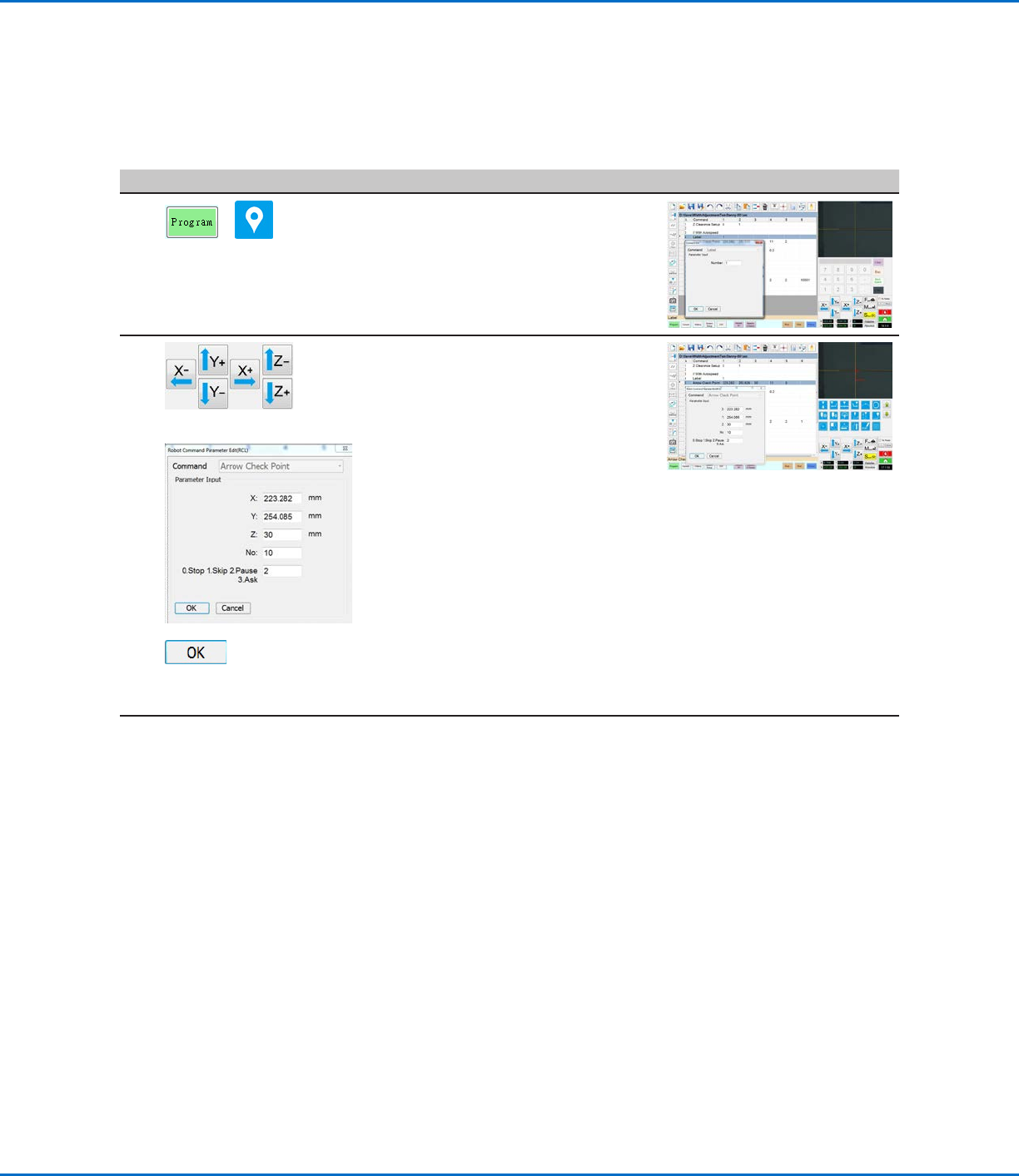
• Click the PROGRAM tab.
• Place the cursor in an empty
command address near the top of the
program and then click the LABEL
icon. In this example, the Label
Number is 1.
2
>
ARROW CHECK POINT >
>
• Jog the camera to the location on the
thinner line where you want the width
measurement to be checked during
subsequent dispenses.
• Under the LABEL command, insert
an ARROW CHECK POINT and enter
parameters as follows:
- Enter the number (No.) of the mark
image created for the thinner line in
the previous procedure (No. 10 in
this example).
- Select the action you want the
system to take if the measured line
section is above the Max value
or below the Min value specified
for the mark image (step 7 on
page54). Refer to “Arrow Check
Point” on page71 for details.
• Click OK.
Continued on next page
OptiSure Automated Optical Inspection
56 www.nordsonefd.com info@nordsonefd.com +1-401-431-7000 Sales and service of Nordson EFD dispensing systems are available worldwide.
Using the Arrow Types (continued)
# Click Step Reference Image
3
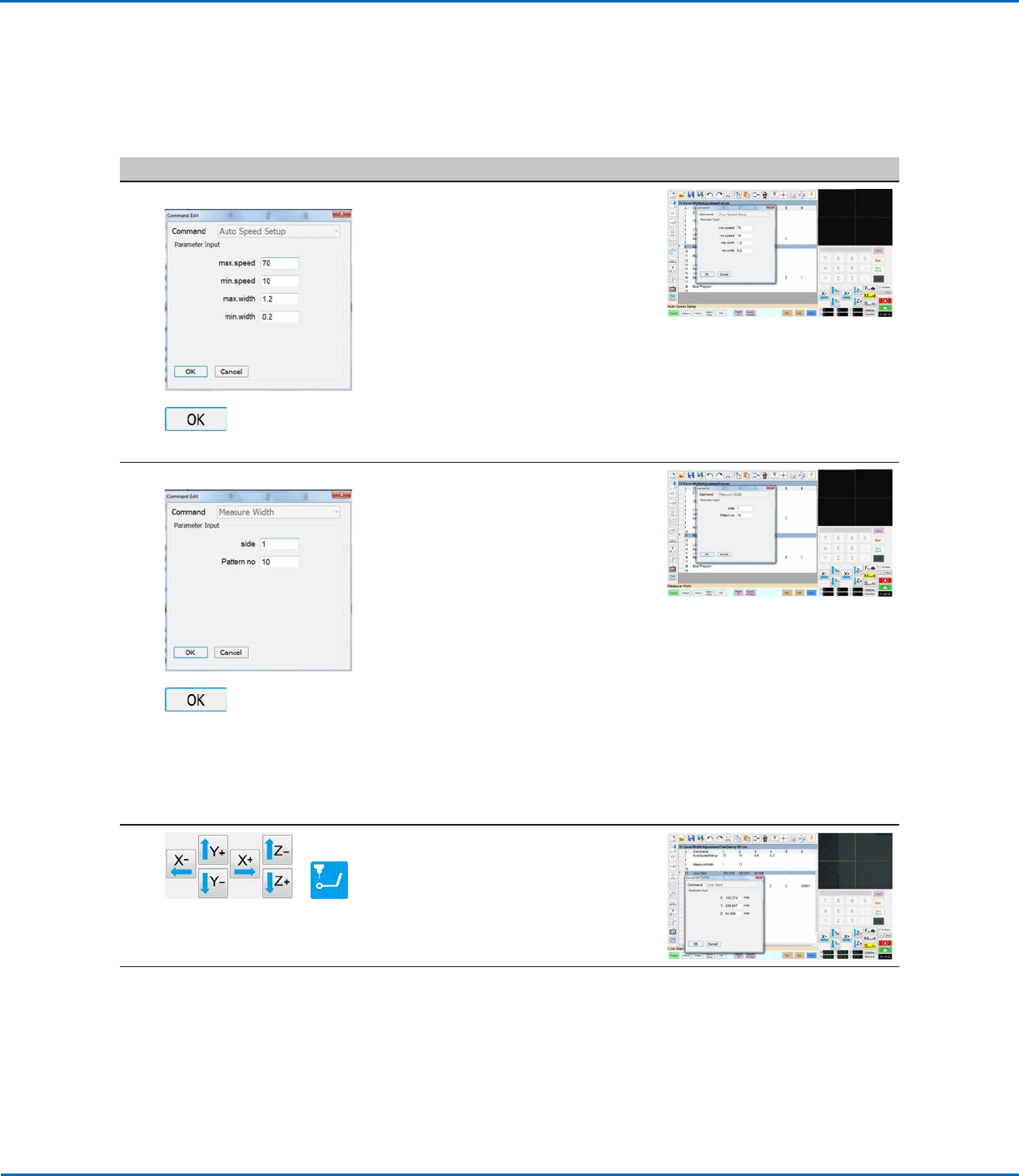
AUTO SPEED SETUP >
>
• Under the Arrow Check Point
command, insert an AUTO SPEED
SETUP command and enter
parameters as follows:
- Max. Speed: Enter the maximum
allowable robot line speed.
- Min. Speed: Enter the minimum
allowable robot line speed.
- Max. Width: Enter the maximum
allowable width of the line.
- Min. Width: Enter the minimum
allowable width of the line.
• Click OK.
4
MEASURE WIDTH >
>
• Under the Auto Speed Setup
command, insert a MEASURE WIDTH
command and enter parameters as
follows:
- Side: Enter a SIDE number to
specify the line to be measured
(refer to “Auto Speed” on
page72 for a diagram that
explains this parameter).
- Pattern No: Enter the number of the
mark image created for the line in
the previous procedure (No. 10 in
this example).
• Click OK.
NOTE: This command measures the
width of the dispensed line using the
coordinates specified in the Arrow
Check Point command.
5
>
• Jog the camera to the beginning of
the thinner line.
• In the next empty command address,
enter a LINE START command.
Continued on next page
Mea. Width Example for Dispense Width Adjustment (continued)
To Create a Program for Dispense Width Adjustment (continued)