Nordson_EFD_OptiSure_Operating_Manual.pdf - 第50页
OptiSure Automated Optical Inspection 50 www.nordsonefd.com info@nordsonefd.com +1-401-431-7000 Sales and service of Nordson EFD dispensing systems are available worldwide. Using the Arr ow T ypes (continued) Mea. Width …
OptiSure Automated Optical Inspection
49www.nordsonefd.com info@nordsonefd.com +1-401-431-7000 Sales and service of Nordson EFD dispensing systems are available worldwide.
Using the Arrow Types (continued)
# Click Step Reference Image
4
1.
2.
3.
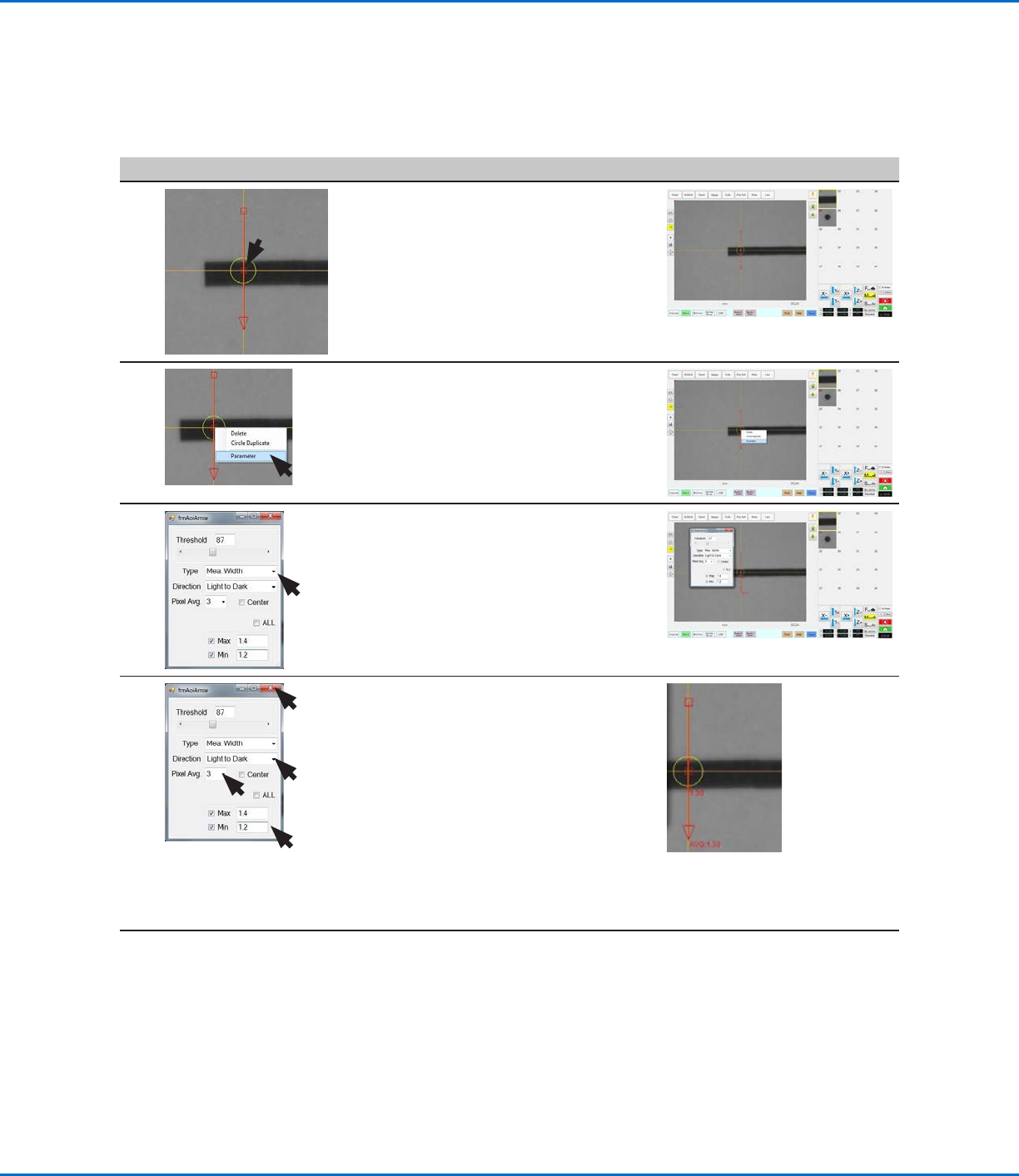
• Use the mouse to drag the arrow to
the line:
- To move the entire arrow, click and
drag the middle box (item 1).
- To elongate or shorten the arrow,
click and drag the arrow point
(item2) or the upper box (item 3).
5
4.
• Right-click the middle box (item4)
of the arrow and then select
PARAMETER.
The AOI Arrow window opens.
6 • For Type, select MEA. WIDTH.
7 • Select LIGHT TO DARK.
• Adjust PIXEL AVG to make the mark
image easier for the system to find.
• Check CENTER if you want to center
the image based on the image in the
mark library.
• For MAX, enter the maximum
allowable width of the line. The
displayed AVG (average) value is equal
to the line width.
• For MIN, enter the minimum allowable
width of the line.
Continued on next page
Mea. Width Example for Verifying Line Width (continued)
To Create a Mark Image for the Desired Line Dispense (continued)
OptiSure Automated Optical Inspection
50 www.nordsonefd.com info@nordsonefd.com +1-401-431-7000 Sales and service of Nordson EFD dispensing systems are available worldwide.
Using the Arrow Types (continued)
Mea. Width Example for Verifying Line Width (continued)
To Create a Mark Image for the Desired Line Dispense (continued)
# Click Step Reference Image
8
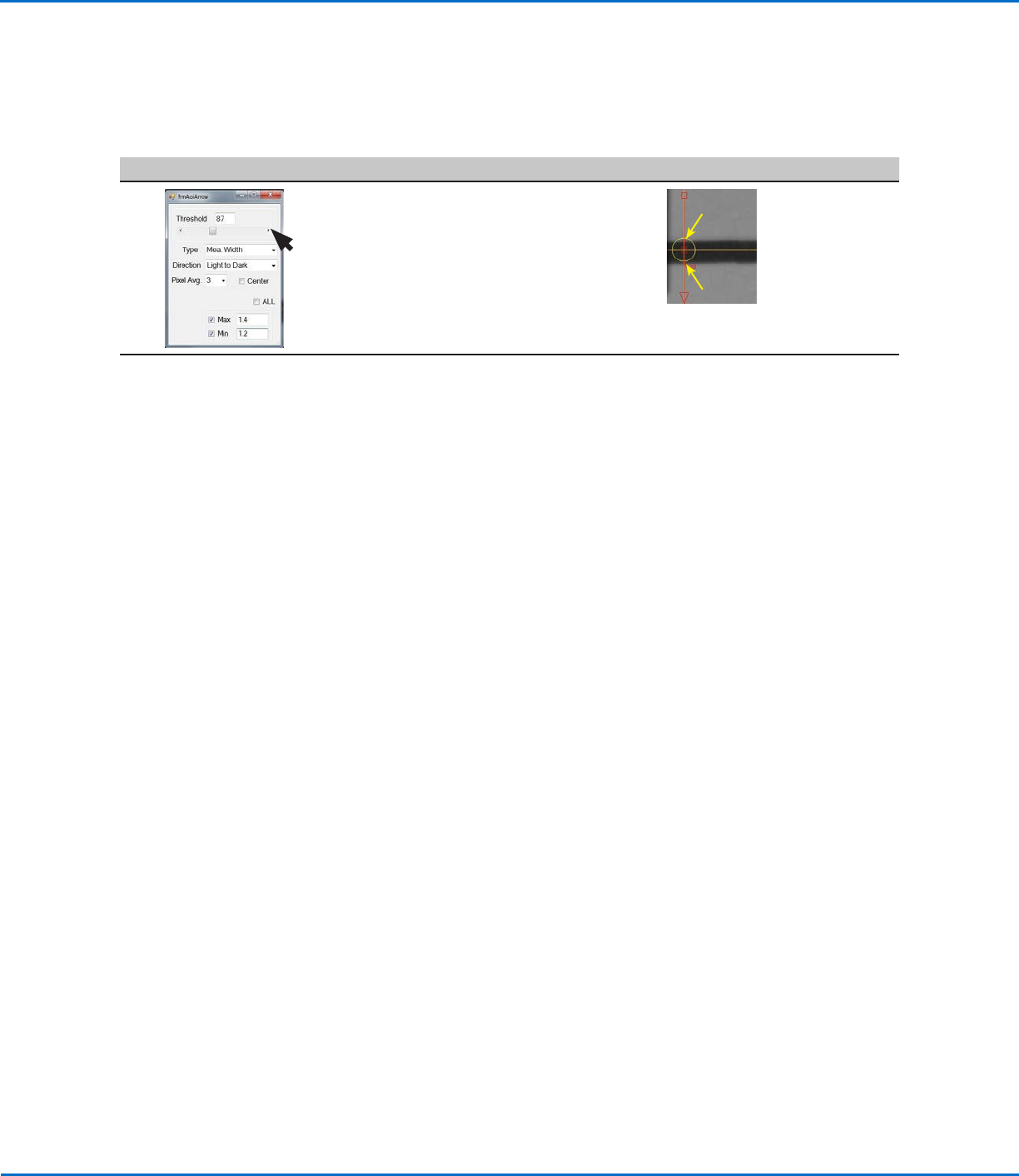
• Adjust THRESHOLD until the two small
red circles (item 5) are positioned on
the top and bottom edges of the line.
• Close the dialog box to save the
settings.
5.
5.
The saved mark image is now ready to be used in a program to check the
width of a dispensed line:
- If you want the system to check the width of a complete line, use Arrow
Check Line. Continue to “To Use Arrow Check Line in a Program (Mea.
Width Example for Verifying Line Width)” on page51.
- If you want the system to check the width of a section of line, use Arrow
Check Point. Continue to “To Use Arrow Check Point in a Program
(Mea. Width Example for Verifying Line Width)” on page52.
OptiSure Automated Optical Inspection
51www.nordsonefd.com info@nordsonefd.com +1-401-431-7000 Sales and service of Nordson EFD dispensing systems are available worldwide.
To Use Arrow Check Line in a Program (Mea. Width Example for Verifying Line Width)
# Click Step Reference Image
1
> ARROW CHECK
LINE >
>
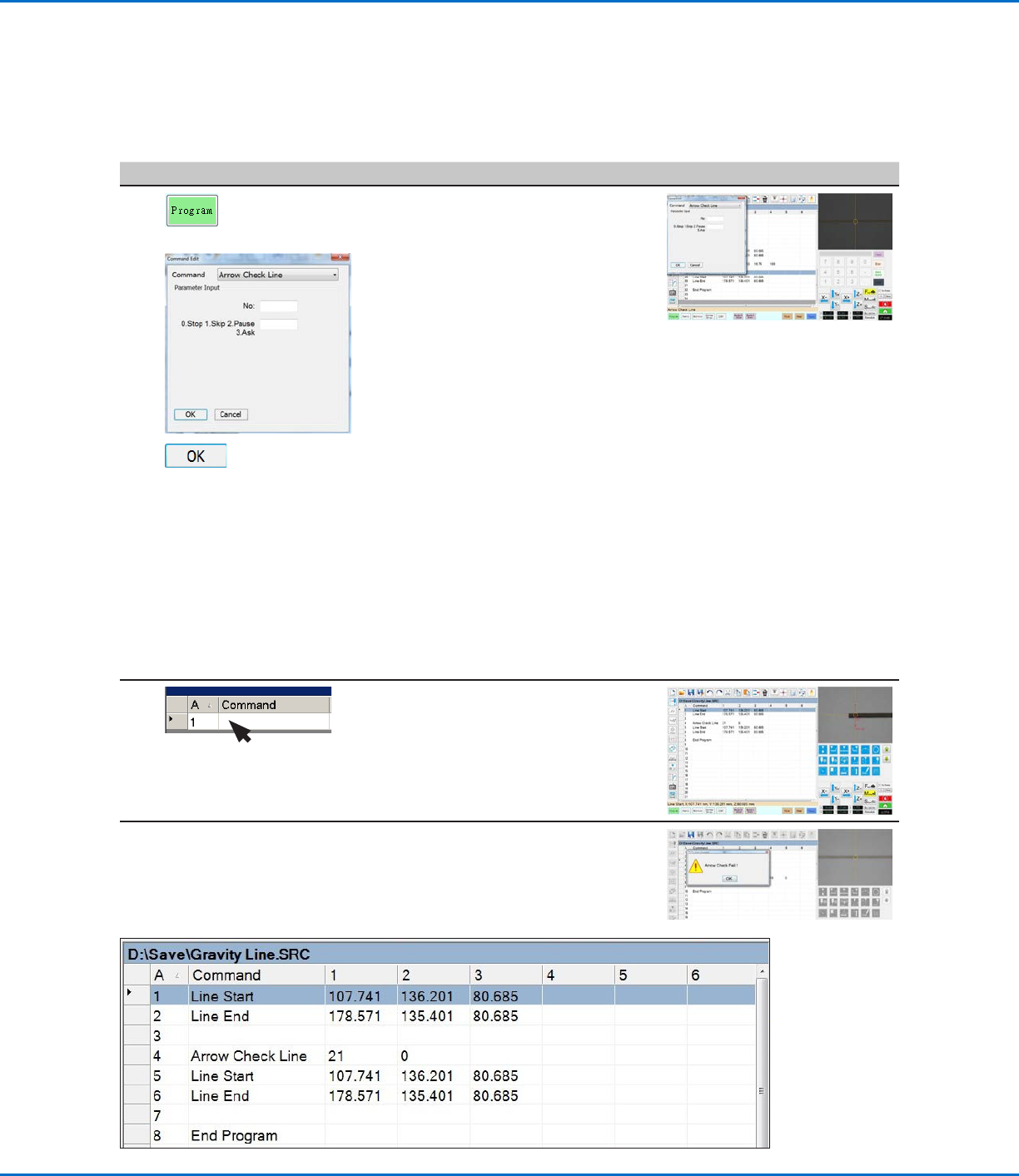
• Click the PROGRAM tab.
• Insert commands to dispense a line
directly over the line on the workpiece
template.
NOTE: The complete example
program is provided below.
• Jog the camera to a location on the
line where you want the system to
check the width of the middle of a line
section.
• Insert an ARROW CHECK LINE
command and enter parameters as
follows:
- Enter the number (No.) of the mark
image created in the previous
procedure.
- Select the action you want the
system to take if the measured line
section is above the Max value
or below the Min value specified
for the mark image (step 7 on
page49). Refer to “Arrow Check
Line” on page72 for details.
• Click OK.
2 • Under the Arrow Check Line
command, insert Line Start and Line
End commands that include the
coordinates for the start and end
points of the line you want the system
to check.
When the system executes the Arrow Check Line command and
finds an unacceptable line section, it takes the action specified by the
Stop, Skip, Pause, Ask parameter. Refer to “Arrow Check Line” on
page72 for details.
NOTE: The complete example program is provided below.
Using the Arrow Types (continued)
Mea. Width Example for Verifying Line Width (continued)
Example program that contains an Arrow Check Line command for verifying line width