Nordson_EFD_OptiSure_Operating_Manual.pdf - 第14页
OptiSure Automated Optical Inspection 14 www.nordsonefd.com info@nordsonefd.com +1-401-431-7000 Sales and service of Nordson EFD dispensing systems are available worldwide. Using the Arr ow T ypes The Add New Arrow icon …
OptiSure Automated Optical Inspection
13www.nordsonefd.com info@nordsonefd.com +1-401-431-7000 Sales and service of Nordson EFD dispensing systems are available worldwide.
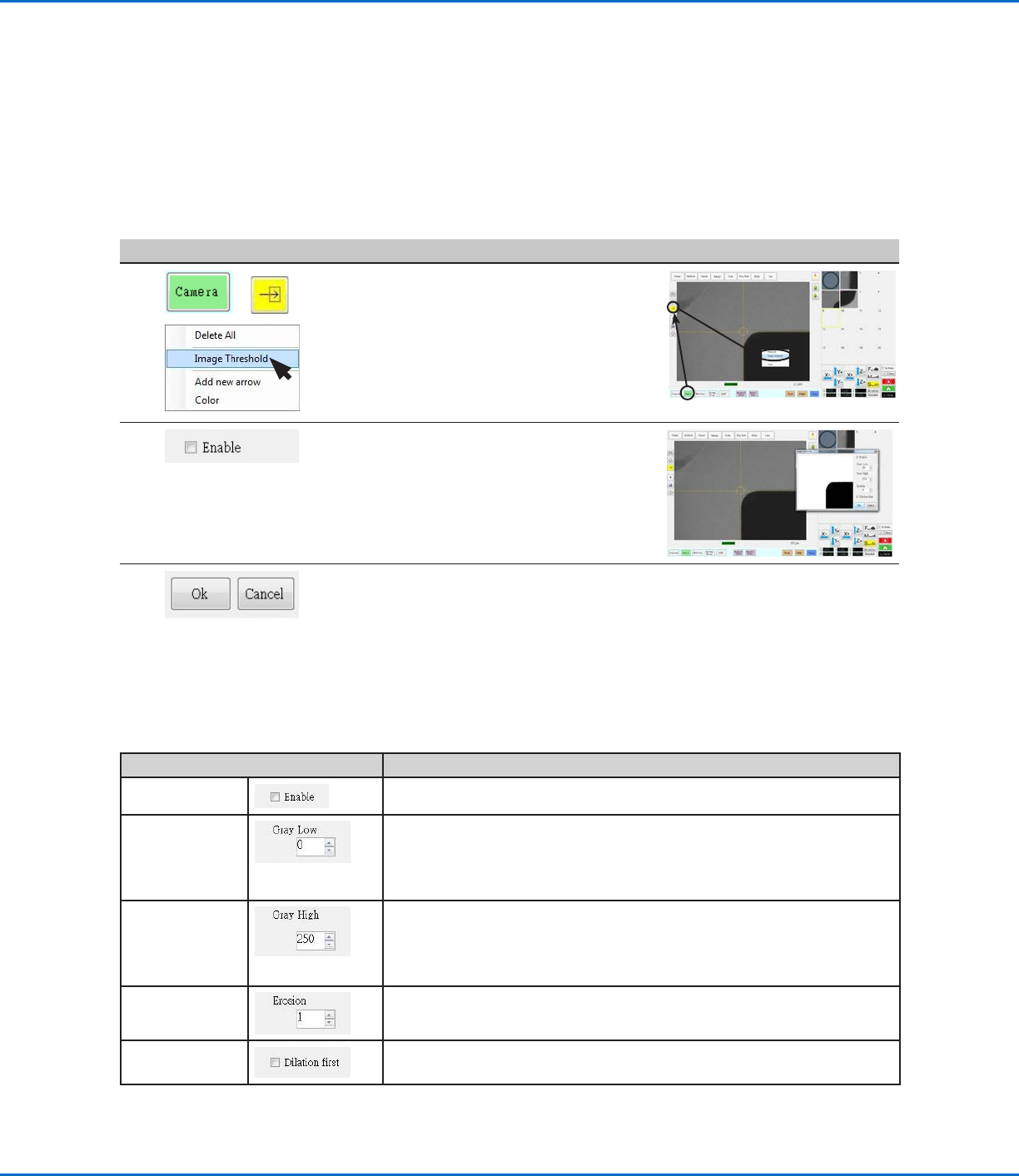
Using Image Threshold
Image Threshold allows you to view changes to a mark image as you make adjustments. This feature can be used
alone or in tandem with an Add New Arrow function. Nordson EFD recommends first using Image Threshold before
using some of the Arrow Type functions, so that you can view the changes to the image on the screen.
NOTE: A quicker alternative to using Image Threshold is to use the Threshold slider inside each Arrow Type dialog
box. If you want to use the quicker method, do not enable Image Threshold.
PREREQUISITES
The mark image you want to adjust is saved in the Mark Library.
# Click Step Reference Image
1
> >
• Click CAMERA to go to the camera
screen.
• Click the ARROW icon.
• In the Primary View screen, right-click
and select IMAGE THRESHOLD.
The Image Threshold window opens.
2 • In the Image Threshold window, select
the Enable checkbox.
• Adjust the Image Threshold settings
until you have successfully isolated
the mark. Refer to “Image Threshold
Window Parameters” for details.
3 • Click OK to save the adjustments or
click CANCEL to exit without saving.
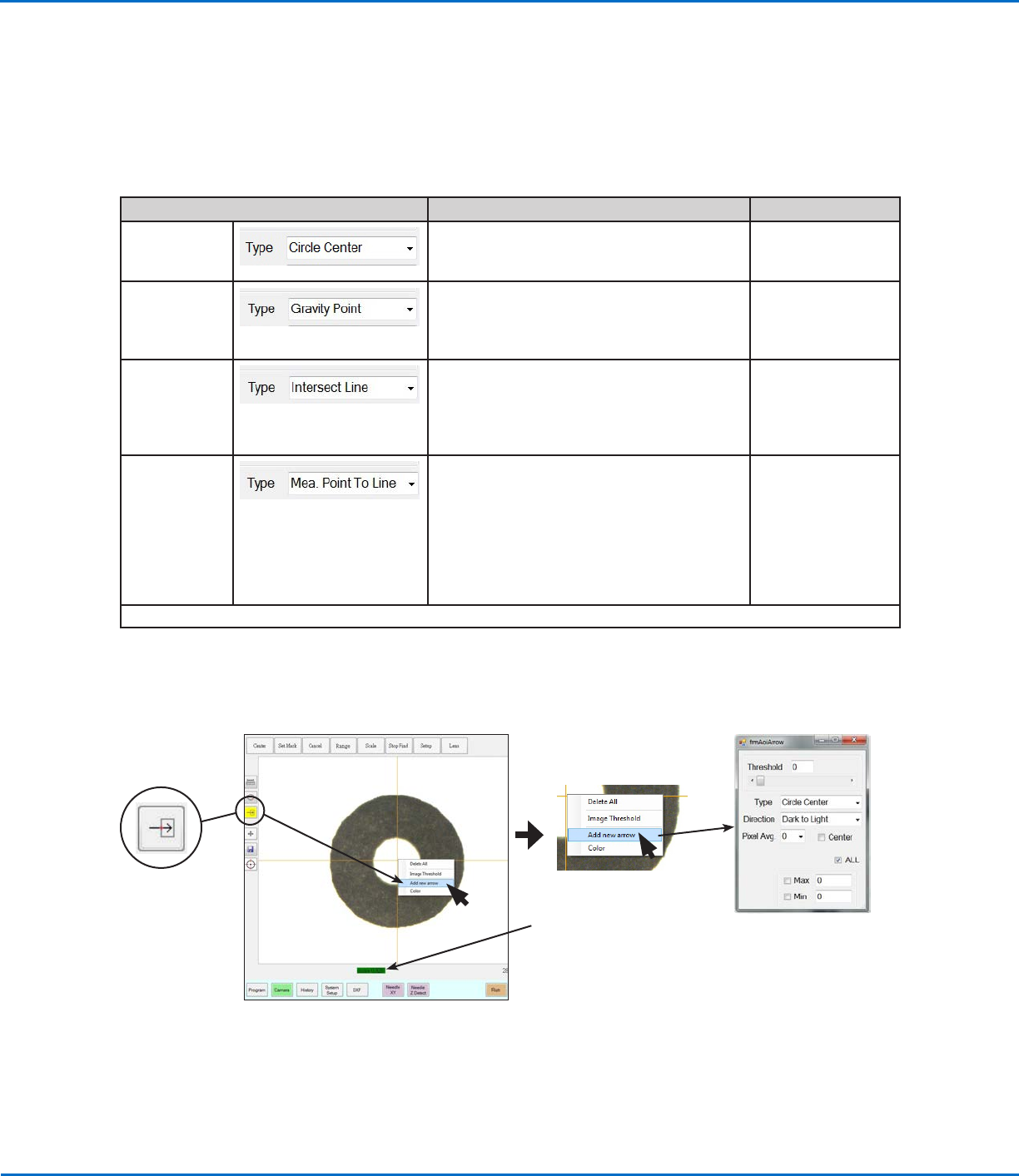
Image Threshold Window Parameters
Parameter Function
Enable
If checked, enables the Image Threshold function.
Gray Low Adjusts the minimum value of the threshold — the lower the setting, the
less visible the image will be; when a valid setting is entered, the image is
visible on the screen.
Range: 0–255 (0 is full dark; 255 is full white)
Gray High
Adjusts the maximum value of the threshold — if the maximum value is
exceeded, the image will not be visible; when a valid setting is entered, the
image is visible on the screen.
Range: 0–255
Erosion
Reduces and then enlarges the image to remove impurities (as long as
Dilation First is not checked).
Dilation
If checked, enlarges and then reduces the image to remove impurities.
OptiSure Automated Optical Inspection
14 www.nordsonefd.com info@nordsonefd.com +1-401-431-7000 Sales and service of Nordson EFD dispensing systems are available worldwide.
Using the Arrow Types
The Add New Arrow icon accesses advanced features that allow you to:
• Add details to a mark image to improve the system’s ability to match the mark image to the corresponding
location on a workpiece.
• Verify the width, length, or depth of a dispense based on parameters saved in a mark image.
There are five types of arrow function, shown below. An example procedure for using each function is provided.
Arrow Menu Type Selection Recommended Use Refer to...
Circle Center
Create a mark image that defines the
center of a circular area with poorly defined
boundaries.
“Circle Center
Example” on
page23
Gravity Point
Create two mark images on a line so that you
can use Fiducial Marks to ensure that line
dispenses are made down the center of a line,
regardless of its thickness.
“Gravity Point
Example” on
page18
Intersect Line
Create a mark image for a workpiece that
does not have any obvious marks for the
system to find; in this case, you must use the
upper left and bottom right corners of the
workpiece to create marks.
“Intersect Line
Example” on
page37
Mea. Point To
Line
Create a mark image that allows you to
measure the width between any two points
on a line. Then, using the Arrow Check Point
command, the system can check the width
between the specified points; if the width
does not meet the criteria specified within the
mark image, the system takes the specified
action.
“Mea. Point To
Line Example” on
page43
Continued on next page
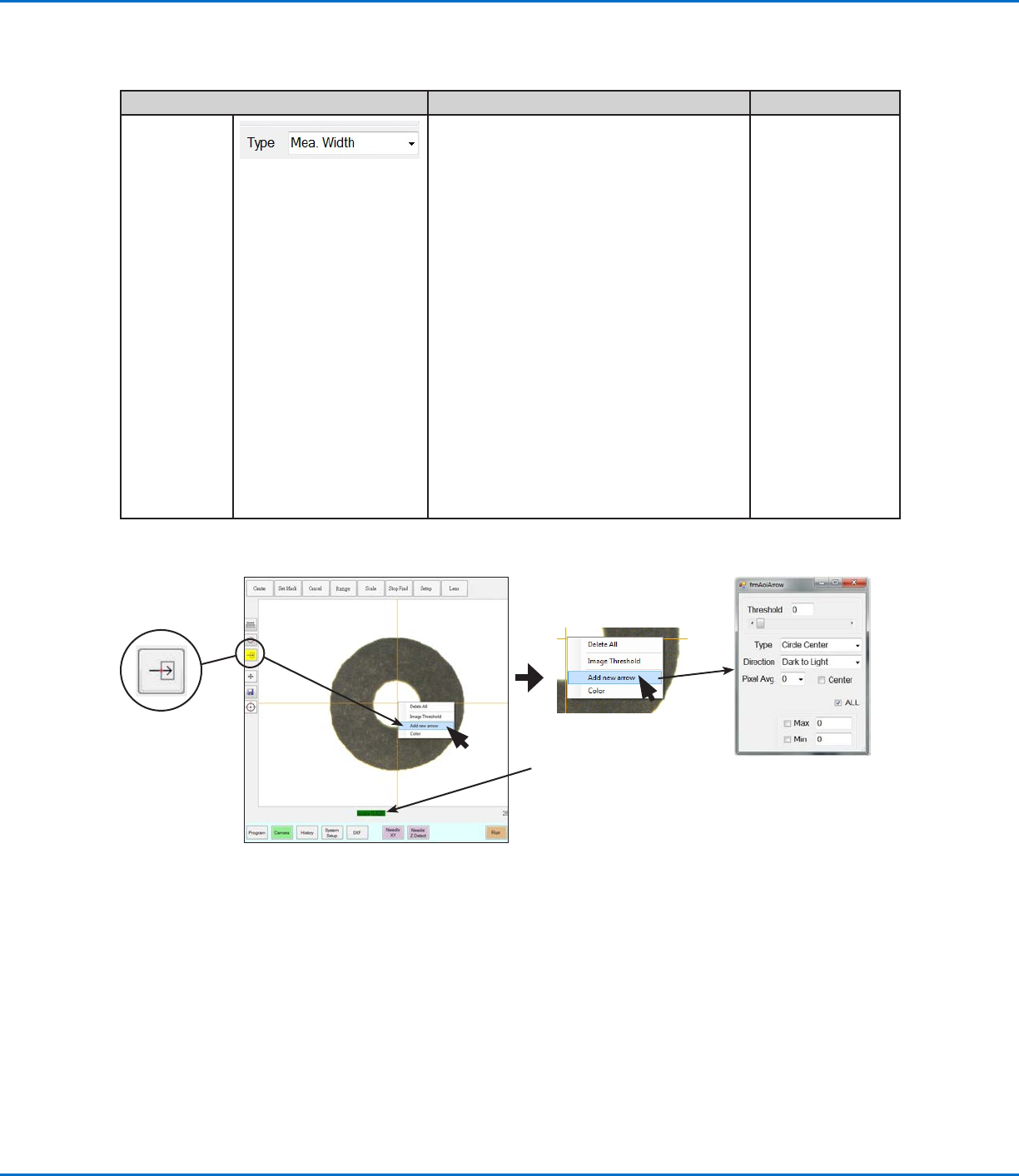
Accessing the Add New Arrow function on the Camera tab, and the resulting AOI Arrow parameter window
NOTE: Refer to “AOI Arrow
Window Elements” on
page16 for details.
NOTE: AOI measurements
are displayed here, and will
stay on the screen even if you
click outside the AOI feature.
However, if you click Needle XY
Adjust, Score will replace the AOI
measurement.
OptiSure Automated Optical Inspection
15www.nordsonefd.com info@nordsonefd.com +1-401-431-7000 Sales and service of Nordson EFD dispensing systems are available worldwide.
Arrow Menu Type Selection Recommended Use Refer to...
Mea. Width
(Automated
Optical
Inspection)
Create a mark image that sets the desired
width for a line; this mark image can then be
used as follows:
• When used with the Arrow Check
Point or Arrow Check Line commands,
the system can check the width of a
dispensed line; if the dispensed line does
not meet the criteria specified within
the mark image, the system takes the
specified action.
“Mea. Width
Example for
Verifying Line
Width” on
page48
• When used with the Auto Speed Setup,
Measure Width, and Auto Speed
commands, the system can automatically
adjust the speed of the dispenser to
maintain the desired line width for
specified line dispenses.
NOTE: This capability can be used only
when the main.bas file has been added
to the D:\ever_sr directory. Contact your
Nordson EFD representative to obtain
this file.
“Mea. Width
Example for
Dispense Width
Adjustment” on
page53
Using the Arrow Types (continued)
Accessing the Add New Arrow function on the Camera tab, and the resulting AOI Arrow parameter window
NOTE: Refer to “AOI Arrow
Window Elements” on
page16 for details.
NOTE: AOI measurements
are displayed here, and will
stay on the screen even if you
click outside the AOI feature.
However, if you click Needle XY
Adjust, Score will replace the AOI
measurement.