Nordson_EFD_OptiSure_Operating_Manual.pdf - 第36页
OptiSure Automated Optical Inspection 36 www.nordsonefd.com info@nordsonefd.com +1-401-431-7000 Sales and service of Nordson EFD dispensing systems are available worldwide. Example program using Positional Checking and S…
OptiSure Automated Optical Inspection
35www.nordsonefd.com info@nordsonefd.com +1-401-431-7000 Sales and service of Nordson EFD dispensing systems are available worldwide.
# Click Step Reference Image
11
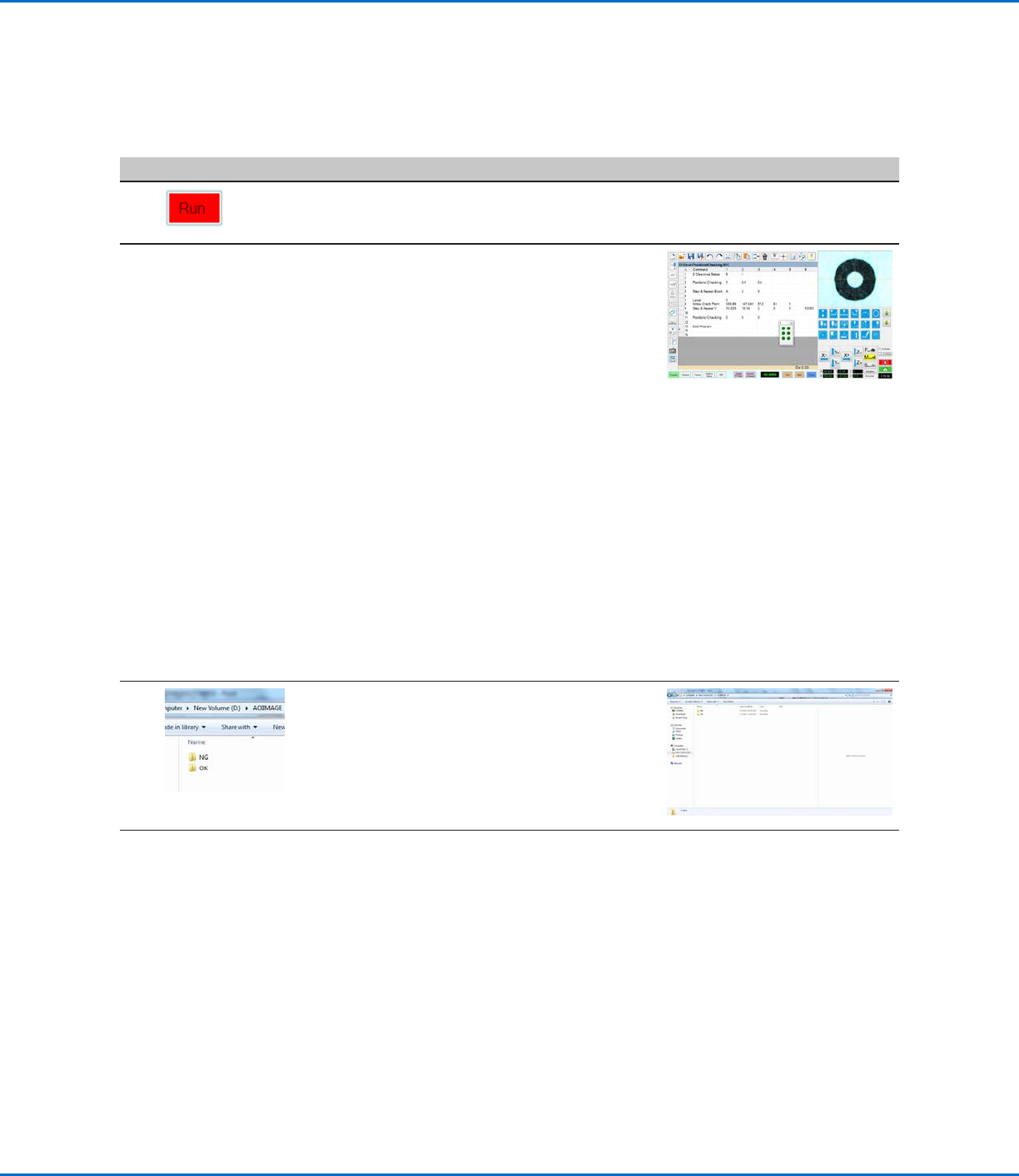
• Click RUN to view the program
and to observe the results of the
Positional Checking.
As the program runs, the following occurs:
• A window opens to show green or red dots (for this example, in a
grid of two columns and threerows), indicating whether a deposit
(the white dot) passes (green) or fails (red):
- Pass: The deposit is within both Offset X and Offset Y values.
- Fail: The deposit is outside one or both of the Offset X / OffsetY
values.
NOTES:
- The window is named A (from step 2 on page32).
- In this example, all dots are green because all white dots are
within the specified X and Y offsets.
• If a dot fails, the system takes the action specified by the Stop,
Skip, Pause, Ask parameter (Skip, in this example). Refer to “Arrow
Check Point” on page71 for details.
• Screen captures of both passed and failed dots are saved as
images and named automatically.
NOTE: If the screen captures are not automatically saved, ensure
that the Save Images checkbox in System Setup is selected. Refer
to “Setting Up the System to Save Images” on page9 for
details.
12 • To view the images of the marks,
use the file explorer application to
navigate to D:\AOIIMAGE:
- Dots that passed (green) are
saved in the OK folder.
- Dots that did not pass (red) are
saved in the NG folder.
Continued on next page
Using the Arrow Types (continued)
Positional Checking Example (continued)
To Use Positional Checking in a Program (continued)
OptiSure Automated Optical Inspection
36 www.nordsonefd.com info@nordsonefd.com +1-401-431-7000 Sales and service of Nordson EFD dispensing systems are available worldwide.
Example program using Positional Checking and Step & Repeat commands to check dispensed dots
# Click Step Reference Image
13
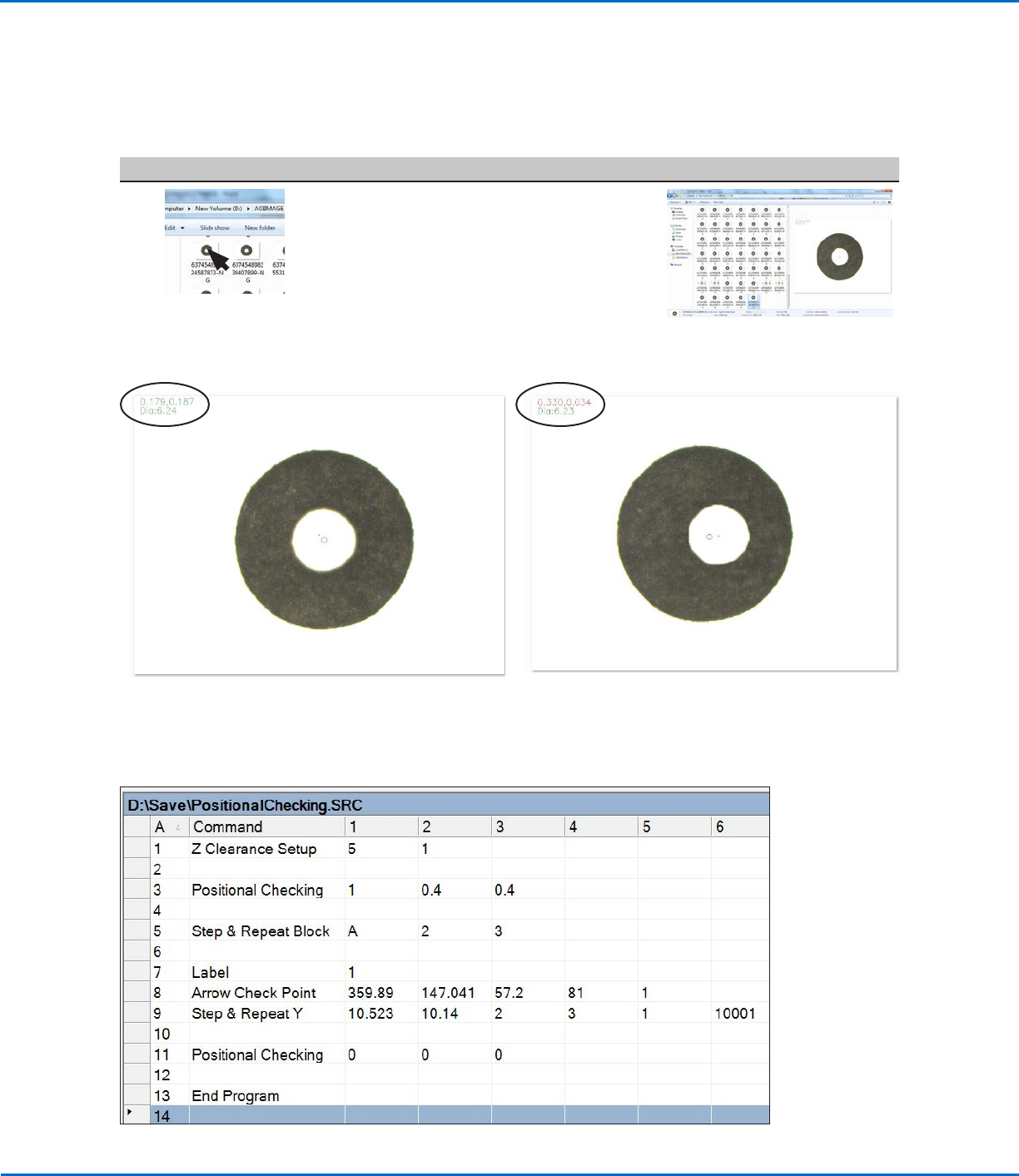
• Open an image to view more
information, including Diameter and
X and Y offsets. Example images
for both a passed and failed dot are
provided below.
Positional Checking Example (continued)
To Use Positional Checking in a Program (continued)
Using the Arrow Types (continued)
Location of diameter and offset details in the image of a dot that
PASSED a positional check
Location of diameter and offset details in the image of a dot
that FAILED a positional check
OptiSure Automated Optical Inspection
37www.nordsonefd.com info@nordsonefd.com +1-401-431-7000 Sales and service of Nordson EFD dispensing systems are available worldwide.
Intersect Line Example
Intersect Line is an OptiSureAOI feature that allows you to create mark images for a workpiece that does not have
any obvious features. To do so, you create marks using the corners and edges of the workpiece. This function also
works for creating marks for an R-shaped area.
NOTE: If the rounded corners are too large to use Intersect Line, try using the Edge Adjust command. Refer to the
operating manual for details.
PREREQUISITES
To learn how to use this feature, draw a large black rectangle with rounded corners on a sheet of white paper
and use it as a workpiece template.
To Create an Intersect Line Mark Image
# Click Step Reference Image
1
> >
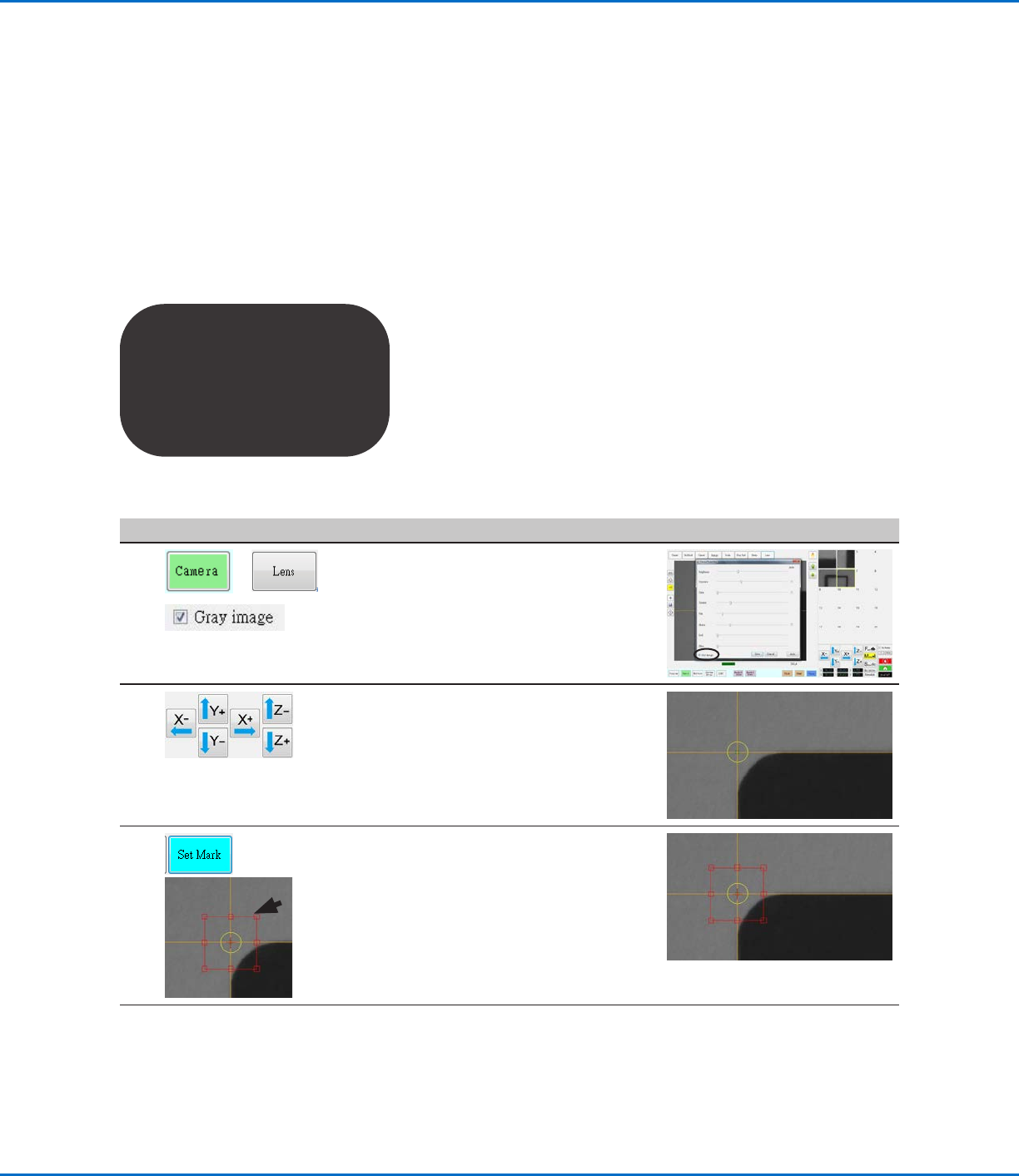
• Click CAMERA > LENS.
• Select the GRAY IMAGE checkbox.
NOTE: Selecting Gray image is
optional, but doing so provides
a sharper image and also slightly
zooms out the image.
2 • Jog the camera to the top left
corner of the workpiece template,
positioning the crosshairs along the
top and left sides of the template.
3
>
• Click SET MARK, then drag to
position the red box at the top left
corner of the workpiece template.
NOTE: If needed, refer to the robot
operating manual for a detailed
procedure on how to create a mark.
Continued on next page
Using the Arrow Types (continued)