00193872_Install_WinXP_manual.pdf - 第12页
Installation Manual for Windows XP (manual setup) Edition 04/2006 The following dialog appea rs: Fig. 2-13: Windows XP: Wait → Wait until installation ha s copied all files. This might take approxim ately 30 minutes. Win…
Installation Manual for Windows XP (manual setup) Edition 04/2006
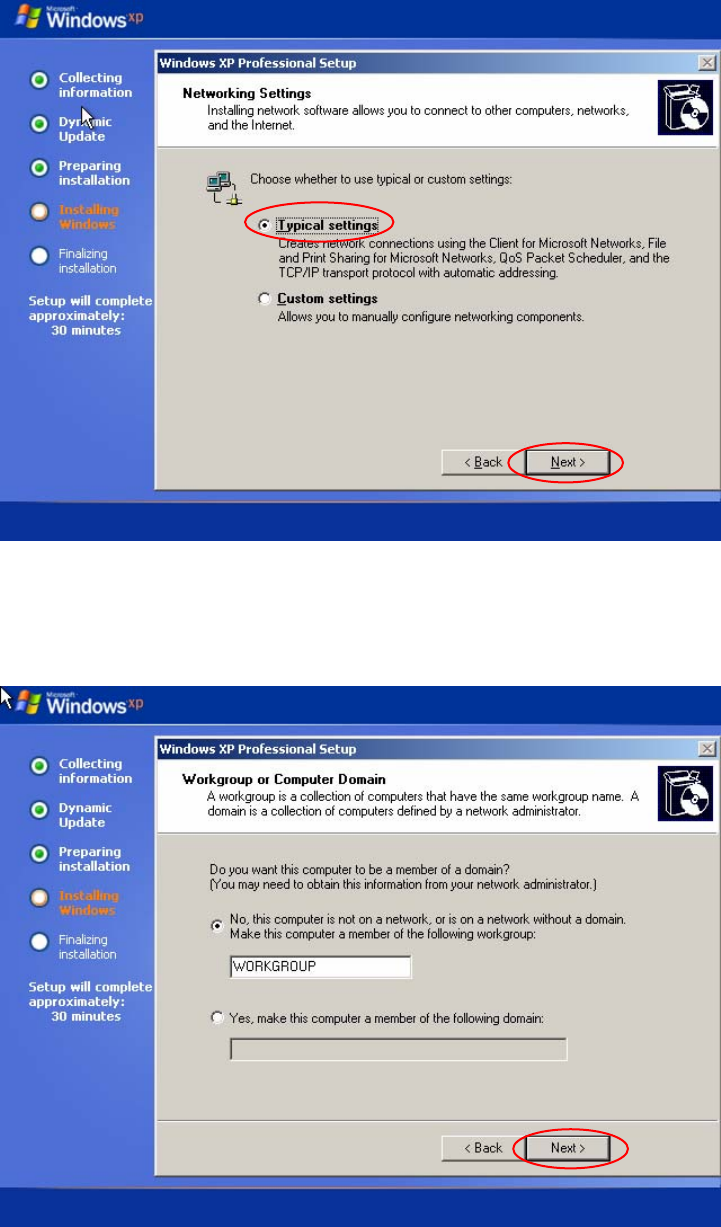
Fig. 2-11: Windows XP: Networking Settings
→ Choose "Typical Settings"
→ Click the button Next>.
The following dialog appears:
Fig. 2-12: Windows XP: Workgroup or Computer Domain
→ Accept the settings (the setting for the domain follows later: see current documentation
"Integration to the customer domain", Item no.: 00193761-xx).
→ Click the button Next>.
11 / 37
Installation Manual for Windows XP (manual setup) Edition 04/2006
The following dialog appears:
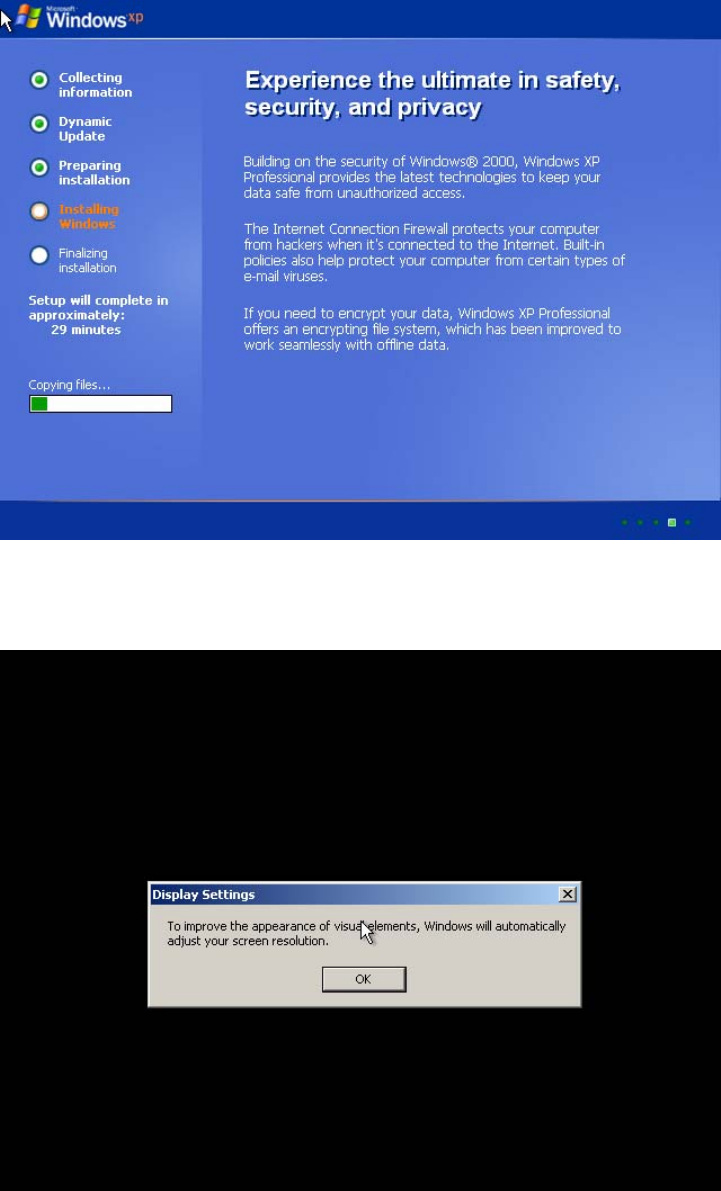
Fig. 2-13: Windows XP: Wait
→ Wait until installation has copied all files. This might take approximately 30 minutes.
Windows XP wants to adjust screen configuration automatically.
Fig. 2-14: Windows XP: Adjust your Screen
→ Click the button OK.
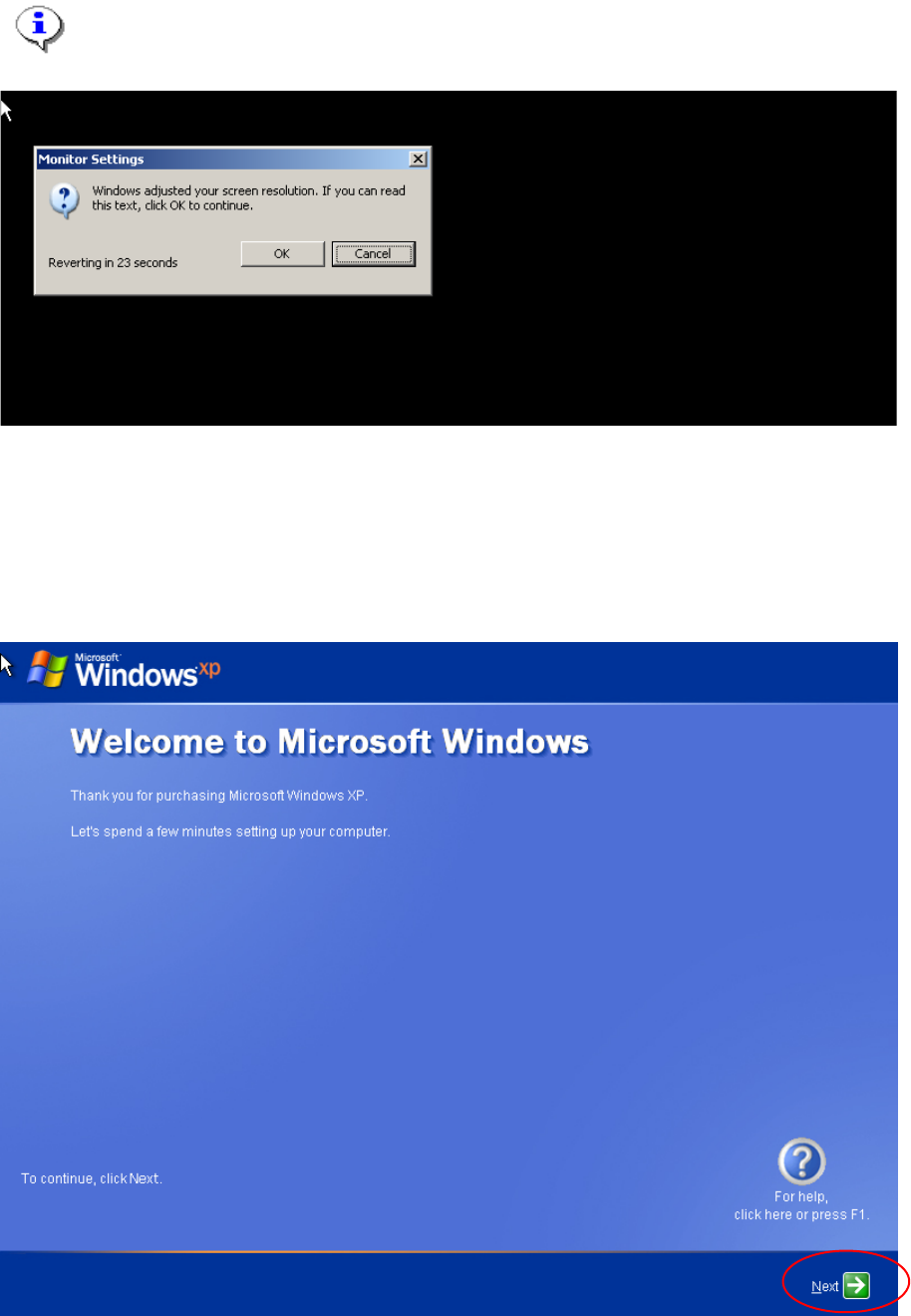
Windows XP is searching for a feasible screen resolution and configuration. You have some seconds
to accept the new found configuration, otherwise the system will use the old configuration.
12 / 37
Installation Manual for Windows XP (manual setup) Edition 04/2006
Note:
Windows can only find the driver software which is bundled on the Windows installation.
You can adjust the driver configuration after Windows installation completes.
Fig. 2-15: Windows XP: Monitor Settings
→ If you can see the dialog like in the above figure, click the button OK.
→ Otherwise wait until you can see the dialog.
Windows is booting the system.
→ Please wait.
→ You can continue the installation after the next screen
Fig. 2-16: Windows XP: Welcome
13 / 37