00193872_Install_WinXP_manual.pdf - 第14页
Installation Manual for Windows XP (manual setup) Edition 04/2006 → Click the button Ne xt . In the next dialog you can configure your network. Fig. 2-17: Windows XP: Internet connection → Select the “Local a rea network…
Installation Manual for Windows XP (manual setup) Edition 04/2006
Note:
Windows can only find the driver software which is bundled on the Windows installation.
You can adjust the driver configuration after Windows installation completes.
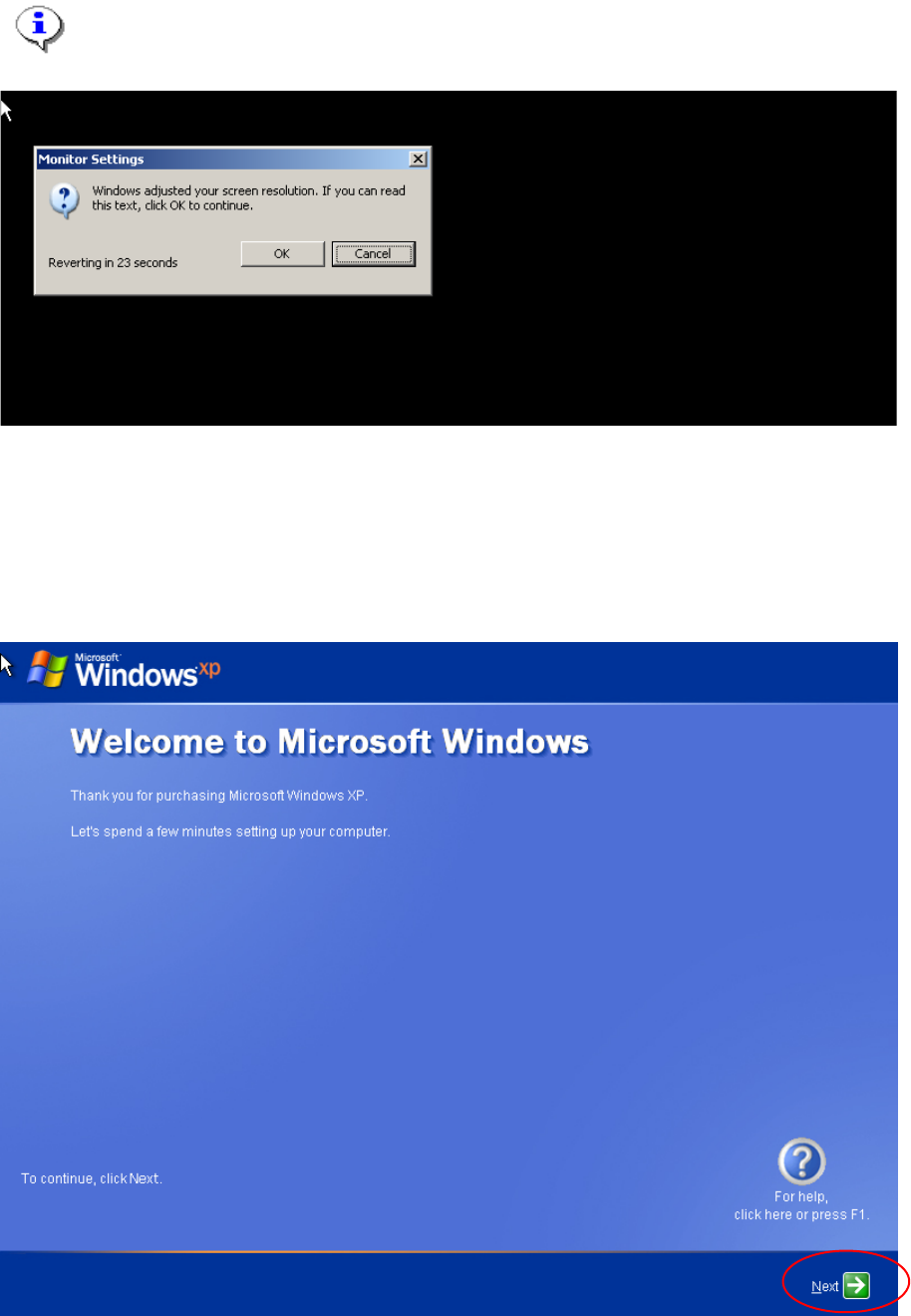
Fig. 2-15: Windows XP: Monitor Settings
→ If you can see the dialog like in the above figure, click the button OK.
→ Otherwise wait until you can see the dialog.
Windows is booting the system.
→ Please wait.
→ You can continue the installation after the next screen
Fig. 2-16: Windows XP: Welcome
13 / 37
Installation Manual for Windows XP (manual setup) Edition 04/2006
→ Click the button Next.
In the next dialog you can configure your network.
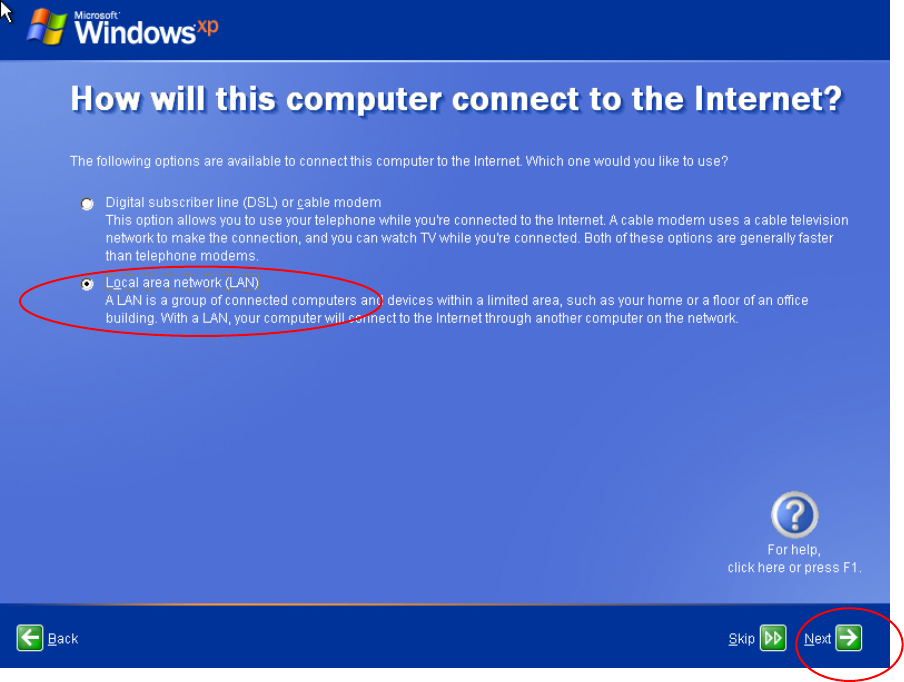
Fig. 2-17: Windows XP: Internet connection
→ Select the “Local area network (LAN)” option radio button.
→ Click the button Next.
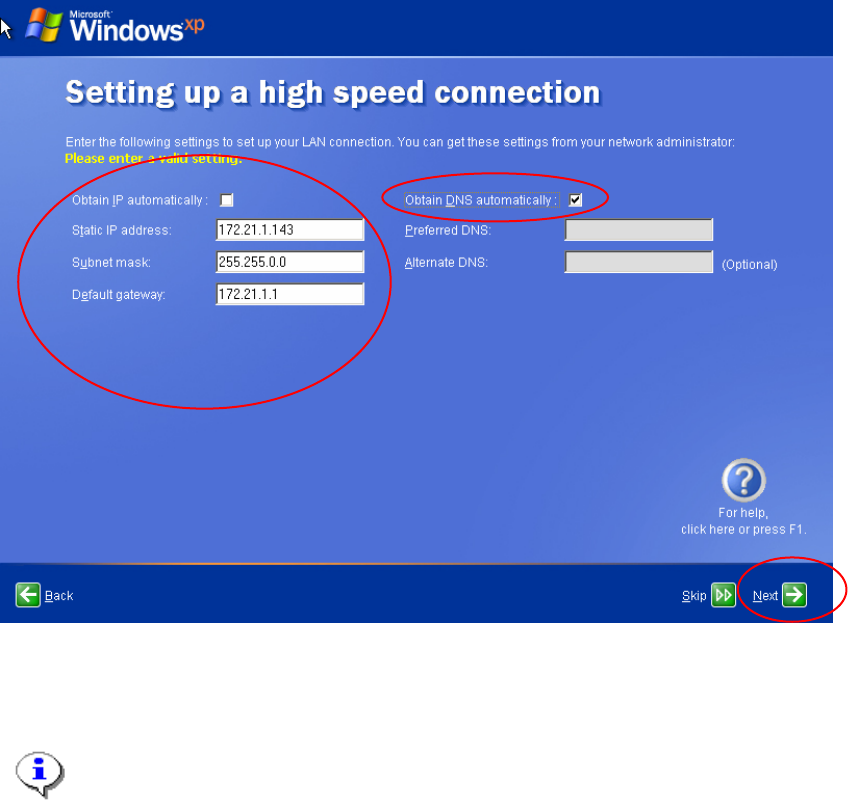
In the next dialog you have to specify the IP Configuration.
14 / 37
Installation Manual for Windows XP (manual setup) Edition 04/2006
Fig. 2-18: Windows XP: High Speed Connection
→ Enter the IP address as well as the network mask.
→ As a default you should specify the Default gateway to a fixed address like 172.21.1.1.
Note:
This configuration is for an island configuration. The customer might have other
configuration parameter here for you to enter.
→ Select "Obtain DNS automatically"
→ Click the button Next.
The next dialog asks for an online registration.
15 / 37